

Create
Turn your slide PDF into the lesson's slides
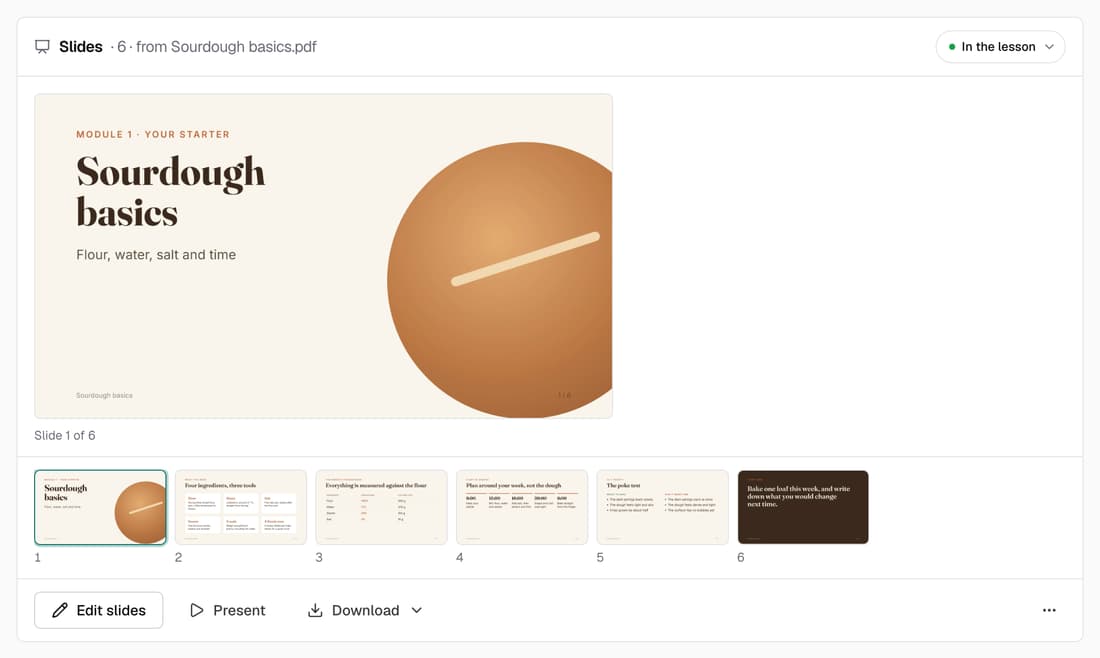
Drop a PDF of your slides on a lesson and each page becomes a slide, exactly as you designed it. In our test a 41-page deck was ready in about 20 seconds, with no AI and no credits used. Students page through it in the slide viewer, on a phone too.
What’s changed
Before, a PDF you added to a lesson could only sit in the lesson text as a document. Now a slide PDF becomes the lesson's slides, one page per slide, and students click through it like any other slides.
Who gets itSchools with a licence or Pro
How it works
- Export your deck from PowerPoint, Keynote or Google Slides as a PDF.
- Open a lesson and choose Upload a PDF in the Slides section.
- Watch the pages arrive, usually in under a minute.
- Students see them straight away. The Slides section shows In the lesson.
Good to know
- No AI runs and no credits are used. What you upload is what students see.
- Pages are kept sharp and uncropped. Only blank paper around a slide is trimmed.
- A PDF can have up to 80 pages. A longer one is added to the lesson as reading instead.
- Need a change? Edit the PDF and choose Replace with a new PDF from the ⋯ menu. Your earlier version stays in History.
- A portrait document, like a worksheet, can stay a PDF inside the lesson text instead.