
Not just a mini guide: six kinds of resource from one lesson
The walkthrough makes a checklist and a mini guide, but those are two of six. Studio builds every one of these from the same lesson, in the look you choose from your own branding.
- Ebook: a designed, sellable short book built from the whole course. About 20 to 28 pages.
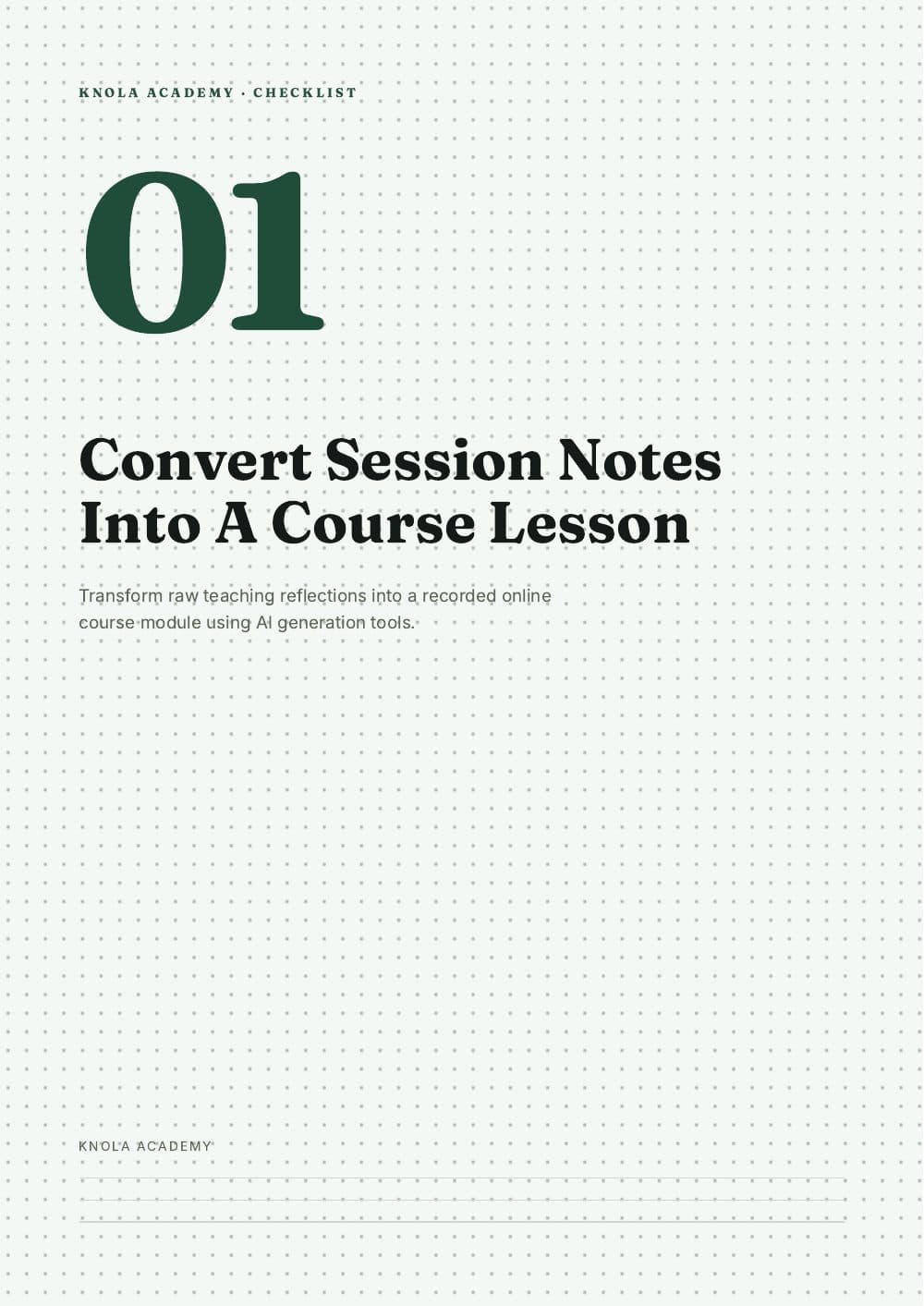
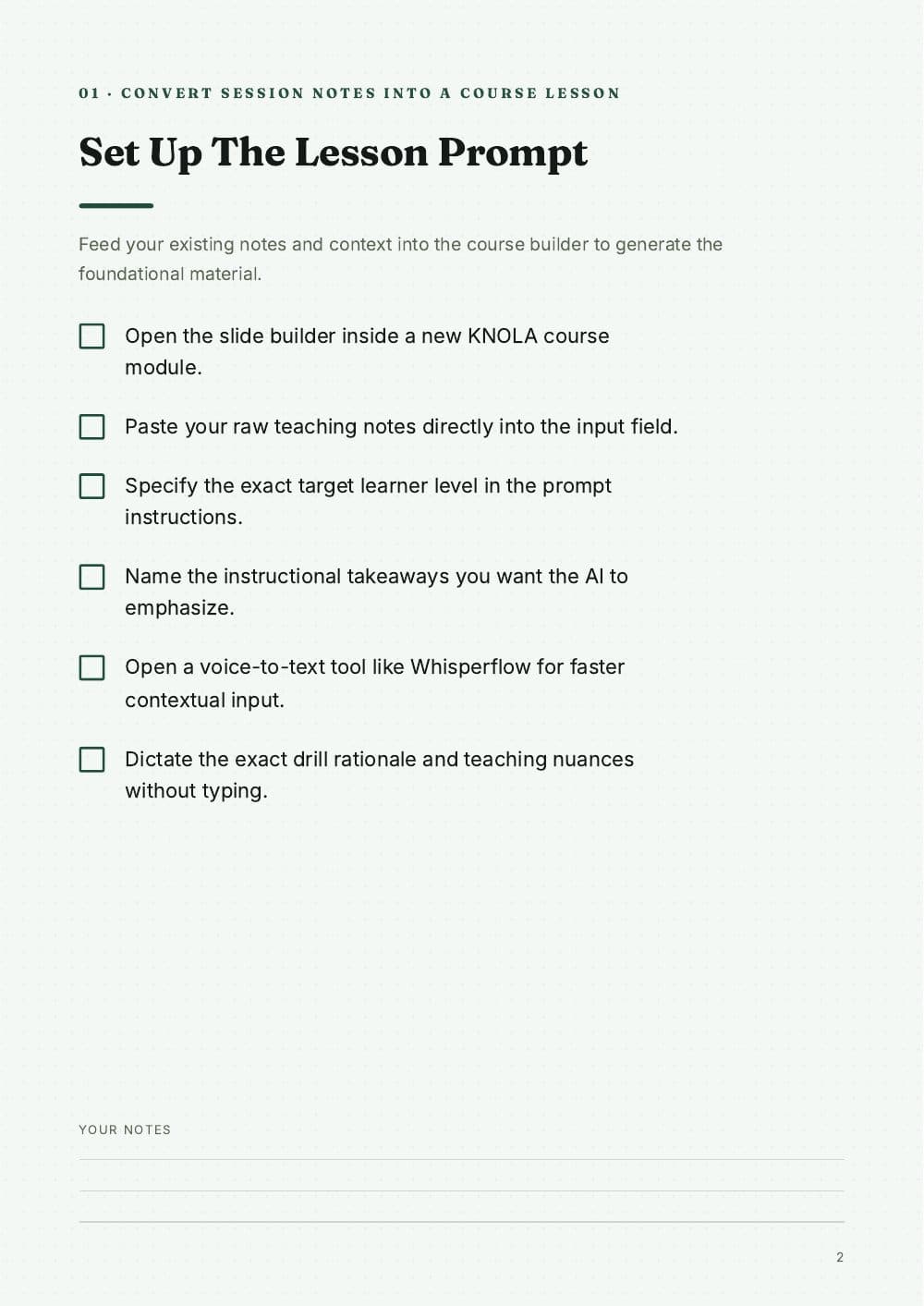
- Checklist: the tick-box sheet learners print and work through. About 5 pages.
- Mini guide: a short numbered walkthrough of one job, start to finish. About 6 pages.
- Worksheet: printable prompts with room to write, so learners do the thinking. About 5 pages.
- Swipe file: copy-and-paste lines and scripts, labelled by when to use them. About 6 pages.
- Glossary: the vocabulary of your field, defined in plain language. About 5 pages.
Give them away, offer them at checkout, deliver them with a course or sell them on their own.
Start with teaching you've already recorded
For this example, I use my own notes-to-lesson tutorial. The recording teaches course creators how to take their own notes and build a lesson presentation. The example in that recording is a football coaching session.
That distinction matters: the resources should help someone repeat the presentation-building process with their own material. A useful checklist follows the method being taught. A useful guide explains it in a form someone can revisit.
Your starting point could be a workshop you've delivered, a tutorial on your YouTube channel or a training video from an existing course.
How to turn a video into course resources
Step 1: Add your recording to a lesson
Create or open the lesson that should contain your teaching, then upload your original video file. Allow the upload and transcription to finish before drafting the written content.
I had already completed the upload when this walkthrough begins. I use my own file from a video also published on YouTube. You don't need to publish a video on YouTube first.
For the upload steps, see How to upload a lesson video.
Step 2: Draft and review the written lesson
Choose Draft from video to generate editable written lesson content from the recording's transcript. The result in this example includes the teaching process, tips and key takeaways.
Read the draft before using it. In the walkthrough, I spot that the brand name needs correcting. Check names, instructions and the main learning outcome so the written material matches what you actually teach.
Written notes give learners a way to revisit a step without scrubbing through the whole recording. See Draft your lesson from a video for step-by-step instructions.
Step 3: Choose one lesson as the source
Open Studio and choose the resource you want to create. Select the course, then narrow the source to the lesson containing your recording.
Studio can work from course material, but I select one lesson here. That keeps the checklist focused on the process taught in this particular tutorial.
Step 4: Create a checklist learners can follow
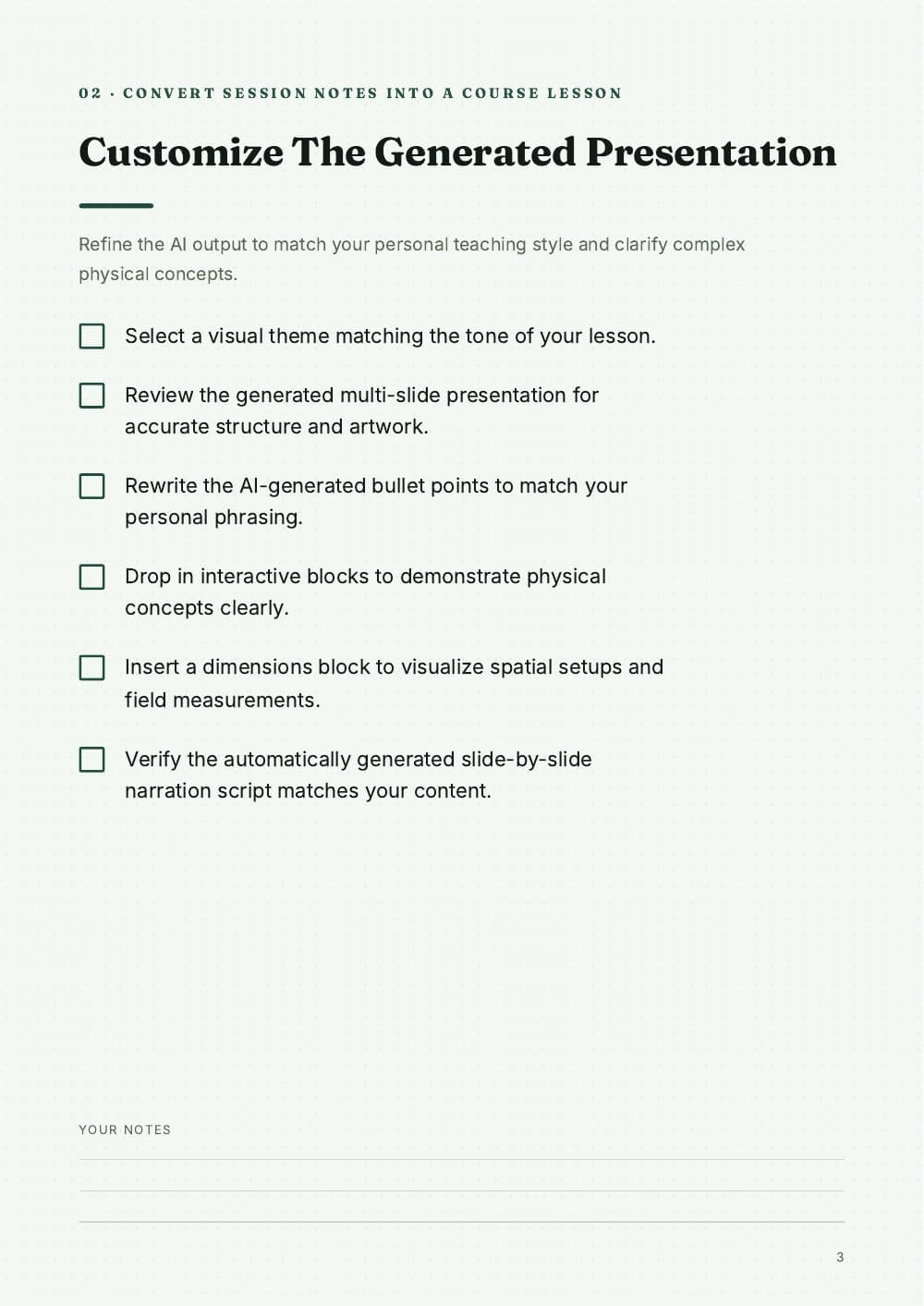
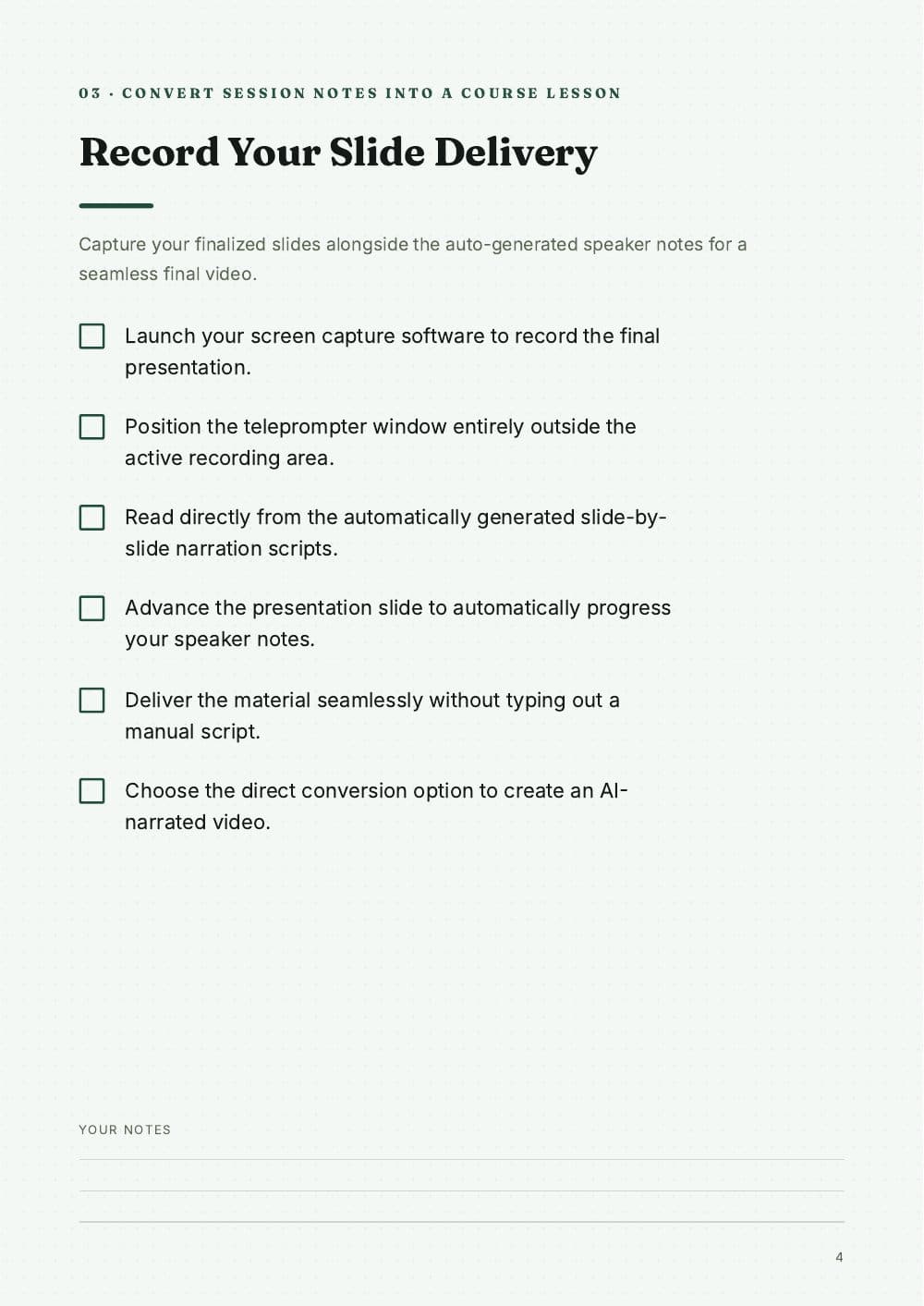
Choose Checklist, select the lesson and continue to the design options. Pick a style and create the document. In the video, I use the Field Notes look.
Review the result for actions someone can follow and check off. Once it is generated, Knola gives you three routes: sell it as a product, give it away to capture emails, or add it to a lesson. Here I add it to the correct lesson.
Now the recording has a practical companion: learners can watch the teaching and use the checklist as they work through their own example.
Step 5: Create a mini guide from the same teaching
Return to Studio and choose Mini guide. Select the same course and lesson, choose a design and generate the guide. I choose Nocturne and get a six-page guide in this example.
You can review the content and change the design after generation. Page count and generation time depend on the source and format; the example shows what I received for this lesson.
A mini guide could become a course bonus, workshop follow-up or a useful introduction to your teaching. If you want to offer it in exchange for an email address, setting up that offer and delivery is a separate step.
What could you create from your own recording?
Start with one lesson you've already taught. Use Knola to host the video, draft the written teaching and create resources that help people put it into practice.
Choose a recording you already own and a resource your learners can use.
Already have an account? Log in and create your resources
Choose a format that helps someone use the teaching
The walkthrough creates a checklist and a mini guide. With six formats on offer, choose the one that fits the learner's task; every lesson doesn't need all six. A checklist suits a task someone repeats. A mini guide suits an idea they need to revisit. A worksheet suits thinking they need to do for themselves.
You can open the swipe file as a PDF to see the full six pages.
A short, useful resource is a better starting point than a larger document that repeats the video without helping the learner act. Review any AI draft for accuracy, relevance and missing context before sharing it.
Put the resource to work
For your students: attach a checklist or guide to the relevant lesson so the teaching and supporting material are together.
For your clients: use a resource alongside a training recording to give them something to work through between sessions.
For workshop attendees: provide a written follow-up they can refer to after the session.
For prospective students: consider a focused guide that introduces one useful part of your teaching. You can build an opt-in offer around it, but the resource needs a clear promise and a way to reach the right people.
The video shows the checklist attachment and mini-guide creation. It discusses downloads, offers and email capture as possible next uses; it does not demonstrate a completed sale or a live opt-in campaign.