

How to upload a lesson video
Drop a video on a lesson and keep working while it uploads. A shaky connection won't lose it, and you always see where processing is up to.

 By Knola4 min read
Here's a quick guide to uploading video. Drop your file on the lesson and keep building while it uploads: move around your admin freely, the progress dock follows you, and a shaky connection won't lose your upload.
Open the lesson
In your admin, go to Courses, open the course, and click the lesson. On an empty lesson, choose Upload a file ("Video, PDF, Word or a link"). On a lesson that already has content, use Upload a video in the Watch section instead.
If Knola has already made a video for the lesson, Knola asks first: "Your recording becomes the lesson video. Knola's video isn't deleted: you can publish it again any time." Click Use my video to go on.
Drop the file, or click to pick it
Drag the video onto the box, or click it to open a file picker. Upload a video opens the picker straight away. The upload starts immediately and a notification confirms it: "Upload started. You can keep working." The box shows the file name and a progress bar, and the upload carries on in the dock if you move elsewhere in your admin.
Keep working: the dock tracks progress
A dock appears at the bottom right of every admin page while uploads run. Collapsed, it shows a one-line summary ("Uploading 1 of 1" with an overall progress bar); expanded, one row per lesson with the file name, a percentage, and a Cancel button. Failed rows offer Retry (or Pick file if the original file is gone) and Dismiss.
Wait while your video is processed
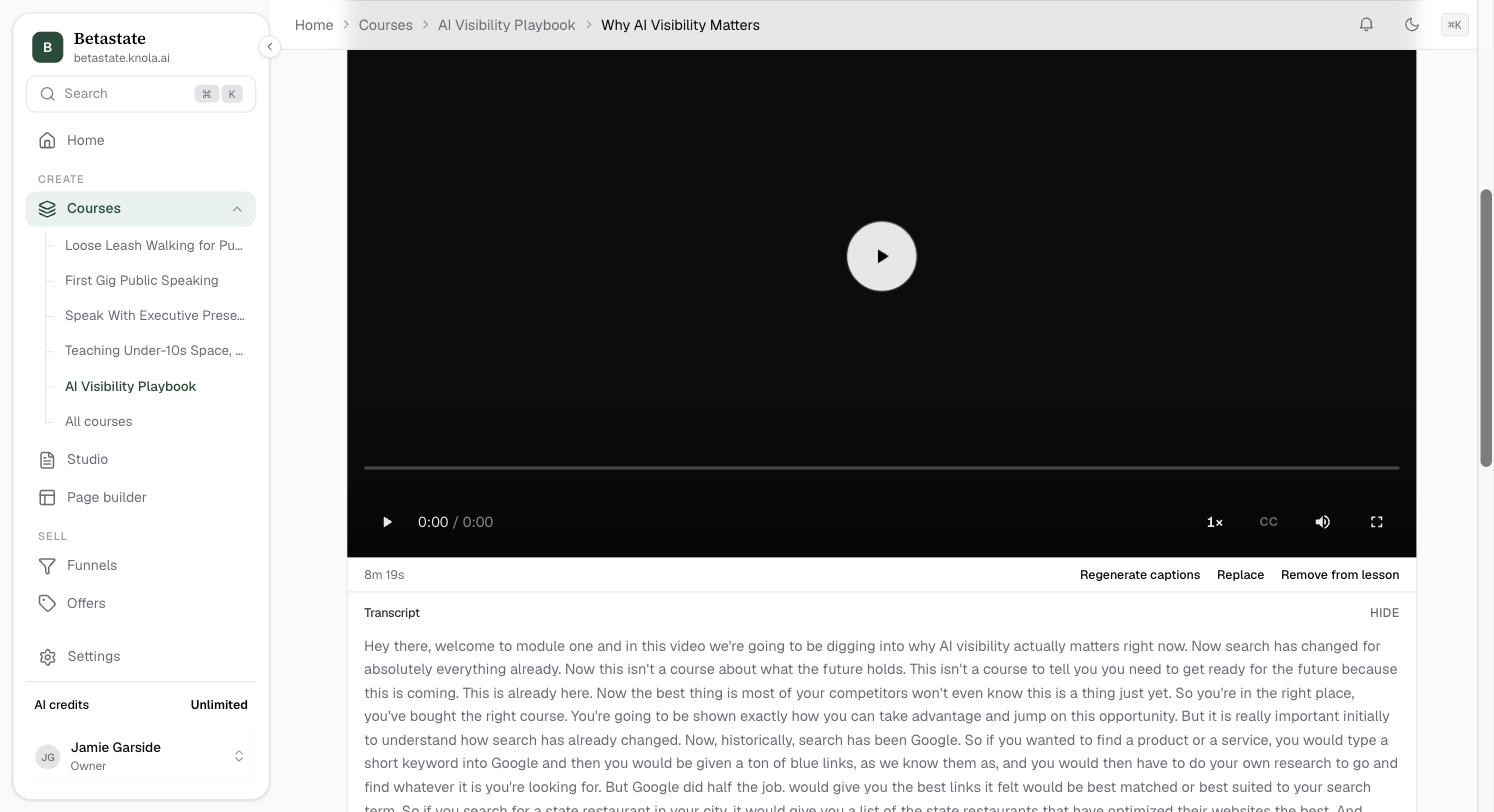
Once the transfer finishes, Knola prepares your video for playback. The lesson shows "Preparing it to play on any device." with a rough estimate of how long a video of that length takes. When it is ready, the player appears with the duration; if processing stalls, you get Check now and Re-upload buttons instead of an endless spinner. If processing fails, the lesson says "This video couldn’t be processed." Try converting to MP4 and uploading again.
Replace a video
Under the player, click Replace. A dialog confirms: "The current video and its transcript are permanently replaced once the new upload finishes. Students watching this lesson will see the new video." Confirm with Replace video and pick the new file. The same upload flow runs again.
Remove from lesson takes the video off the lesson without deleting it; you can put it back from the lesson at any time. If the lesson also has a narrated video Knola made, Students watch lets you choose which one students see.
Can I leave the page while a video uploads?
Yes. The upload continues in the dock at the bottom right of the admin. Move anywhere in your admin and it keeps going. Refreshing the page or closing the tab does stop a running upload; the lesson will then offer to resume when you pick the file again. Once the upload is done and the video is processing, a refresh is safe.
What video formats does Knola accept?
MP4, MOV and WebM, up to a few hours long. If a file fails to process, converting it to MP4 first is the reliable fix.
Why was my upload blocked before it started?
Almost always storage: video counts against your plan’s storage allowance, and Knola blocks an upload that would go over before it even starts. The dock’s Manage storage button takes you to the storage screen to free space or upgrade.