

How to add quizzes that gate progression
Add a quiz to any lesson. AI writes questions from your content, you edit everything, set a pass mark, and read per-question results.

 By Knola5 min read
The quiz is the first row in Extras, under the lesson on the lesson page. Students meet the quiz at the end of the lesson; you decide whether it’s optional practice or the gate that marks the lesson complete.
Generate it from the lesson
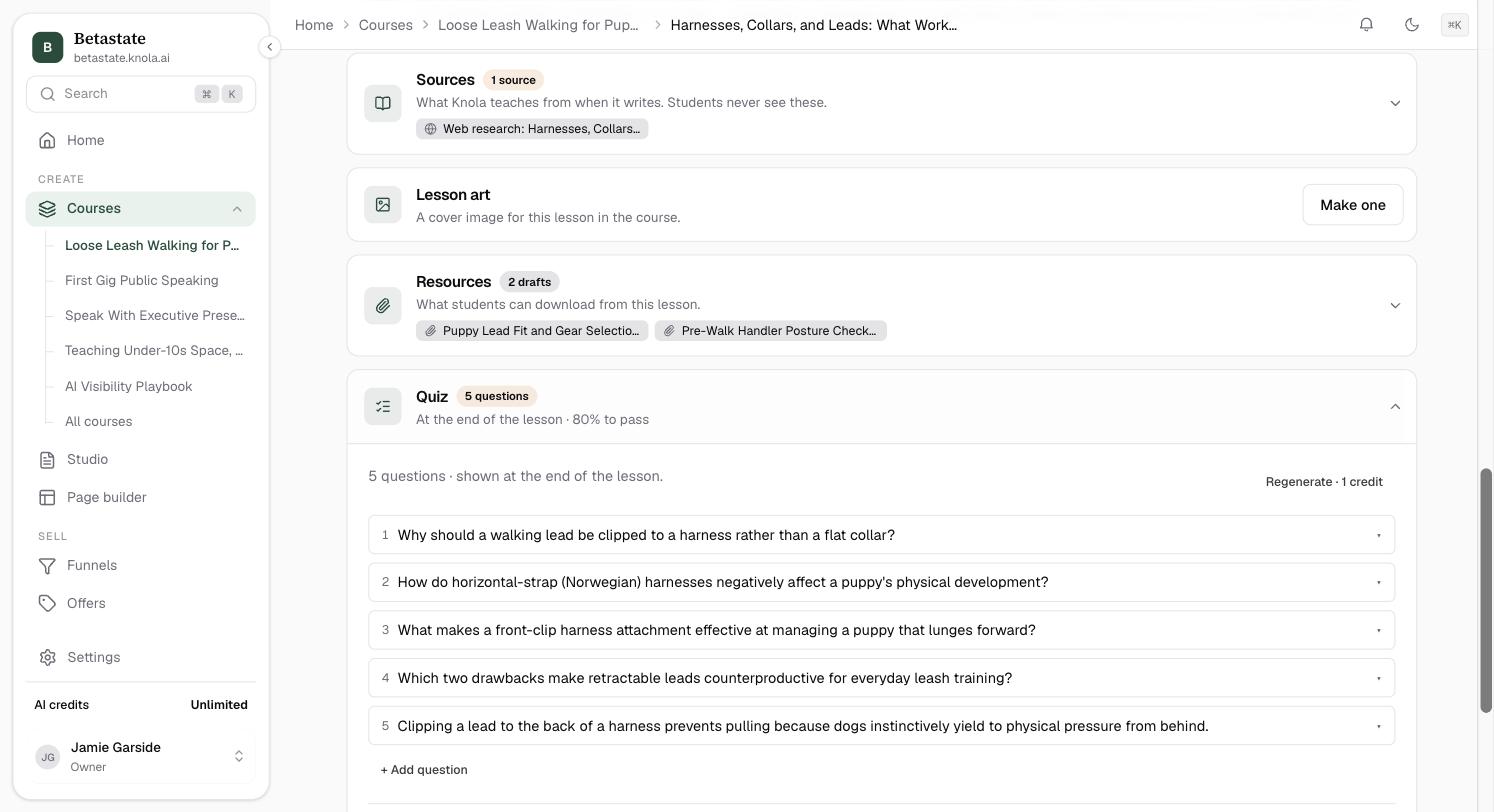
The Quiz row reads "Knola writes a few questions from this lesson, to check what stuck." Click Write the quiz and Knola drafts questions from the transcript and the written lesson (mostly multiple choice, sometimes a true/false or multi-select), each with an explanation of the correct answer.
The quiz saves and goes live at the end of the lesson straight away. The row then reads, for example, "At the end of the lesson · 80% to pass". Open it to see the questions; Regenerate at the top writes a fresh set (it shows its price), and Undo regenerate puts the previous quiz back.
Prefer full control? Write it myself starts you with a blank question instead, no AI involved.
Edit every question
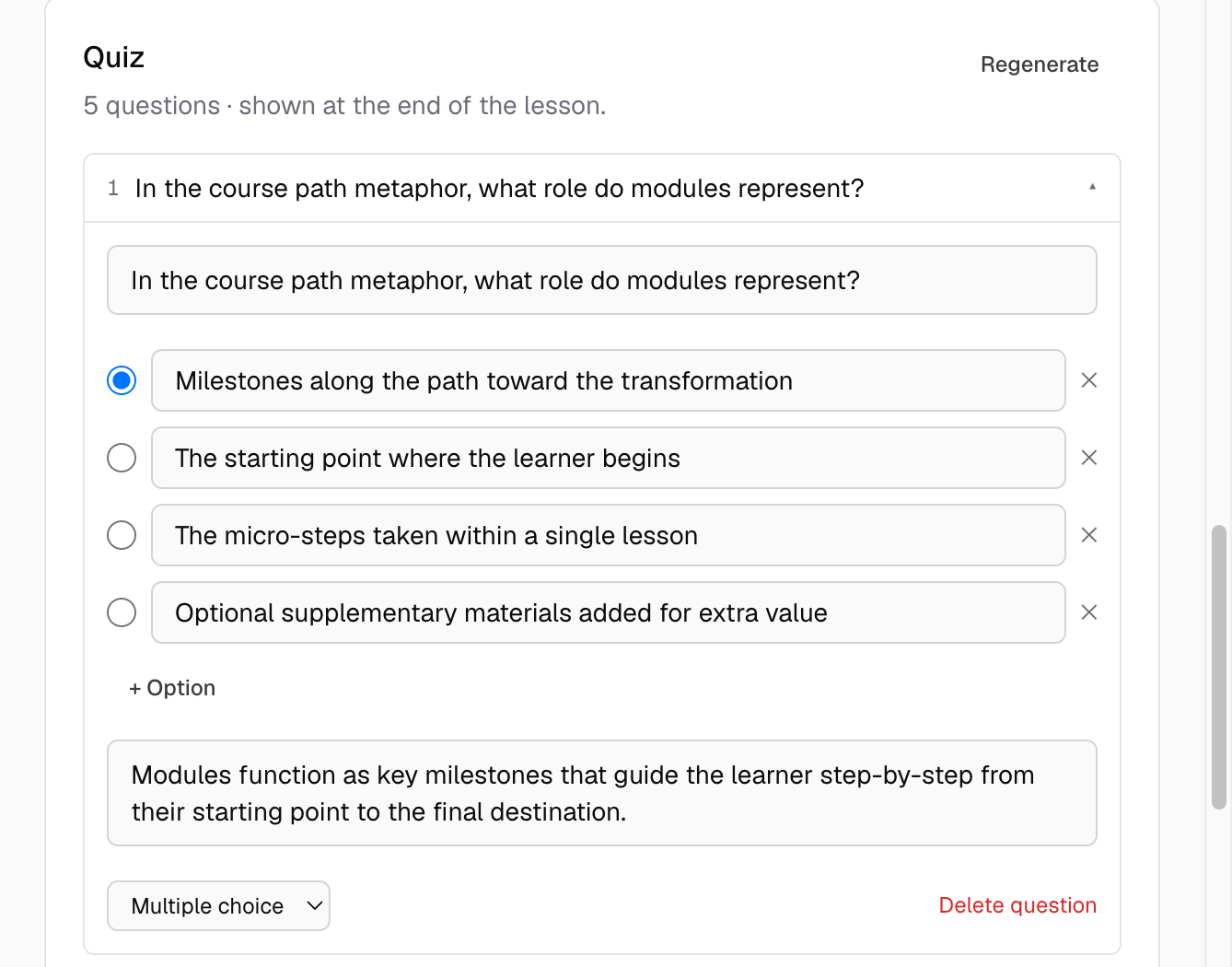
Click a question to expand it. You can rewrite the question text, edit each answer option, mark which options are correct, delete options or add more (+ Option), and edit the explanation ("shown after answering"). The type selector switches between Multiple choice, Multi-select and True / false. + Add question appends a new one; Delete question removes one.
Manual edits are drafts until you click Save quiz. The button reads Saved when everything is live.
Set the pass mark and gate completion
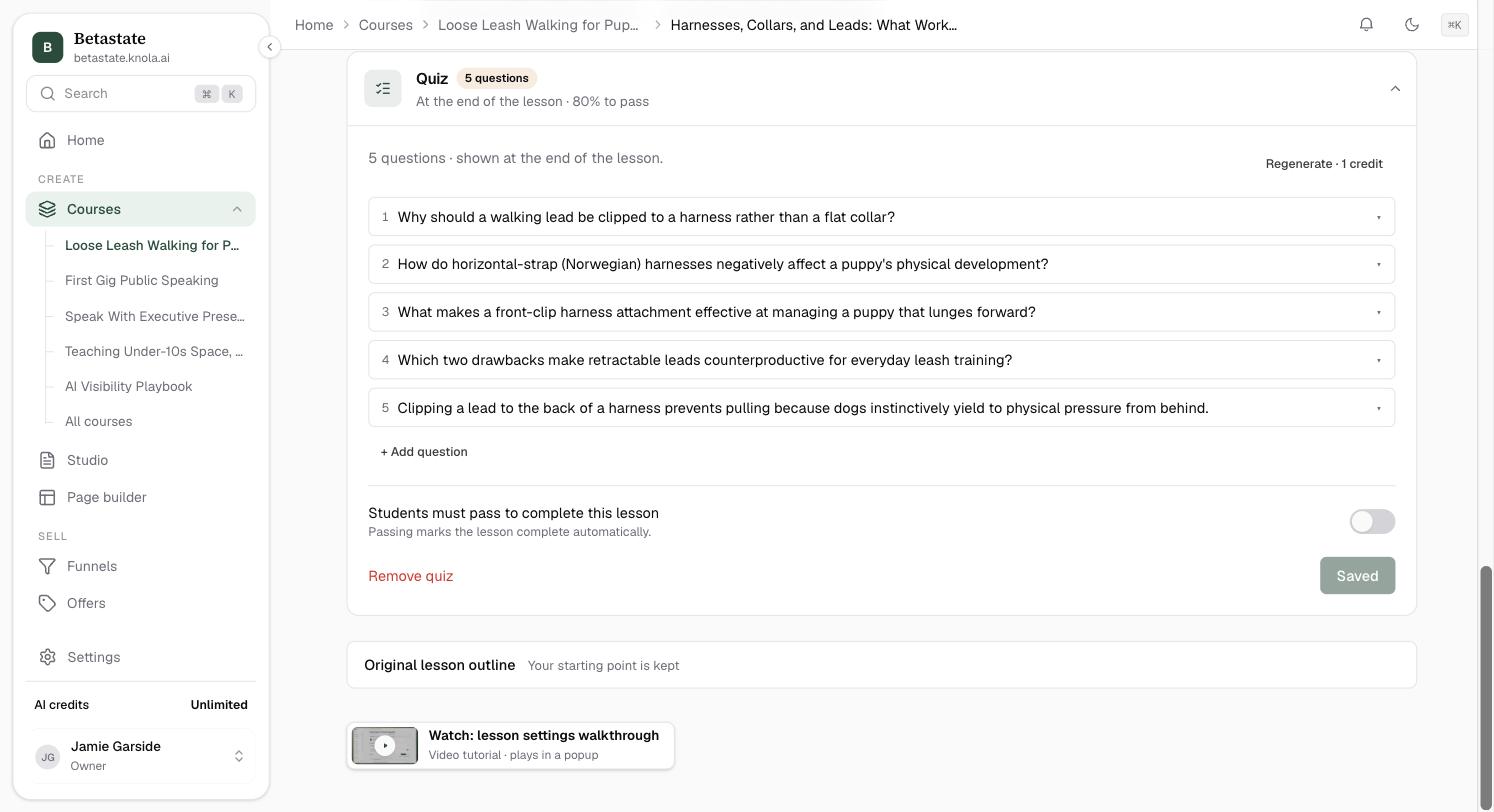
Below the questions sits the switch Students must pass to complete this lesson ("Passing marks the lesson complete automatically."). Switch it on and a Pass mark field appears: a percentage, 80 by default. With the toggle off, the quiz is optional practice; with it on, passing is what completes the lesson.
Read the results
Once students take the quiz, the panel header shows the aggregates, for example "12 students · avg 78% · 83% pass". Each question carries a percentage pill showing how many answer it correctly; a question under 50% is flagged amber, because "Under half get this right. The lesson may not cover it clearly". A Recent attempts list shows the latest students with score and date.
Results always follow the current questions, so after you edit questions, history is re-graded to reflect what’s being asked today. Removing a quiz (Remove quiz) keeps past attempts.
Where do students see the quiz?
At the end of the lesson, after the body content. If you switch on Students must pass to complete this lesson, passing it is what marks the lesson complete.
Can I edit the questions AI generates?
Yes. Every generated question is fully editable: the wording, the options, which answers are correct, and the explanation. Regenerating is always available too; AI output is never take-it-or-leave-it.
What happens to student attempts when I change the questions?
Attempts are kept, and the creator results re-grade them against the current questions, so the pass rate and per-question numbers always describe the quiz as it stands today.