

Here's what your students see
Walk the learner side of your school screen by screen: home, course outline, the lesson player with transcript and notes, and the account page.

 By Knola7 min read
You build in the admin; your students never see it. They get a clean, distraction-free learning surface under your school's branding. This guide walks that surface screen by screen, so you know exactly what you're shipping when you hit publish.
The school home
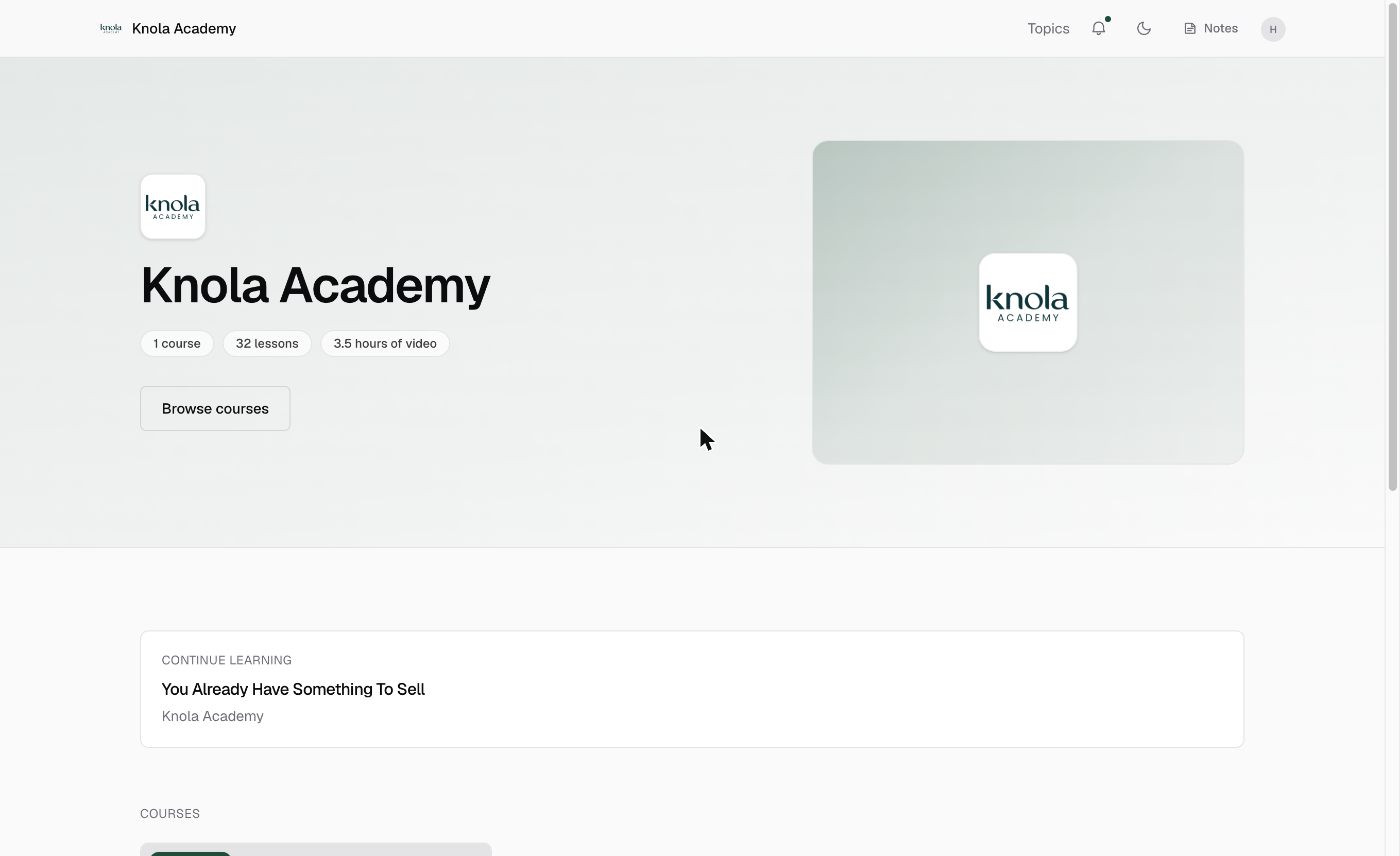
A signed-in student lands on your school home page: your name and branding, a Continue learning button that drops them back into their next unfinished lesson, and a searchable grid of courses. Courses they're enrolled in always appear, and each card shows their progress. What the page looks like to the public (and which sections it shows) is yours to design under School page.
The course outline
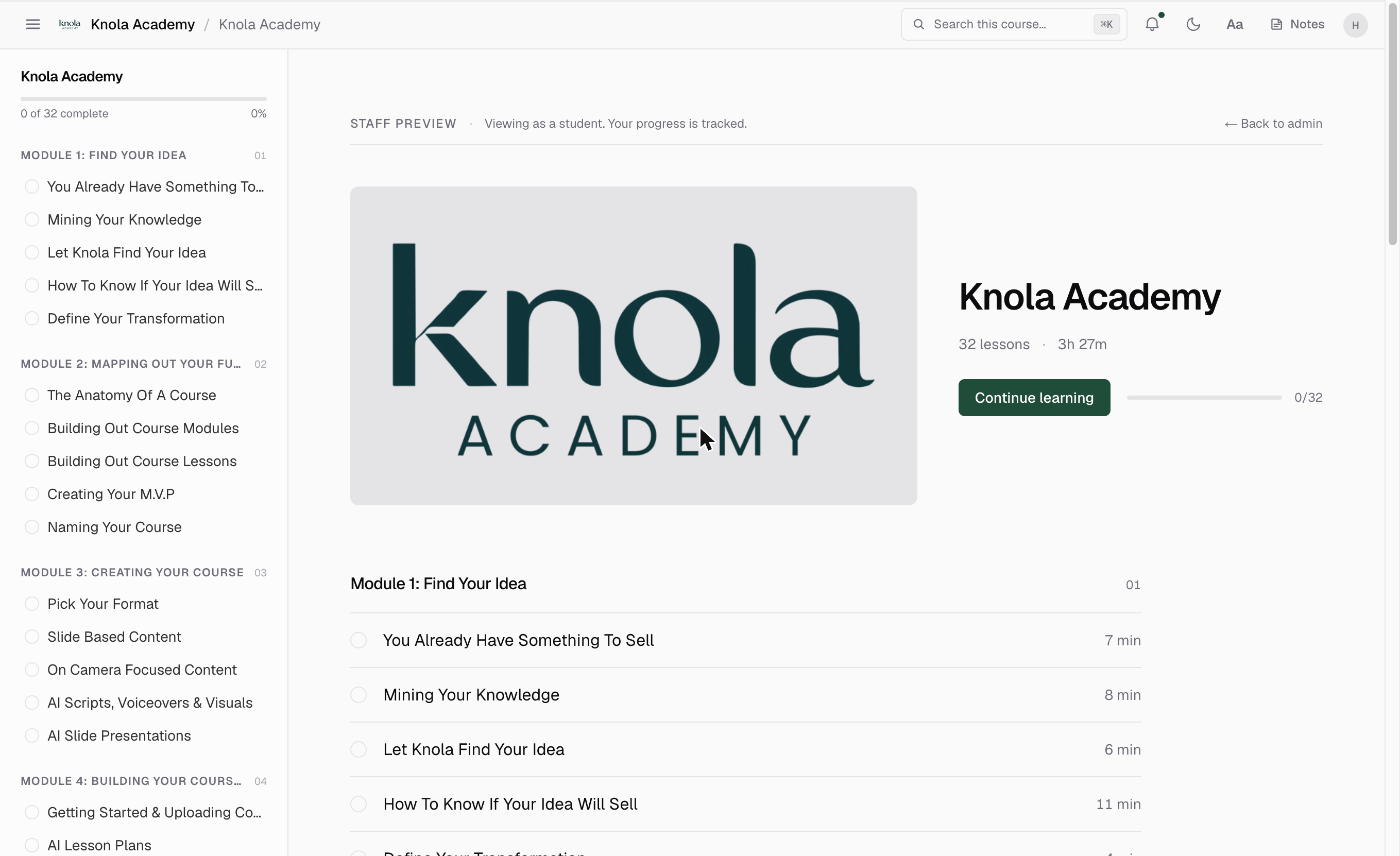
Opening a course shows its cover, title and description, the lesson count and total duration, and the full module-by-module outline. Enrolled students get a Continue learning button plus a progress bar with a completed-of-total count; finished lessons get a filled check, untouched ones an empty circle, and each lesson shows its length in minutes.
Two motivators are built into this page:
- The certificate promise: when the course awards one, students see "🎓 Finish all N lessons to earn your certificate of completion" up front, which becomes View your certificate → once they've earned it. Set this up under certificates.
- Drip locks: modules scheduled with drip are listed but not clickable, each carrying an Unlocks {date} pill. Students see what's coming; anticipation sells the next session.
The lesson page: Watch, Slides or Read
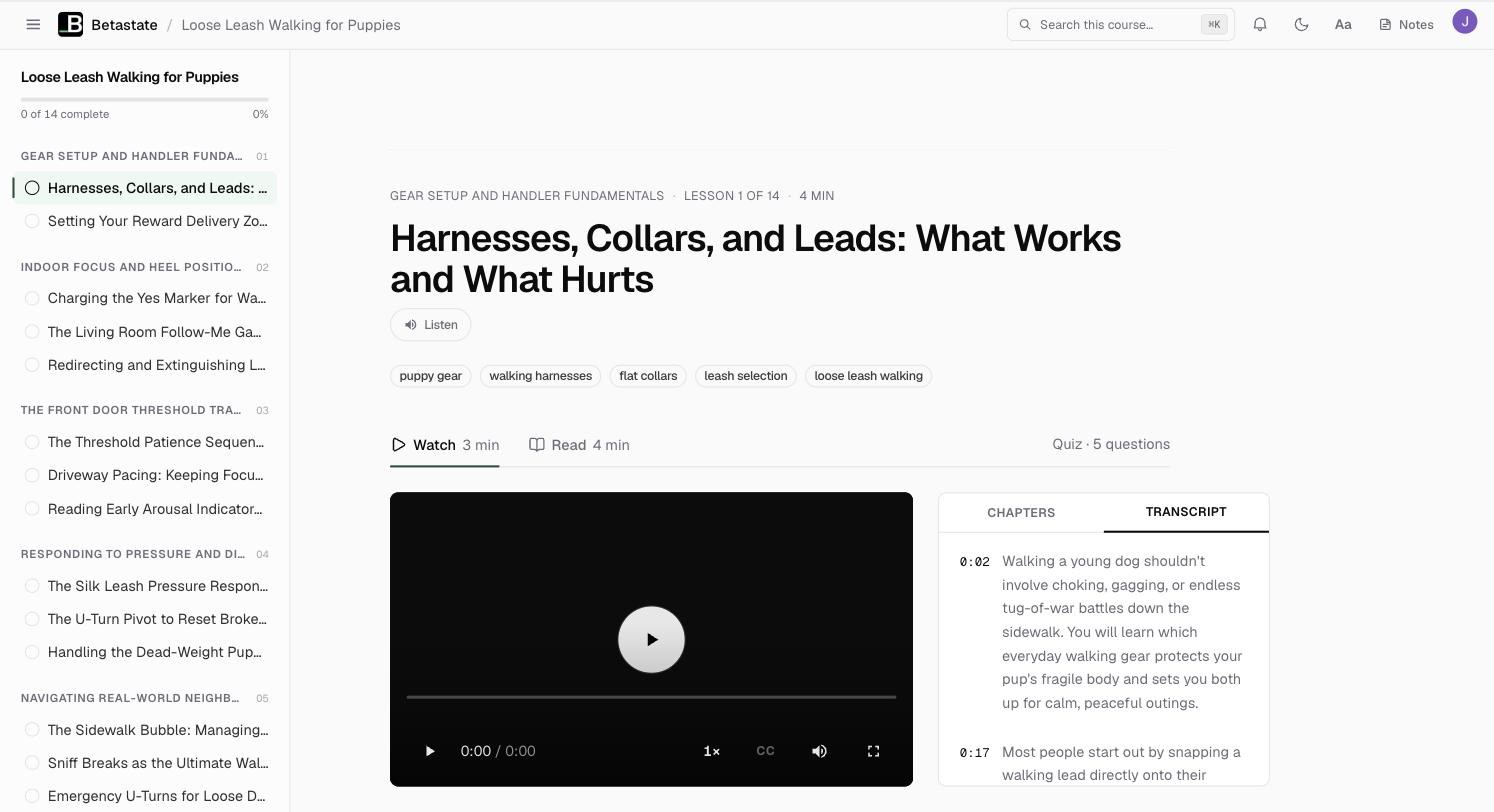
The lesson page is where students spend their time. Above the title sits the context line (module name, "Lesson X of Y" and the time), then a Listen button that reads the lesson aloud, and the lesson's topics.
When a lesson has more than one way through it, tabs let the student pick one, each with its length beside it:
- Watch: the video, with Chapters and Transcript beside it. Every transcript line is clickable and jumps the video to that moment.
- Slides: click through the lesson's slides, when you show them to students.
- Read: the written lesson, with its summary first. Selecting text offers Copy, Highlight and Note; everything saved collects under Notes in the top bar. See notes and highlights.
Knola remembers the choice for the whole course, so a student who prefers reading keeps reading. A link to a moment in the video, from the tutor for example, opens Watch at that point.
Around the tabs: Quiz · 5 questions (or however many) jumps to the quiz, published resources appear as download and link cards, and Have a question? sends a private question to you, with Send question. Your answers can also be published to the lesson as an FAQ.
At the bottom, Mark complete (or Mark complete & continue when a next lesson exists) records progress. If a quiz must be passed, the button waits until they pass. The top bar carries Search this course…, a light/dark toggle, and an Aa button with reading and accessibility settings.
The account page
The student's Account page is deliberately small: a Password section that emails a secure reset link, and, once earned, a Certificates section listing each certificate with its issue date and serial. Every certificate link is publicly verifiable, so students can share it anywhere.
One account across every Knola school
Students sign in to Knola once (email and password, Google, or a magic link), and that single account works across every Knola school. A purchase from any creator lands in the same place, which means your buyers never juggle another login just for your course. How access reaches them after checkout is covered in how buyers get access.
Can students see draft lessons or locked modules?
No. Draft lessons and modules are creator-only, and drip-locked modules are listed with their Unlocks date but can't be opened. Even a direct URL to a locked lesson sends the student back to the outline.
Do students need a separate account for each Knola school?
No. One Knola account works across every school. They sign in once and every course they've bought, from any creator, is available under the same login.
How do students take notes in a course?
They select any text in a lesson and choose Highlight or Note. Saved highlights and notes are collected behind the Notes link in the top bar, covered in notes and highlights.