

Here's how students take notes and highlight lessons
See what your students get for studying: highlight any passage, attach a note to it, and find every one of them again on one page per course.

 By Knola4 min read
Students who take notes finish more courses. Knola builds that in rather than sending people to a separate app: anything in your written lesson content can be highlighted, and any highlight can carry a note. This page explains what they get, so you know what to point them at.
Highlighting a passage
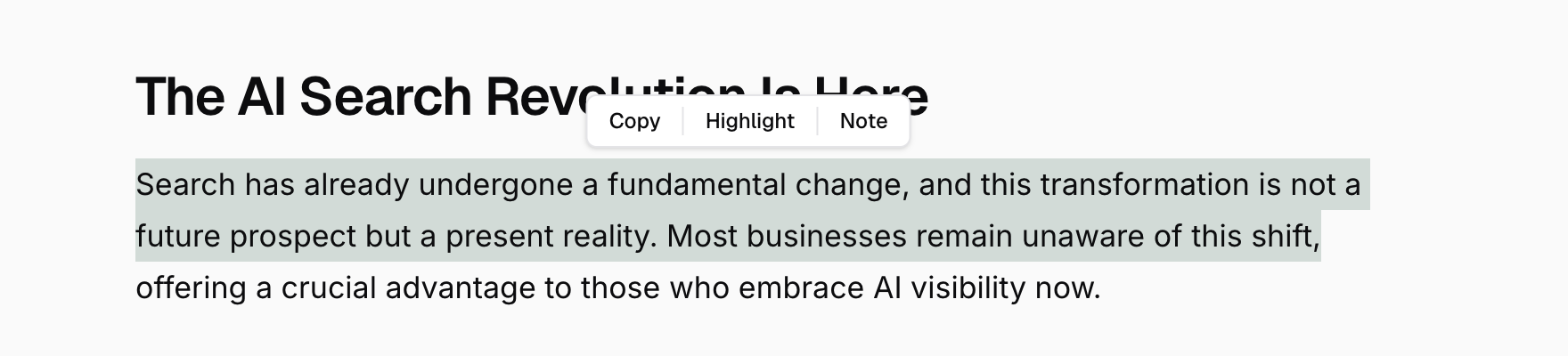
A student selects text in the lesson and a small toolbar appears over it with three choices: Copy, Highlight and Note.
- Copy puts the passage on their clipboard and saves nothing.
- Highlight saves it straight away and paints it into the lesson in yellow.
- Note opens a box to write in first, with ⌘↵ to save as the shortcut, and saves the passage with the note attached. Those highlights are painted in a different colour, so a student can see at a glance which ones they wrote against.
Clicking a saved highlight afterwards opens it again, showing the quote and the note with Edit note, Copy and Delete.
Everything in one place
The learner top bar carries a Notes link, and it does two slightly different things depending on where they are. Inside a course, it shows that course's notes grouped by lesson. Outside one, it shows every note they have taken in your school, grouped by course and then lesson, with See all courses to move between the two.
A count sits at the top ("12 highlights · 4 with notes"), each entry shows the note above the quote it belongs to and when it was saved, and every lesson heading links back to the lesson it came from. Notes can be edited or deleted from here as well as from inside the lesson.
With nothing saved yet the page explains itself: "Highlight any passage in a lesson to save it here. Add a note to capture your own thoughts."

What it does not do
Worth knowing before you promise it in your sales copy:
- There is no export, download or print of notes. The per-highlight Copy is the only way text leaves the page.
- There is no search, filter or tagging on the notes pages.
- Notes belong to your school. A student studying with two different creators keeps two separate sets, and neither of you can see either.
Can students export their notes?
Not as a file. They can copy any individual highlight from the lesson or their notes page, but there is no download, print or export of the whole set.
Can I see my students' notes?
No. Notes and highlights are private to the student who wrote them. If you want to know what people are struggling with, the questions they send you are the honest signal.
Do notes follow a student between courses?
They are saved per lesson and collected per course, and the school-wide Notes page gathers everything they have taken in your school. Notes taken in another creator's school stay there.