How to create an ebook with AI from your own videos
Your teaching videos become a designed ebook, written only from what you taught. Then sell it, give it away or add it to a lesson. Follow along with a real 20-video course.
- 9½ min video
- 8 steps
- From your own videos
- Ends at a real checkout
Before you start, have these ready
- Your teaching videosA course, a workshop or a few related recordings
- A reader and an outcomeWho the book is for and what it helps them do
- A Knola accountYour videos go into lessons in a course
Watch
See it done with a real course
9:29 · 17 chapters · click any chapter or line to jump
Live from Knola · updated daily
- courses built on Knola
- 1,200+
- lessons planned
- 24,200+
“Knola makes it easy to get my content online, and I love the AI written tools that let me turn my recordings into written lessons too.”
Do it yourself
8 steps, at your own pace
Open Knola in another tab and follow along. Each step has the screen you’ll see and a button to watch that part of the video.
0 of 8 done
Step 1 of 8
Put your videos into a course
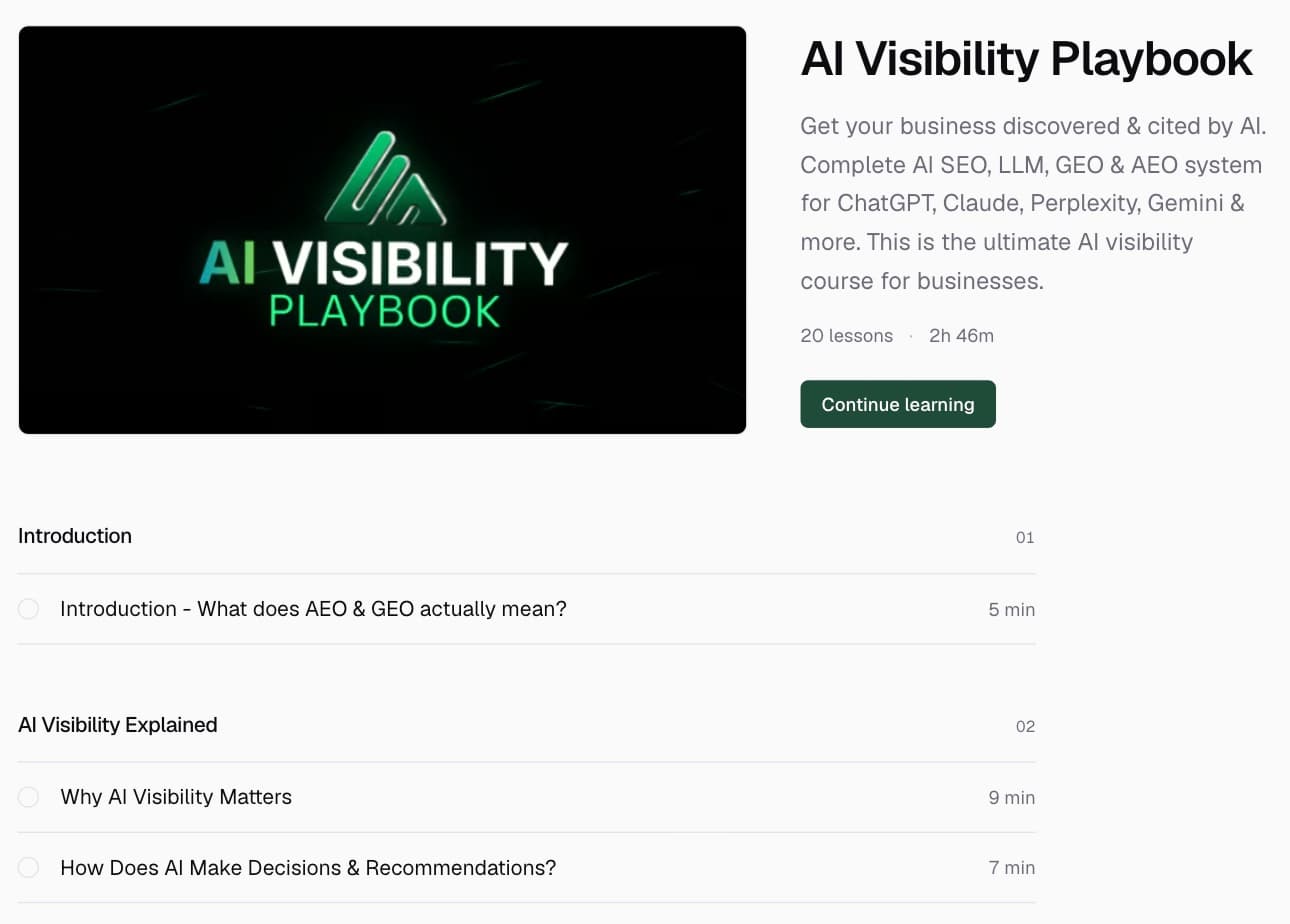
Our source: the AI Visibility Playbook, a course of 20 video lessons already in Knola.
- Course already in Knola? Start with those lessons.
- If not, upload your own video files as lessons, one per lesson, and let transcription finish. Original files from your YouTube videos work too.
- You don’t need a finished course. A course can hold just the related recordings you want the book to use.
A short clip makes a thin ebook. Several substantial recordings on one topic give the book enough to work from.
Step 2 of 8
Open the Studio and choose Ebook
In the Studio, under Make something, choose Ebook.
- In the sidebar, open Studio.
- Under Make something, choose Ebook. The Studio also makes checklists, mini-guides, worksheets, swipe files and glossaries.
Step 3 of 8
Choose the source and give it direction
Pick the course, then The whole course: all 20 lessons.
- Under Course, pick your course.
- Under Write it from, choose The whole course, or one lesson for a narrower topic.
- Use Anything to add or leave out? to steer it. For example, ask it to leave out a topic you don’t want in the book.
- Click Next: pick a look.
Be specific: who the reader is, what they should be able to do, and which parts of your teaching matter.
Step 4 of 8
Pick a look and make it
Pick a look. We kept Atelier. All eight looks shows the rest.
- Pick a look. We kept Atelier. All eight looks shows the rest.
- Click Make. It usually takes a couple of minutes.
- You can leave the page. The ebook waits for you in Your documents.
Step 5 of 8
Read and edit the ebook
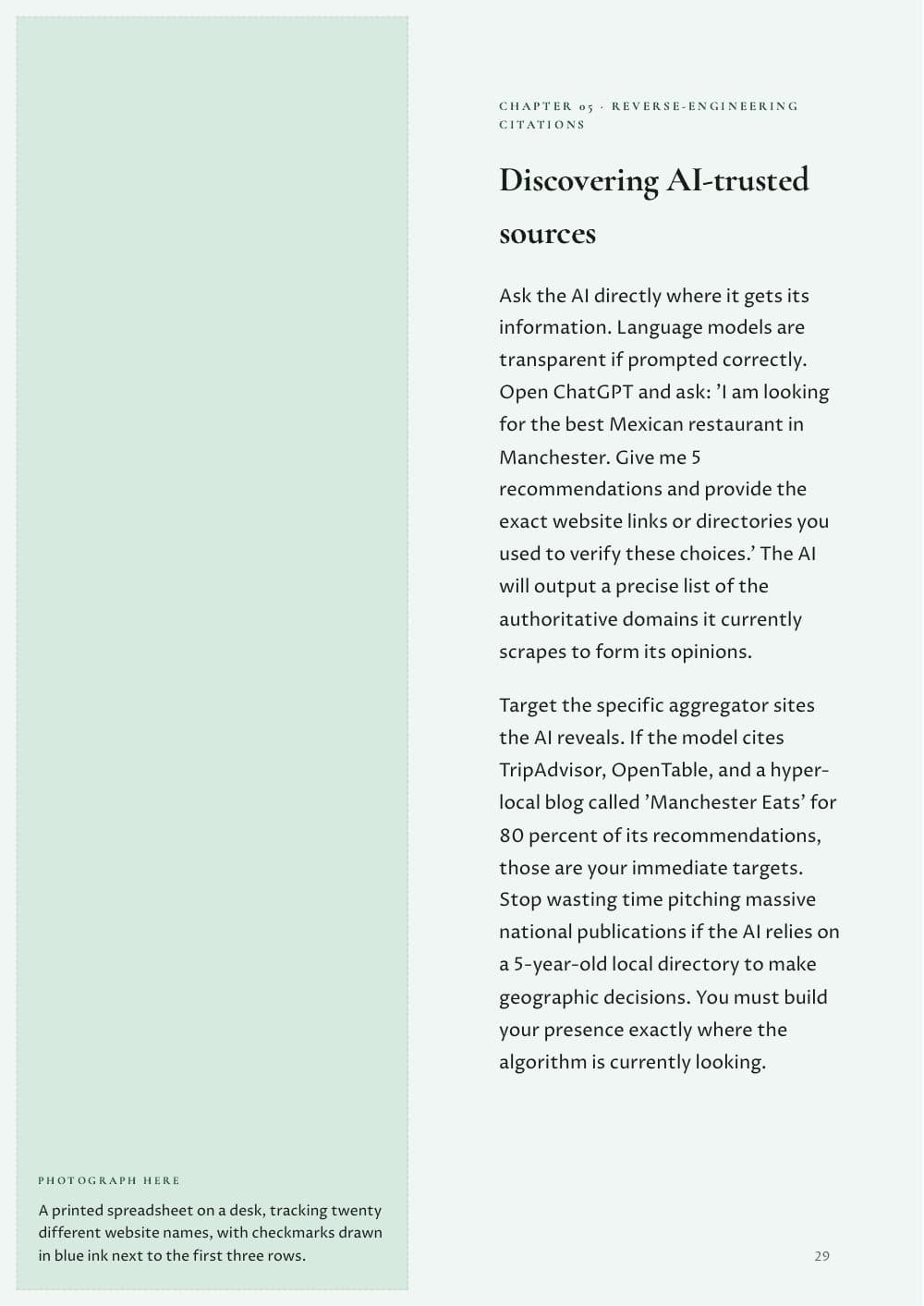
The finished ebook opens here: 35 pages in Atelier. Change the look any time; the words stay.
- Scroll through Pages and read it all.
- Click Edit to change any part of the text.
- Under Look, try another style, or keep the one you have.
Check that the chapters flow, the instructions work without the video and every name and claim is right. Your name goes on it.
Step 6 of 8
Download it or add it to a lesson
Under Put it to work: Sell it, Give it away or Add to a lesson.
- Click Download PDF to use the file anywhere.
- Or, under Put it to work, click Add, choose the lesson, then Add to the lesson. A bonus lesson works well.
- Give it away attaches it to a lead magnet, so people get it when they sign up with their email.
Step 7 of 8
Turn it into a product
After Create the product, it is in your store as a draft. It is not on sale yet.
- Under Put it to work, click Sell, then Create the product.
- Open the product. Under Price & buy link, type your price and click Set price.
- You can also offer it as an order bump and choose the checkout design.
The $47 is our example price for this ebook. It is not the price of Knola.
Step 8 of 8
Publish and share the checkout
Once published: a Product page link and a Direct checkout link, each with Copy.
- Click Publish.
- Copy the Product page link and share it. Buy now opens a Stripe checkout.
- When someone buys, Knola delivers the ebook to them.
Connect Stripe and check your offer before you share it. Read the Stripe connection guide.
The real result
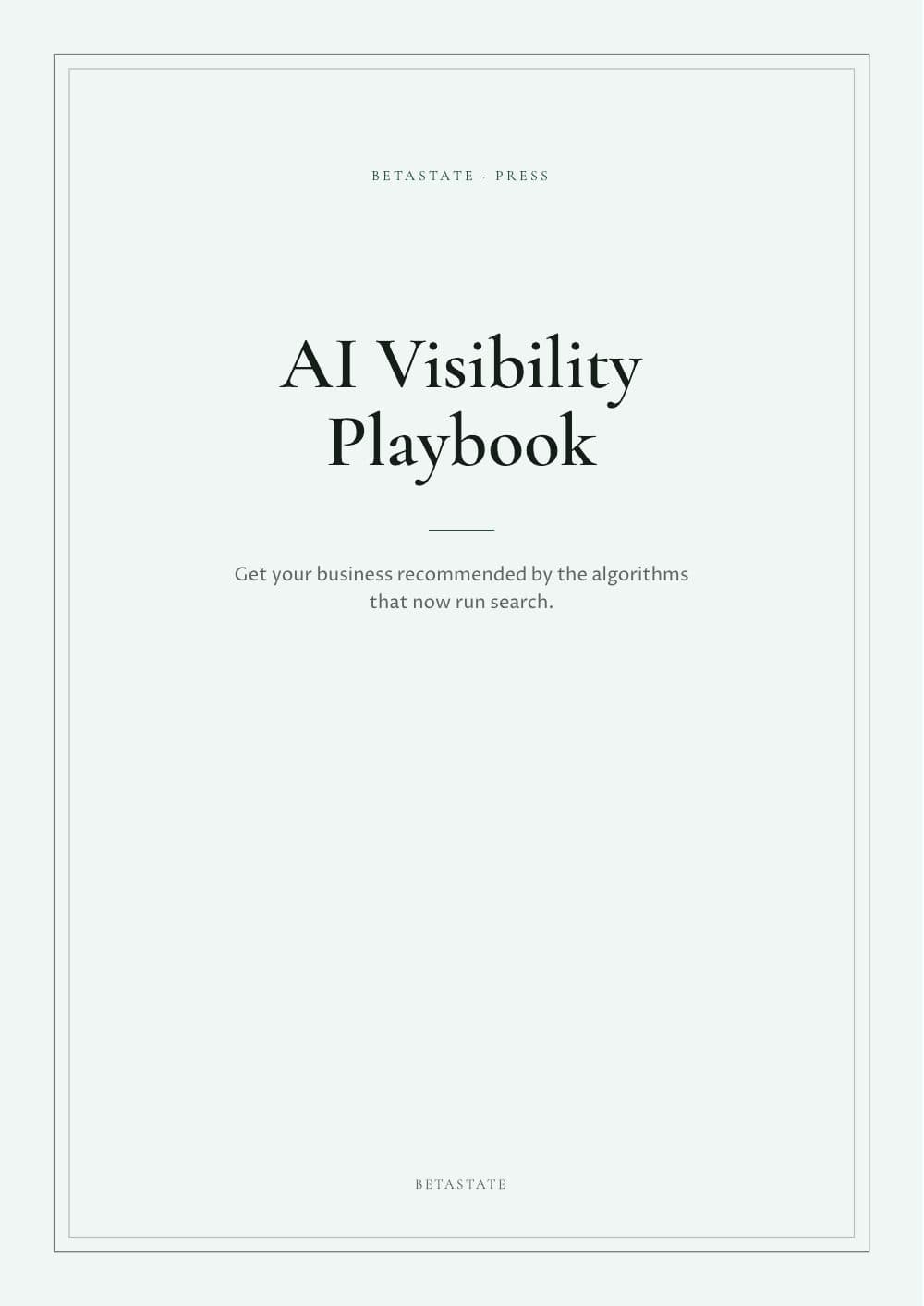
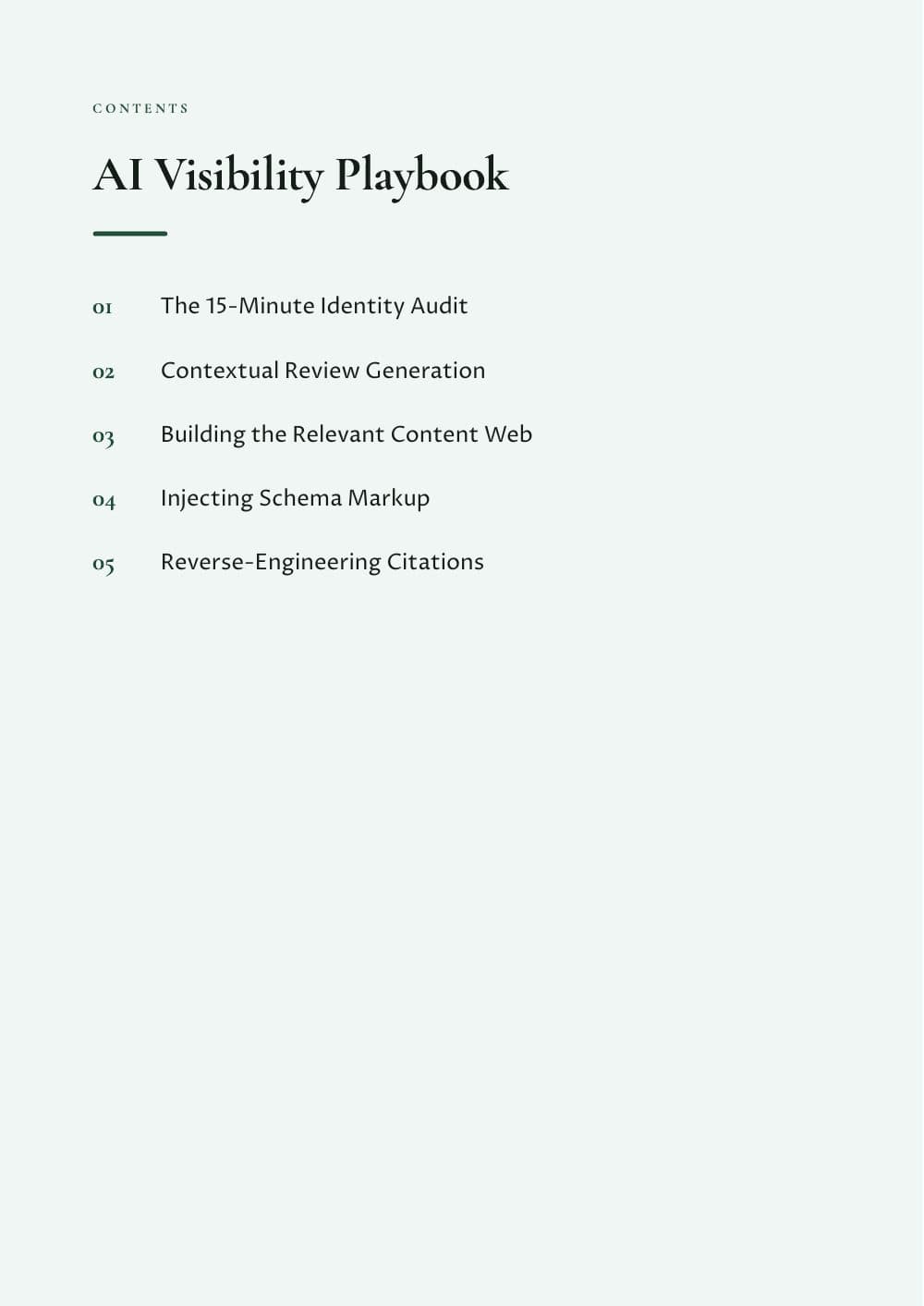
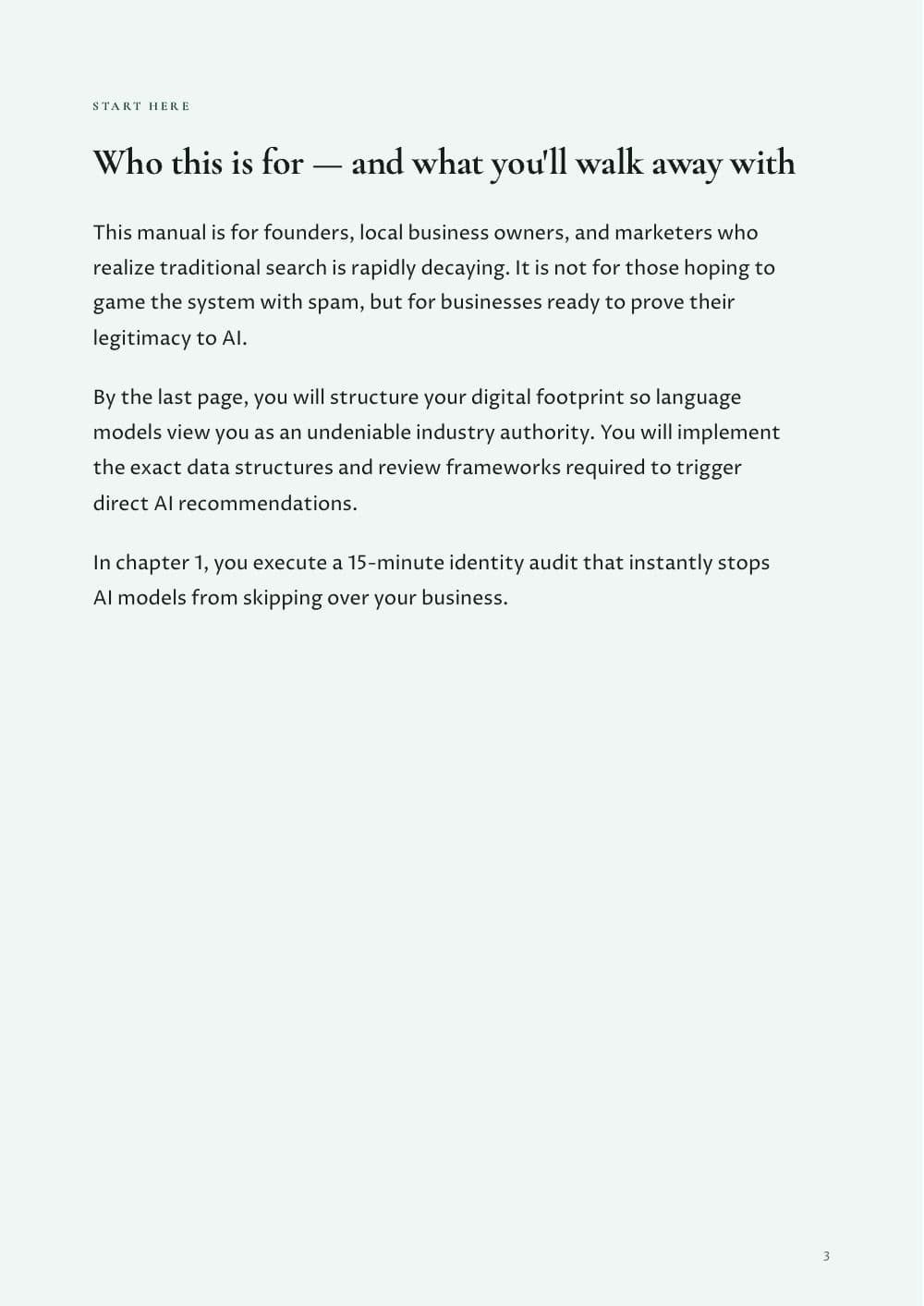
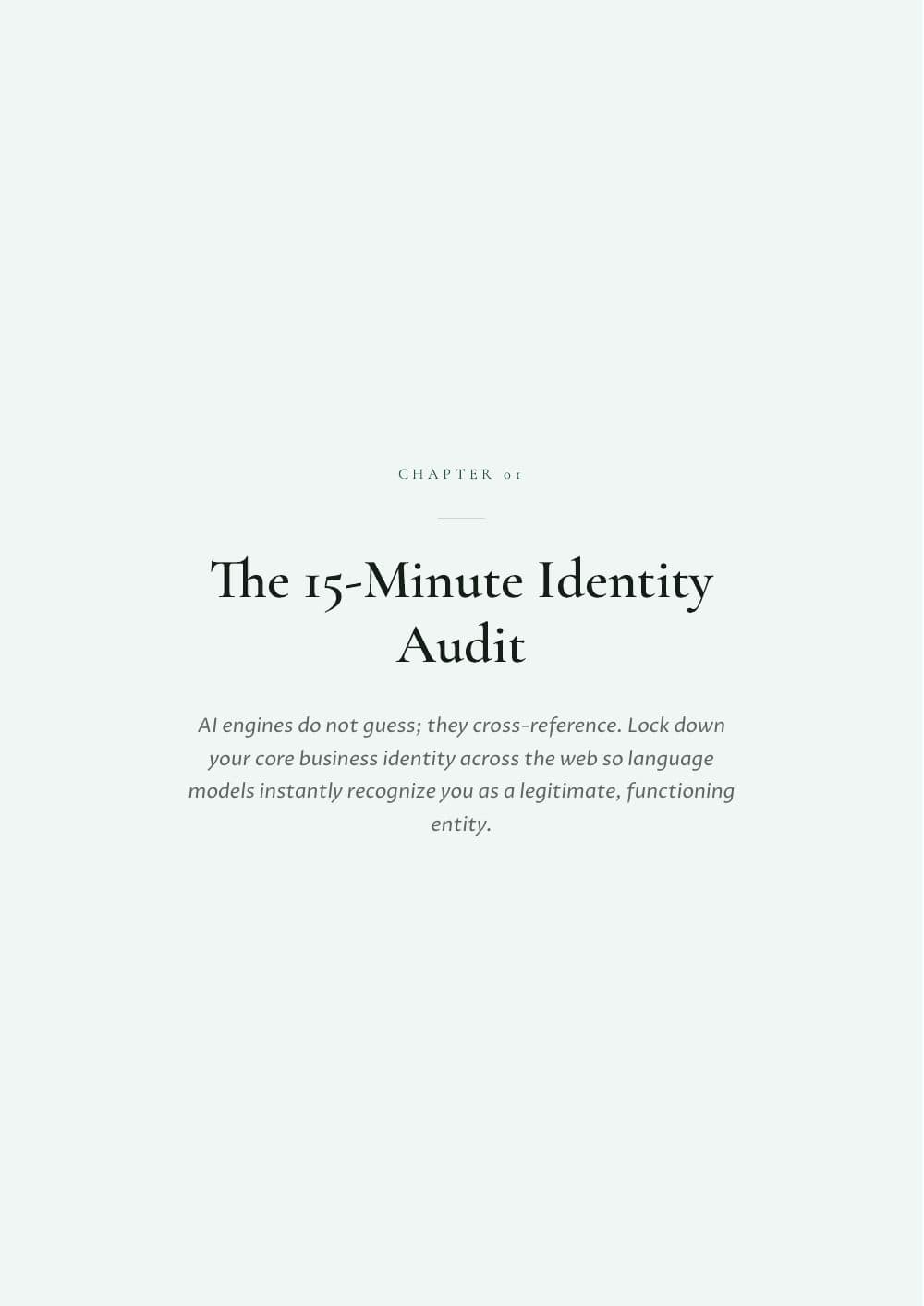
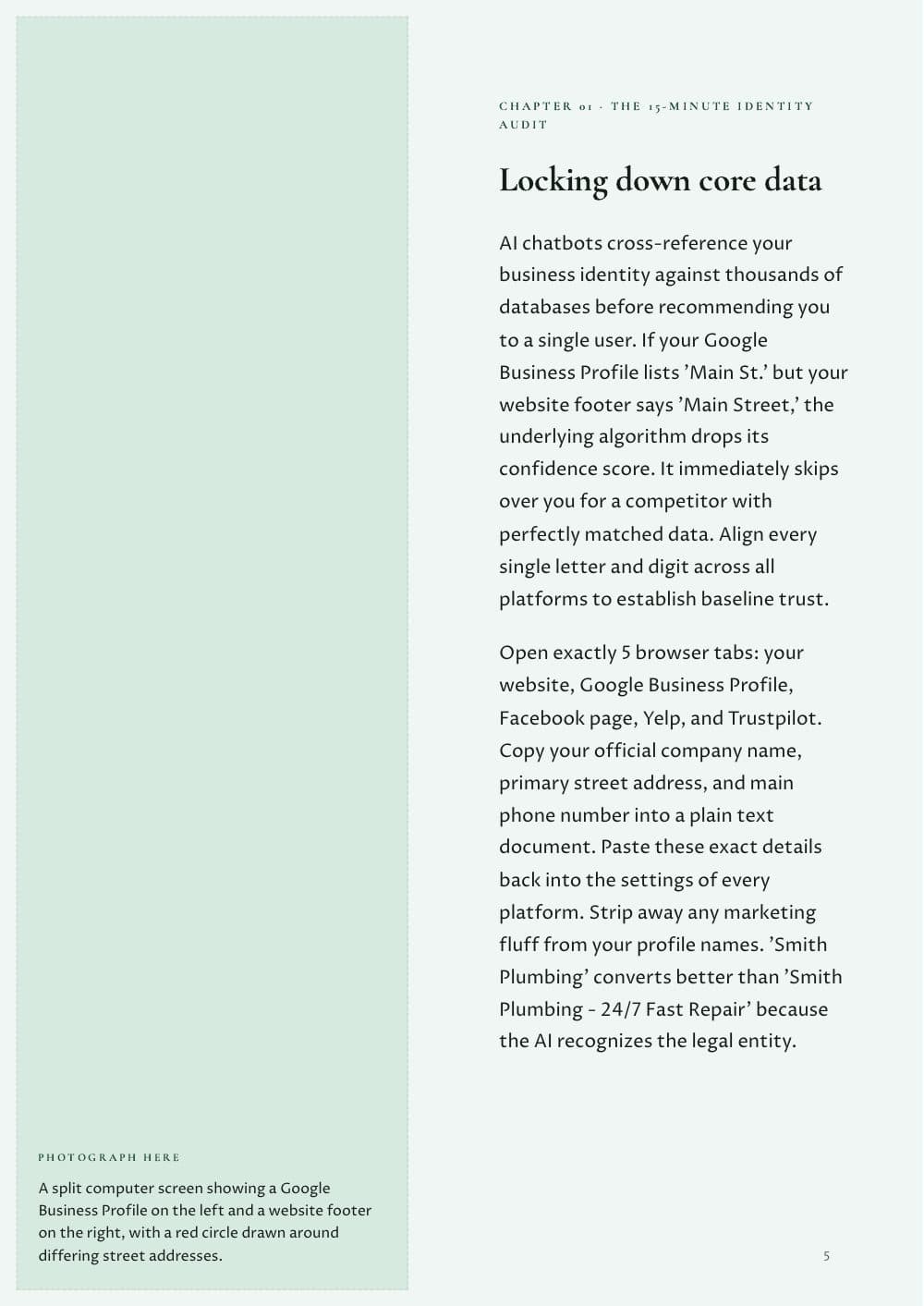
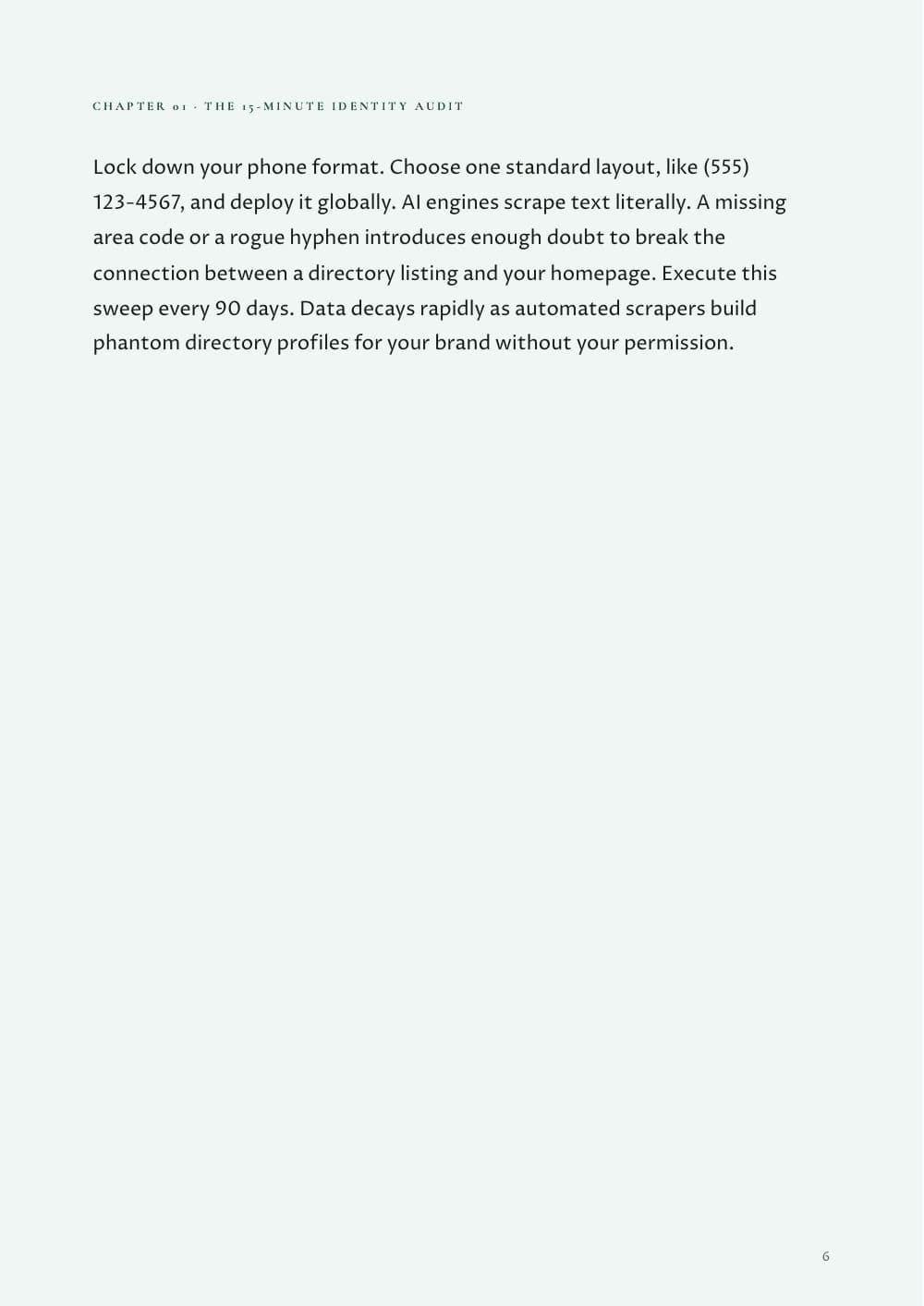
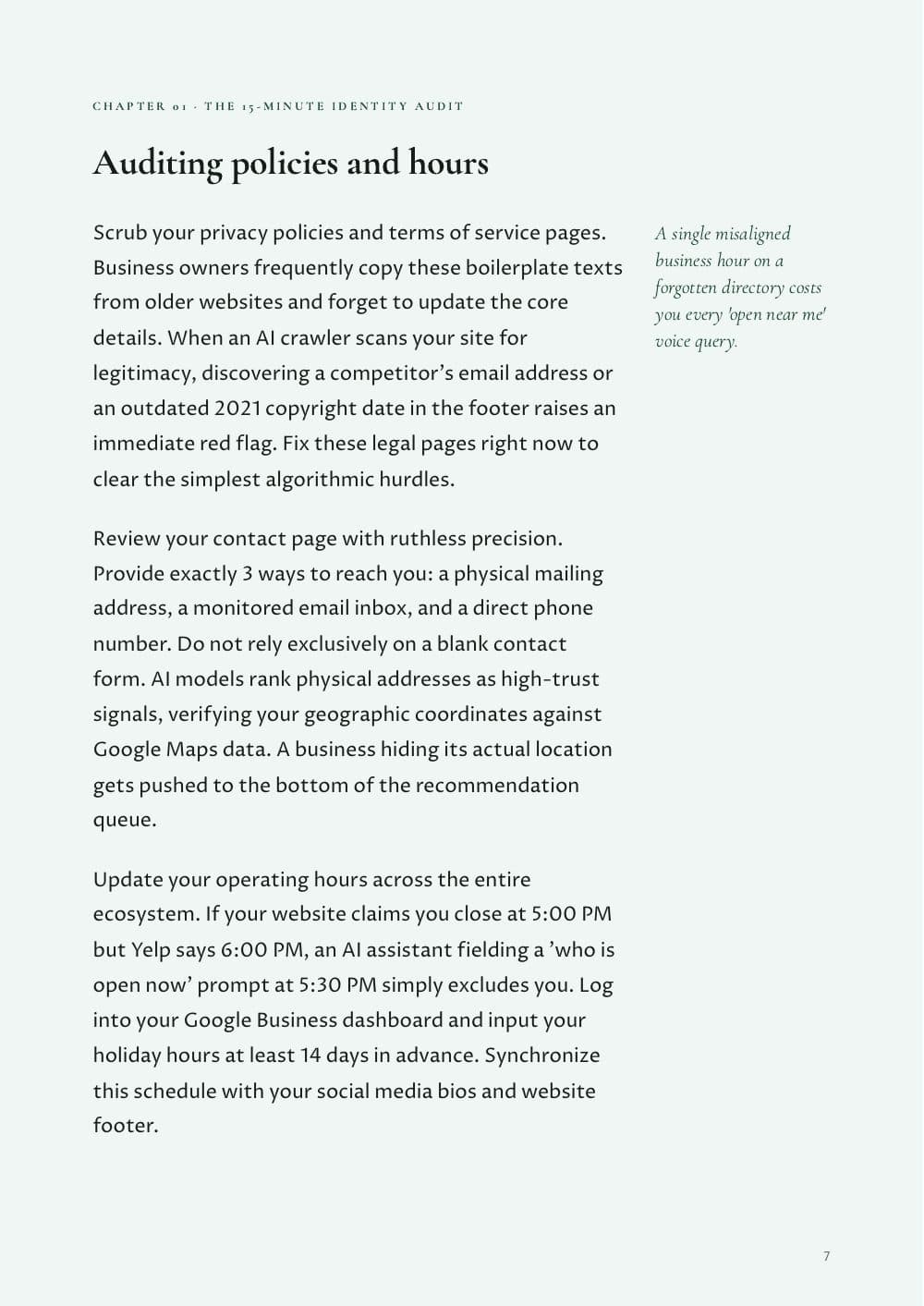
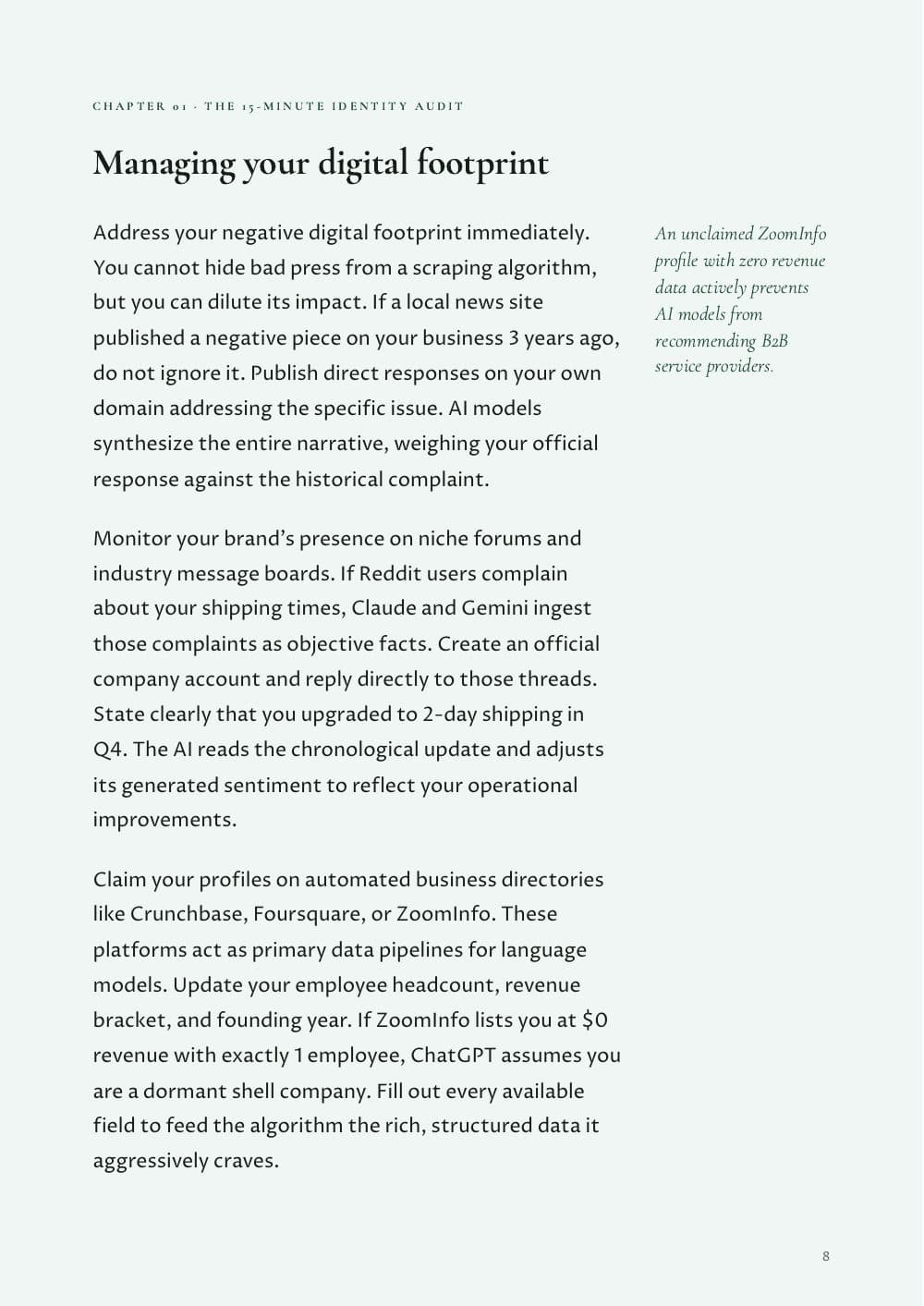
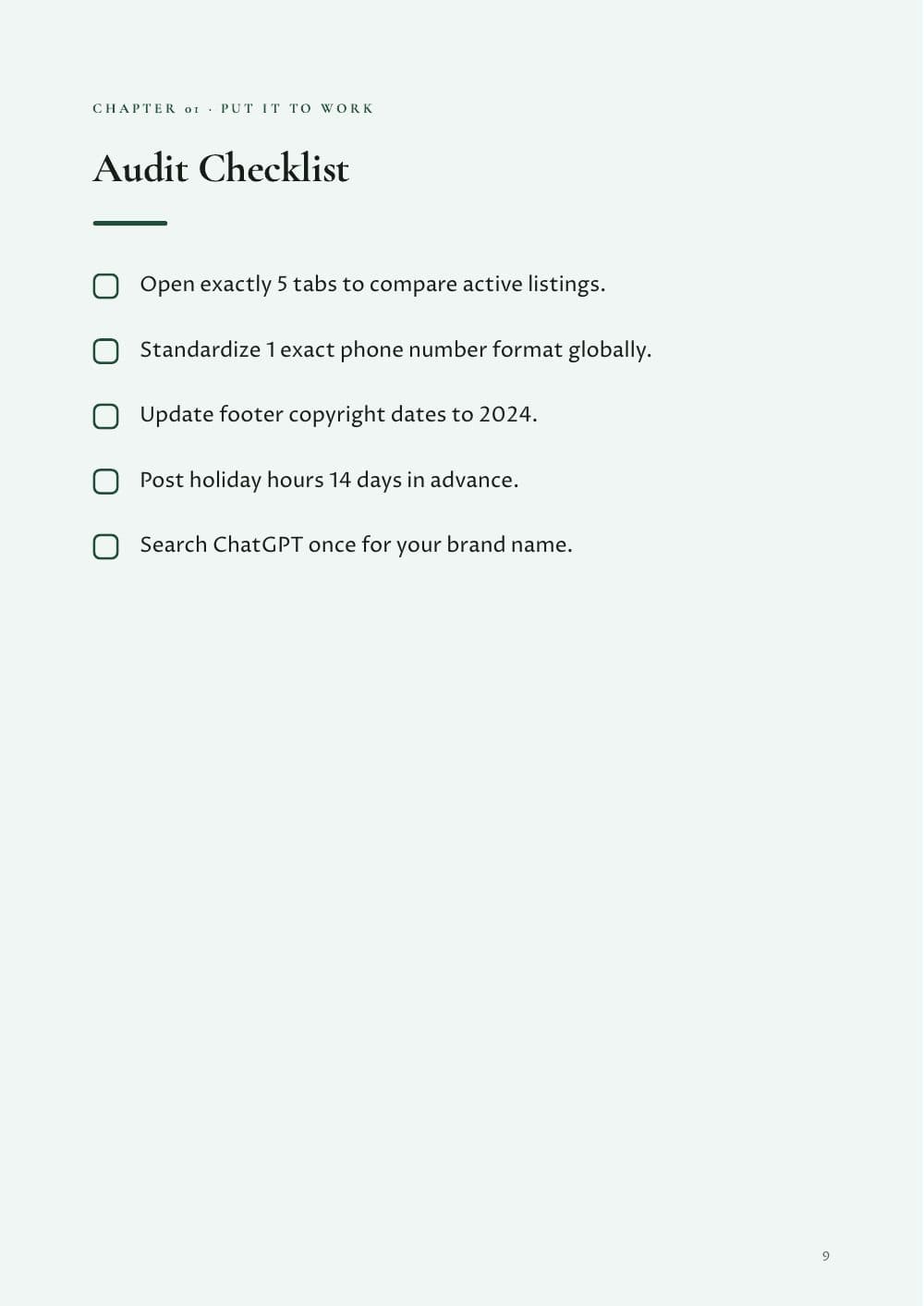
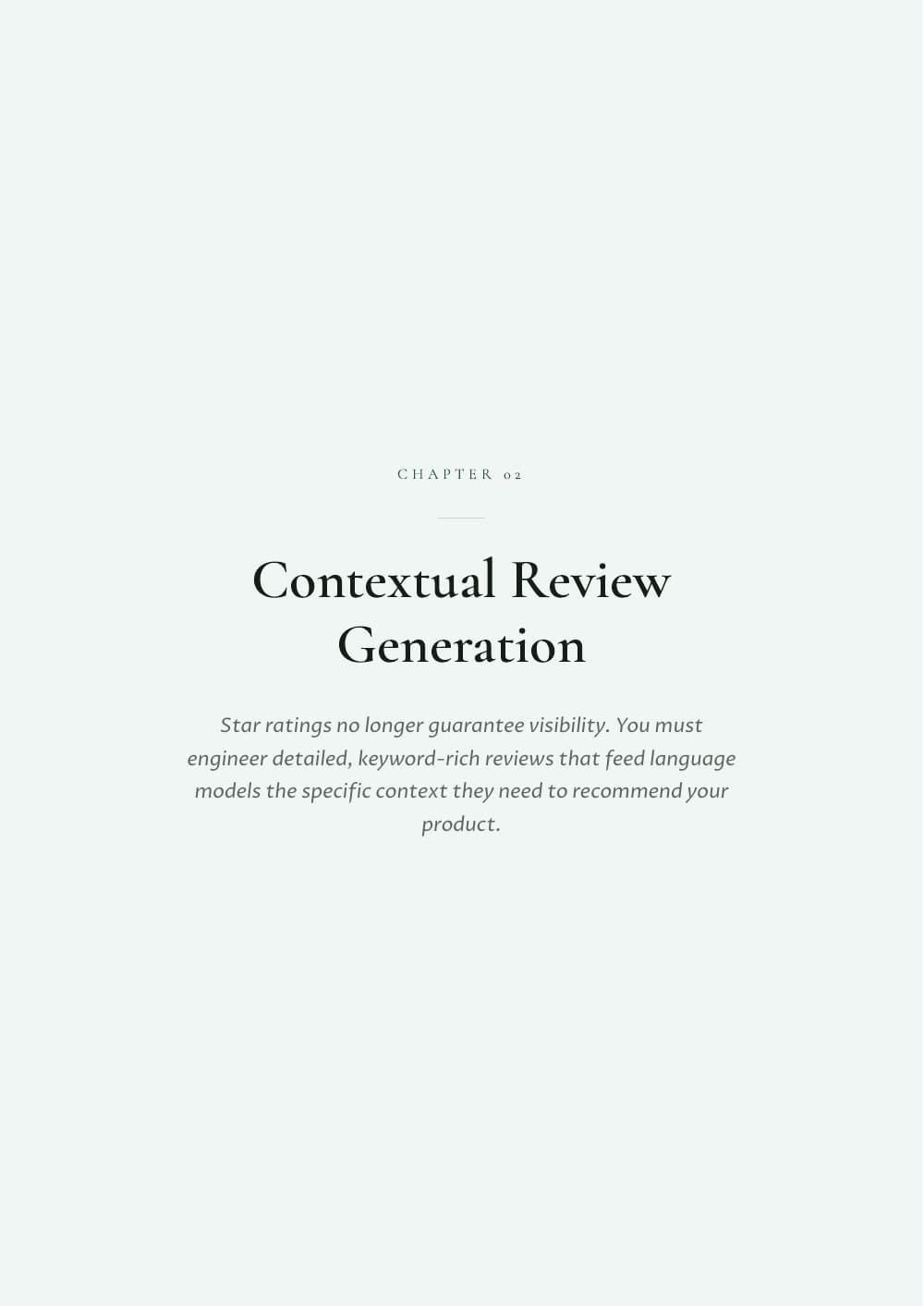
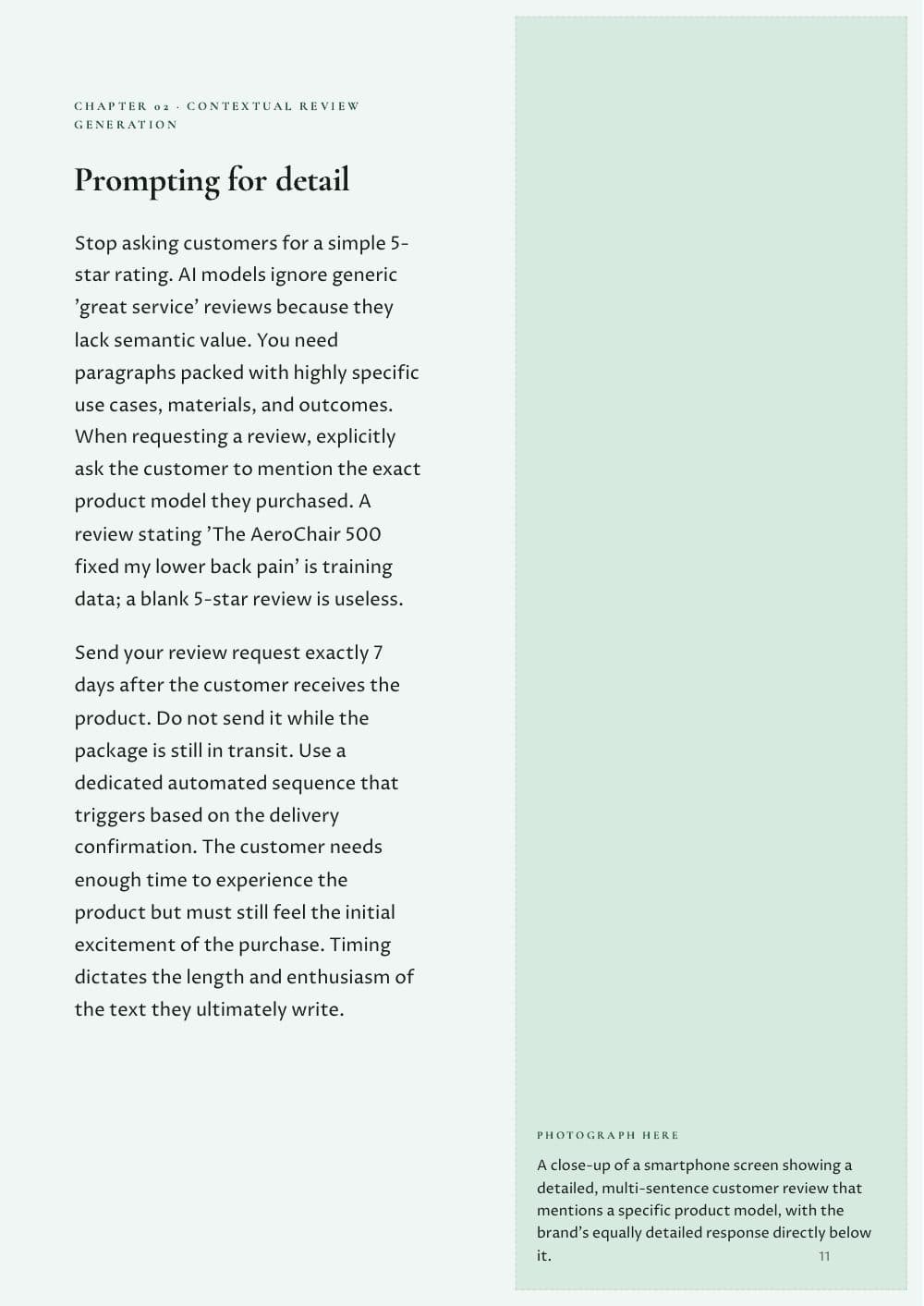
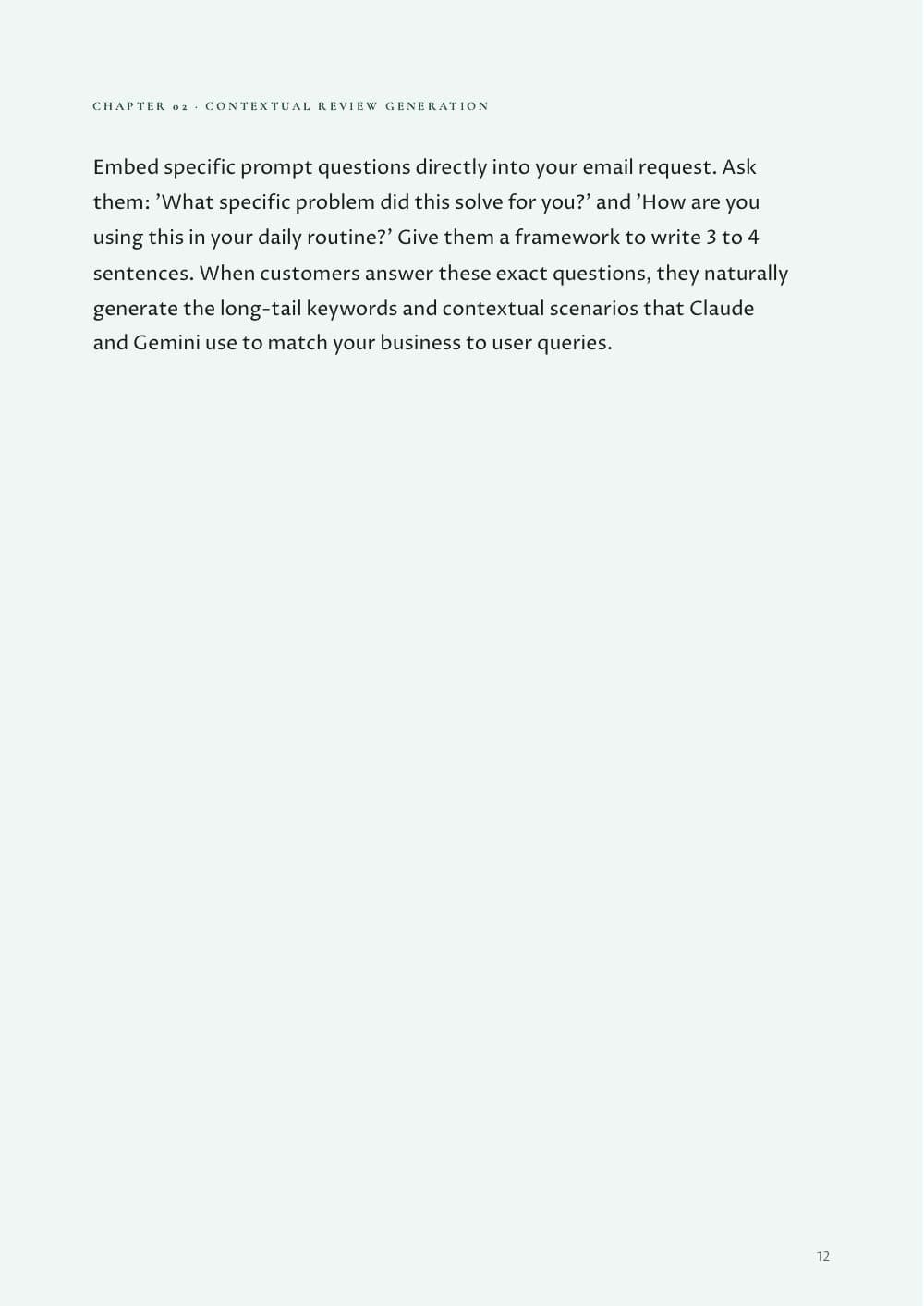
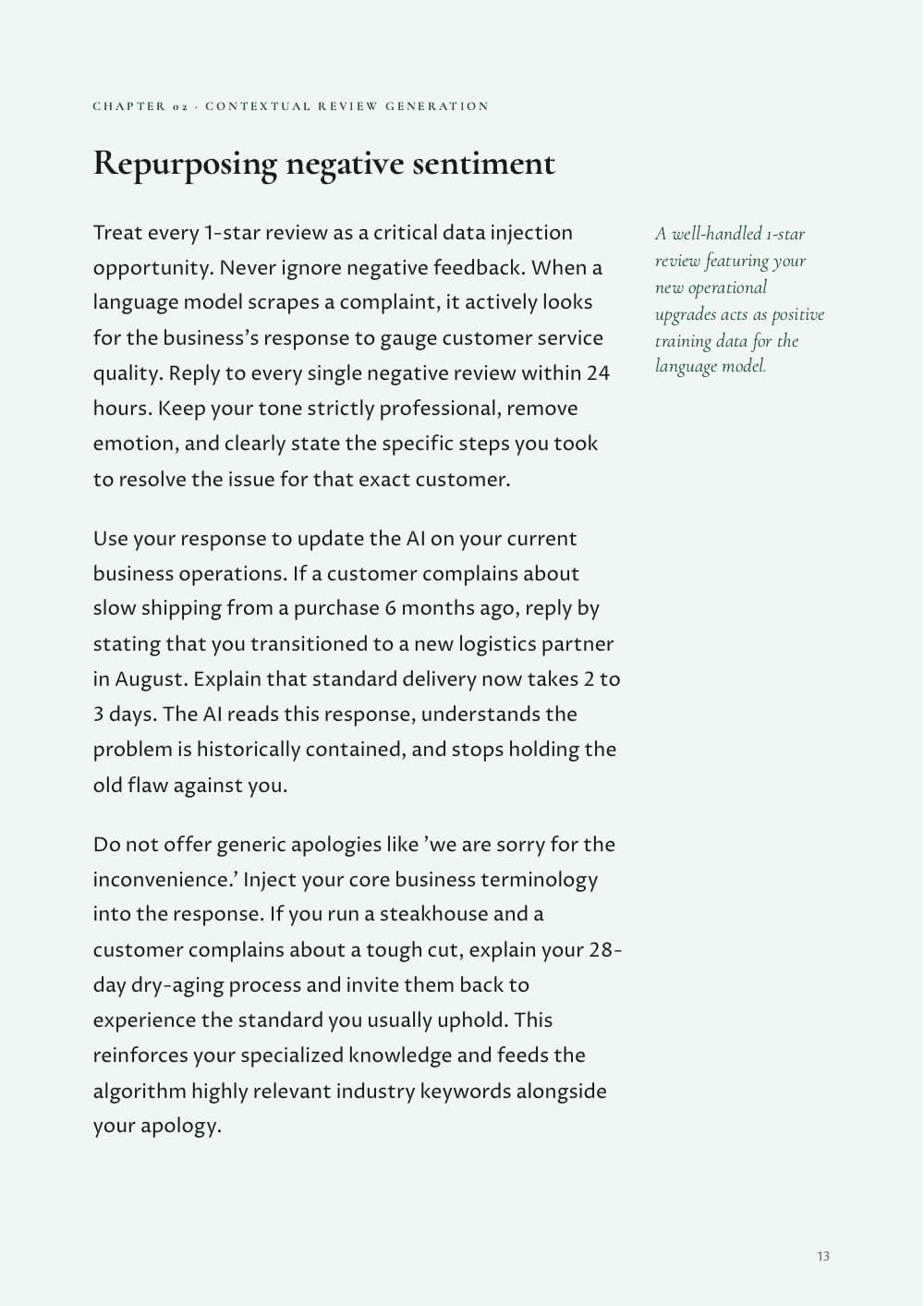
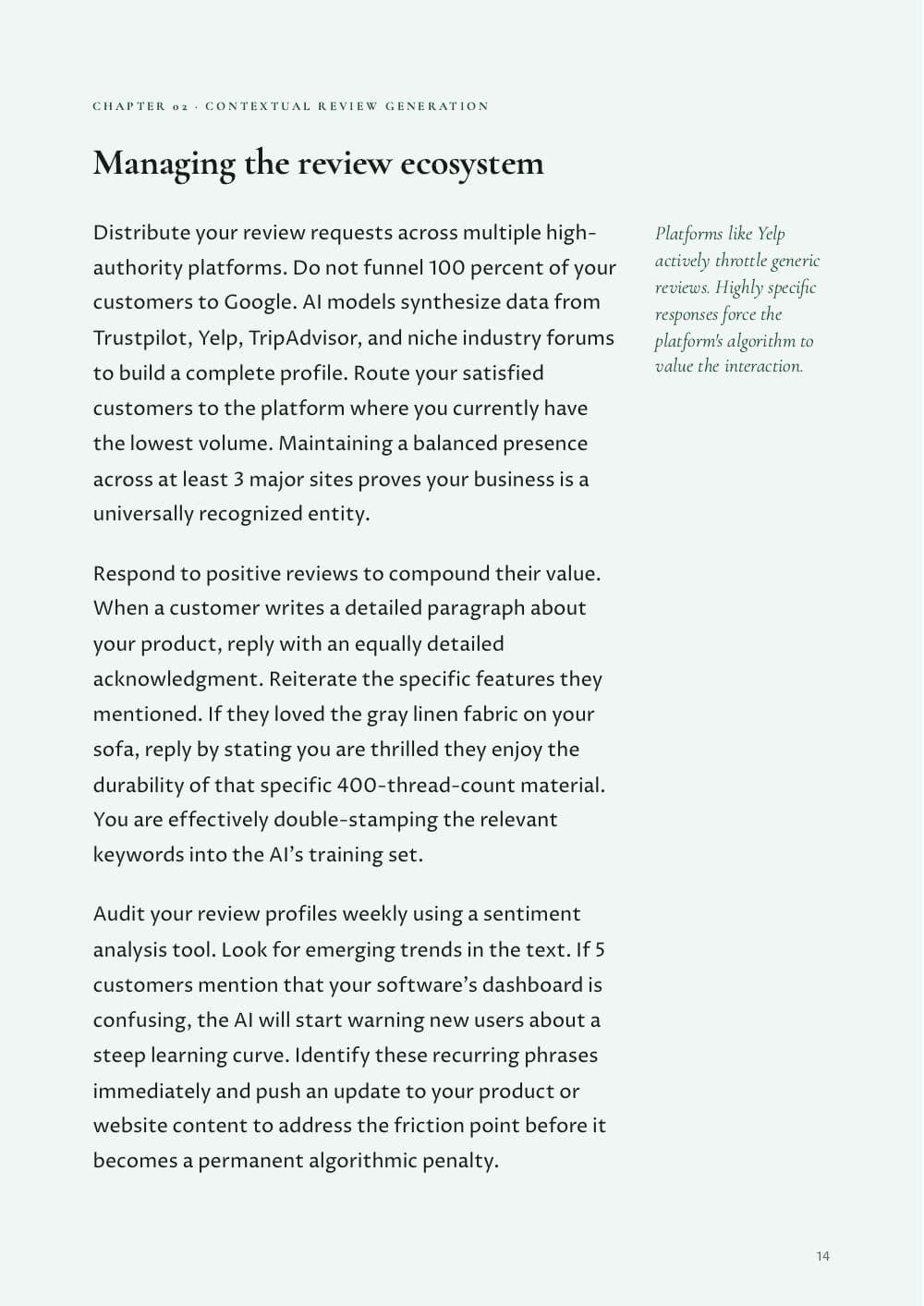
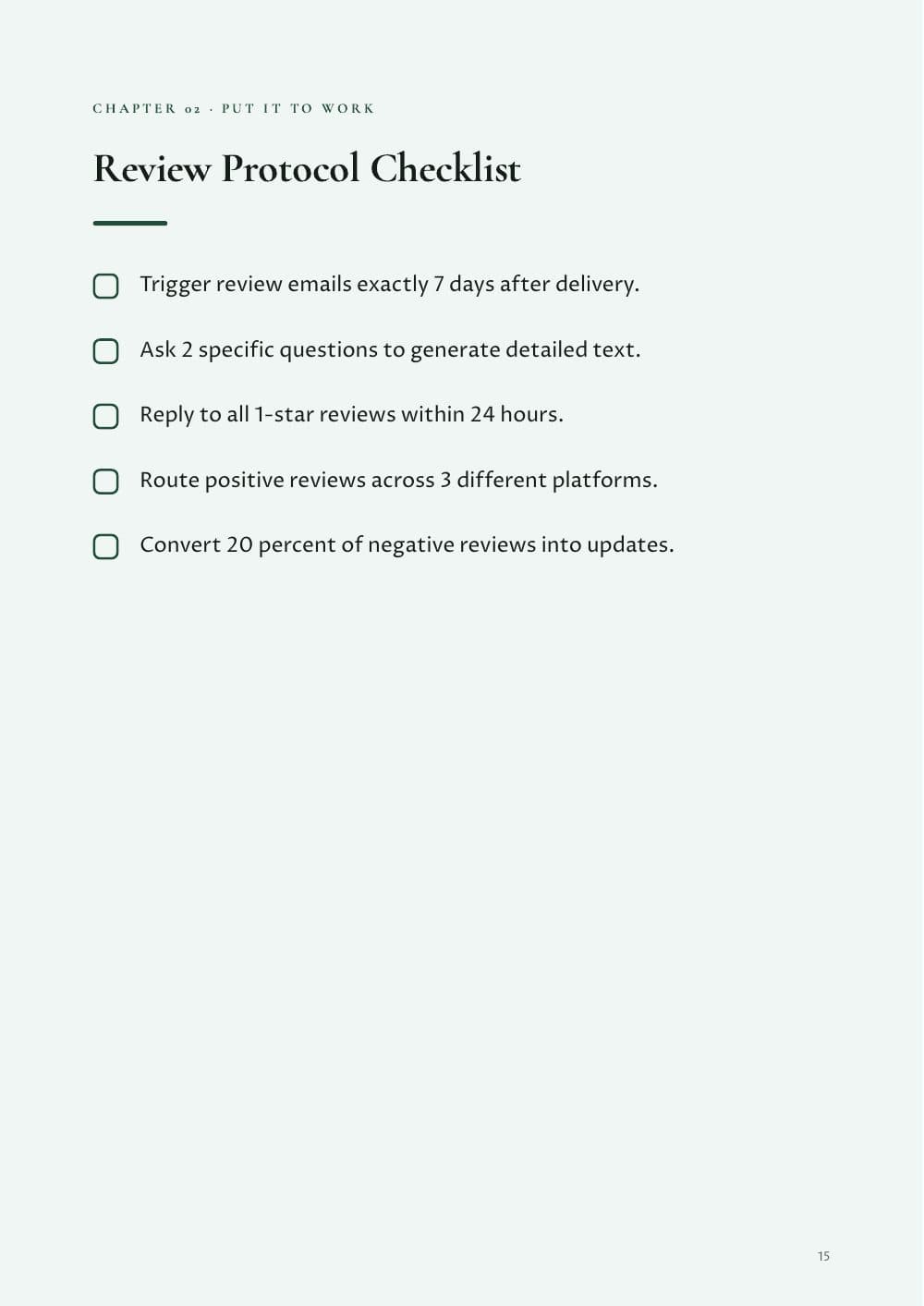
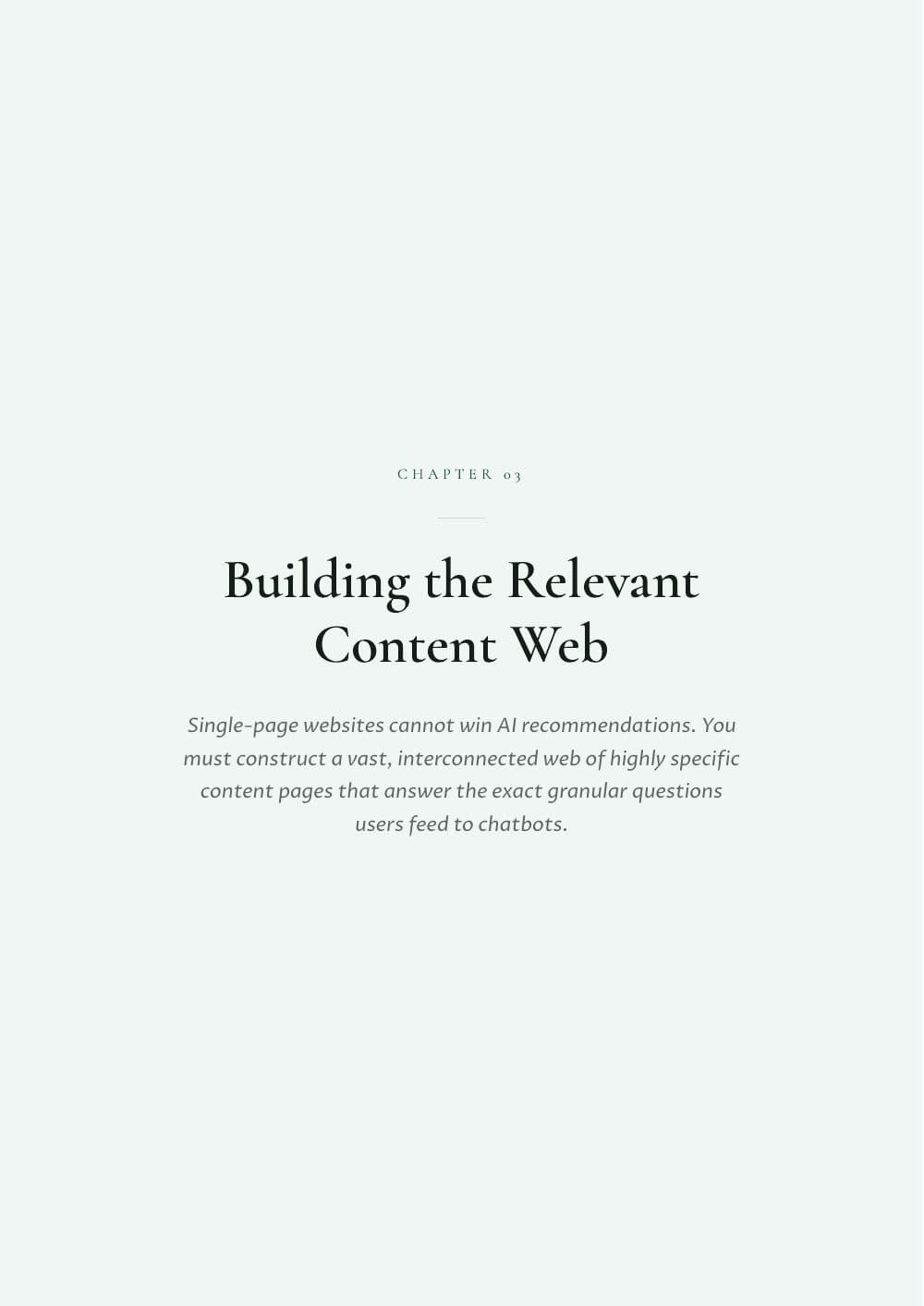
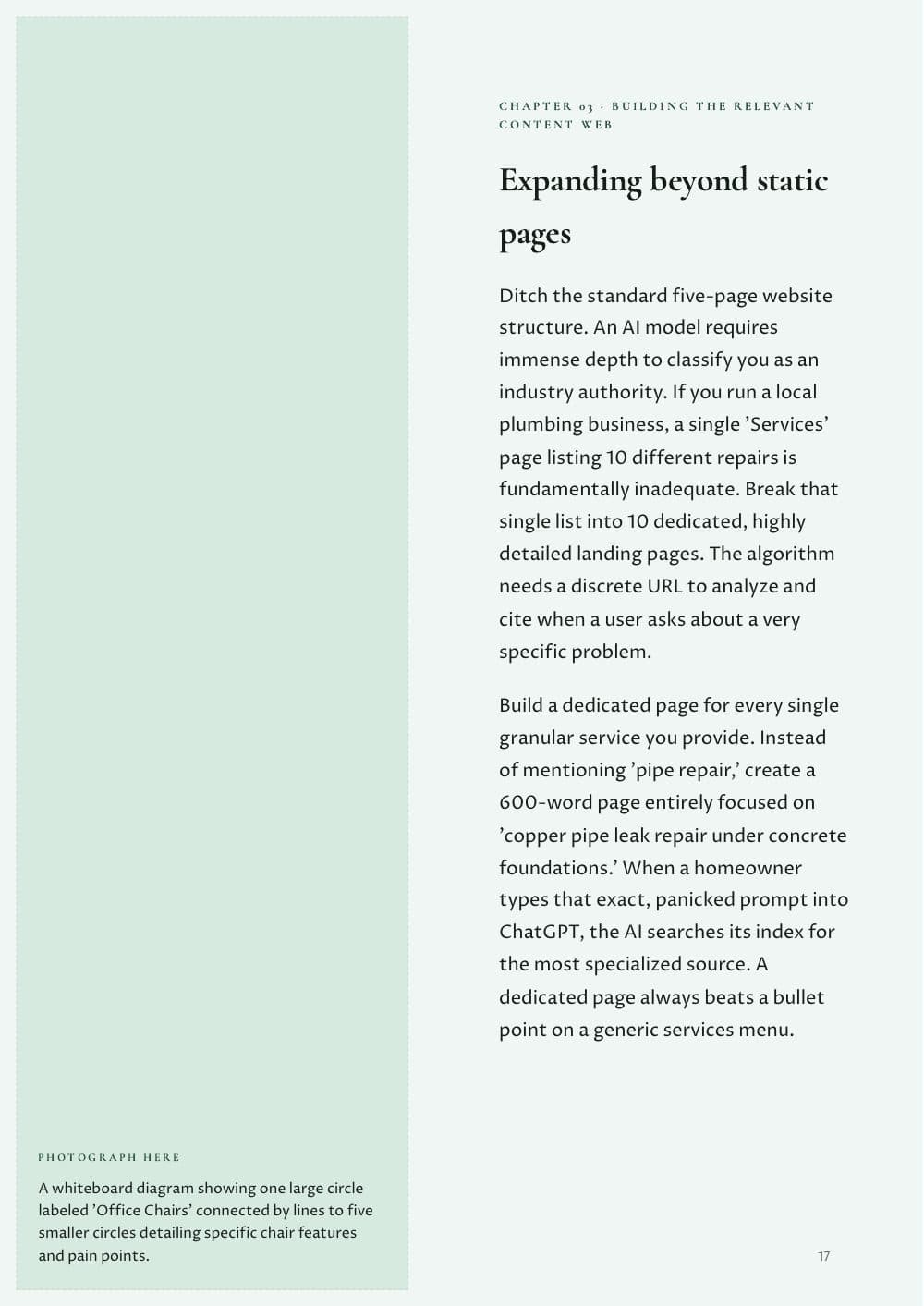
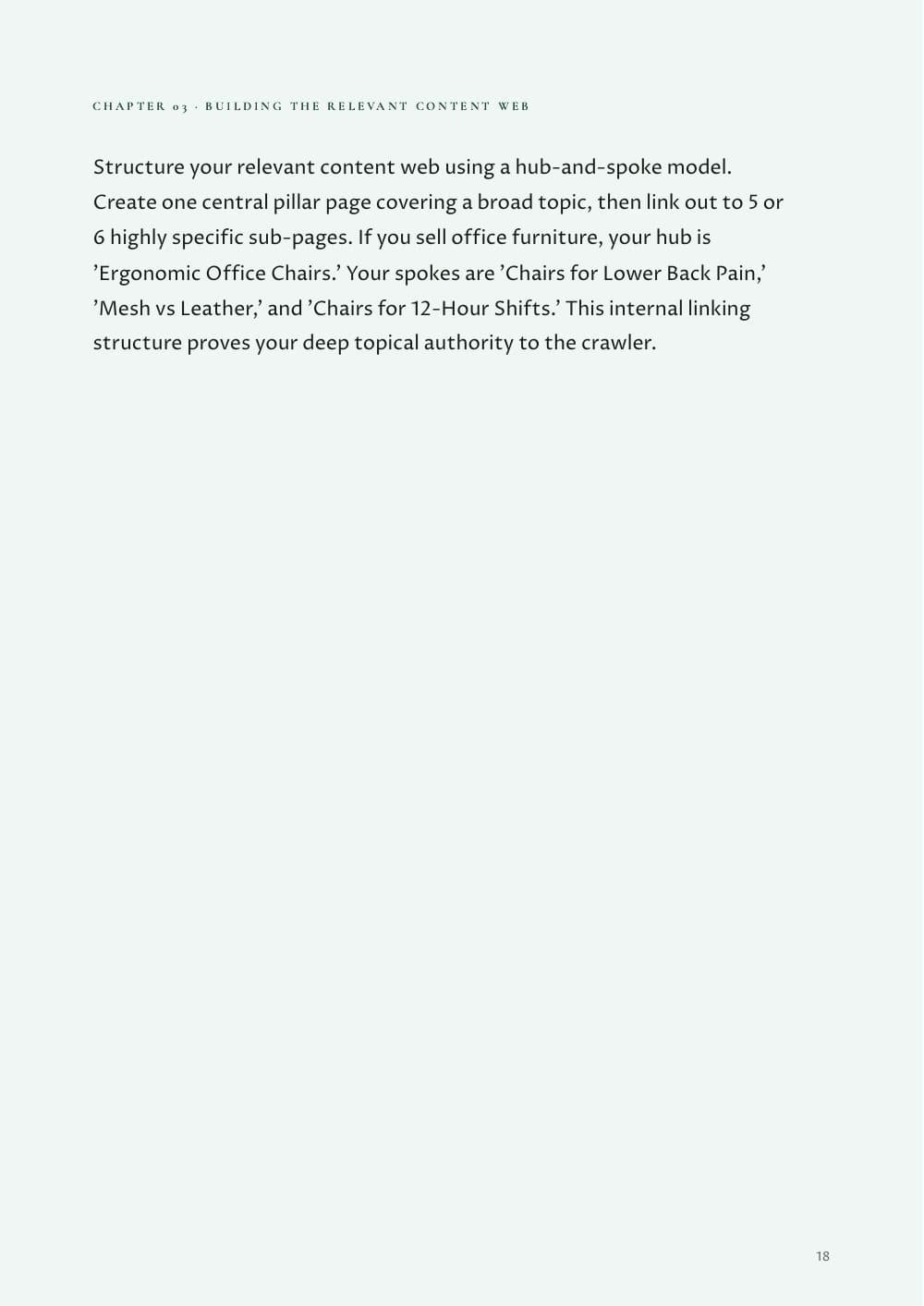
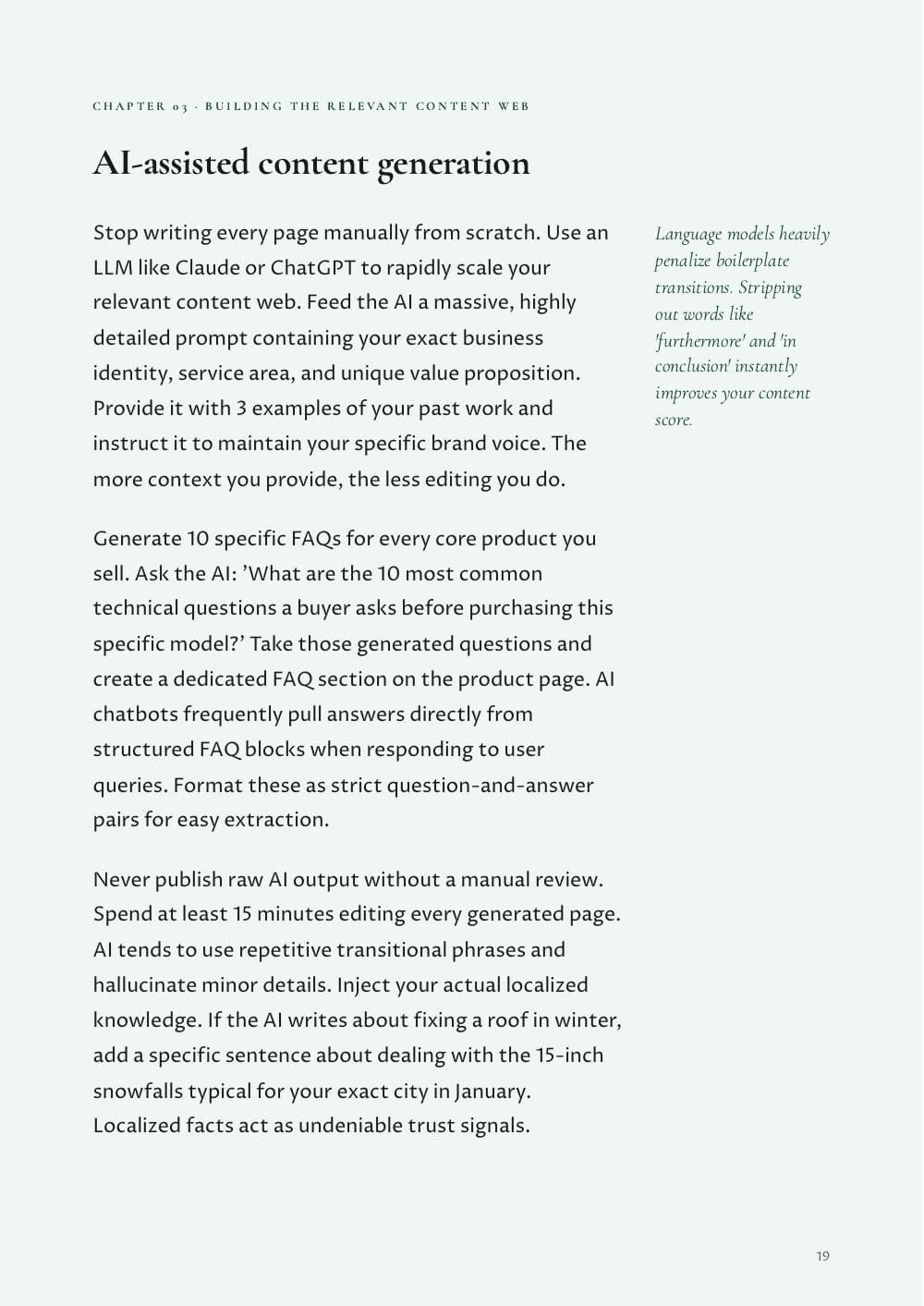
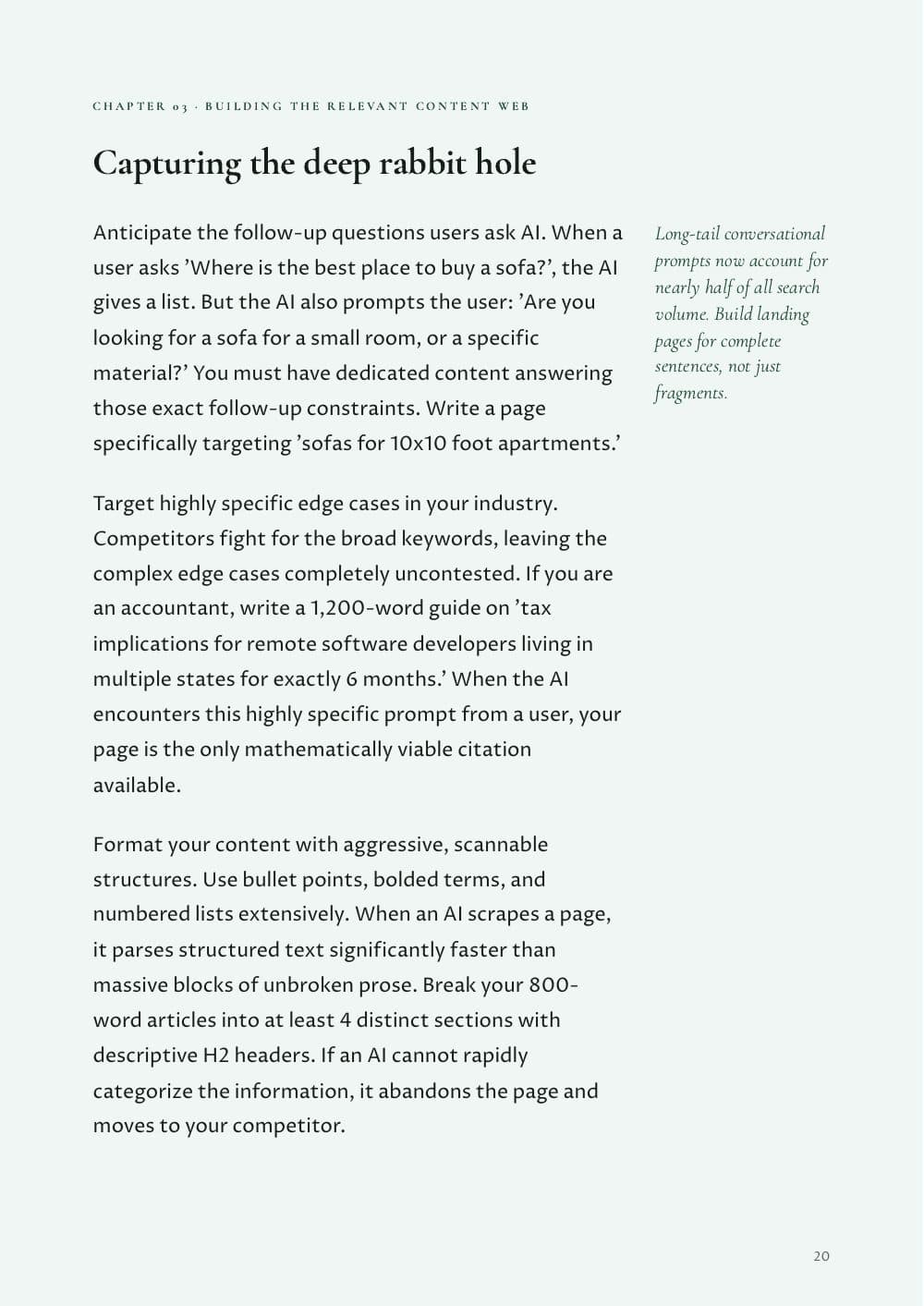
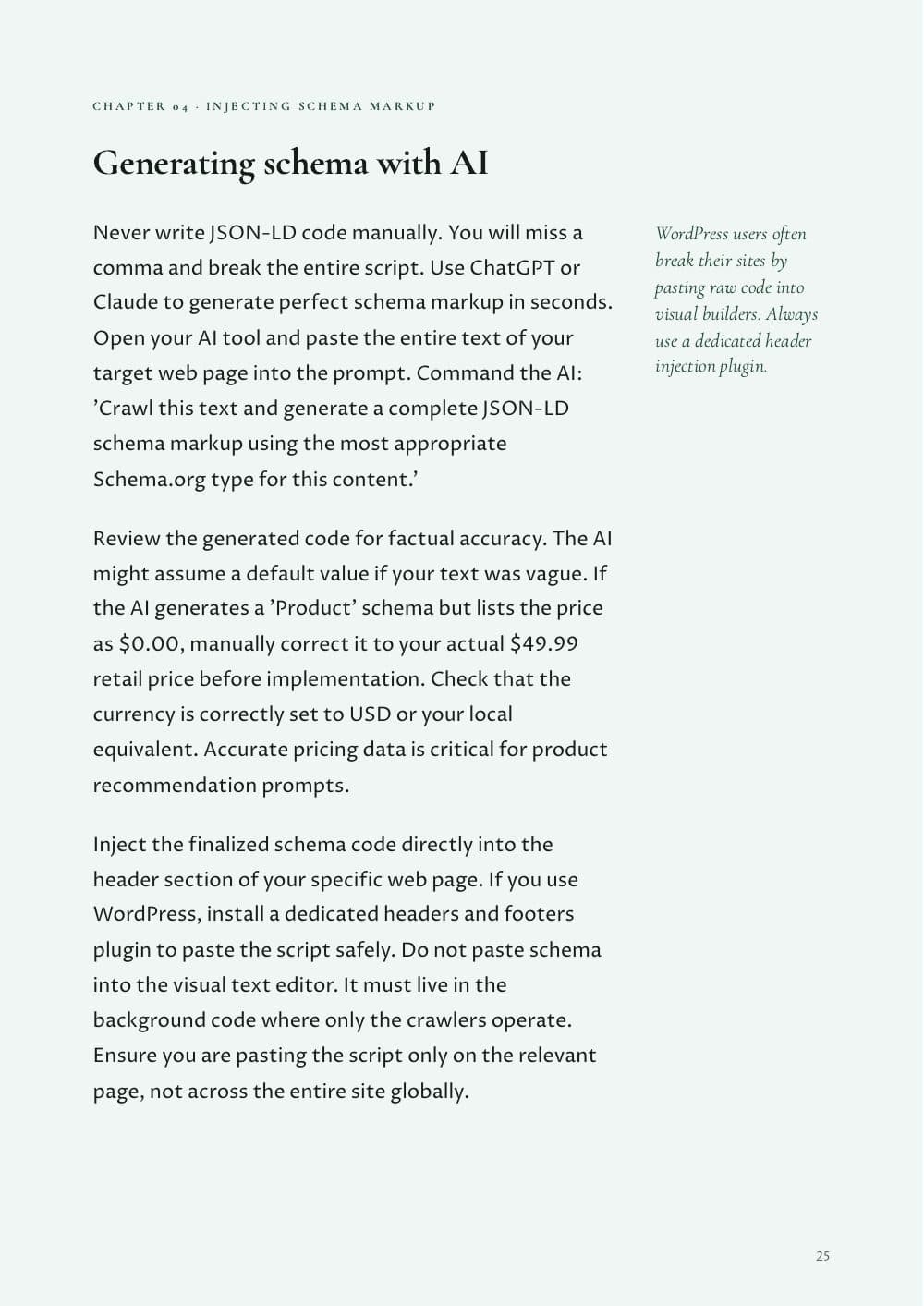
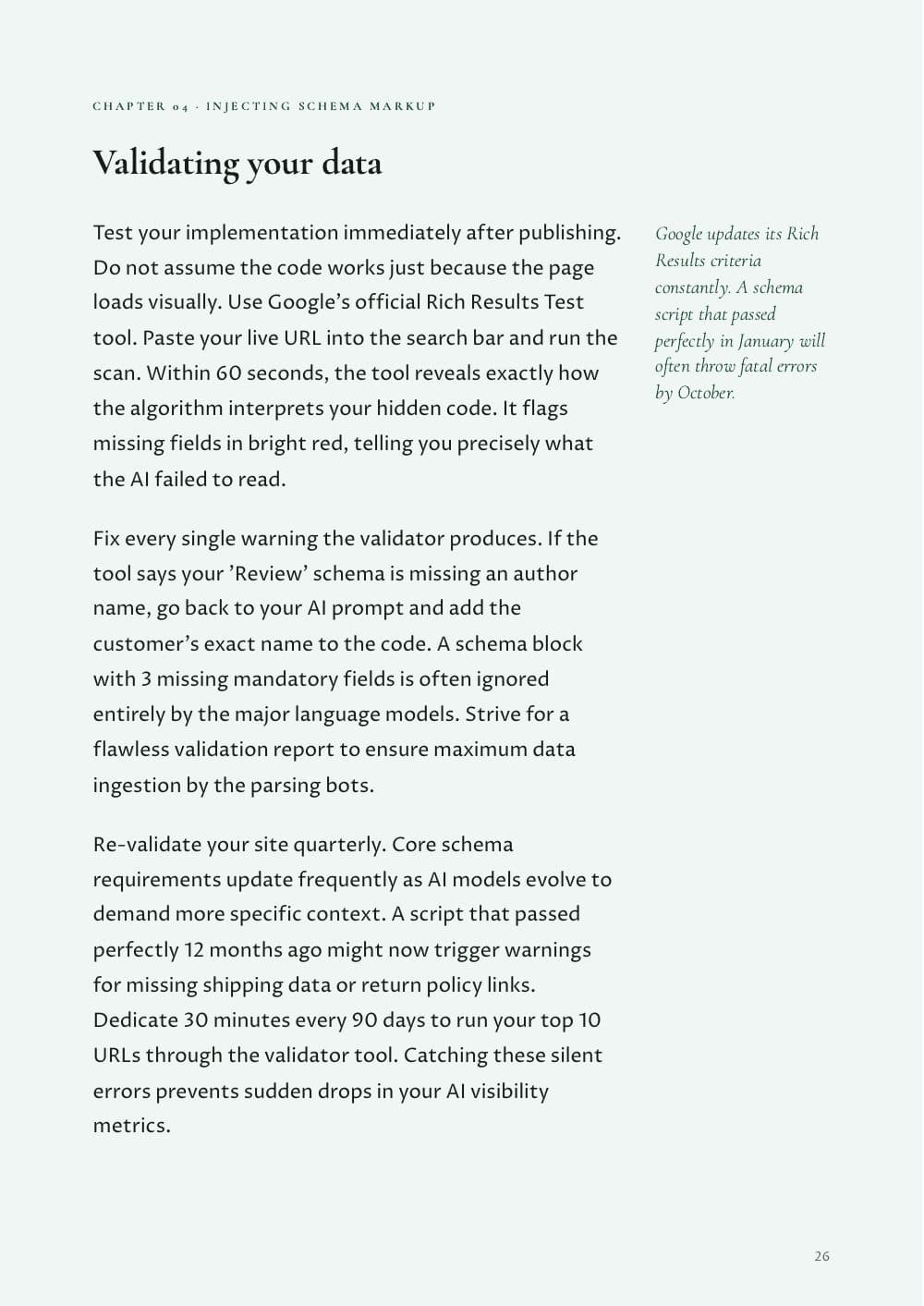
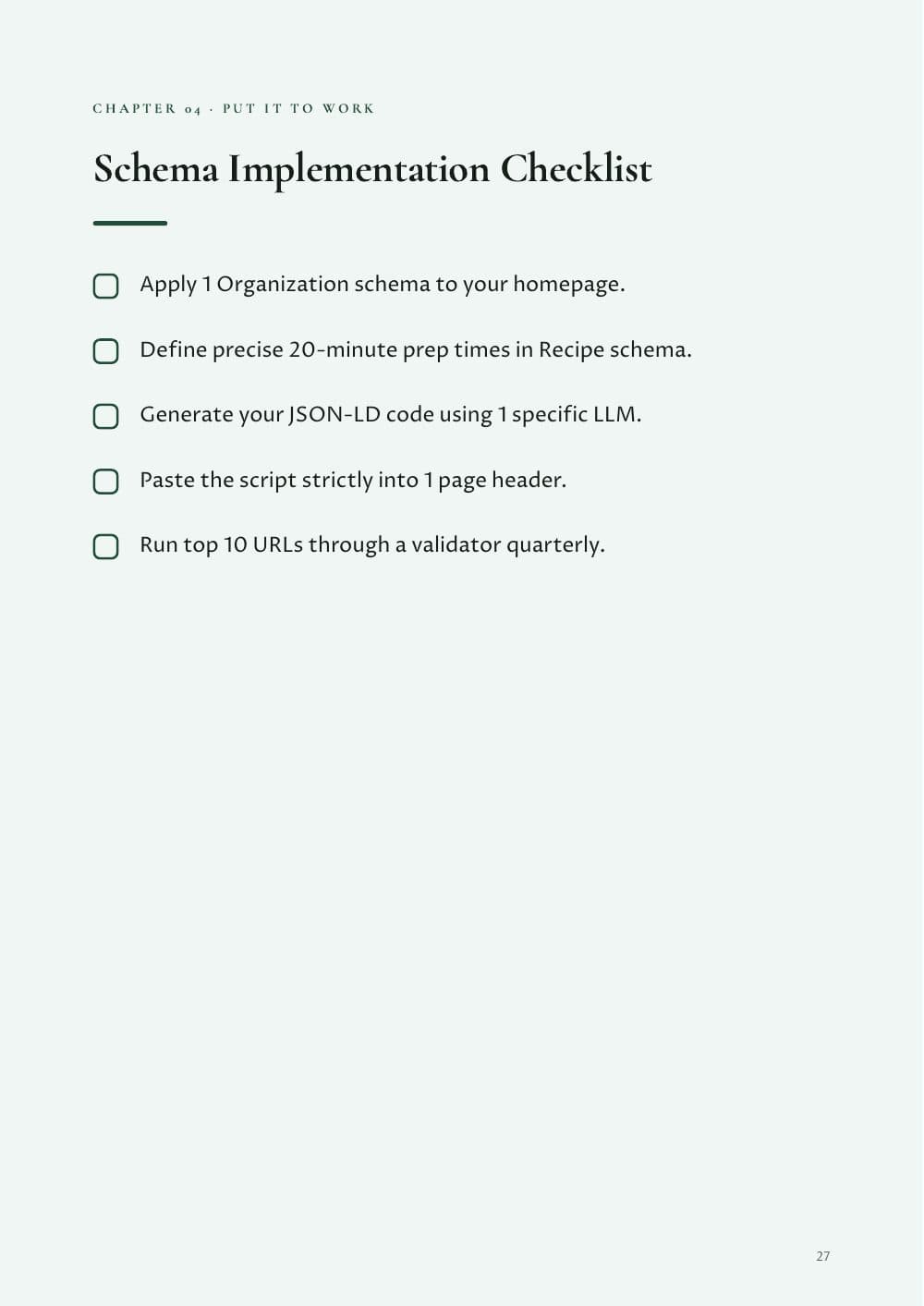
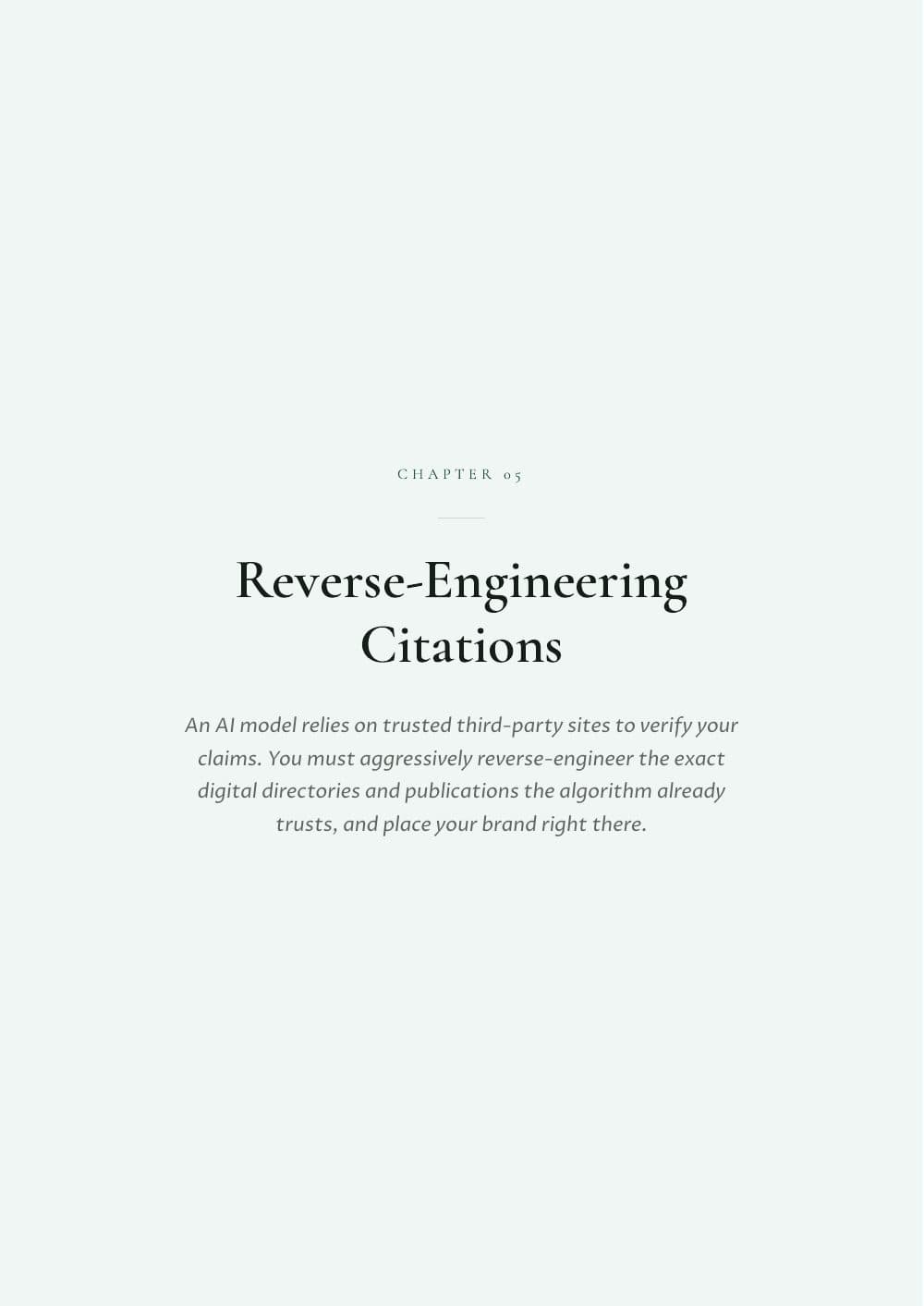
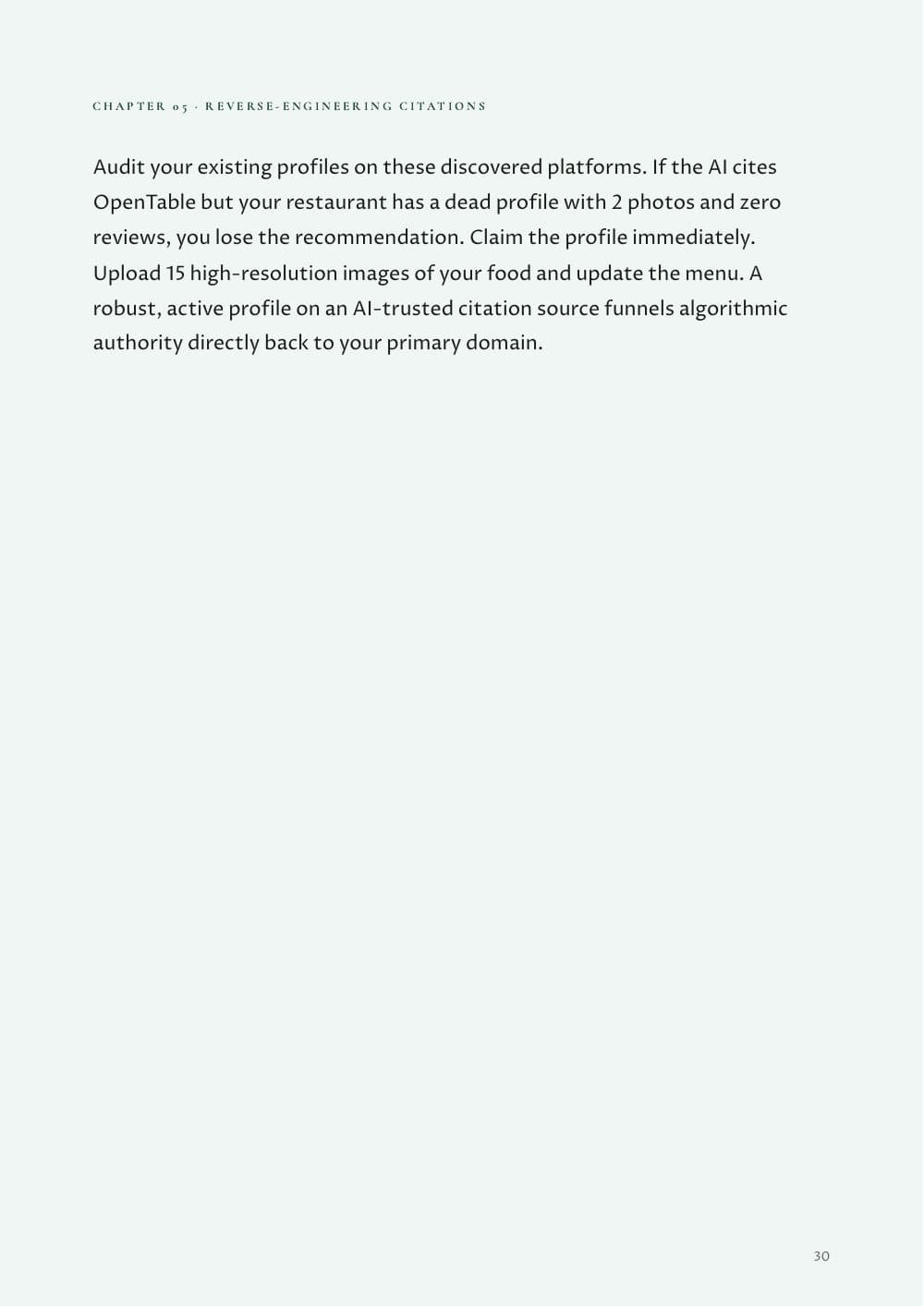
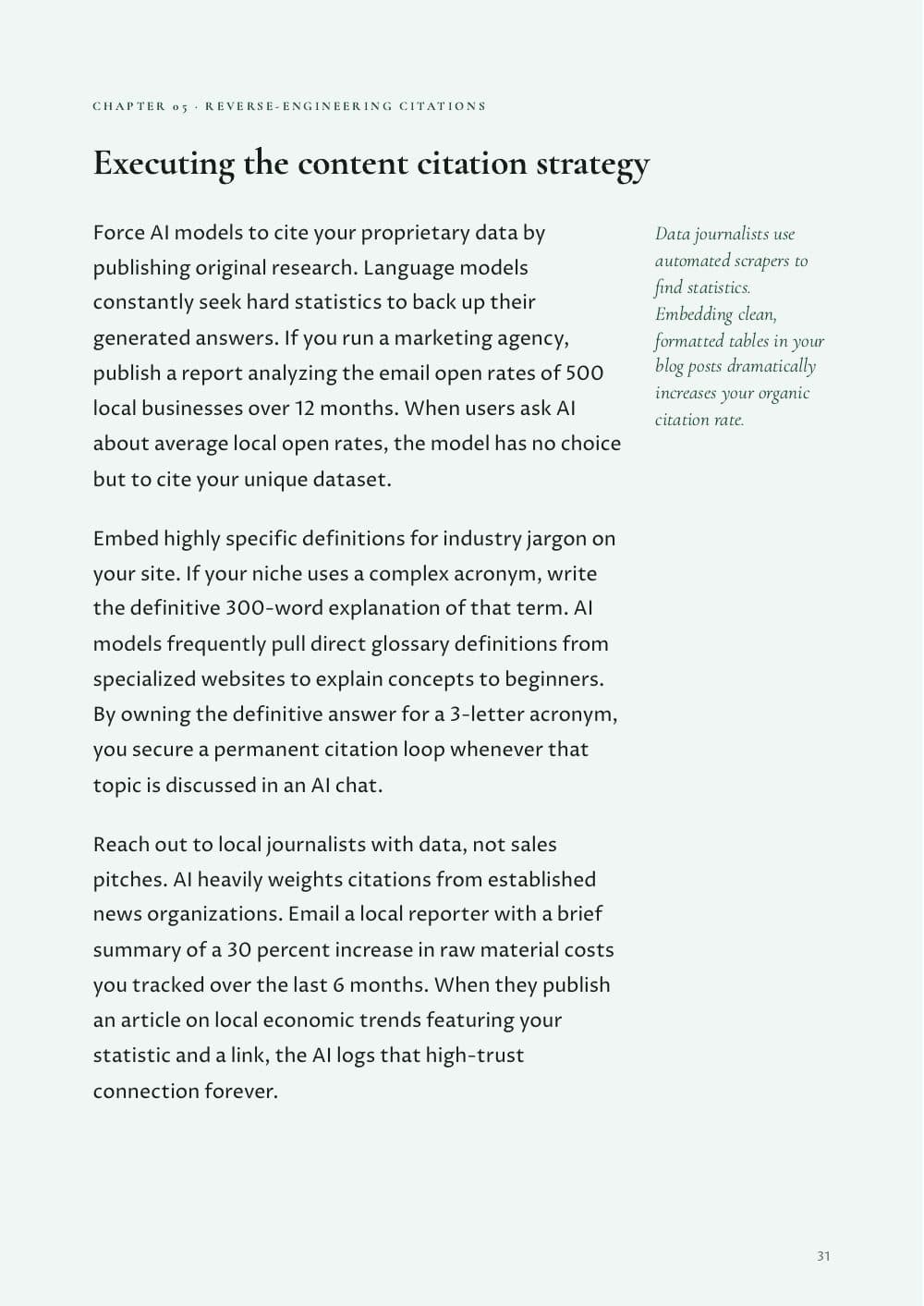
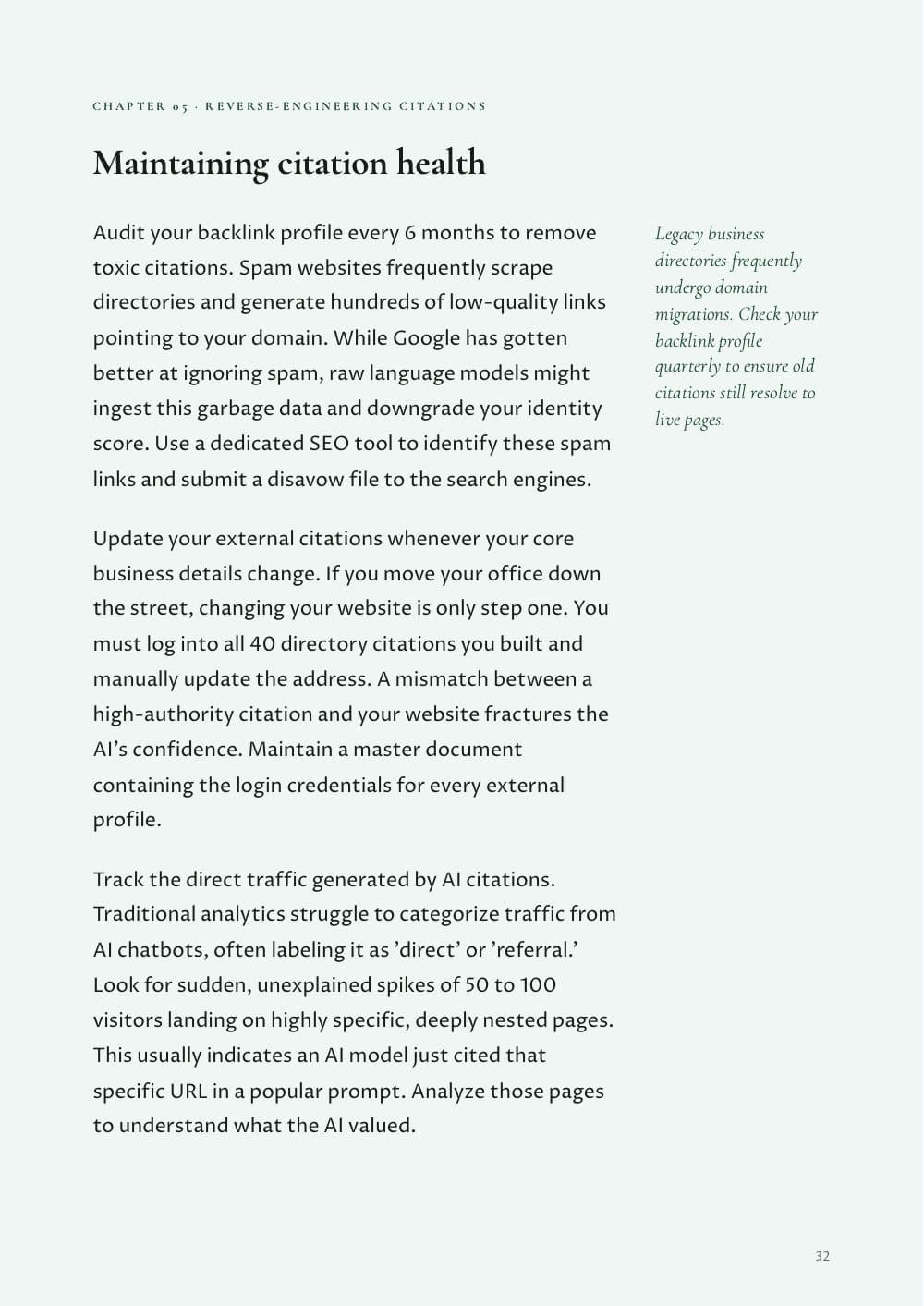
Read the ebook Knola made
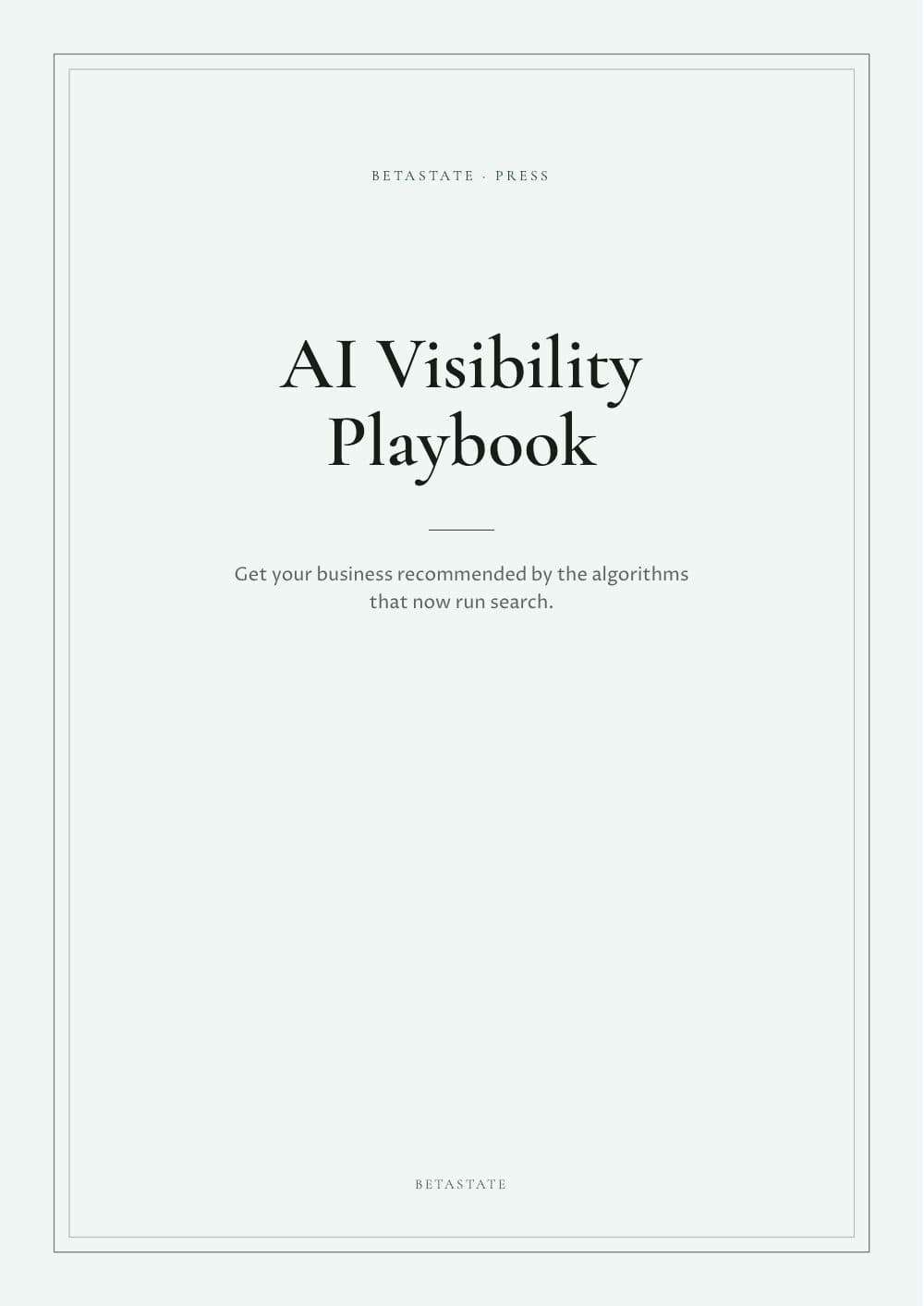
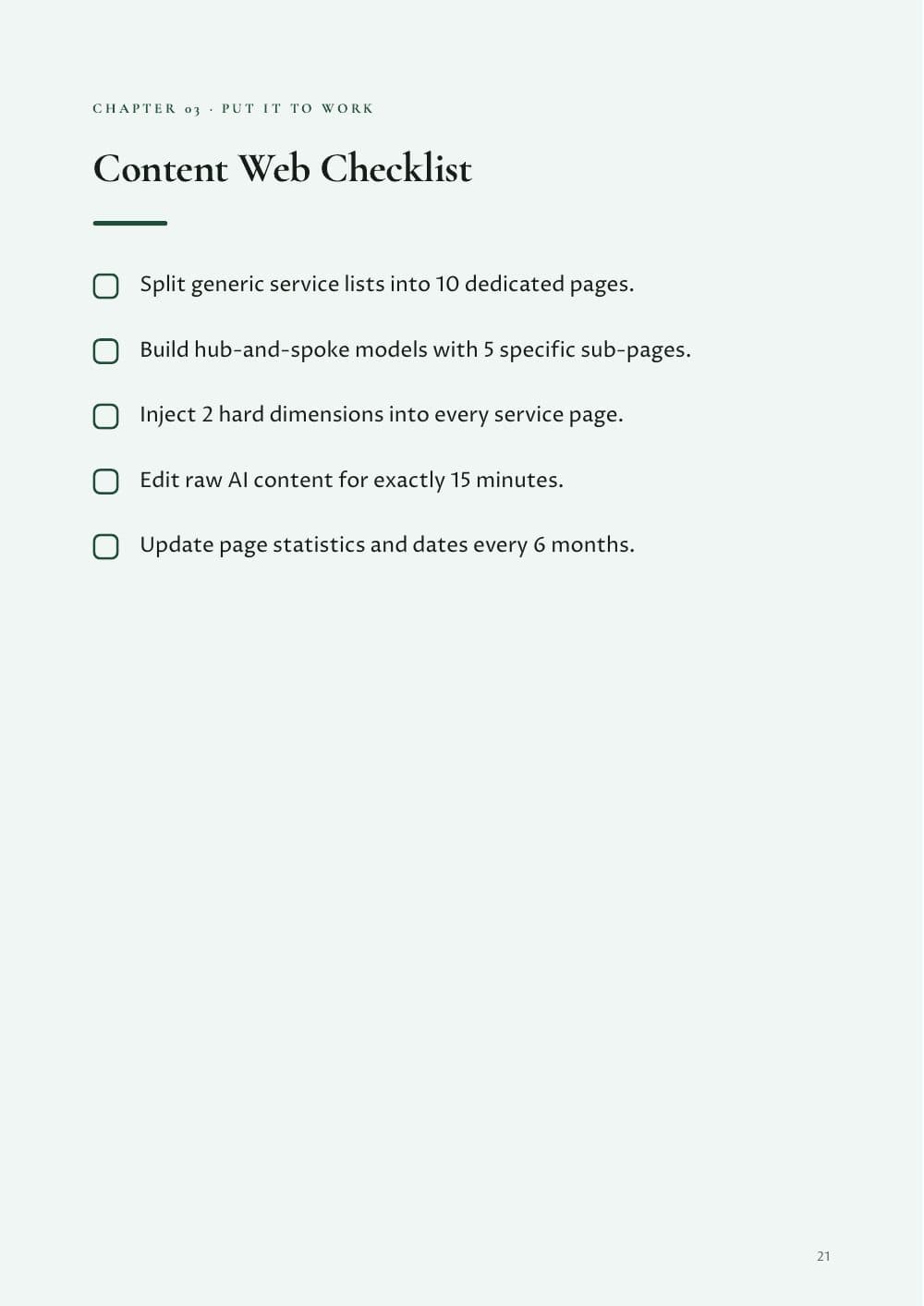
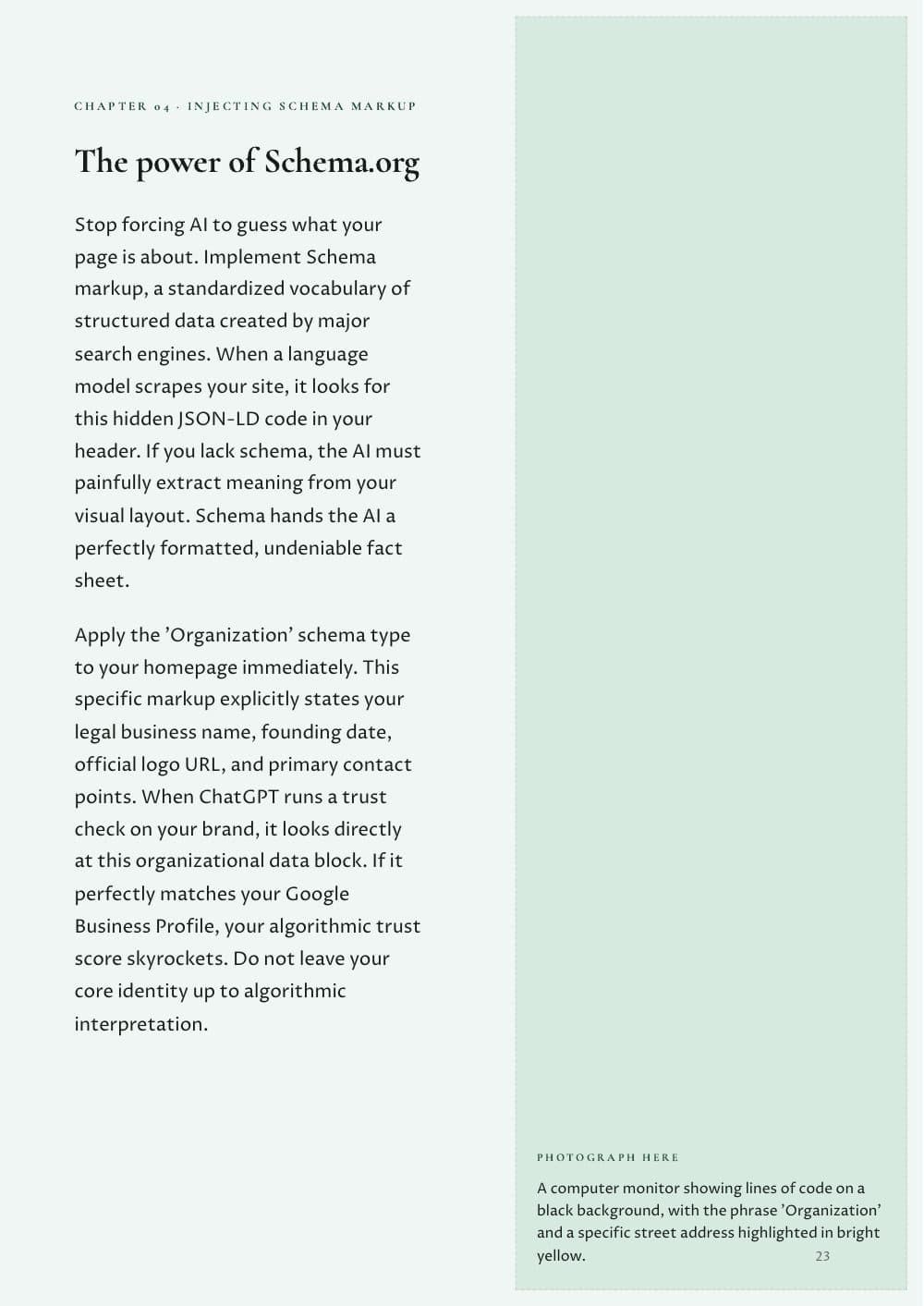
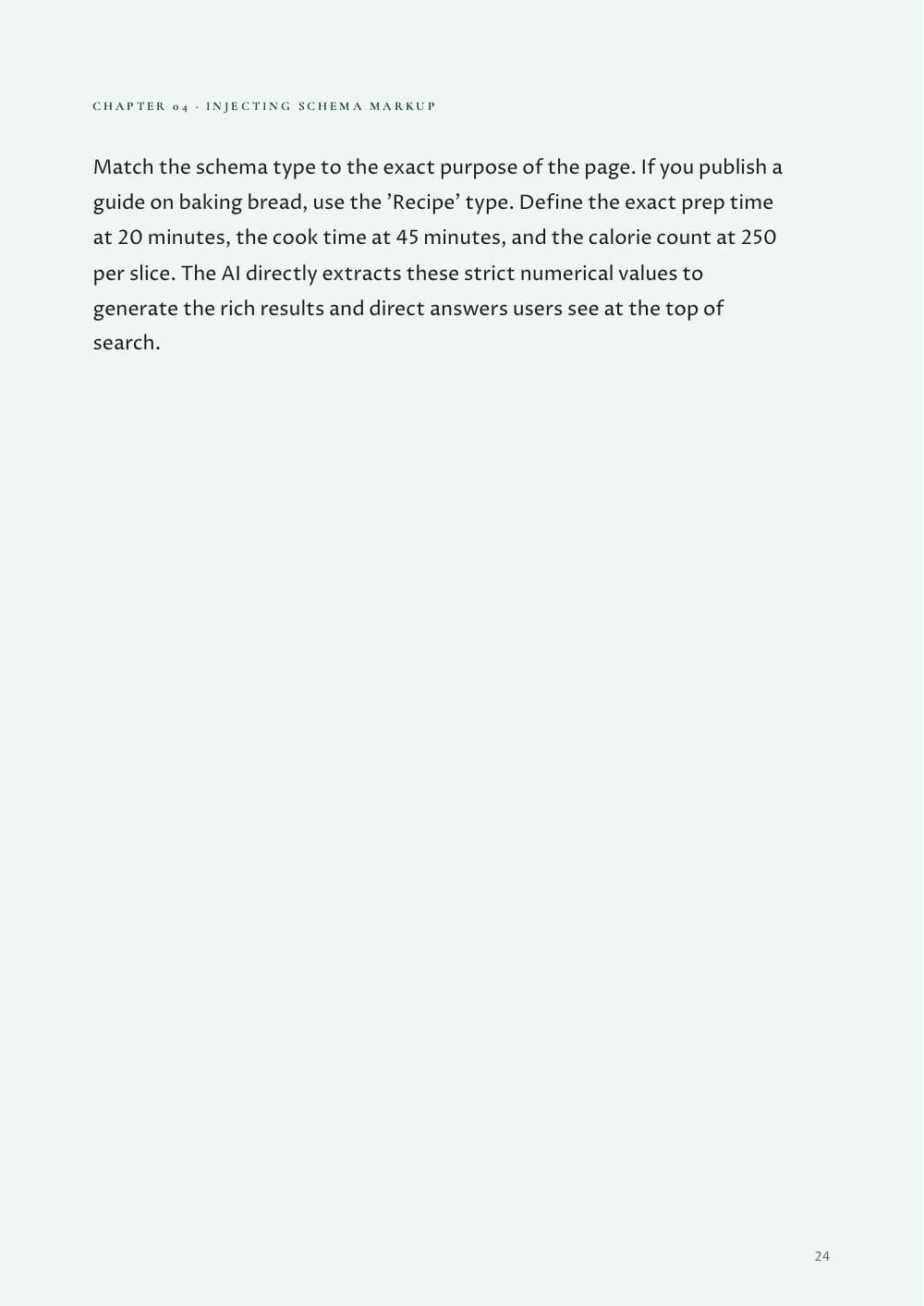
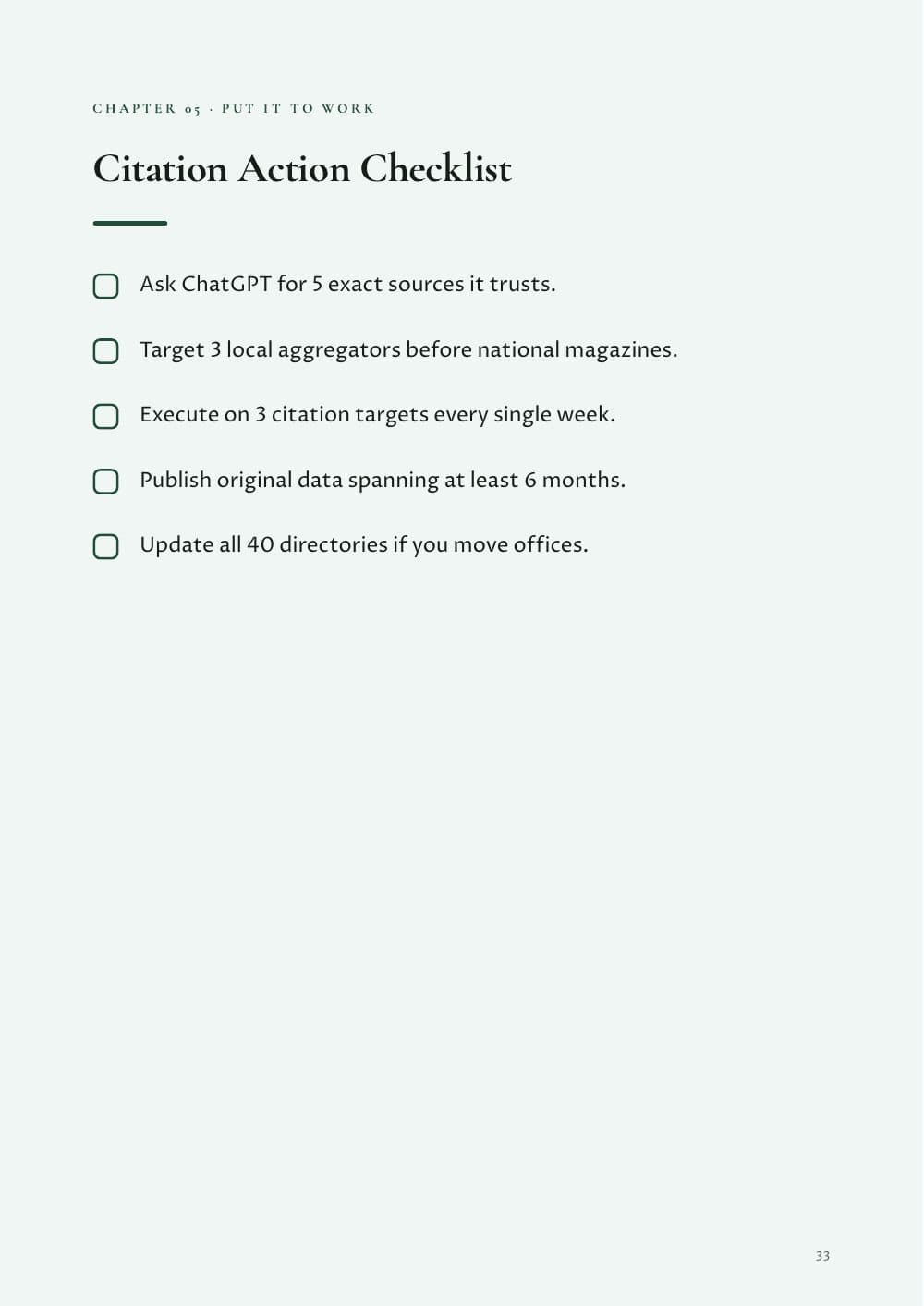
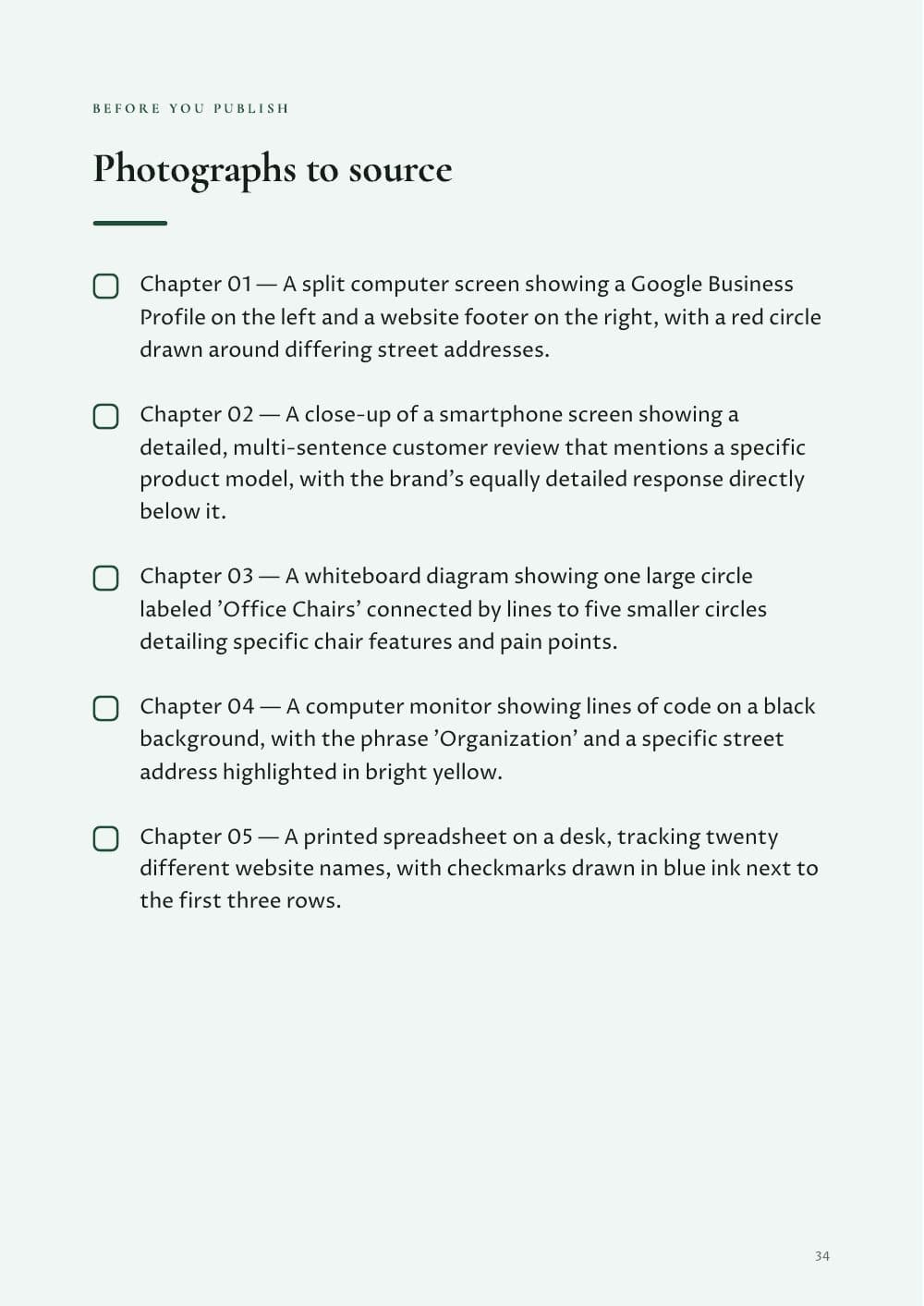
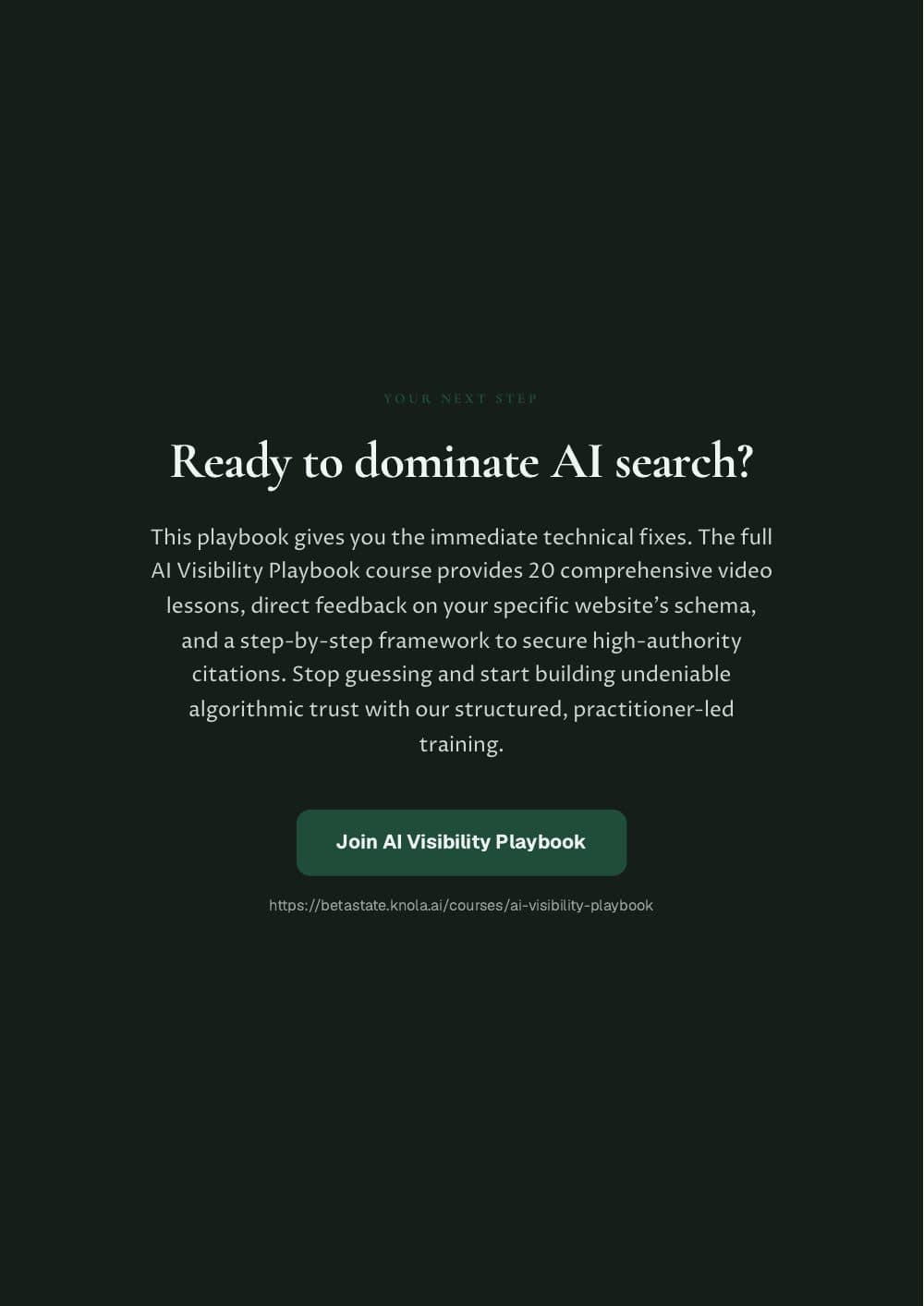
The full ebook from the AI Visibility Playbook, in the Atelier look. This is the result from our course. Length and content depend on your source.
Free to take with you
Turn the teaching you’ve recorded into an ebook.
Knola is the course platform that turns your videos into lessons, ebooks and products, and sells them for you. One payment, no monthly fee.
Can I create an ebook from my YouTube videos?
Yes. Upload your own original video files as lessons in Knola, then make the ebook from them.
Do I need a whole course?
No. One substantial lesson or a few related recordings can be enough. Put them in lessons in one course and choose the source that fits the book.
What does “no AI slop” mean here?
The ebook is written from your actual teaching, not from a broad topic prompt. You still read it for accuracy, repetition and missing context.
Will every ebook have 35 pages?
No. 35 pages is the result from our 20-video course. Your page count depends on your source.
Can I edit the ebook after it’s made?
Yes. Click Edit to change the text, and pick another look to change the styling. The words stay when you change the look.
Can I sell the ebook through Knola?
Yes. Click Sell, set a price and publish. You get a buy page and a Stripe checkout, and Knola delivers the ebook to the buyer. Connect Stripe first.
Does the $47 in the video buy Knola?
No. It is our example price for this ebook.
What does Knola cost?
Knola is a one-time payment, with no monthly fee. You choose a licence, pay once and keep it. Every licence comes with AI credits for things like ebooks. See the licences.
Not ready to buy yet?
See your course first. Free.
Type what you do or know. Knola shows you a course you could sell, with its full outline. No card, no account.
Keep going
Watch another lesson
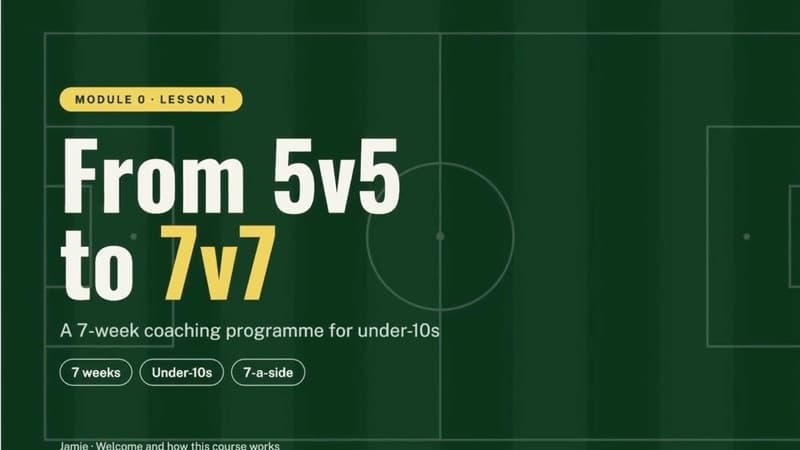
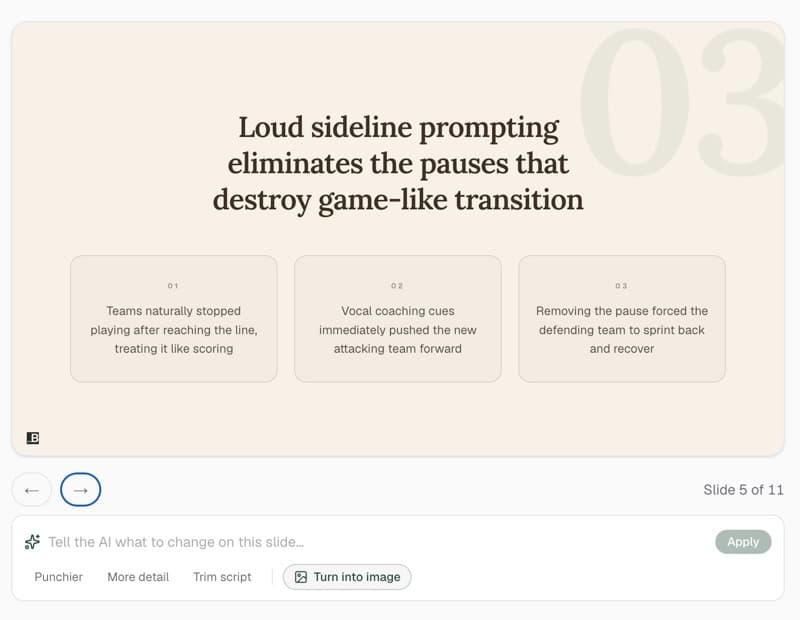 11 minLessonsCreate a course lesson from notes with AIWatch as we turn real coaching notes into a lesson presentation.Watch the lesson
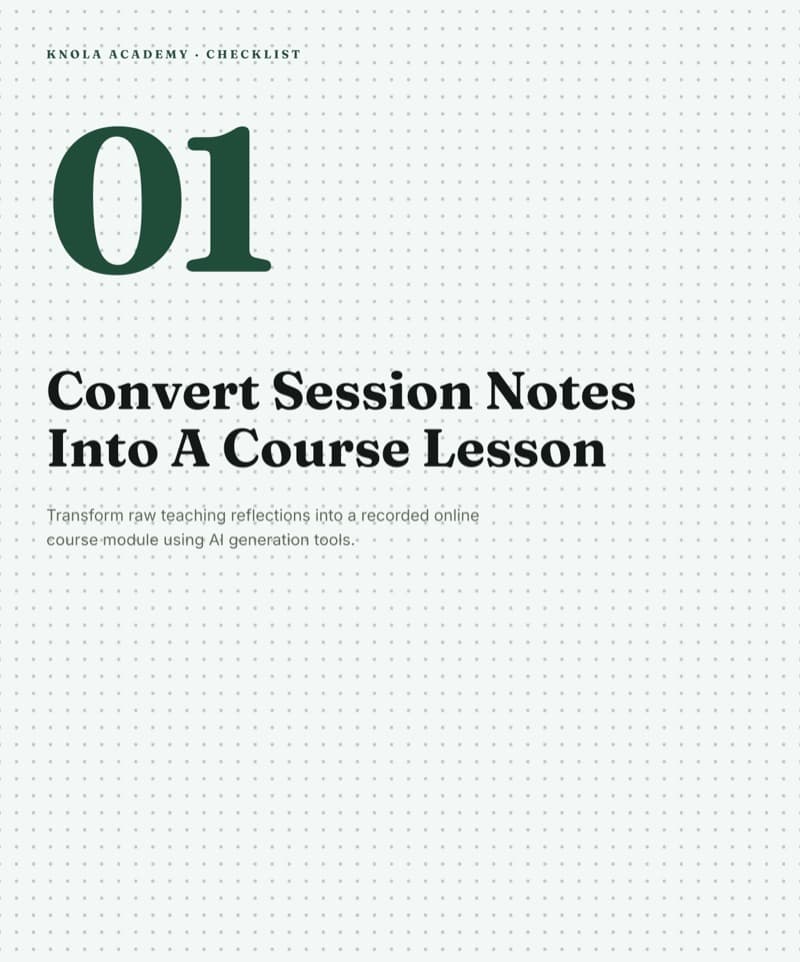 11 minResourcesCreate course resources from a video with AITurn an existing teaching video into written notes, a checklist and a mini guide.Watch the lesson
 8 minSlides & videoHow to narrate a PowerPoint with AITurn your slides and speaker notes into a narrated video lesson. No recording.Watch the lesson