
How to narrate a PowerPoint with AI
Your slides and your speaker notes become a narrated video lesson. You don’t record a thing. Follow along with a real 8-slide deck.
- 8 min video
- 8 steps
- No recording
- Beginner friendly
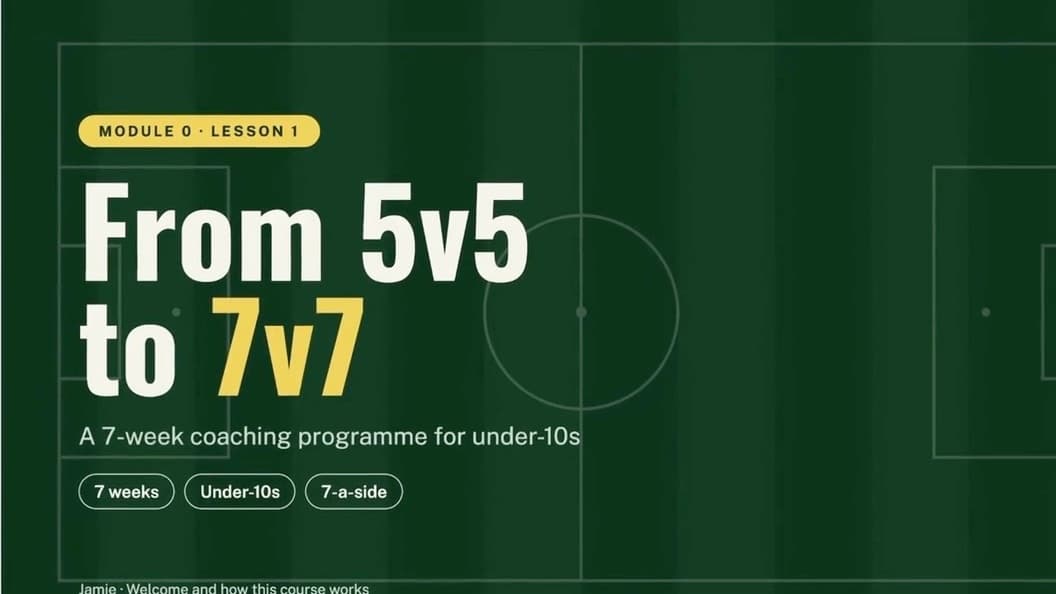
Hi, and welcome to From 5v5 to 7v7, a seven-week coaching programme for under-10s.
Your PowerPoint
Before you start, have these ready
- Your slides as a PDFSaved from PowerPoint, Keynote or Google Slides
- The PowerPoint file (.pptx)With your speaker notes under each slide
- A Knola accountThe video goes into one of your lessons
Watch
Watch a real PowerPoint become a narrated video
8:12 · 15 chapters · click any chapter or line to jump
Live from Knola · updated daily
- courses built on Knola
- 1,200+
- lessons planned
- 23,600+
“Knola fits that need: it turns notes, recordings, or rough ideas into structured, editable courses with modules, lessons, slides, and narrated video.”
 Doc PalmereSpace Voyage
Do it yourself
8 steps, at your own pace
Open Knola in another tab and follow along. Each step has the screen you’ll see and a button to watch that part of the video.
0 of 8 done
Step 1 of 8
Write your notes in PowerPoint
Notes
Hi, and welcome to From 5v5 to 7v7, a seven-week coaching programme for under-10s. I’m Jamie, and I coach the under-9s at Riverside FC. I’ve coached several age groups across ten years of coaching youth football…
The deck: 8 slides, with a speaker note under every one.
- In PowerPoint, write what you want to say under each slide, in the Notes box. Write it the way you talk: the voice reads it word for word.
- Save the deck as a PowerPoint file (.pptx).
- Save a copy as a PDF from the same file: File ▸ Export ▸ PDF.
- Keep both files. You need the PDF for the slides and the .pptx for the notes.
A PDF can’t carry speaker notes. That is why you keep the .pptx: Knola reads the notes from it in step 3.
Step 2 of 8
Upload your slides as a PDF
Slides ▸ Upload your own slides (PDF). Knola reads the PDF in a few seconds.
- Open the course and the lesson the video is for.
- In the Slides section, choose Upload your own slides (PDF) and pick your PDF.
- Each page becomes a slide, up to 80 pages. Uploading slides uses no credits.
Step 3 of 8
Add your speaker notes
The ⋯ menu under your slides ▸ Add speaker notes from PowerPoint.
- Under your slides, open the ⋯ menu and choose Add speaker notes from PowerPoint.
- Pick the .pptx the PDF was saved from.
- Check each slide next to the note it will get, then click Use these notes.
The PowerPoint file stays on your computer. Your browser reads the notes from it and only the words go to Knola.
Step 4 of 8
Check the script
Edit slides: the note sits under each slide as “What you’ll say”.
- Click Edit slides and go through the slides.
- Under each slide, What you’ll say holds your note. Change any words you like. It saves as you type.
Step 5 of 8
Make a video from your slides
Watch ▸ Make one from your slides.
- Back on the lesson, in the Watch section, click Make one from your slides.
- The whole script shows every slide beside its words. Your notes are used exactly as written.
- A slide with no note gets words written for it. Leave a box empty only if you want that slide silent.
Step 6 of 8
Choose a voice
Change voice: listen to any of Knola’s six voices for free.
- Click Change voice. Press Listen on any voice to hear it, then Use this voice.
- Have an ElevenLabs account? Connect it and click Show my voices to use a voice you cloned there, even your own.
Knola doesn’t clone voices. You clone your voice in your own ElevenLabs account, then connect it. Videos in your own voice use no Knola credits.
Step 7 of 8
Listen, then make the video
Listen plays one slide in your chosen voice.
- Press Listen under a slide to hear it. Preview plays the whole video. Both are free.
- Click Make the video. You see the cost before you confirm.
- It takes a few minutes. You can leave the page: Knola emails you when it’s ready.
Step 8 of 8
Publish it to your students
The video arrives as a draft: Publish to students when you’re happy.
- Watch it through. Students can’t see it yet.
- Click Publish to students. Or download the video and use it anywhere.
The voice
Six narrators, or your own voice
- AlexandraAmerican · warm and conversational
- PeterBritish · deep, measured storyteller
- AliceBritish · clear, engaging educator
- EricAmerican · smooth and trustworthy
- BellaAmerican · bright, warm and professional
- DanielBritish · steady broadcaster
Or connect your own ElevenLabs account and narrate in any voice you have there, including a clone of your own.
Turn your first deck into a lesson today.
Knola is the course platform that narrates your slides, builds your lessons and sells your course. One payment, no monthly fee.
Can I add a voiceover to a PowerPoint without recording?
Yes. An AI voice reads your speaker notes over your slides as the voiceover. You don’t use a microphone or a camera.
My PDF has no speaker notes. How do I get them in?
A PDF can’t carry speaker notes. Upload the PDF for the slides, then use ⋯ ▸ Add speaker notes from PowerPoint and pick the .pptx the PDF was saved from. You don’t copy and paste anything.
What if my PowerPoint and PDF have a different number of slides?
Hidden slides are skipped, and a PDF saved with its hidden slides still lines up. If the numbers still don’t match, Knola changes nothing and tells you why. Save the PDF again from the same PowerPoint, use Replace with a new PDF, then add the notes.
What does Knola cost?
Knola is a one-time payment, with no monthly fee. You choose a licence, pay once and keep it. Every licence comes with AI credits for things like narrated videos. See the licences.
Can I use my own voice?
Yes, through ElevenLabs. Knola doesn’t clone voices: you clone yours in your own ElevenLabs account, connect it to Knola, and choose it under Show my voices.
Does this work with Google Slides or Keynote?
Yes. Download the deck as a PowerPoint file (.pptx) and as a PDF, then follow the same steps.
Can I convert PowerPoint to video and use it outside Knola?
Yes. Download the finished video and use it anywhere, or publish it to a lesson in your course.
Is the video public as soon as it’s made?
No. It arrives as a draft that only you can see. Publish it to the lesson when you’re happy, or download it and use it anywhere.
Can I change the words after the video is made?
Yes. Edit the script and make the video again. Only new or changed words count towards the cost.
Not ready to buy yet?
See your course first. Free.
Type what you do or know. Knola shows you a course you could sell, with its full outline. No card, no account.
Keep going
Watch another lesson
 11 minLessonsCreate a course lesson from notes with AIWatch as we turn real coaching notes into a lesson presentation.Watch the lesson
 11 minResourcesCreate course resources from a video with AITurn an existing teaching video into written notes, a checklist and a mini guide.Watch the lesson
 10 minEbooksCreate an ebook with AI from your videosTurn your teaching into an ebook, then see how to set up its product checkout.Watch the lesson