

How to connect Stripe & get paid
Connect your own Stripe account in minutes so every sale pays out straight to your bank. Knola never holds the money, and paid subscribers keep 100%.

 By Knola4 min read
Knola uses Stripe Connect so course payments go straight to your own bank account. You stay in control: refunds, payout schedule, and your customer relationships all live in your Stripe dashboard. Connecting is a one-time job, and only the school owner can do it.
Open Settings → Payouts
In your admin, open Settings at the foot of the sidebar, then Payouts: "Where the money from your sales goes, and what Knola takes." The Get paid through Stripe card explains the setup and holds the Connect with Stripe button. If a teammate built your offers, they will see the same prompt on the Offers page, but connecting has to happen here, signed in as the owner.
Click Connect with Stripe and finish onboarding
Click Connect with Stripe. You're handed to Stripe's own onboarding, where Stripe verifies your identity and bank details. Don't have a Stripe account yet? You'll be able to create one as part of onboarding. When Stripe finishes, you land back on the Payouts page.
Read the connection status
The Payouts page always shows where you stand:
- Finish setting up Stripe (Almost there): Stripe needs a few more details before you can take payments. It takes a few minutes.
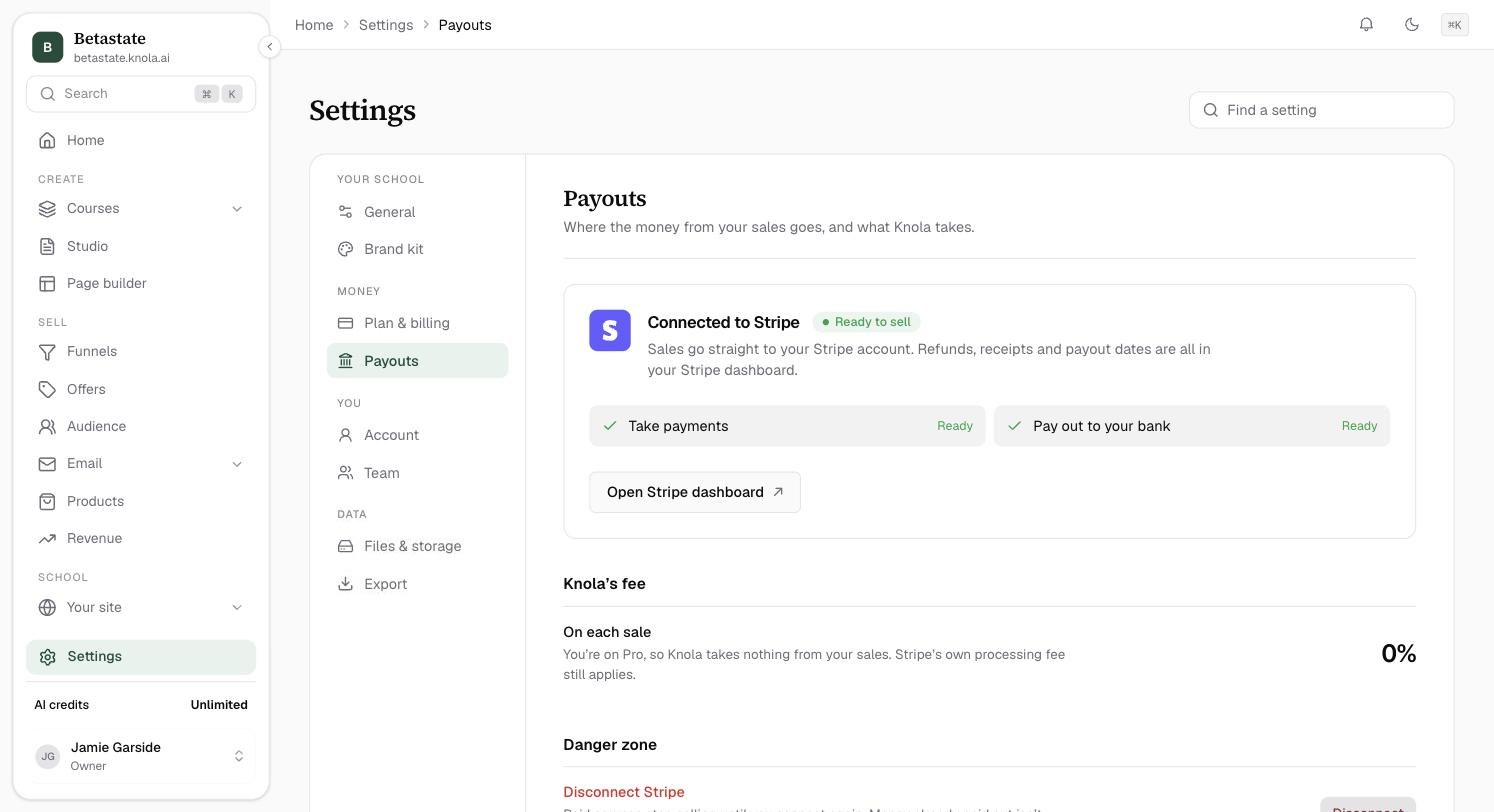
- Connected to Stripe (Ready to sell): sales go straight to your Stripe account. Two ticks show Take payments and Pay out to your bank.
- Stripe has paused your account (Action needed): Stripe needs more information before it will take payments or pay you. Open your Stripe dashboard to see exactly what it is asking for.
Below the card, Knola’s fee shows what Knola takes On each sale: 7.5% on a lifetime licence, or 0% on Knola Pro. Stripe's own processing fee always applies. See Plans & pricing.
Once connected, draft offers go live with one click. See How to go live, and take an offer offline.
Know how payouts and fees work
Sales are charged straight into your Stripe account. Knola does not hold your money. What happens when one goes backwards: refunds, disputes and failed payments. Stripe pays out to your bank on the schedule set in your Stripe dashboard, which is also where refunds and tax settings live.
If you ever click Disconnect, any paid courses stop selling until you reconnect. Payouts already sent are unaffected.
Does Knola hold my money?
No. Payments go straight into your own Stripe account, and Stripe pays your bank on the schedule you set in your Stripe dashboard. Knola never holds the money.
What fees does Knola take on sales?
A 7.5% platform fee on sales, on top of Stripe's own processing fees. Creators on a paid Knola subscription pay 0% while the subscription is active, and sales through your own external processor always carry a 0% Knola fee.
Do I need my own Stripe account?
Yes, that's the point. Your school charges buyers through your account, so payouts, refunds and customer records are yours. If you don't have one, you create it during the Connect Stripe onboarding.