

How to build an offer, end to end
Compose a complete offer on one screen (access, price, order bump, one-click upsell) and Knola builds the funnel, pages and checkout for you.

 By Knola6 min read
An offer is what a buyer pays for: one or more of your course tiers, at a price. The composer takes one screen of answers and creates everything behind it: the offer, its funnel, the checkout, upsell and thank-you pages, and one link you can share anywhere.
You need at least one course with an access tier first. Offers unlock tiers, so there must be something to unlock. See Access tiers if you haven't set one up yet.
Start a new offer
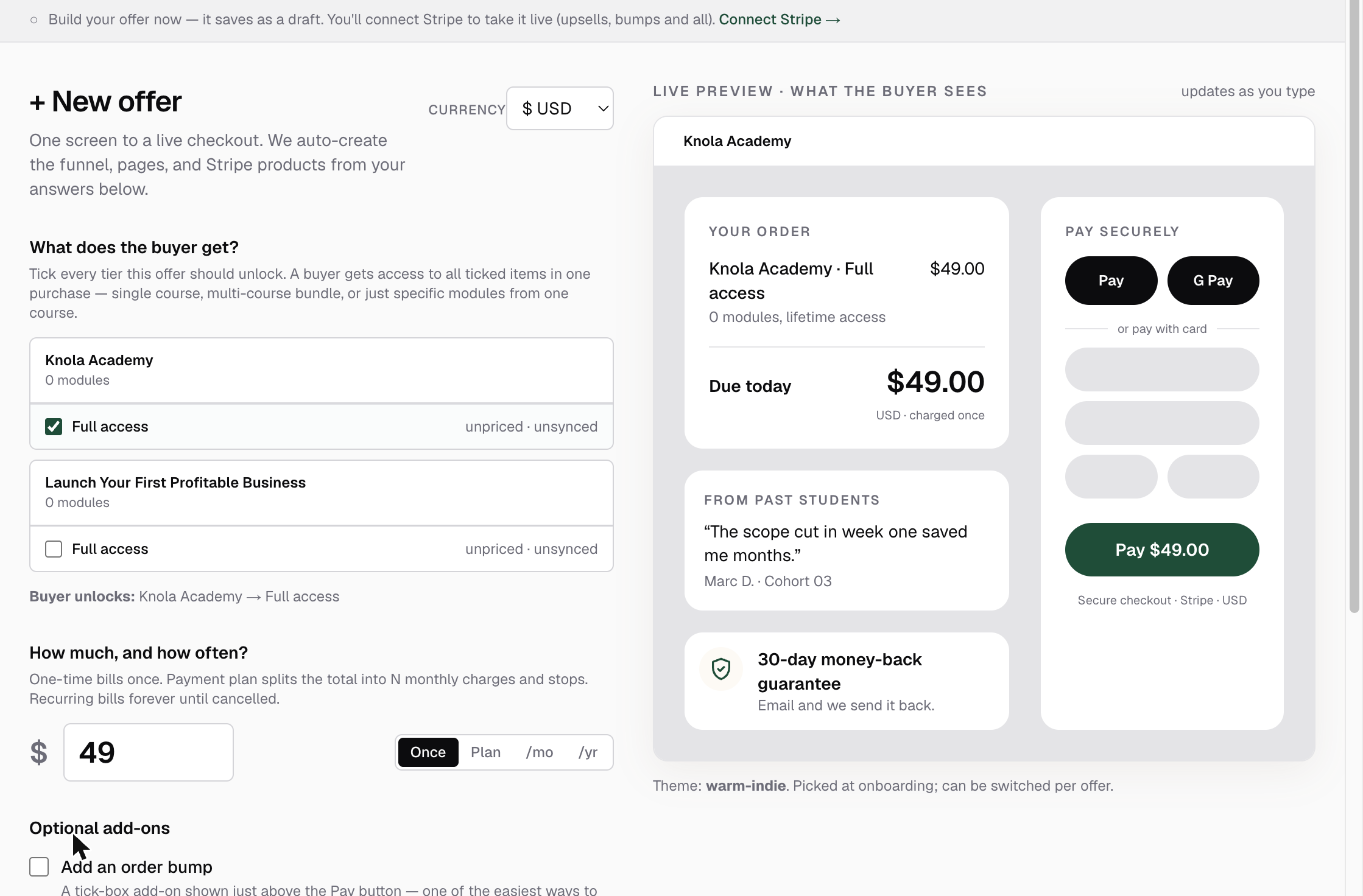
In your admin, open Offers and click + New offer. The composer is one screen: a form on the left, a live preview of your checkout on the right that updates as you type.
Pick what the buyer gets
Under What does the buyer get?, tick every tier this offer should unlock. One purchase can open a single course, a multi-course bundle, or specific tiers across several courses. The Buyer unlocks: line below the picker confirms exactly what you have selected.
Set the price and how it bills
Under How much, and how often?, enter the price and pick a billing mode: Once, Plan (a payment plan of monthly instalments), /mo or /yr. The Currency picker top-right applies to the whole offer: USD, GBP, EUR, CAD or AUD.
Each mode changes what buyers are agreeing to. See Pricing modes for where each one fits.
Add the optional add-ons
Under Optional add-ons, three toggles raise your average order without any extra pages to build by hand:
- Add an order bump: a tick-box add-on shown just above the Pay button at checkout. Bumps are always one-time charges.
- Add a one-click upsell: an offer shown right after they pay. It charges the card they just used, no re-entry. You set the headline, price, and optional page content (video, bullets, button labels).
- If they decline, offer a downsell (OTO2): shown only when the buyer passes on the upsell. Usually a cheaper, stripped-down version.
You can also toggle Add discount codes here: percent-off or fixed-amount codes buyers redeem at checkout. See Coupons & discount codes.
Review what gets created, then publish
Click Review & publish →. The review window shows, in plain English, exactly what goes live: what buyers pay and unlock, each add-on, and the pages Knola will build: checkout, upsell and downsell pages if you enabled them, and a thank-you page. Show technical details expands the full receipt. Nothing is created until you click Confirm & publish.
Go live
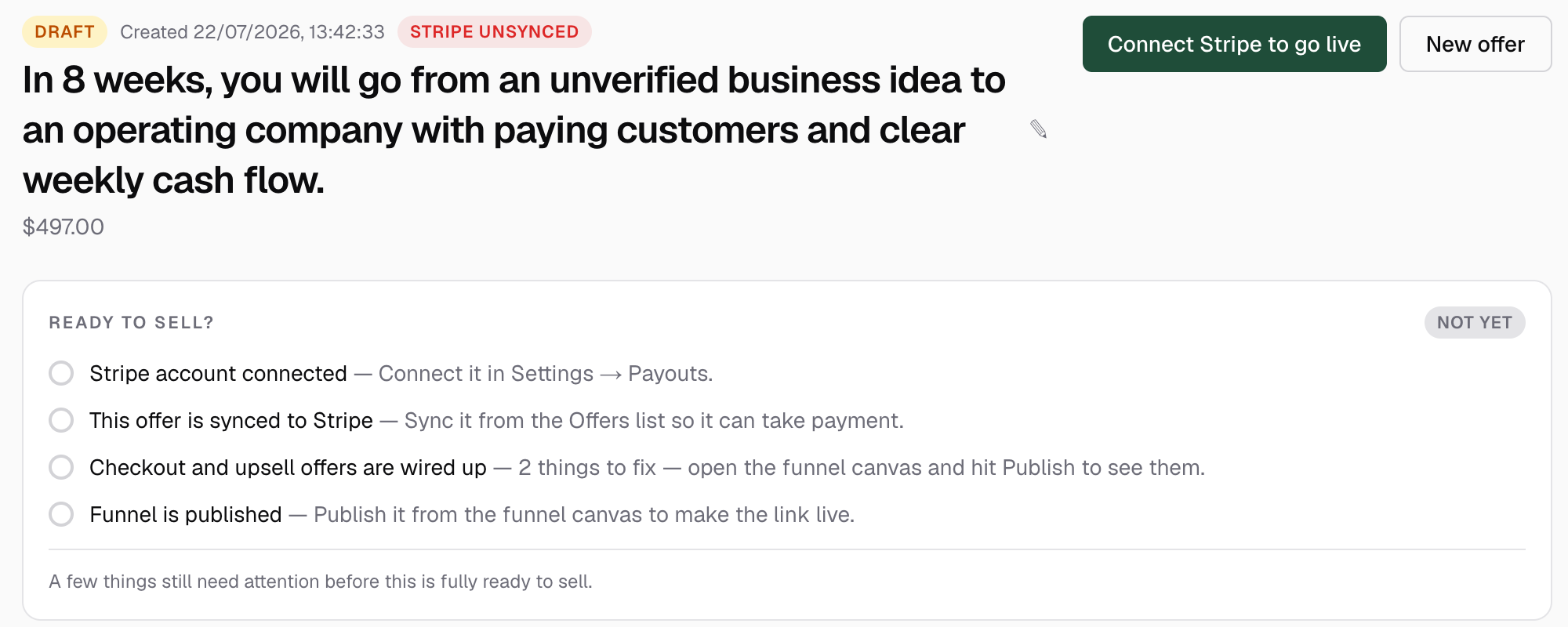
Publishing drops you on the offer detail page. The Ready to sell? checklist tracks the four things that must be true before the offer takes money: Stripe connected, the offer set up in Stripe, the checkout wired up, and the funnel published. When Stripe is connected, one click on Go live sends the offer to Stripe and publishes the funnel; until then the button reads Connect Stripe to go live. Going live, taking an offer offline and removing one are covered in How to go live, and take an offer offline.
The Funnel tab holds your public link under Share this link. Copy it and put it anywhere. See Payment links & buy buttons.
Can one offer sell more than one course?
Yes. Tick tiers from as many courses as you like in the composer. One purchase unlocks all of them. That is how you build a bundle.
Do I need Stripe connected before I build an offer?
No. The offer saves as a draft with its full funnel: upsells, bumps and all. Connect Stripe in Settings → Payouts when you are ready, then hit Go live on the offer.
How do I delete an offer?
Click the bin icon beside its name on the Offers list. An offer with no sales is deleted; one with sales is archived instead, so its buyers keep their access. See How to go live, and take an offer offline.
Can I edit an offer after publishing?
Yes. The offer detail page lets you change prices, what each leg unlocks, and discount codes, and every funnel page opens in the page builder. Buyers who already purchased keep what they unlocked at the time.