How to create an ebook with AI from a video or course
Turn a course, or even one recorded lesson, into a designed ebook with Knola AI: chapters, checklists, pictures if you want them, all in your brand.

 By Knola5 min read
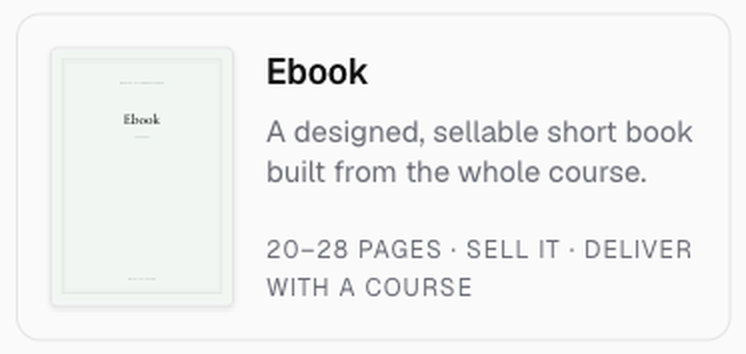
The ebook is the biggest document Knola makes: "A designed, sellable short book built from the whole course." It comes out at 20 to 28 pages, with an introduction, four to six chapters, a checklist at the end of most chapters and a closing invitation to the full course. Sell it on its own, hand it to students as the course companion, or give it away as the lead magnet that earns the course sale.
Open the Studio and choose Ebook
Click Studio in the sidebar, then the Ebook tile in the Make something grid.
Choose the course, or one lesson
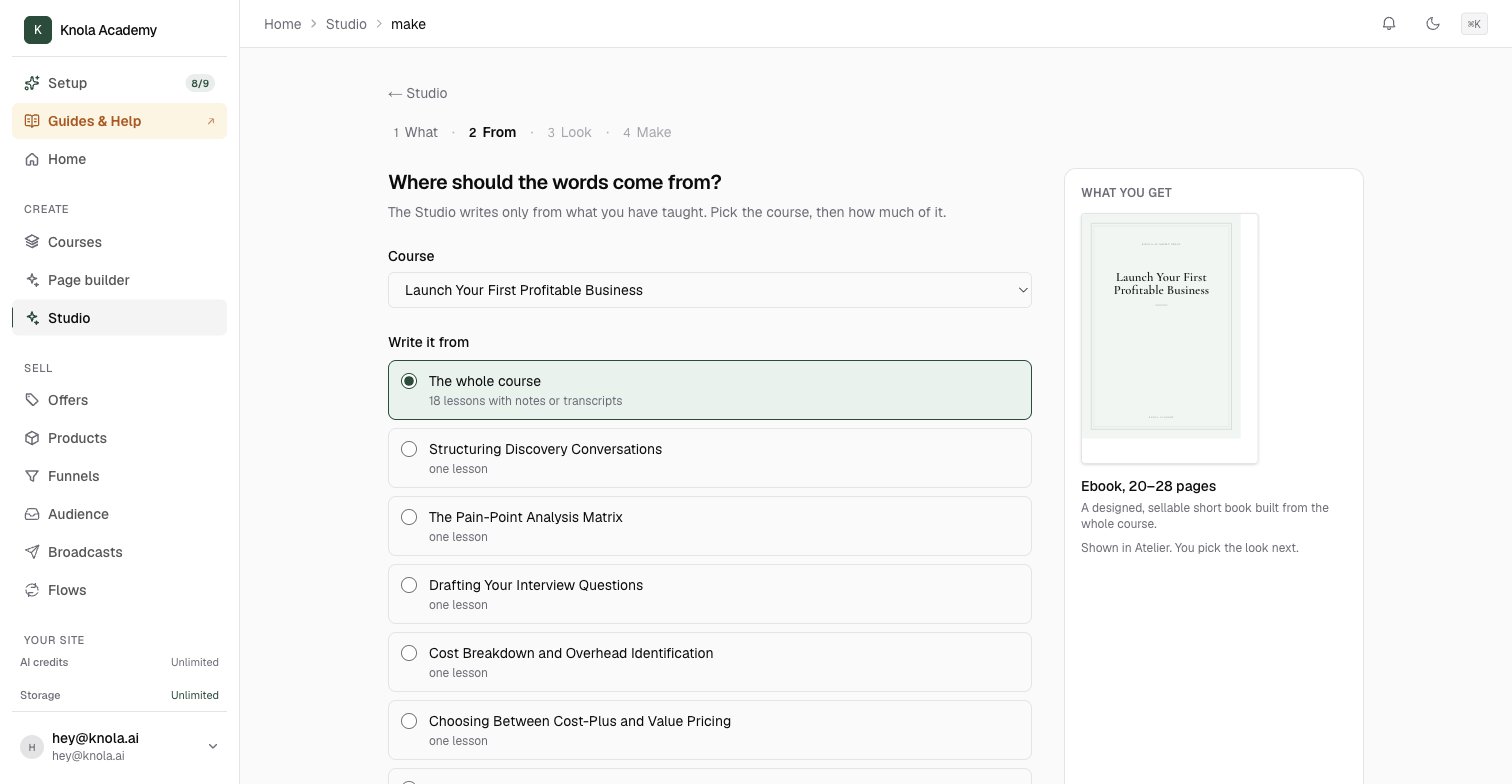
Under Where should the words come from?, pick the Course. For an ebook, The whole course is the natural choice: the book gets a chapter per theme and there is enough material to fill it. The row tells you how many lessons have notes or a transcript to write from.
One lesson also works, and we make the point in the video that everything Knola makes here can come from a single recording. Expect a shorter book with fewer chapters, and Knola will warn you before it starts if the lesson is too thin to write a book from.
Use Anything to add or leave out? to shape it: "write it for complete beginners" or "leave out the pricing module" both work. Then click Next: pick a look.
Pick a look, and decide about pictures
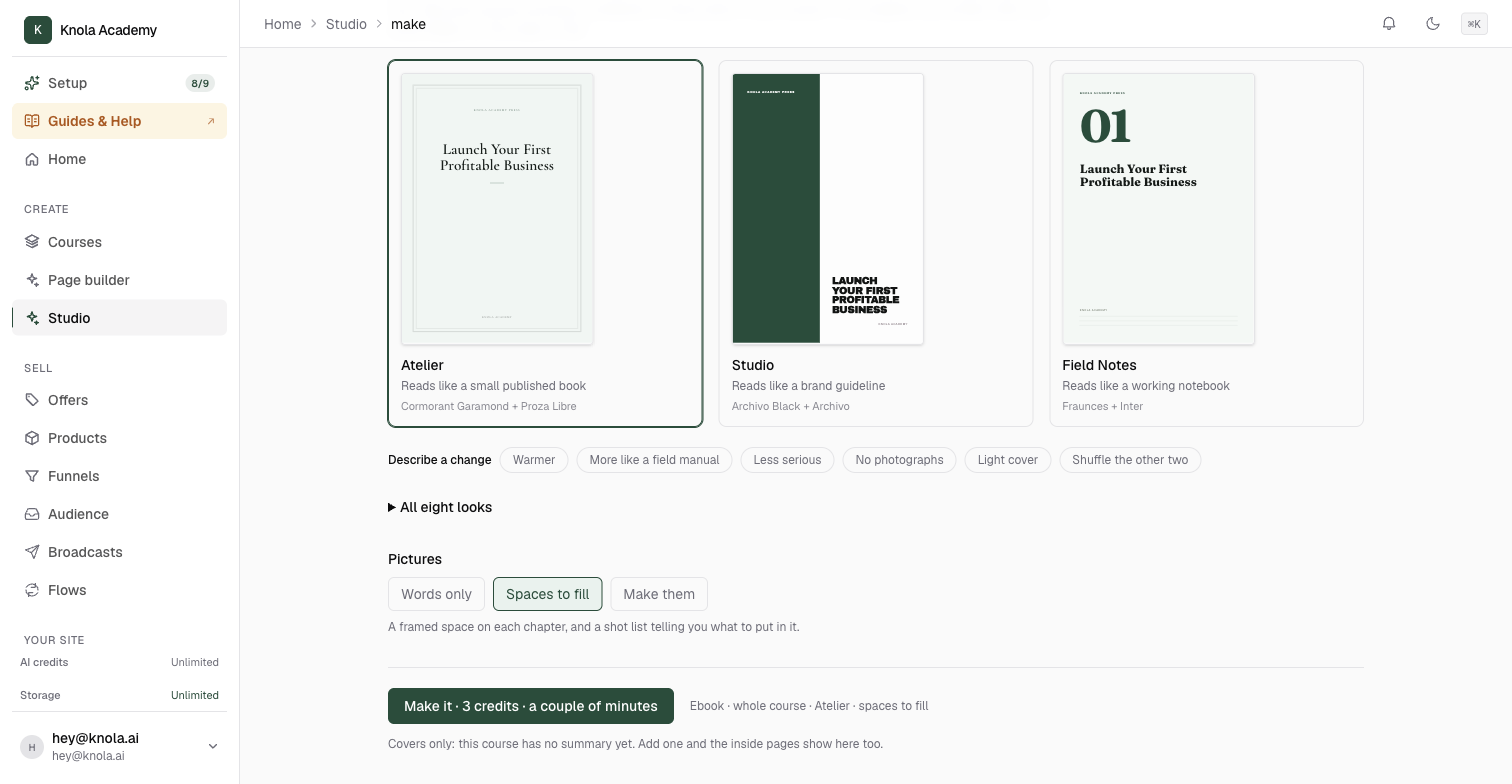
Choose a look from the three shown, or open All eight looks. Ebooks default to Atelier, which "reads like a small published book", and that is the safe choice for something you might sell.
The ebook is the one document with a Pictures choice:
- Words only: "The book, no pictures. For pictures later, choose Spaces to fill." A words-only book has no picture frames, so pictures can't be added to it afterwards.
- Spaces to fill: "A framed space on each chapter, and a shot list telling you what to put in it." Pick this if you have your own images, or want to add them later.
- Make them: an original image for every chapter, checked against what the chapter teaches.
Click Make it. An ebook takes a couple of minutes, and the button says so.
While it writes
The page changes to Making your ebook and ticks through Reading your lessons, Planning the chapters, Writing, Illustrating and Designing in your look. Leave it running: Back to Studio · it keeps going takes you back, and the book waits in Your documents when it is done.
Read it, then finish it
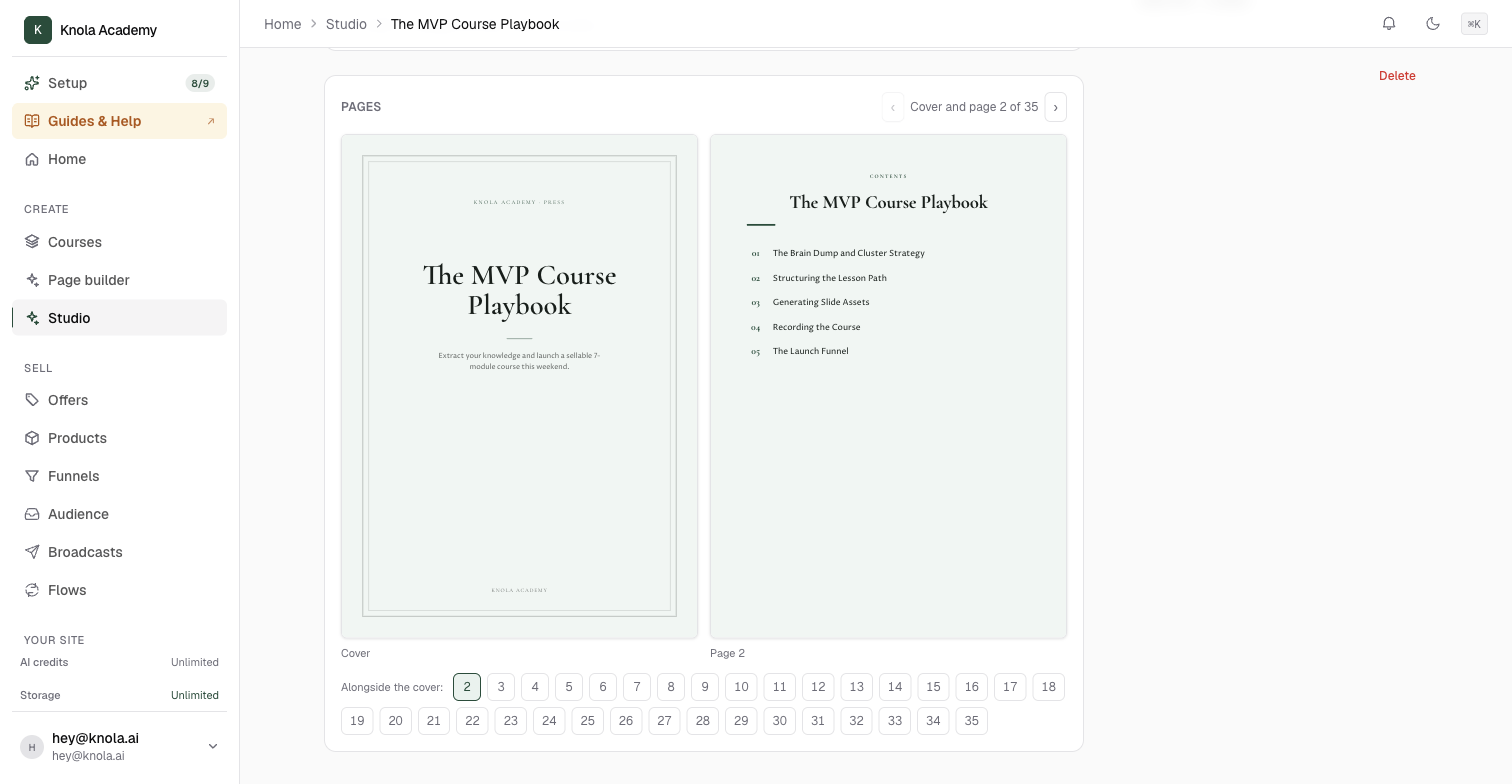
The finished book opens on its own page. The Pages reader shows the cover and a page side by side, with a row of page numbers to jump anywhere. Read it the way a buyer would. The introduction should say who it is for and what they will be able to do by the last page. Each chapter should open with a short promise, teach in plain paragraphs, and most end with a short checklist. The closing page invites the reader to the full course.
Two things are worth doing before you share it:
- Give it a cover image. The Cover image panel offers Make one: an image of what the document is about, checked before it lands. If the first is not right, Try another. A cover image is what makes the book look like a book on a sales page.
- Fill any empty picture spaces. If you chose Spaces to fill, each chapter carries a shot list telling you what to put there. If you want Knola to do it, open the chapter page and click Make an image.
Then Download PDF, or use the Put it to work panel: Add to a lesson delivers it with the course, and Give it away makes it an opt-in. See How to add a Studio document to a lesson or give it away.
Can I create an ebook from one video?
Yes. Choose the lesson holding the video as the source instead of the whole course. It makes a shorter book than a full course would, and if the recording is too short to fill a book Knola says so before it starts.
How long does an ebook take to make?
A couple of minutes, longer than the other kinds because there is far more to write. You can leave the page; it keeps going, and the finished book appears in Your documents.
Can I sell the ebook on its own?
That is what it is designed for, and the tile says so: SELL IT. The Sell it row in Put it to work turns it into a product: see How to sell a document you made in the Studio.
Can I edit the chapters?
Yes. Edit opens the book page by page, so you can rewrite a paragraph, swap a pull-quote or remove a page. Changing the look afterwards never touches the words.