

How to sell an ebook, guide or checklist you made in the Studio
Turn any Studio document into a product with a price and a buy link in a few clicks. Knola stores the file, builds the offer and delivers it to every buyer.

 By Knola5 min read
Yes, you can sell what the Studio makes. Every finished document has a Sell it row, and one click turns it into a product in your school with the file already attached. Set a price and Knola builds the offer, the buy link and the checkout for you, then delivers the file to every buyer. We mention this at 05:59 in the video walkthrough: "I can sell it. I can actually create an offer around that checklist."
Create the product from the document
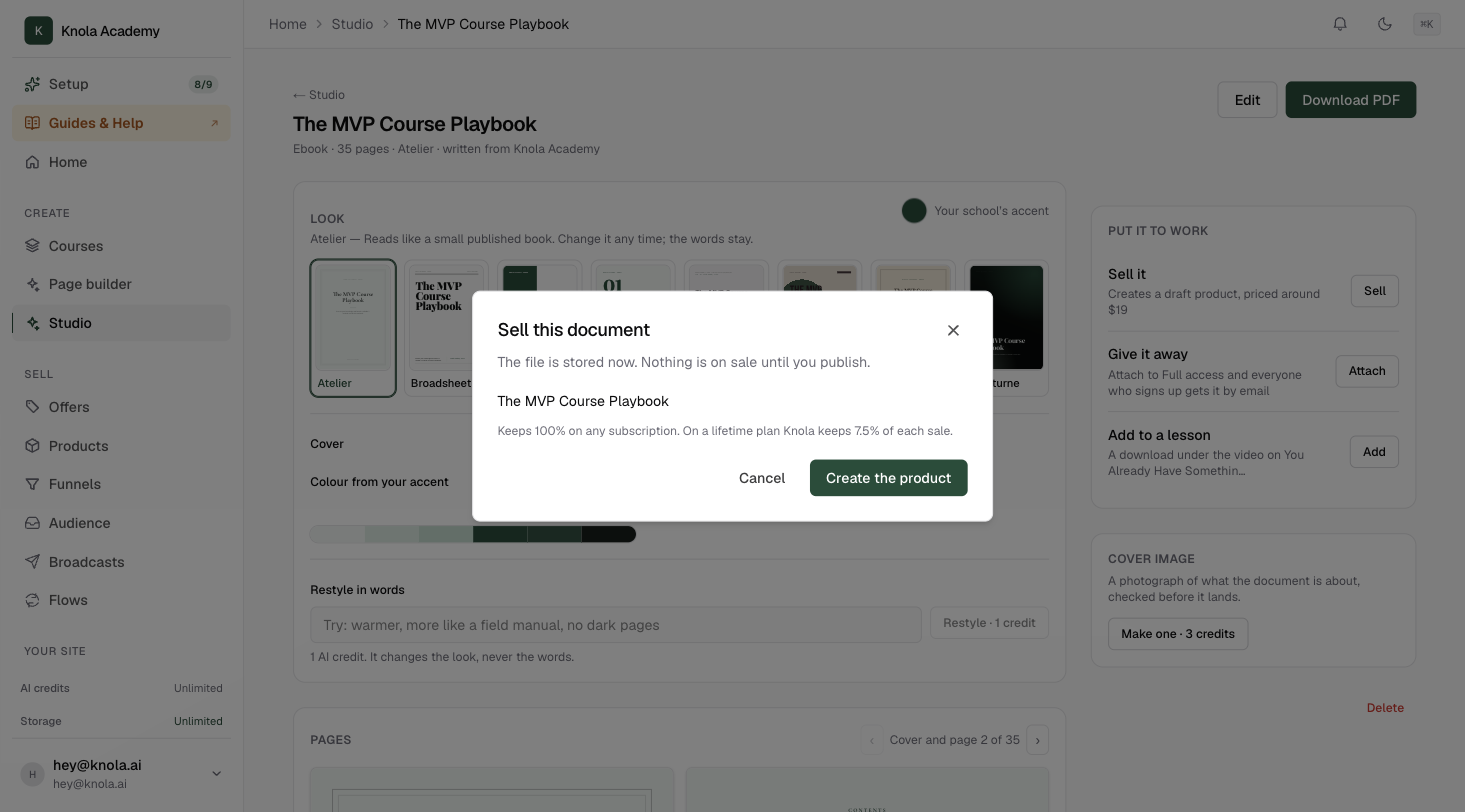
Open the document from Your documents on the Studio page. In the Put it to work panel, the Sell it row reads "Creates a draft product, priced around" and a suggested price for that kind of document. Click Sell.
The Sell this document sheet confirms what is about to happen: "The file is stored now. Nothing is on sale until you publish." Click Create the product.
The sheet changes to It is in your store, with "Product created as a draft. It is not on sale yet." Click Open product to finish it. The document's PDF is already attached as the product's file.
Set the price and get your buy link
The product page opens in Products, marked draft. Under Price & buy link, type a price in Price (USD) and click Set price. Knola creates the offer behind the scenes and gives you two links to copy:
- Product page: "A ready-made page with a Buy button — share anywhere."
- Direct checkout link: "Sends buyers straight to payment — for your own landing-page buttons."
If you have not connected Stripe yet, the page says so under the price and links you to it. The buy link goes live once Stripe is connected.
Edit the checkout, and add a bump if you have one
Two optional sections on the same page make the difference between a file with a price and a product that sells.
- Checkout design: how the page looks when someone clicks Buy. Pick Hosted, Express, Premium, Social proof or Video (VSL), and watch the live preview change as you fill in the blanks. Draft with AI fills the empty fields from what is inside the product itself.
- Order bump: offer up to two of your other products as a one-click add-on at this checkout. A bump has to be a published product with a price, which is exactly what a second Studio document becomes after these same steps.
- Delivery note (optional): a short message "Shown on the buyer's downloads page and in their access email."
Publish
Click Publish at the top of the product page. The badge changes from draft to published and the buy link is live. Buyers pay, then get the file on their downloads page and in an email.
Back in the Studio, the Sell it row on the document now reads as a fact: "Selling at" the price, with Live beside it, and Open takes you to the product. Archive on the product page takes it off sale again without deleting anything.
Or deliver it with a course instead
Selling on its own is one route. The other is the Sell it section lower on the product page: "Attach this product to an offer. Buyers of that offer get it delivered automatically." Pick one of your offers and the document becomes part of what that course buyer receives, with no separate price at all.
A workbook delivered with the course, an ebook as the bonus that tips a sale, a glossary every buyer gets on day one: all of these are one attachment here.
Can I sell a document I made in the Studio?
Yes. Click Sell on the document, then Create the product. Knola stores the PDF, creates the product, and once you set a price it builds the offer, the buy link and the checkout for you. Publish, and it is on sale.
Does Knola take a cut?
The same rule as every sale through Knola: nothing on a subscription, and a platform fee on a lifetime plan. The exact figures are in Plans and pricing, and the sheet tells you before you create the product.
Can I change the price or the words later?
Yes. Update price on the product page changes the price at any time. To change the document itself, edit it in the Studio; the product keeps the file it was created with, so create the product again from the new version if the words matter.
What do buyers get?
The PDF, on a downloads page of their own and in the email they get after paying. If you wrote a Delivery note, it appears in both places.