How to create a checklist with AI from a video or lesson
Turn one lesson into a printable tick-box checklist in about half a minute: pick the lesson, pick a look, and add it under the video as a download.

 By Knola4 min read
A checklist is the document students actually use: they print it, put it next to the keyboard and tick things off. It is also the highest-converting giveaway there is. In the video walkthrough, watch as we make one from a single uploaded recording and attach it to that lesson, all inside four minutes. This guide is that process, step by step.
Open the Studio and choose Checklist
Click Studio in the sidebar. In the Make something grid, click the Checklist tile.
Clicking a tile skips straight to choosing the source. If you press Make something at the top instead, you land on What are you making? first and pick Checklist there.
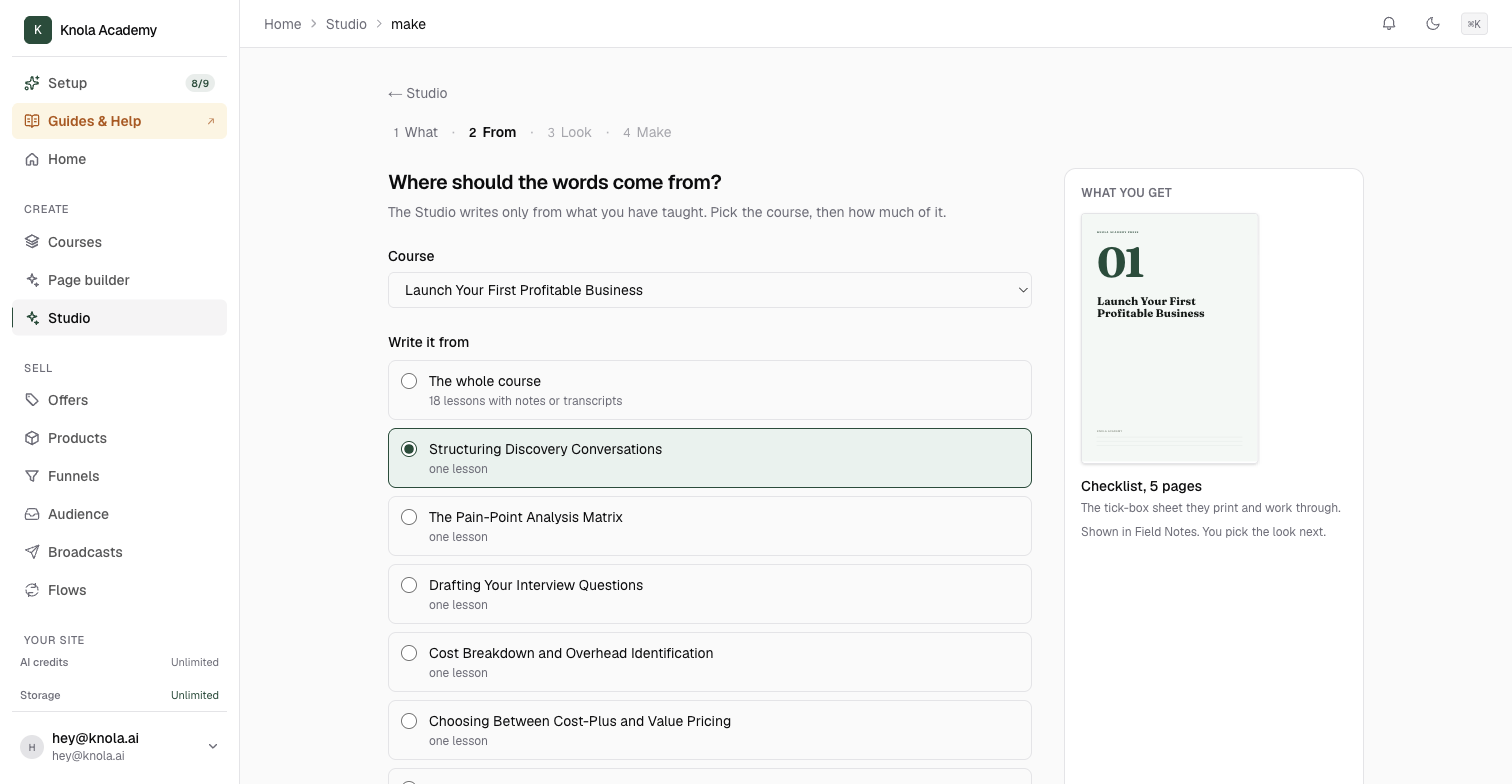
Choose where the words come from
Pick the Course, then under Write it from choose either The whole course or a single lesson. Each lesson row says "one lesson"; the whole-course row says how many lessons have notes or a transcript to write from.
For a checklist, one lesson is nearly always right. It makes a focused sheet about one job, which is what a checklist is for. In the video we pick the one lesson we just uploaded, not the whole of Knola Academy.
The Anything to add or leave out? box is optional. One sentence is enough: "focus on the setup steps, skip the background" steers what gets written without you writing it.
Click Next: pick a look. As the page says, nothing is written yet.
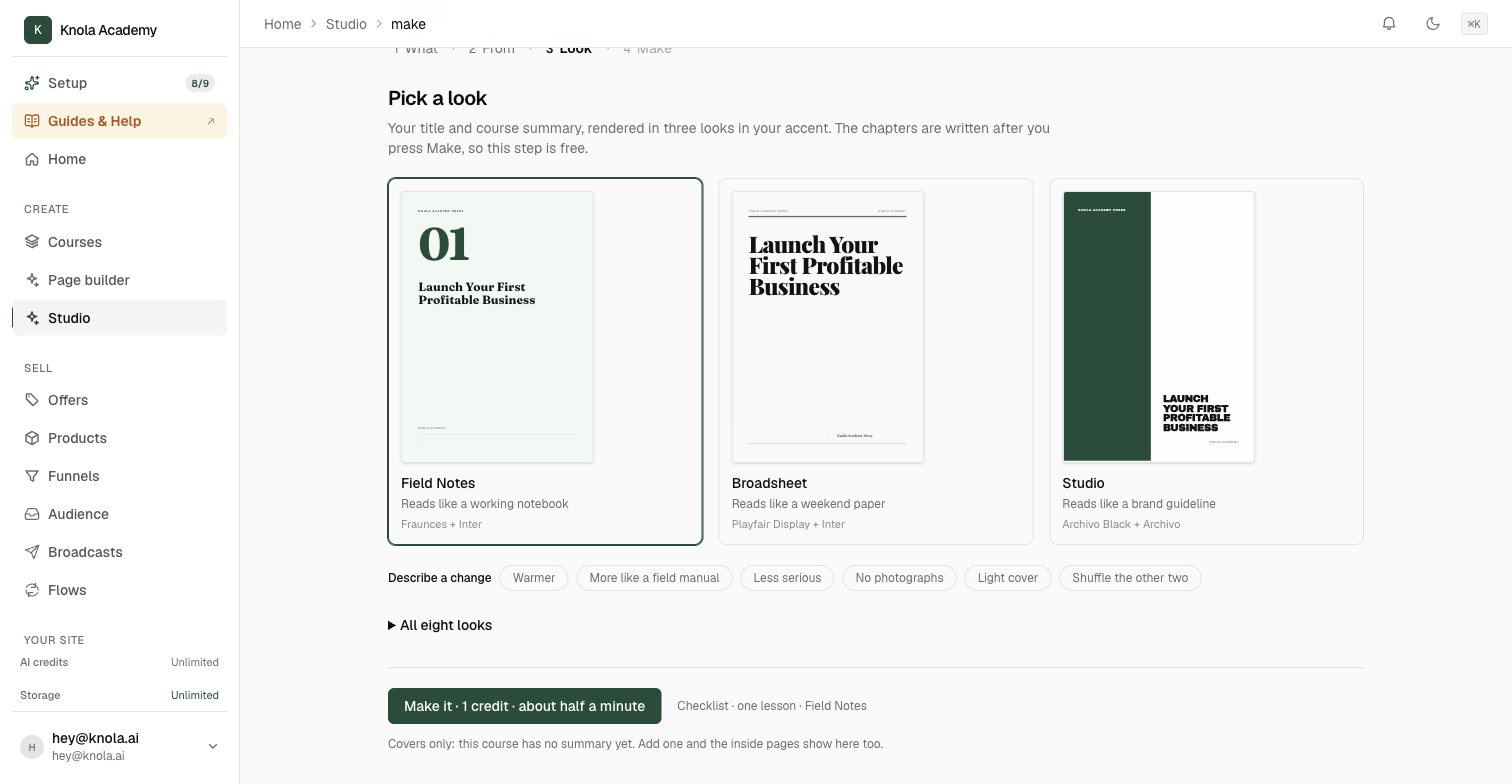
Pick a look
Three looks are shown, each drawn with your course title and your accent colour. Click one to choose it. Shuffle the other two swaps in different options, and All eight looks opens every look at once.
The Describe a change chips nudge the design without a decision: Warmer, More like a field manual, Less serious, No images, Light cover.
Checklists default to Field Notes, which "reads like a working notebook". It suits the job. We keep it in the video.
Click Make it. The button also tells you how long it usually takes, which for a checklist is about half a minute.
While it writes
The page changes to Making your checklist and walks through the stages as they happen: Reading your lessons, Planning the chapters, Writing, then Designing in your chosen look.
You do not have to wait on this page. Back to Studio · it keeps going does what it says, and the finished checklist appears in Your documents. If anything goes wrong, Knola tells you and offers Make it again.
Read it, then put it to work
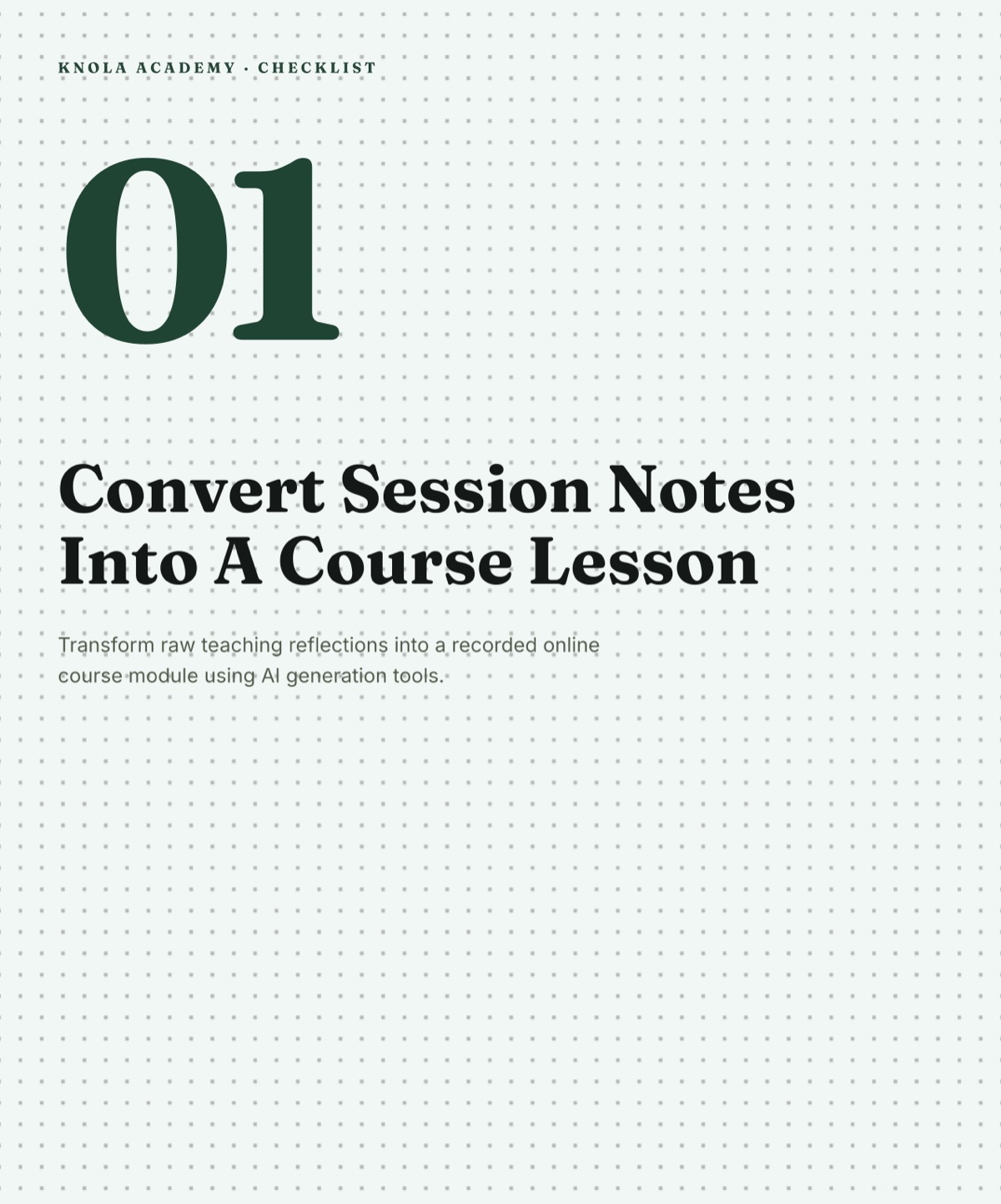
The finished checklist opens on its own page. The line under the title tells you what it is: Checklist, the page count, the look, and "written from" the lesson you chose. Click the title to rename it. The pages themselves are in the Pages reader below, two at a time.
Read it through once. A good checklist has every item starting with a verb, no item longer than a short line, and sections that follow the order the work actually happens in ("Before you start", "While it's running", "Before you call it done"). If something is off, Edit opens the pages so you can change the words directly.
Then use it. Download PDF gives you the file. The Put it to work panel gives you the two moves that matter for a checklist: Add to a lesson, which is what we do in the video so every student gets it under the recording, and Give it away, which turns it into an email opt-in. Both are covered in How to add a Studio document to a lesson or give it away.
Can I make a checklist from a YouTube video?
Yes, once the video is in a lesson. Upload the recording to a lesson in your course, let the transcript finish, and Knola can write from it. That is exactly what we do in the walkthrough with one of our own YouTube videos.
How long is a checklist?
Around five pages: a cover, three sections of items and a closing page. Each section is a phase of the work, and each item is one thing to tick off. A short lesson makes a thinner checklist, and Knola says so before you start if there is not enough to write from.
Can I change the design after it is made?
Yes. Open the checklist and choose a different look in the panel on the left; the words stay as they are. See How to change the look of a Studio document.
Related guides