Here's what the Studio makes: ebooks, guides and checklists from your lessons
Knola turns any lesson into a designed download with AI: an ebook, checklist, mini-guide, worksheet, swipe file or glossary, all in your brand.

 By Knola5 min read
You have already done the hard part: you recorded the teaching. Knola takes what is in your lessons and writes and designs something people can download from it. One lesson is enough. In the video walkthrough, watch as we turn a single recording into a checklist and a six-page mini-guide in a few minutes each.
Where it lives
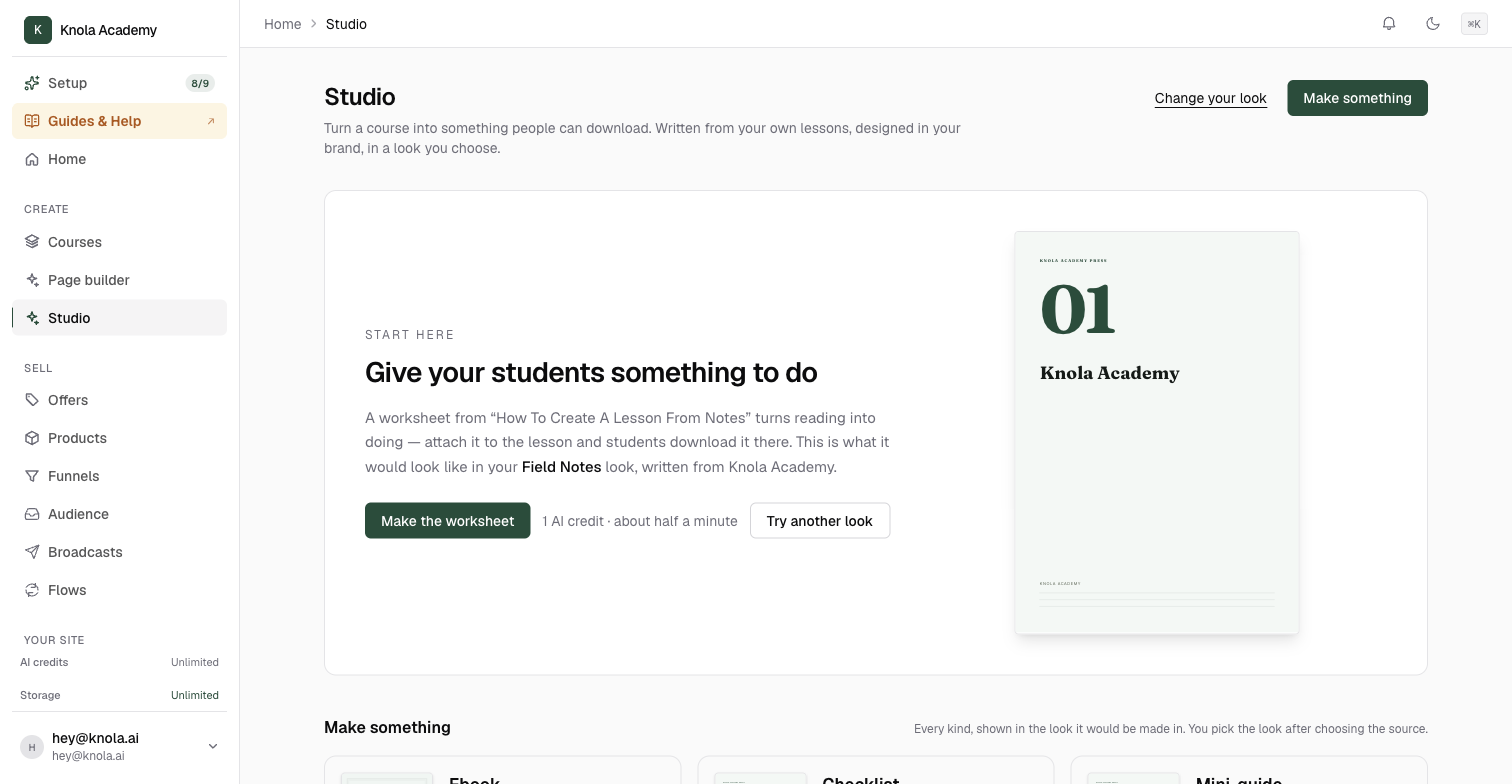
Click Studio in the admin sidebar. The page opens with a line explaining the idea in one sentence: "Turn a course into something people can download. Written from your own lessons, designed in your brand, in a look you choose."
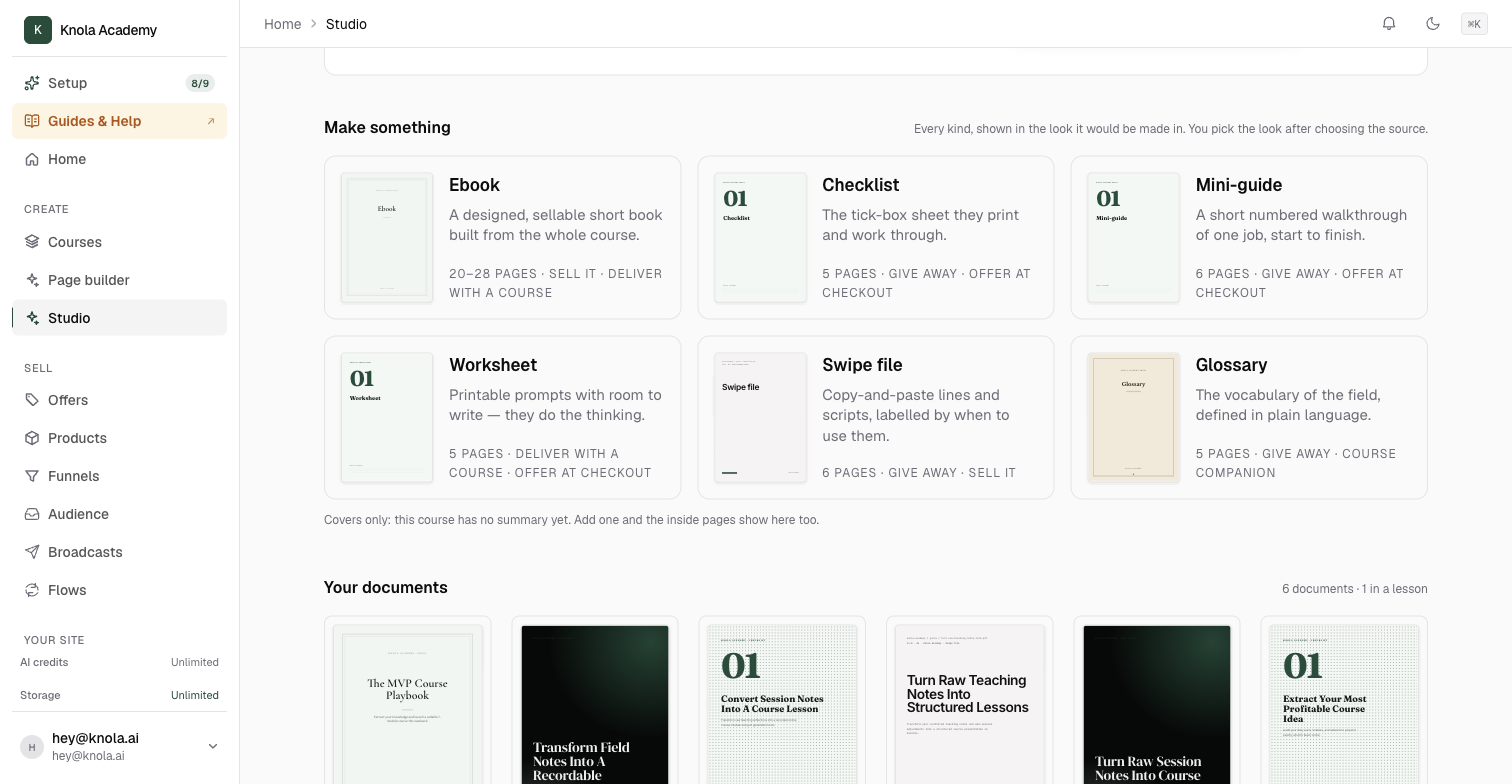
Three things sit on the page. A Start here suggestion, when Knola has spotted a lesson worth working from. A Make something grid showing the six kinds of document, each drawn in the look it would really be made in. And Your documents, the shelf of everything you have made so far.
The six kinds of document
Every kind is written from your own lessons, never from the internet, and every kind comes out as a designed PDF in your brand colours. They differ in what they are for:
- Ebook: "A designed, sellable short book built from the whole course." Around 20 to 28 pages. The one to sell, or to deliver alongside a course. How to create an ebook with AI.
- Checklist: "The tick-box sheet they print and work through." Around 5 pages. The classic giveaway, and a strong order bump at checkout. How to create a checklist with AI.
- Mini-guide: "A short numbered walkthrough of one job, start to finish." Around 6 pages. Give it away, or offer it at checkout. How to create a mini-guide with AI.
- Worksheet: "Printable prompts with room to write — they do the thinking." Around 5 pages. Best delivered with a course. How to create a worksheet with AI.
- Swipe file: "Copy-and-paste lines and scripts, labelled by when to use them." Around 6 pages. Give it away or sell it. How to create a swipe file with AI.
- Glossary: "The vocabulary of the field, defined in plain language." Around 5 pages. A course companion. How to create a glossary with AI.
From one lesson, or the whole course
When you make something you choose the course, then Write it from either The whole course or one lesson. Knola only ever writes from lessons that have notes or a transcript, and it tells you how many qualify.
A video lesson qualifies as soon as its transcript exists, which happens on its own after upload. If you also let AI draft the written lesson from the video first, as we do in the walkthrough, Knola has cleaner material to work from and the result is noticeably better.
In your brand, in a look you choose
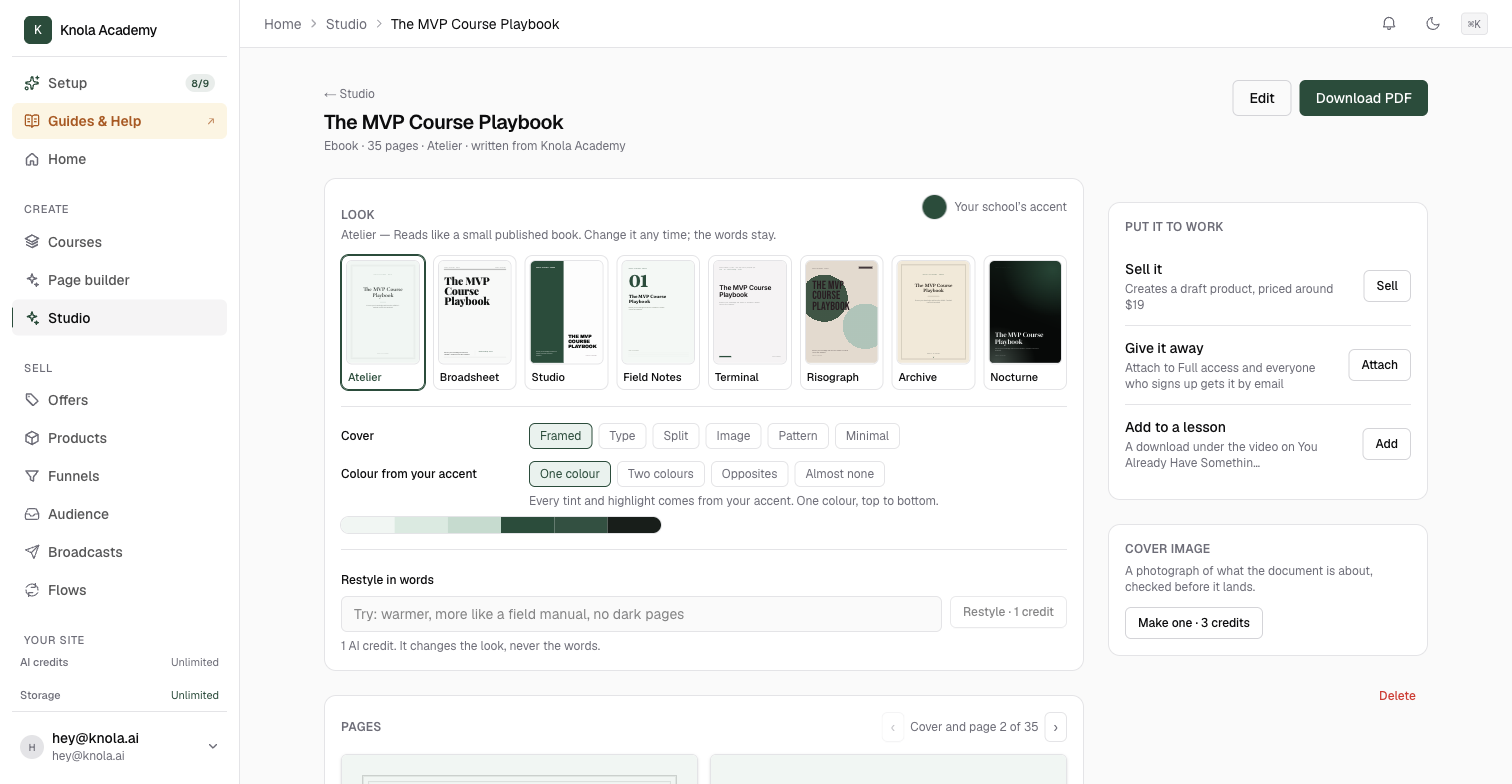
Every document uses your school's accent colour from Branding, so nothing you make looks like it came from somewhere else. On top of that you pick a look, which sets the typefaces, the page furniture and the mood. There are eight: Atelier, Broadsheet, Studio, Field Notes, Terminal, Risograph, Archive and Nocturne. In the video we use Field Notes for the checklist and Nocturne for the mini-guide.
The look is never final. Open any finished document and change it, and the words stay exactly as they were. See How to change the look of a Studio document.
What you do with it afterwards
A finished document opens on its own page with Edit and Download PDF at the top, and a panel on the right headed Put it to work listing the things it can do for you:
- Add to a lesson: it appears under the lesson video as a download, next to any other lesson resources. This is what we do with the checklist at 05:56 in the video.
- Give it away: attach it to a funnel, or build a new one-page opt-in around it, and everyone who signs up gets it by email. This is how a mini-guide becomes a lead magnet for your YouTube description or your website.
- Sell it: turns the document into a product of its own, with a price and a buy link. See How to sell a document you made in the Studio.
The full walkthrough of the first two is in How to add a Studio document to a lesson or give it away.
Can I create an ebook or a checklist from just one video?
Yes. Pick the lesson that holds the video as the source and Knola writes only from that. The video walkthrough does exactly this with one recording, making a checklist and a mini-guide from a single lesson.
Does Knola make things up?
No. Knola writes only from what your lessons say. It will phrase things its own way and organise them into the shape of a checklist or a guide, so read the result before you share it, as you would any first draft. If a lesson has too little in it to write from, Knola says so before it starts.
What format do students get?
A PDF, designed for A4, which they can open on any device or print. Every kind of document comes out the same way.
Can I edit what it writes?
Yes. Every document has an Edit button that opens it page by page, so you can change the words, reorder pages or remove one. You can also rename it by clicking its title.
Related guides