How to change the look of a Studio document
Restyle any finished ebook, checklist or guide without touching a word: swap the look, change the cover, adjust your brand colour, or describe the change.

 By Knola4 min read
The words and the design are separate in the Studio. You pick a look when you make a document, and you can change it any time afterwards, as we say at 08:25 in the video walkthrough: "once you've created one of these resources, you can click through and change the actual design". This guide is everything on that panel.
The eight looks
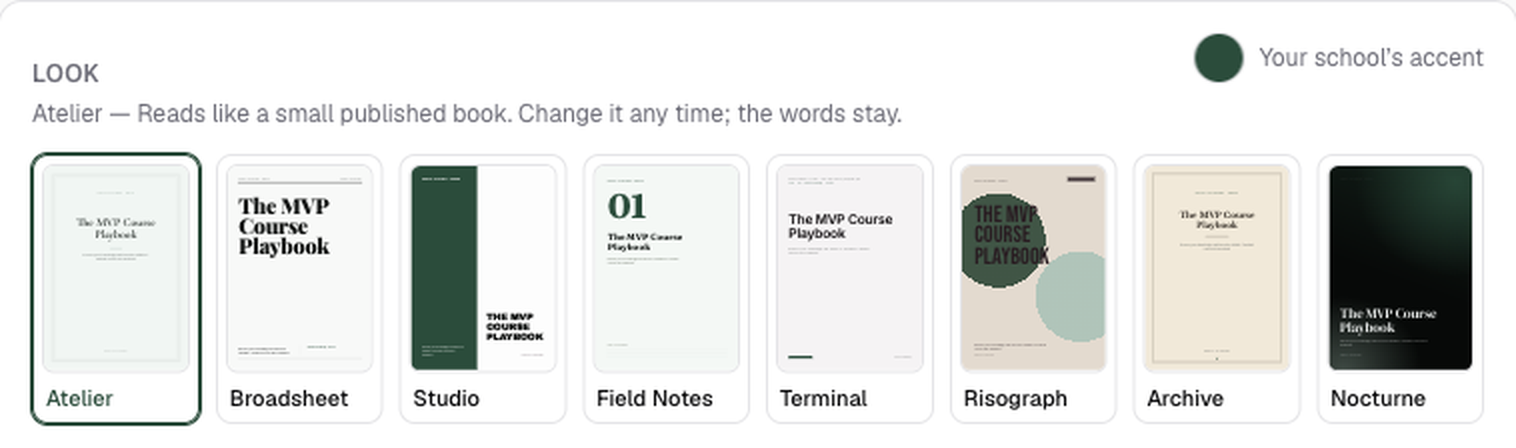
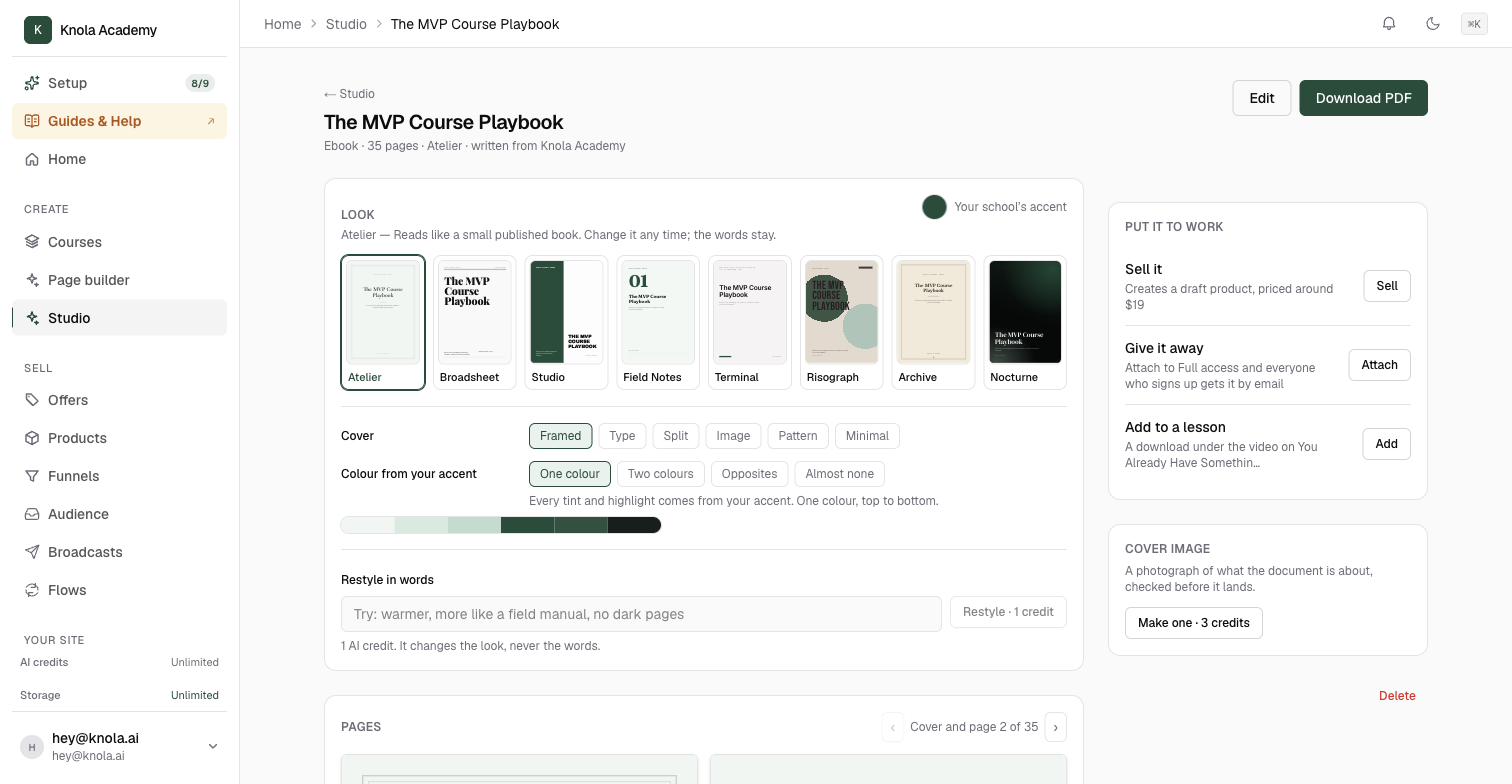
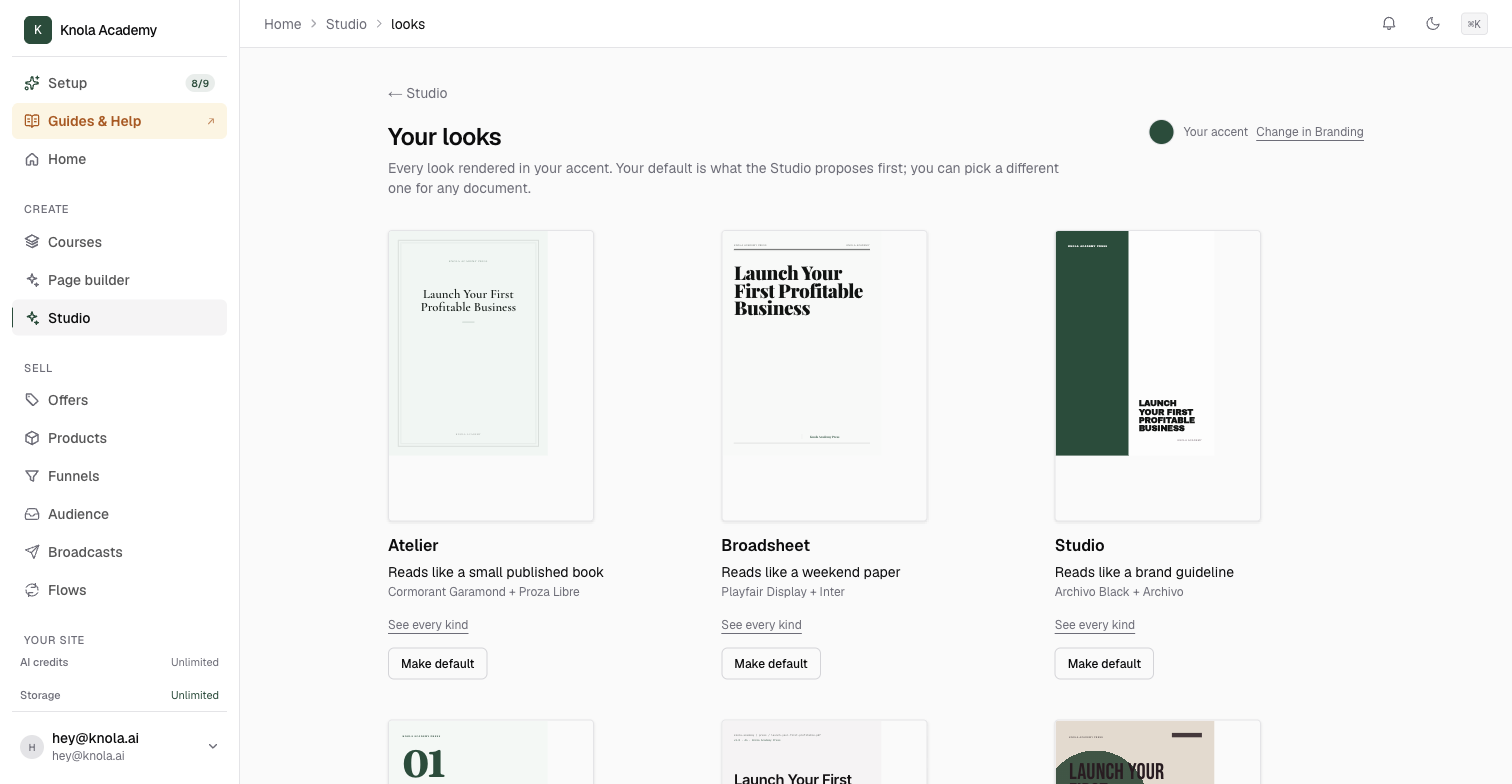
Open any document from Your documents on the Studio page. The Look panel across the top shows the current look with a one-line description of what it reads like, and the reminder that matters: "Change it any time; the words stay." All eight are in a row; click a different one to switch the whole document. The eight are:
- Atelier: reads like a small published book. The default for an ebook.
- Broadsheet: reads like a weekend paper.
- Studio: reads like a brand guideline.
- Field Notes: reads like a working notebook. The default for a checklist, mini-guide and worksheet.
- Terminal: reads like a reference manual. The default for a swipe file.
- Risograph: reads like a printed zine.
- Archive: reads like a reprinted classic. The default for a glossary.
- Nocturne: reads like a launch film. The one we pick for the mini-guide in the video.
Cover style and how your colour is used
Under the row of looks, two rows fine-tune the one you have chosen.
- Cover picks the cover style: Framed, Type, Split, Image, Pattern or Minimal.
- Colour from your accent decides how much of your brand colour the pages use. One colour tints everything from your accent. Two colours adds a neighbouring colour for a warmer page. Opposites adds your accent's opposite, kept quiet. Almost none is near black and white, with your accent appearing on its own.
The strip under the row shows the six colours the look has derived from your accent: paper, ink, accent, and the soft, deep and highlight versions of it. Your accent itself comes from Branding. To use a different colour for one document only, click the swatch marked Your school's accent at the top right of the panel, and Reset to go back to your school's.
Describe the change in words
If you know what you want but not which look gives it, type it in Restyle in words. The box suggests the kind of thing to say: "Try: warmer, more like a field manual, no dark pages". Click Restyle. Knola maps your sentence onto the looks and settings above and applies the closest match. As the panel says, "It changes the look, never the words."
Add a cover image, or edit the pages
The Cover image panel on the right offers Make one: an image of what the document is about, checked before it lands. If the first is not right, Try another. Usually under a minute.
For the words themselves, Edit at the top of the page opens the document page by page. Change a paragraph, reorder pages, remove one. Closing without saving asks Close without saving? with Keep editing or Close anyway, so nothing is lost by accident.
Set a default look for your school
If you always want the same look, set it once. On the Studio page click Change your look. The Your looks page shows every look rendered in your accent, with See every kind under each to preview it across all six document kinds. Click Make default on the one you want, and it is marked Your default. As the page says, "Your default is what the Studio proposes first; you can pick a different one for any document."
Will changing the look change the words?
No. Looks, cover style, colour and Restyle in words only change the design. The text stays exactly as it was. To change the words, use Edit.
Why is my document green?
Because your school's accent colour is green. Every look is derived from the accent you set in Branding, which is why the documents in the video are green and yours will match your own brand. Change the accent in Branding to change it everywhere, or click the swatch on the document to change it for that one document.
Can I use my own fonts?
Each look comes with its own pair of typefaces, shown under its name, and they are part of what makes the look. There is no separate font picker for documents.