How to add a Studio document to a lesson or give it away for an email
A finished Studio document can sit under a lesson as a download, or be the giveaway on an opt-in funnel that collects emails. Both take one click.

 By Knola5 min read
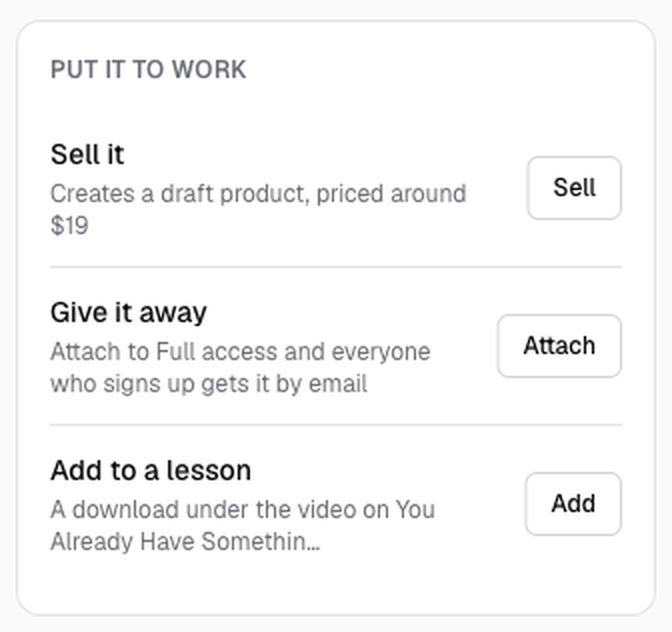
Making the document is the quick part. What it is for comes next, and every finished document carries the same panel, headed Put it to work, with three rows: Sell it, Give it away and Add to a lesson. This guide covers the two you will use most. We do the first at 05:56 in the video walkthrough, adding the checklist under the lesson it came from, and describe the second at 07:34 as the way to capture emails from a YouTube video.
Open the document
Click Studio in the sidebar and pick the document from Your documents, or you are already on it because it just finished. The Put it to work panel sits on the right of the page. Each row explains what it will do before you click, and once a row has been used it turns into a fact with a number: "In 1 lesson", or "3 sign-ups · 2 downloads".
Download PDF at the top of the page is the fourth option, for using the file anywhere else.
Add it to a lesson
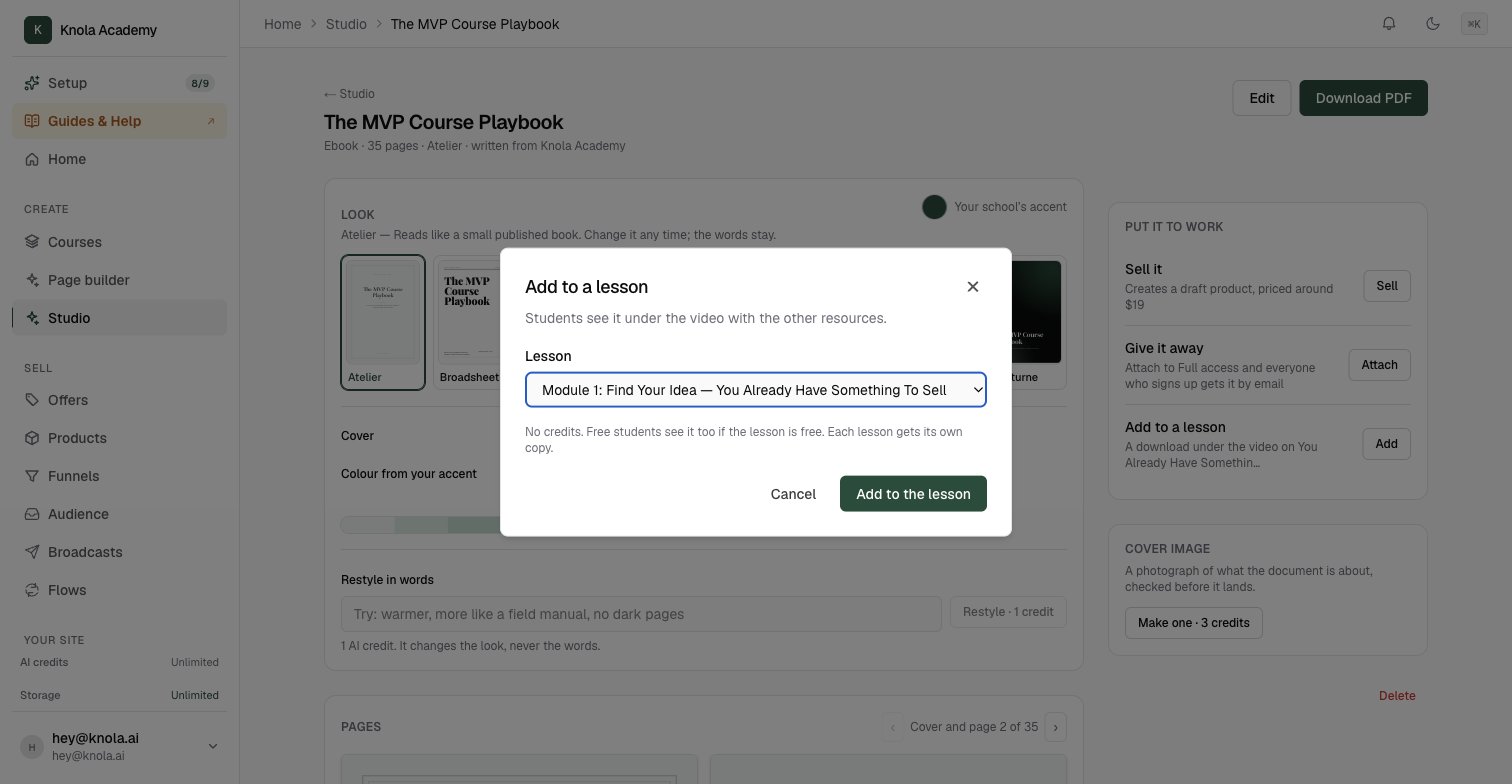
Click Add on the Add to a lesson row. A sheet opens headed Add to a lesson, with one line under it: "Students see it under the video with the other resources." Pick the lesson from the Lesson dropdown, which lists every lesson as module and title, then click Add to the lesson.
The sheet confirms with Added and offers Add it to another lesson, because each lesson gets its own copy, or Done.
Open the lesson and the document is in its Resources panel alongside anything you attached by hand, exactly as we show at 06:30 in the video. Students see it under the video, and if the lesson is free, free students see it too. Managing that panel is covered in How to attach lesson resources.
Give it away for an email address
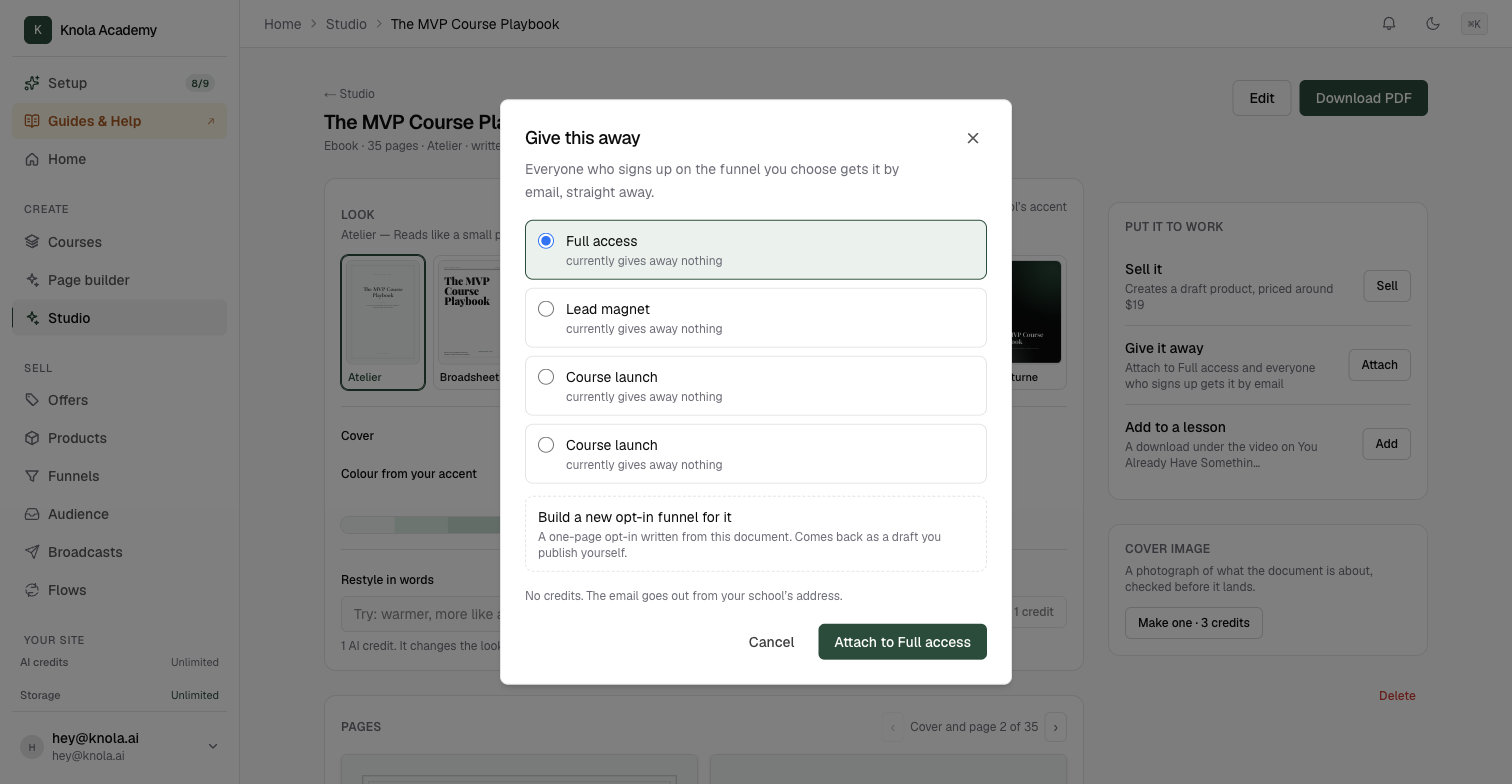
Click Attach on the Give it away row. The sheet is headed Give this away, with the promise under it: "Everyone who signs up on the funnel you choose gets it by email, straight away."
You have two routes:
- Attach it to a funnel you have. Every funnel in your school is listed, and each one says what it currently gives away: "currently gives away nothing", or "already gives away" something else. Pick one and click Attach to that funnel. If it already had a giveaway, Knola asks before replacing it.
- Build a sign-up page for it. Knola writes a sign-up page and a thank-you page with the download, from the document. The sign-up page comes back as a draft, so you can read it and publish it when the words are yours.
Either way the sheet ends with Attached or Funnel built, and a link to open the funnel.
See what it is doing for you
Come back to the document later and the rows have become facts. Add to a lesson reads "In 2 lessons" with the lesson names. Give it away reads which funnel it is "Given away on", with the number of sign-ups and downloads so far. Open beside each takes you to the lesson or the funnel.
The Your documents shelf on the Studio page shows the same thing as a small chip on each cover: Added, Attached, or both.
Can one document be in more than one lesson?
Yes. Each lesson gets its own copy, and the sheet offers Add it to another lesson as soon as the first is done. A glossary in the first lesson of every module is a common use.
What do people get when they sign up on the funnel?
An email from your school's address with the document, sent straight away. The funnel's own page shows who has signed up, and their details land in your audience like any other contact.
Can I give away the same document on two funnels?
Yes. Open Give it away again and attach it to the second funnel. A funnel can only give away one document at a time, so attaching a different document to a funnel replaces what it had.
What does Sell it do?
It turns the document into a product of its own with a suggested price, ready to finish on the product page. The whole route is in How to sell a document you made in the Studio.