

How to publish a page: preview, SEO and revert
Set the SEO title, description and share image, preview your draft, publish to /p/your-slug on your school, and revert to the live version if needed.

 By Knola3 min read
Edits in the page editor save to a draft; nothing changes for visitors until you publish. That split is what makes previewing safe, and what lets you throw a bad draft away without touching the live page.
Set the title, SEO and share image
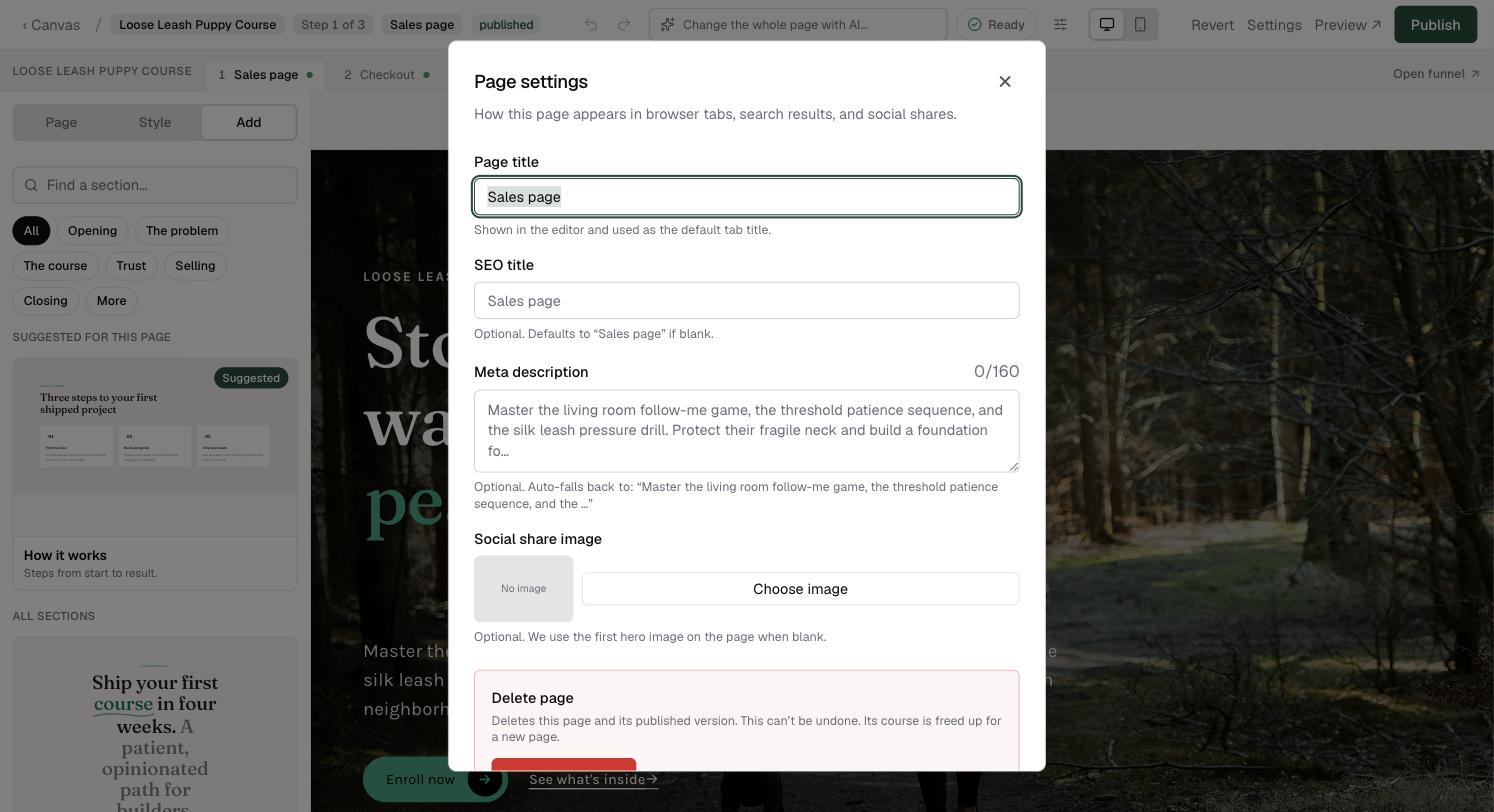
Click Settings in the editor header to open Page settings: how this page appears in browser tabs, search results and social shares:
- Page title: shown in the editor and used as the default tab title.
- SEO title: optional; defaults to the page title when blank.
- Meta description: optional, up to 160 characters. Left blank, Knola takes one from the text on the page.
- Social share image: optional, 1200×630 recommended. Left blank, the first hero image on the page is used.
Preview the draft
Preview ↗ opens the page in a new tab exactly as visitors will see it, showing your current draft edits, even when an older version is already live. Check it on your phone too: the preview is the real page, not an editor approximation.
Check the page, then publish
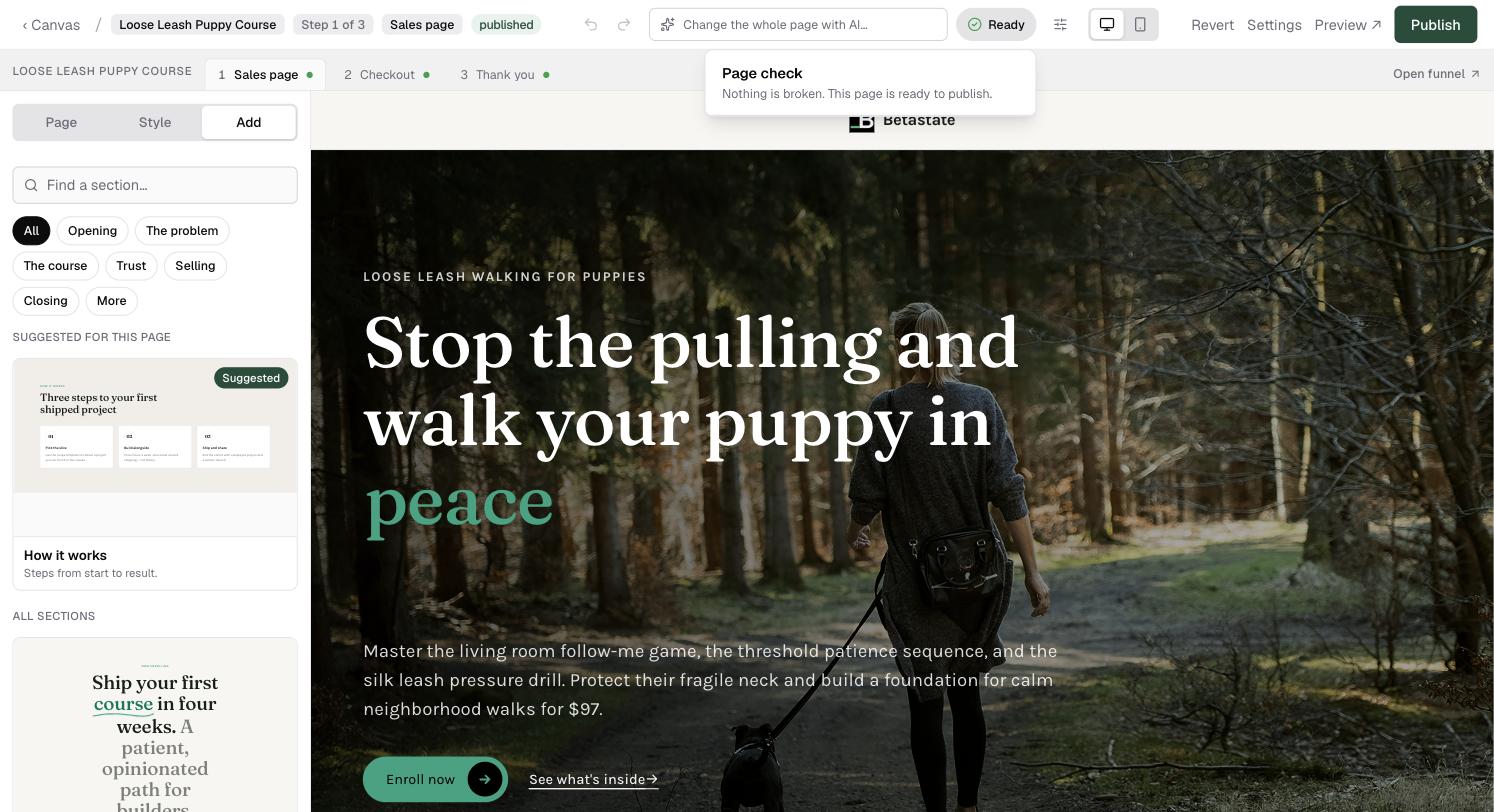
The pill next to the AI box is the Page check. It looks for anything that would look broken to visitors. Ready means "Nothing is broken. This page is ready to publish." If it finds something, it lists it, and Fix it for me repairs what Knola can. Show me takes you to the section.
Click Publish. Your page goes live at /p/your-page-slug on your school's own web address. Every page gets its own link you can share, run ads to, or wire into a funnel. Edits you make afterwards stay in the draft until you publish again.
Revert to published if a draft goes wrong
On a published page, Revert appears in the editor header. It discards your draft changes and restores the live version into the editor: the safety net after an AI rewrite or an editing session you regret. It can't be undone, so Knola asks you to confirm first.
Where does my page live once published?
At /p/your-page-slug on your school's own web address. Each page has its own permanent link. Course pages, your homepage and blank pages all follow the same pattern.
Do my edits go live as I type?
No. Autosave writes to your draft only; visitors keep seeing the last published version until you click Publish again. That means you can rework a live page over days without anyone seeing it half-done.
Can I unpublish a page?
There's no unpublish button, but deleting the page (in Page settings) removes both the draft and the published version. To replace bad live content quickly, fix the draft and publish over it, or use Revert to published to walk the draft back first.