

How to create a page with Knola
Say what the page is for and Knola builds it: a sales page written from your course, a free giveaway, your homepage, or a page from your own description.

 By Knola4 min read
Every page starts with one question: What's this page for? Your answer decides what Knola builds for you. It takes about a minute, and you can change everything after.
Open the page builder
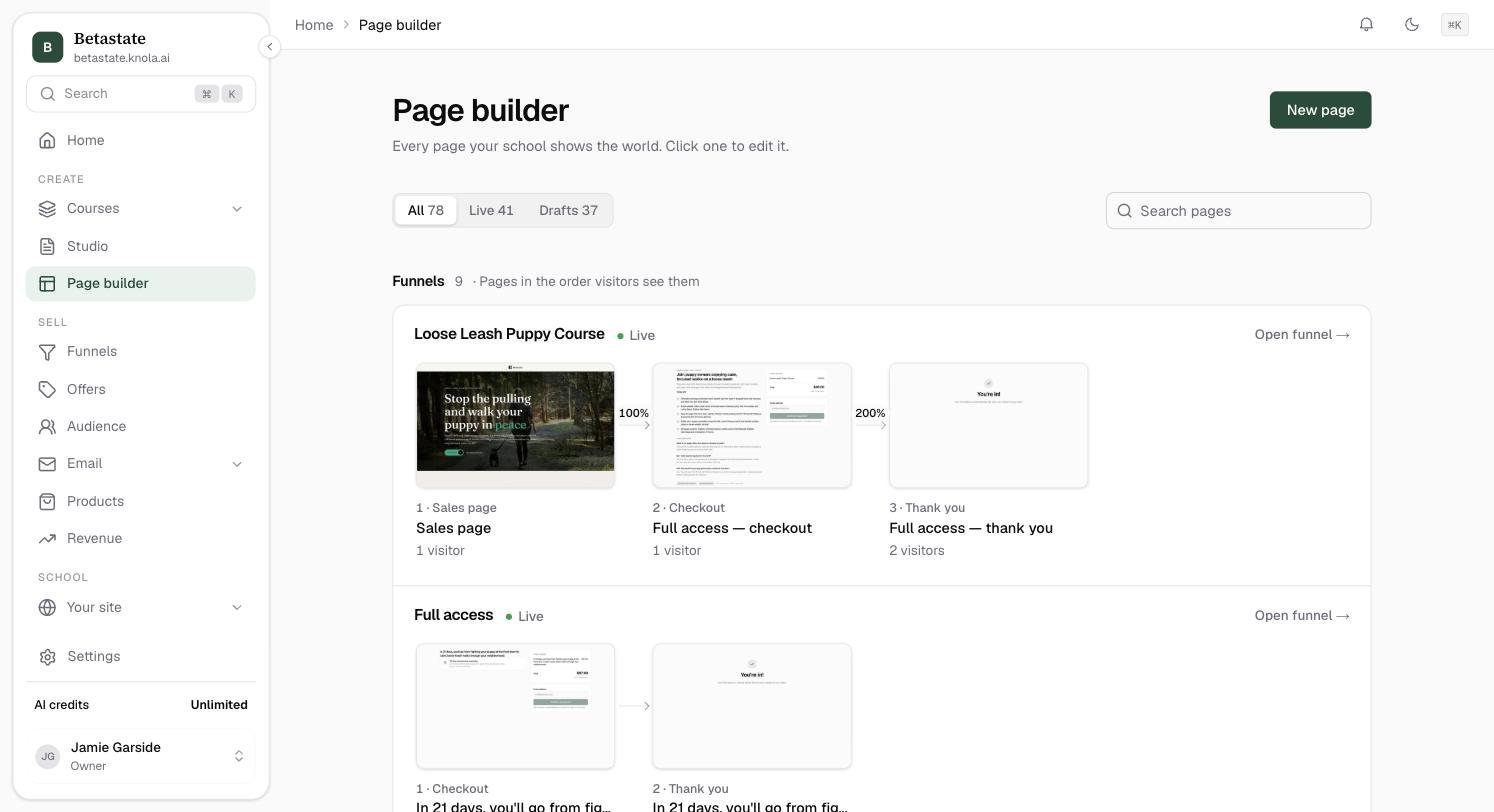
In your admin, go to Page builder under Create. It lists every page your school shows the world, with your funnels first so you see their pages in the order visitors see them. Click New page.
Say what the page is for
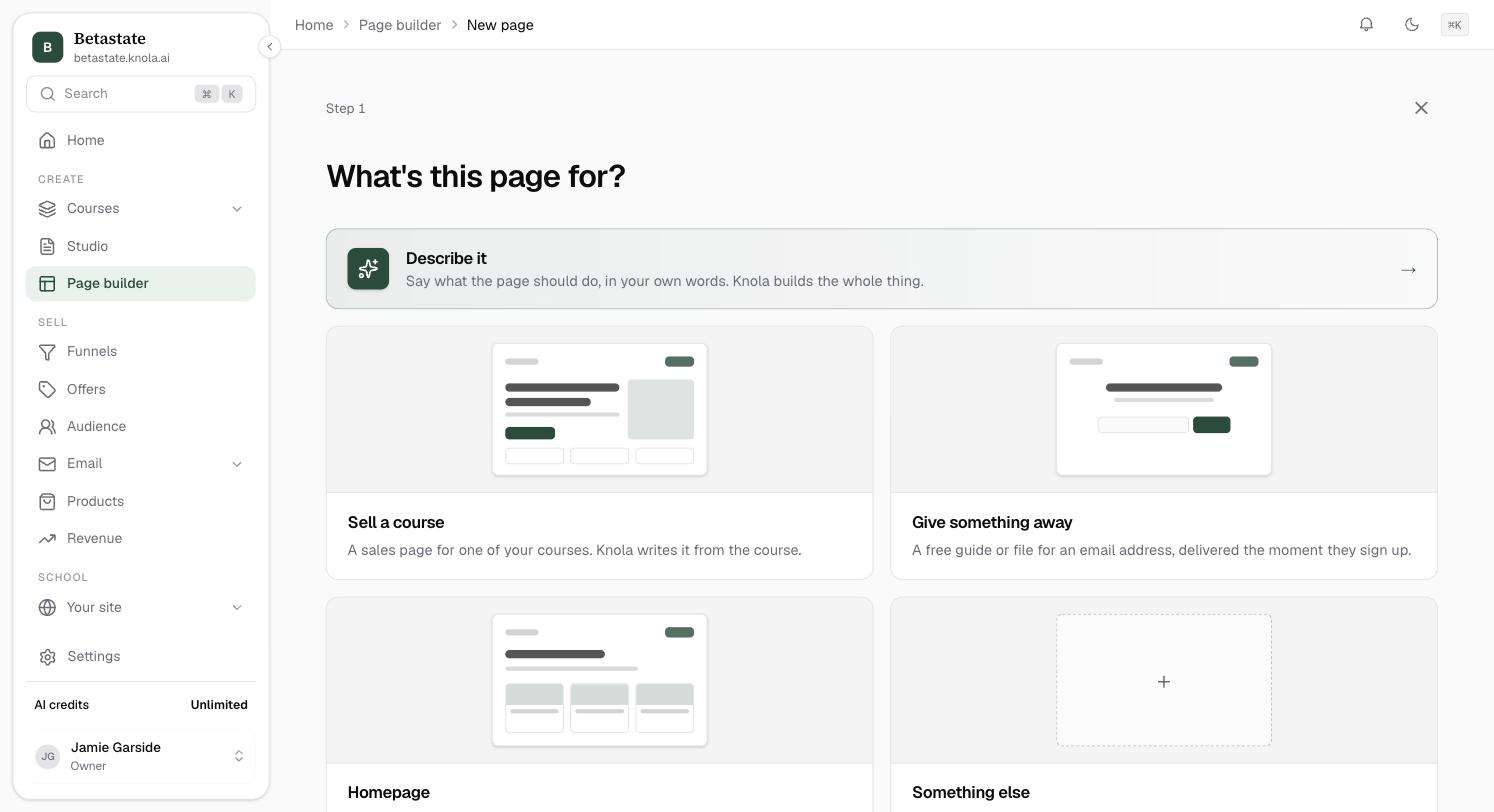
Five choices:
- Describe it: say what the page should do, in your own words, and Knola builds the whole thing.
- Sell a course: a sales page for one of your courses. Knola writes it from the course.
- Give something away: a free guide or file for an email address, delivered the moment they sign up.
- Homepage: the front page of your school, with your story and your courses. A school has one, so if you have it already, this opens it for editing.
- Something else: a blank page for anything, such as about you, terms or a thank-you.
Describe it: Knola builds it from your words
Under What should this page do?, write who it is for, what it is about and what you want people to do. For example: "A page for my 1:1 coaching: who it's for, three packages, and a button to book a call." Add a Page name if you want one, then click Build my page.
Sell a course: pick the course, then a look
Under Which course is it for?, choose the course. Knola builds the page from its title, lessons, price and cover. A course can have more than one page, and the list tells you which already have one.
Then Pick a look. Each design is shown with your course and your brand, and you can hover to scroll through it. Pick one and click Create page. Once you pick, Knola writes the words from your course.
Something else: name it and start blank
Under Name your page, type a name such as "About me" and click Create page. You start with a blank page and add sections in the editor.
The editor is yours from here
Whatever Knola built, every headline, paragraph and image is yours to change. Add sections, move them around, or ask Knola to rewrite one. A page is a draft until you publish it.
Everything the editor can do is in How to edit a page, and going live is in How to publish a page.
Can a course have more than one sales page?
Yes, as many as you like. Each page gets its own link, so you can pitch the same course to different audiences or test different angles. The course list marks courses that already have a sales page, so a second one is a choice, not an accident.
Do I have to use the AI to create a page?
No. Pick Something else to start with a blank page and add sections yourself.
Why does Homepage say I already have one?
A school has one front page. Clicking Homepage then opens your existing one so you can edit it.