

How to restyle a page: themes, colours and fonts
Change how one page looks without touching your school: pick a theme, choose a colour from your brand, and set the two fonts, all previewed live.

 By Knola6 min read
Your school has one look, set once in your Brand kit. A single sales page often wants a different one: darker for a premium offer, louder for a launch. The Style tab lets a page override your school's look, and only that page.
Open the Style tab
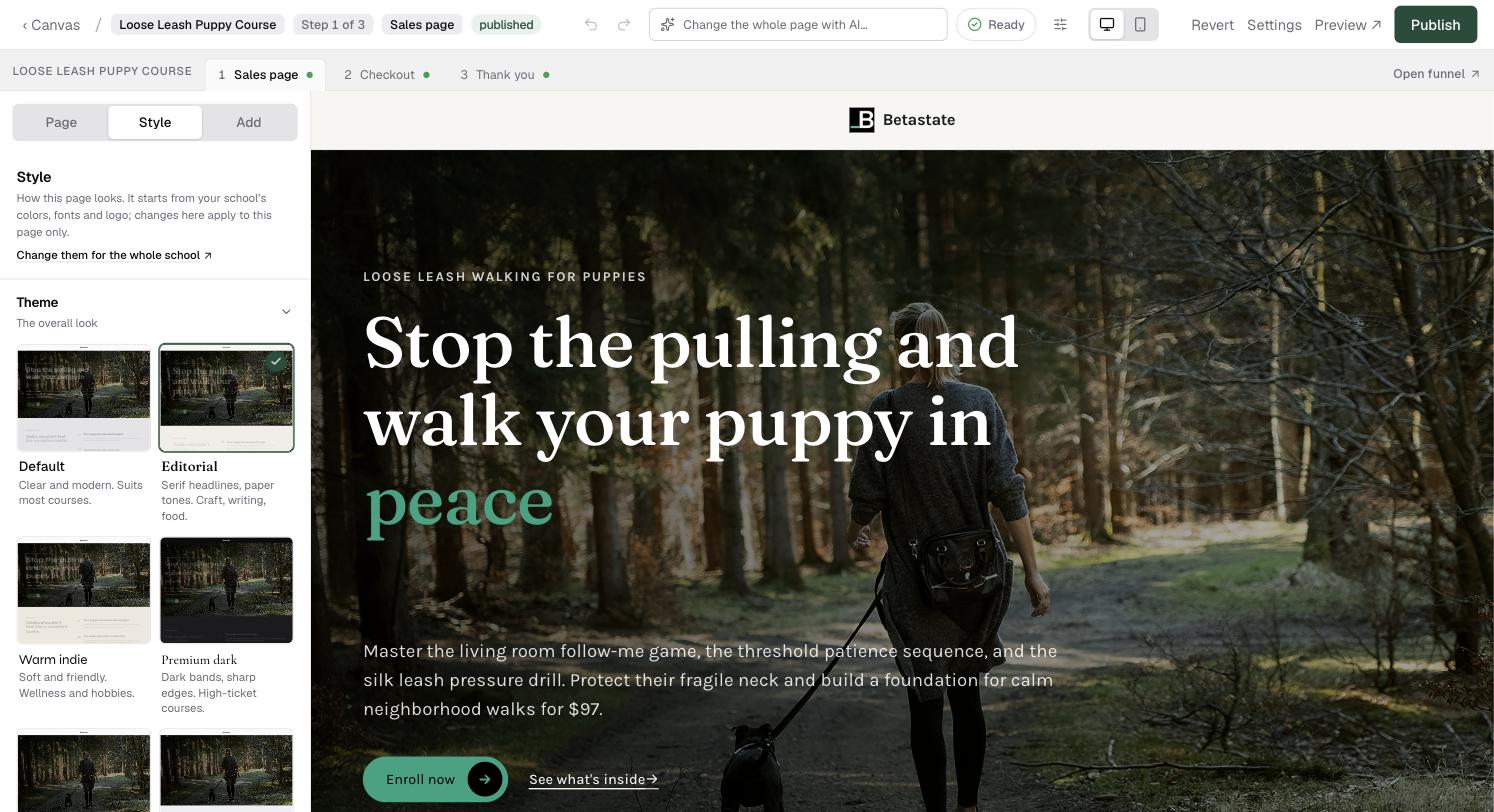
Open any page in the page editor. Style is the second tab in the left rail, beside Page and Add. It opens with the rule written at the top: this page starts from your school’s colors, fonts and logo, and changes here apply to this page only. The link under it, Change them for the whole school, opens your Brand kit in a new tab if what you actually want is to change everything at once.
Inside, from the top: Theme, Color, Recipe, Accent, Buttons, Colours, Photos, Photo style, Headline motion, Logo and Fonts. Accent decides how the emphasised words in your headlines look: italic, in your brand colour, with a marker highlight or with a hand-drawn scribble underneath. Every change previews on the canvas as you click, and none of it reaches the public page until you publish.
Pick a theme
A theme is the page's whole visual character: its font pairing plus the shapes, spacing and weights that go with it. There are eight: Default, Editorial, Warm indie, Premium dark, Brutalist, Practical, Mono tech and Poster.
Click one and the canvas redraws. It is worth trying two or three, because a theme changes more than colour: Editorial sets a magazine feel with a serif headline, Premium dark puts everything on near-black, Brutalist goes hard-edged and loud.
Choose the colour
The Color section offers three ready-made palettes for whichever theme you picked, each shown as three dots and a name. If your school has brand colours saved, they appear first as Your brand, then Brand 2, Brand 3 and so on, so the fastest way to stay on-brand is to click the first card.
Below the palettes sits a row of preset colours and Custom color for anything else, including a hex code you type in. School color clears a custom colour again.
- The brand cards are live, not copies. Change your school brand colour later and every page using Your brand follows.
- A custom colour is fixed at the moment you pick it, so it stays put when your brand changes.
- Palettes and custom colours are alternatives, and the last thing you click wins.
Start from a recipe, then fine-tune
Recipe sets several choices that go together in one click: Calm (quiet and assured), Confident (direct and modern), Handmade (crafted and personal), Friendly (warm and playful) or Soft (gentle and elegant). Start there, then change any of the choices below it:
- Buttons: the main button in every section: Solid, Pill with arrow or Square icon.
- Colours: section backgrounds and card colours: Tonal (shades of your brand colour), Neutral (soft greys) or Playful (companion colours).
- Photos: the shape of each section's main photo, such as Rounded or Polaroid.
- Photo style: one look for every photo: Natural (as they are), Brand tint (toned in your colour), warm with grain, or black and white. Portraits and logos stay as they are.
- Headline motion: on the published page, headlines can appear at once (Still), rise in word by word, or go further with Alive.
Set the two fonts
The Fonts section has two rows: Headings for titles and the opening, and Text for paragraphs and buttons. Each offers six pairings by feel, Modern, Editorial, Friendly, Premium, Technical and Warm, and each card shows its font in its own typeface so you can judge it without applying it. All 46 fonts opens the full list grouped by kind if none of the six fits.
The first tile in each row is the default: School font if your school has its own fonts, or Theme font if not. Leave a row on it and the page follows your school or theme. Set one font and leave the other on its default if you only want to change the headlines.
How page design fits with school branding
Knola works down a chain to decide how a page looks: what this page sets, then what your school sets, then what the theme brings. That has three consequences worth knowing:
- Anything you leave on School font or School color keeps following your school, so changing your school fonts or brand colour updates pages that never overrode them, with nothing to re-publish.
- Once a page has its own palette or colour, your school brand colour stops applying to that page. That is the point of an override, but it surprises people who later change their brand and wonder why one page did not move.
- The Logo section here is read-only. Logos are school-wide, so it just tells you which one this page will use and links you to change it.
Can one page look different from the rest of my school?
Yes. Theme, colour and both fonts are set per page in the Style tab, and they override your school defaults on that page alone. Everything you leave on School font or School color keeps following your school.
Why did my page not change when I updated my brand colour?
Because that page has its own colour. A page using a palette or a custom colour ignores the school brand colour by design. Set the colour back to School color, or pick the Your brand card, and it will follow again.
Do design changes go live straight away?
No. They are part of the page like any other edit, so the public page only changes when you publish it. Until then the canvas is the only place they exist.