

Here's how the page editor works
Find your way around Knola's page editor: the header, the Page, Style and Add tabs, AI edits by prompt, inline formatting, section spacing, autosave and undo.

 By Knola5 min read
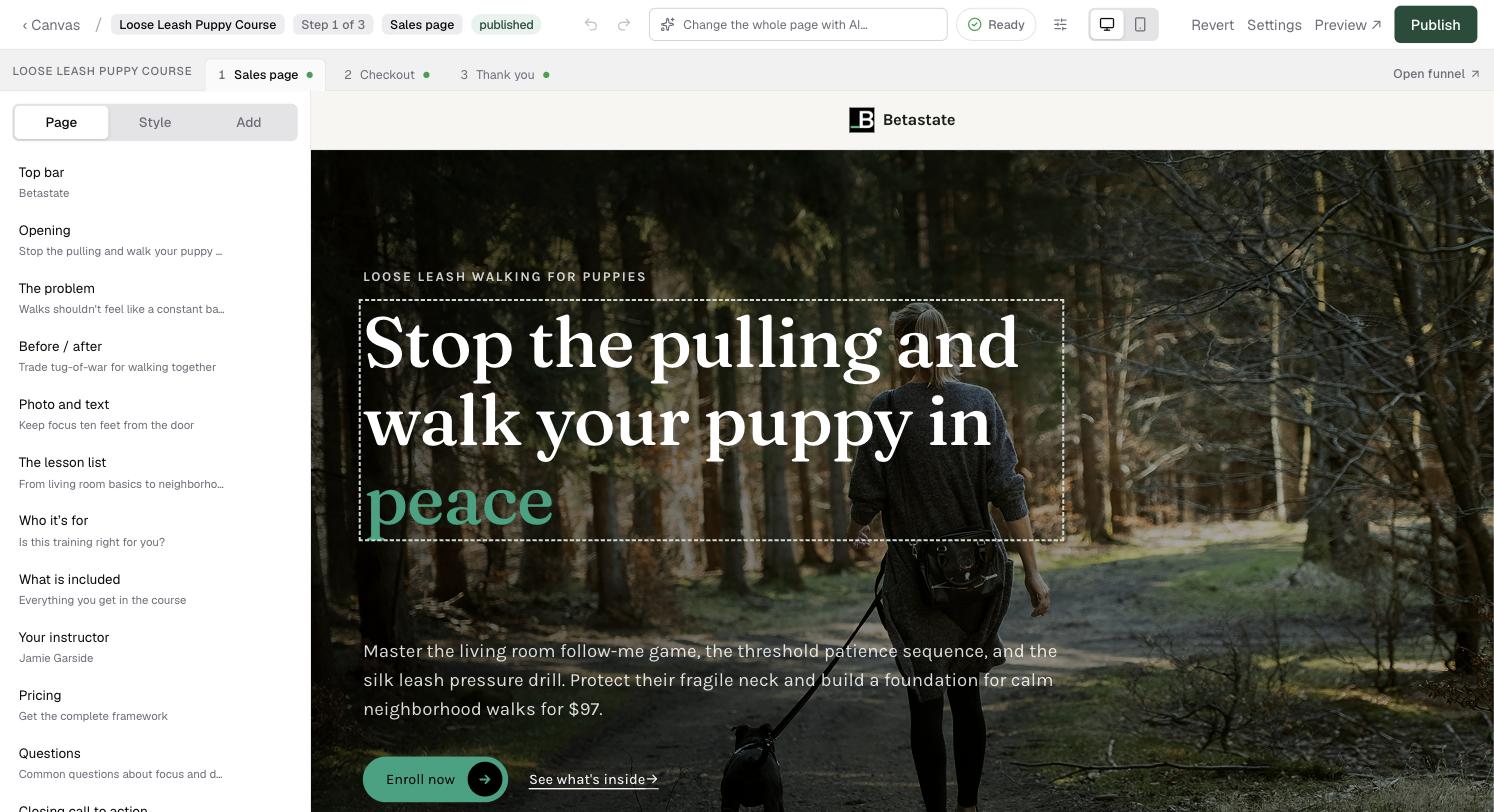
The editor shows your page at real size, the size buyers see it, with three tabs down the left and the selected section's settings beside the page. Two buttons at the top switch between the desktop and phone view.
Along the top: Change the whole page with AI…, the Ready page check, AI settings, then Revert, Settings, Preview ↗ and Publish. If the page belongs to a funnel or a giveaway, a row of tabs under the header lists its other pages, such as Sales page, Checkout and Thank you, so you can move between them. Open funnel takes you to the funnel itself.
The left rail: Page, Style and Add
The left rail has three tabs:
- Page: every section in order, with arrows to move one up or down. Click a section to edit it.
- Style: themes, colours and fonts for this page (covered below).
- Add: every kind of section, shown as pictures. Search with Find a section…, filter by what a section does (Opening, The problem, The course, Trust, Selling, Closing), or start from Suggested for this page. Knola writes a new section from your course as it lands, just above your closing section.
Click any section, in the list or on the page, to edit it. A panel opens beside the page: ask the AI for a change, pick a layout, set the photo and buttons, and edit the words. Under Look you can light the section (a glow, beams, a grid or a panel) and, on card layouts, turn on Photos on cards (and let Find photos for me fill them) or colour the cards with Card colors: all in your brand wash, or Mixed for a different companion colour on each card. Background also offers three companion colours worked out from your brand. The bar at the top of the editor takes instructions for the whole page, and the pill beside it checks the page for anything that would look broken to visitors.
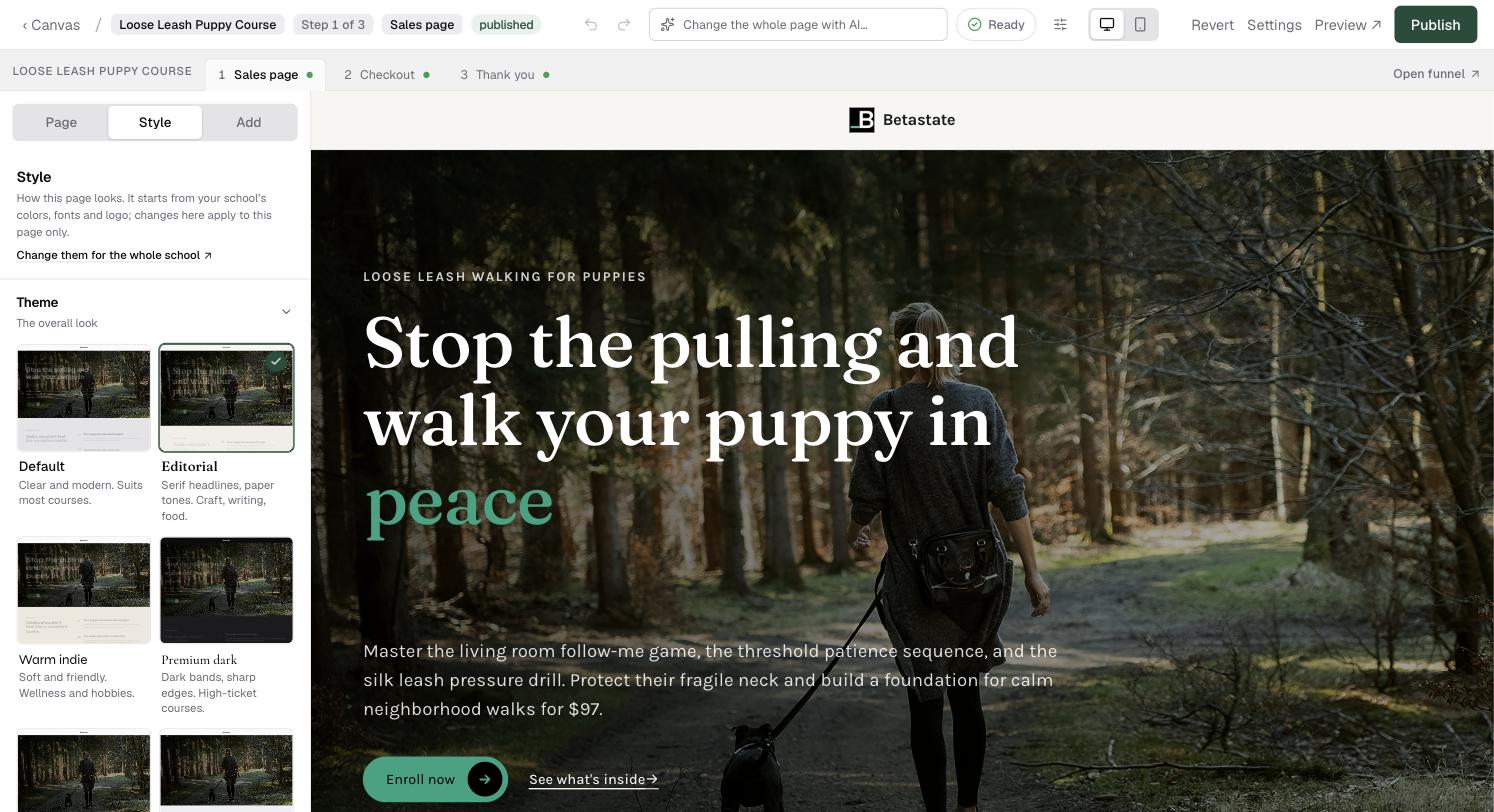
The Style tab: themes, palettes and fonts
The Style tab changes how this page looks, and this page only. It starts from your school's colours, fonts and logo; Change them for the whole school ↗ opens your Brand kit. Below that: Theme, Color, Recipe, Accent, Buttons, Colours, Photos, Photo style, Headline motion, Logo and Fonts.
Restyling a page end to end has its own guide: themes, colours and fonts.
Editing with AI
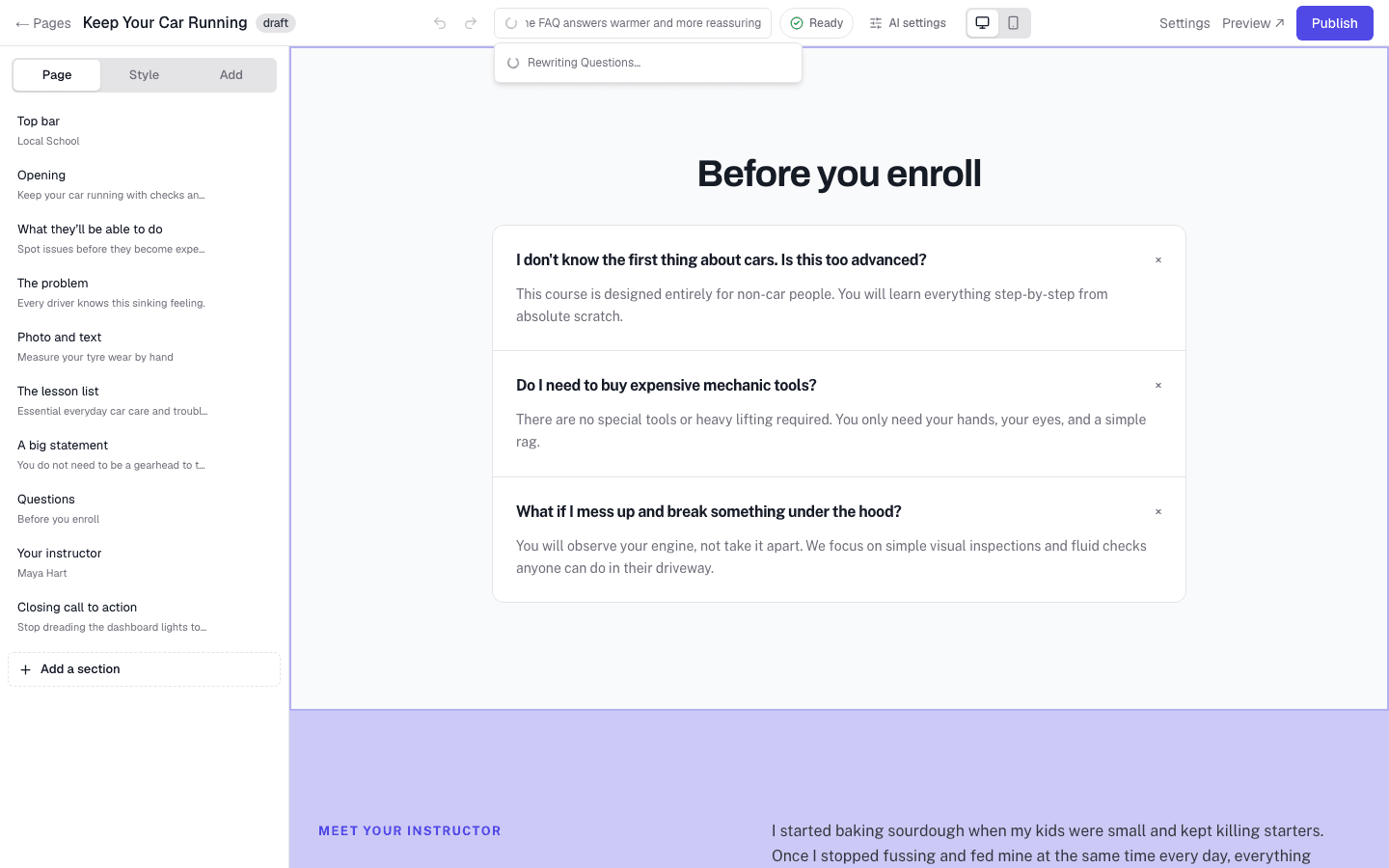
The AI box in the header changes the whole page. Type what you want, for example "make the questions friendlier and add a guarantee", and press Enter. A list shows what it is changing, the sections being rewritten pulse on the page, and each one appears as it is written. When it is done, a note says exactly what changed, with Undo beside it.
To change one section, click it. Its panel opens with What should this section do differently? at the top. The AI settings control next to the AI box holds the set-rarely options: Writing for (which course Knola writes from) and Voice (the writing persona applied to every generation).
Editing text and formatting
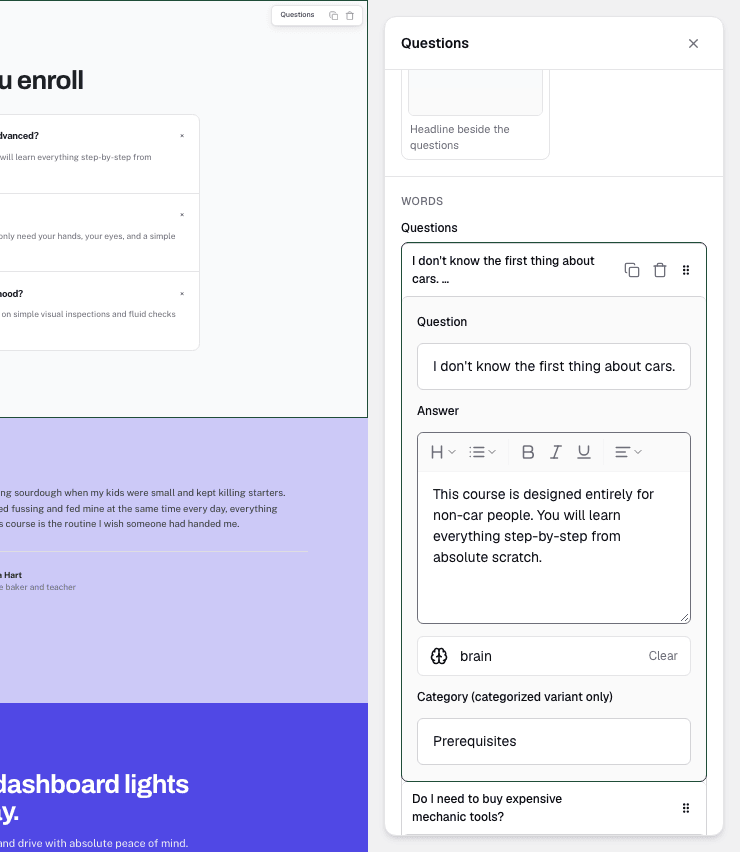
Click any headline or line on the page and type. It edits in place. Paragraphs that carry formatting (FAQ answers, quotes and text blocks) are edited in the section's panel instead: open the section, find the paragraph under Words, and the toolbar above it gives headings, lists, bold, italic, underline and alignment. Formatting survives AI rewrites and undo.
Per-section spacing and width
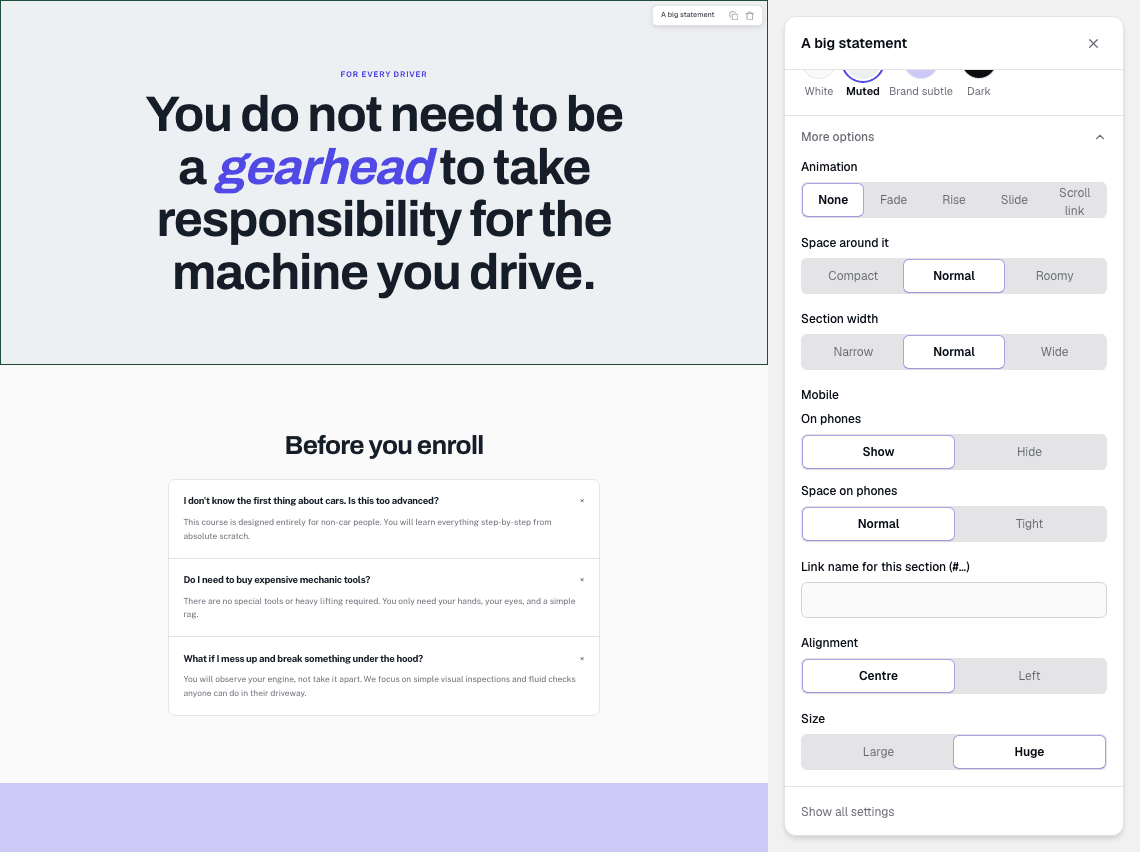
Select a section and open More options in its panel for layout controls that keep to the theme's preset options rather than free pixel inputs. Only the ones that change that section's layout are shown:
- Space around it: Compact, Normal or Roomy vertical rhythm, scaled to the active theme.
- Section width: Narrow, Normal or Wide content width for that section only.
- Text width (on layouts where the text has its own column): how wide the text runs; sometimes that is what drops a headline from four lines to three.
- Mobile: On phones hides a section when a desktop-only flourish gets in the way, and Space on phones tightens its spacing.
Autosave and undo
The editor saves on its own moments after you stop editing. There is no save button to press. If a save fails, Knola warns you and keeps retrying; your work stays in the editor either way.
Undo and redo live in the header and on the keyboard: ⌘Z / Ctrl+Z to undo, ⇧⌘Z / Ctrl+Shift+Z to redo, AI rewrites included. Saving is not publishing: nothing changes on your live page until you hit Publish.
Does the Knola page editor save automatically?
Yes. Edits save on their own moments after you stop. Publishing is a separate, deliberate step, so autosave never changes your live page.
How do I change the fonts and colours on one page only?
Open the Style tab in the left rail. Its theme, colour and font choices apply to that page alone. Your school-wide defaults live in your brand settings, reachable from the same tab via Change them for the whole school.
Can I undo an AI rewrite?
Yes. The note under the AI box has Undo, which puts the page back exactly as it was before the change. AI edits also go through the same history as your own (⌘Z / Ctrl+Z), and a published page can always be restored with Revert to published.