
How to create a glossary with AI from your course
Make a plain-language glossary of your field from your whole course with Knola AI, and attach it as the companion every beginner wants on day one.

 By Knola3 min read
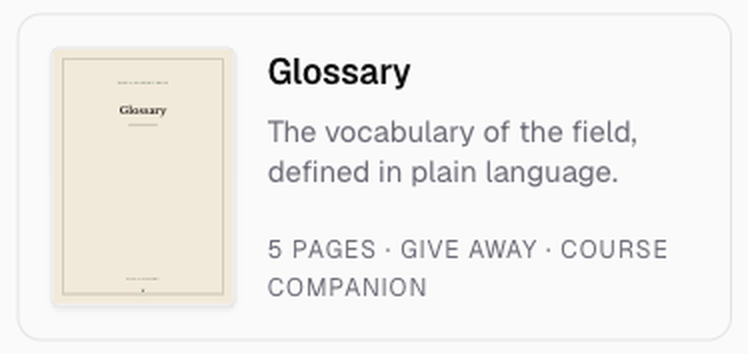
Every field has words that stop beginners cold. A glossary defines them in plain language, says which ones get confused with each other, and gives students something to keep open while they watch. Knola writes one from your whole course in about half a minute. It is the sixth of the six kinds we show in the video walkthrough, and the one that is most useful across an entire course rather than one lesson.
Open the Studio and choose Glossary
Click Studio in the sidebar, then the Glossary tile, last in the Make something grid.
Choose the whole course
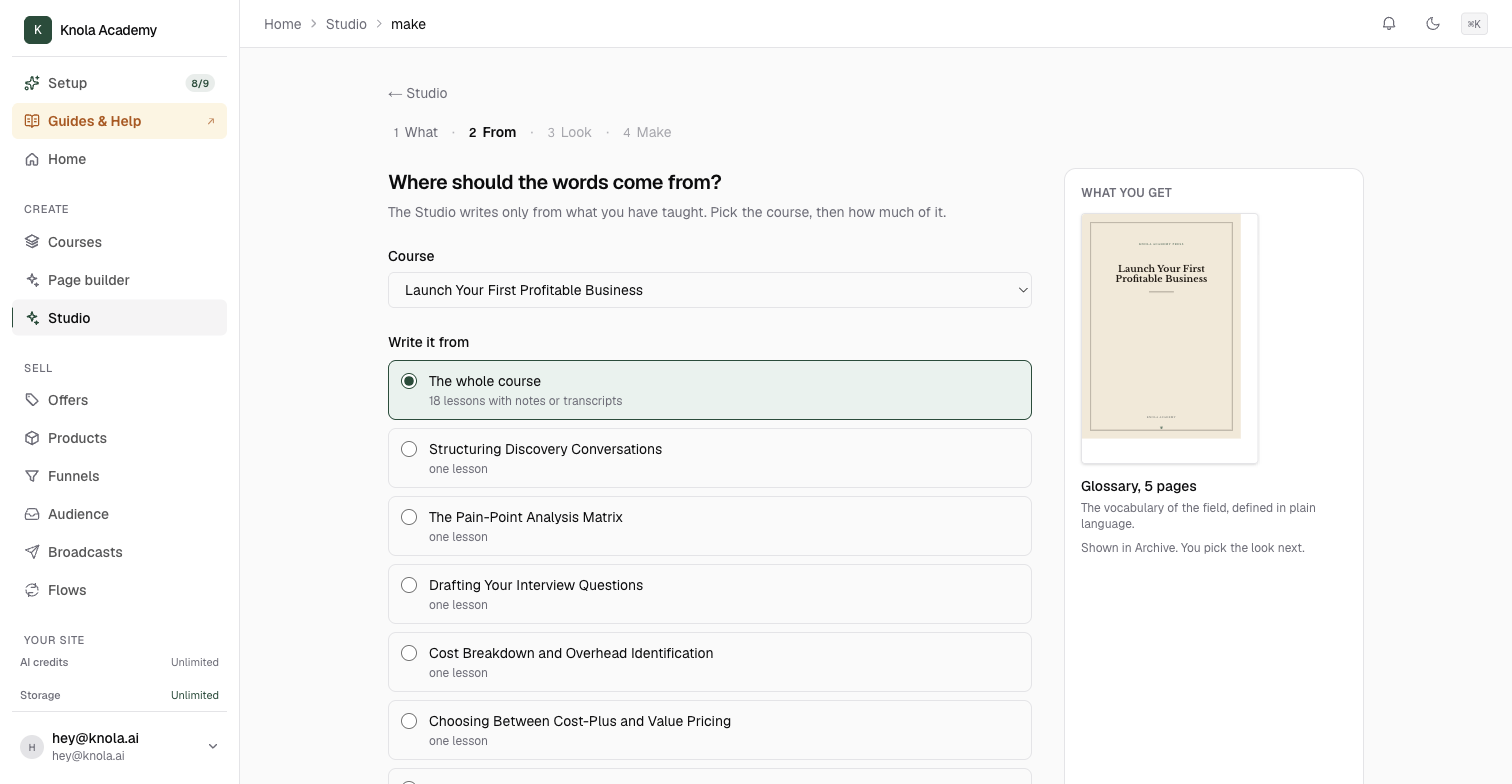
Under Where should the words come from?, pick the Course and leave The whole course selected under Write it from. A glossary is the one document where the whole course is nearly always the right source: the terms are spread across every lesson, and a glossary built from one lesson would miss most of them.
If there are terms you know students struggle with, name them in Anything to add or leave out?. Click Next: pick a look.
Pick a look and make it
Glossaries default to Archive, which "reads like a reprinted classic" and suits a reference document. Pick another from the three shown or All eight looks if you prefer, then click Make it.
Read it, then attach it
Knola is deliberately strict about what earns a place. It drops terms whose meaning is obvious from the words themselves, and it drops the names of buttons and screens in any piece of software, because a glossary is about your field, not a tool. Every definition should carry something a beginner could not have guessed: a number, a boundary, a consequence of getting it wrong. Terms are alphabetical inside each section. If a definition leans on two other undefined words, Edit it.
Then Add to a lesson, and add it to the first lesson of the course so it is there from the start. The Put it to work panel walks you through it, and so does How to add a Studio document to a lesson or give it away.
Will it include every term from my course?
No, and that is deliberate. It keeps the terms that stop beginners and drops filler. A shorter glossary of real terms beats a padded one. If it has left out something you want in, Edit the document and add it.
Can students find it without opening a lesson?
Add it to the first lesson and it is one click away from the start. Each lesson gets its own copy, so you can add it to more than one if you want it close at hand later in the course too.
Does it work for one lesson?
It does, but it will be short. A glossary earns its place across a whole course, which is why the whole course is the recommended source for this one kind.
Related guides