

How to create a swipe file with AI from your lessons
Turn a lesson into a swipe file with Knola AI: ready-to-paste lines and scripts, each labelled by the moment to use it. A strong giveaway, and easy to sell.

 By Knola3 min read
A swipe file is only worth an email address if the words in it can be pasted straight into a message, a page or a conversation. That is what Knola writes: the actual lines, in the second person, with one or two [square-bracket] blanks to swap in. We name it as one of the six things you can make from one video in the walkthrough, and the Learn page shows a swipe file made from the same lesson after recording.
Open the Studio and choose Swipe file
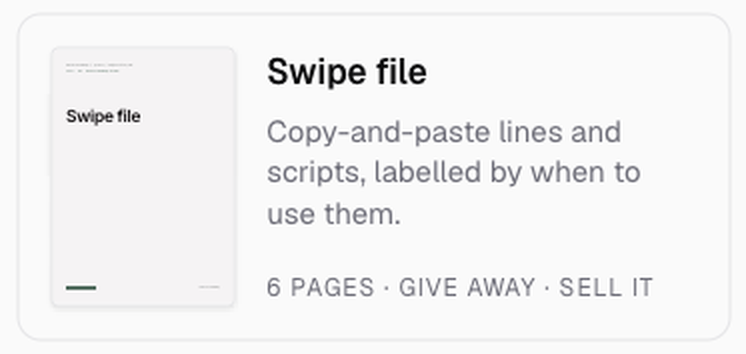
Click Studio in the sidebar, then the Swipe file tile in the Make something grid.
Choose the lesson with the words in it
Under Where should the words come from?, pick the Course, then the lesson under Write it from. The best source is a lesson where you actually say what to say: the sales call, the outreach message, the reply to an objection, the opening line of a session. A lesson about theory makes a thin swipe file.
Click Next: pick a look.
Pick a look and make it
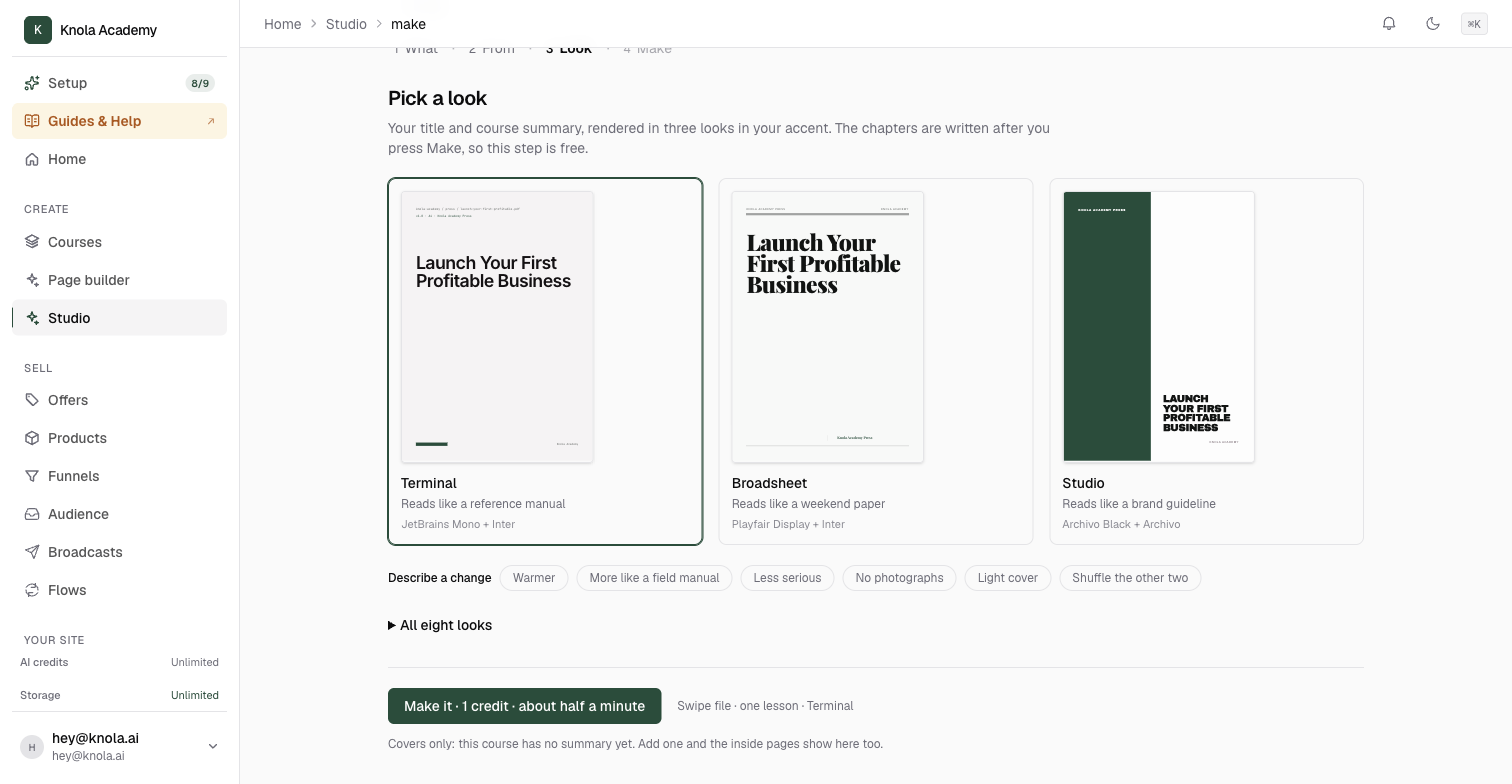
Swipe files default to Terminal, which "reads like a reference manual", because a swipe file is something people look things up in. Change it if you like; the grid under All eight looks shows every option with your title on it.
Click Make it. About half a minute later it opens on its own page.
Read it, then give it away
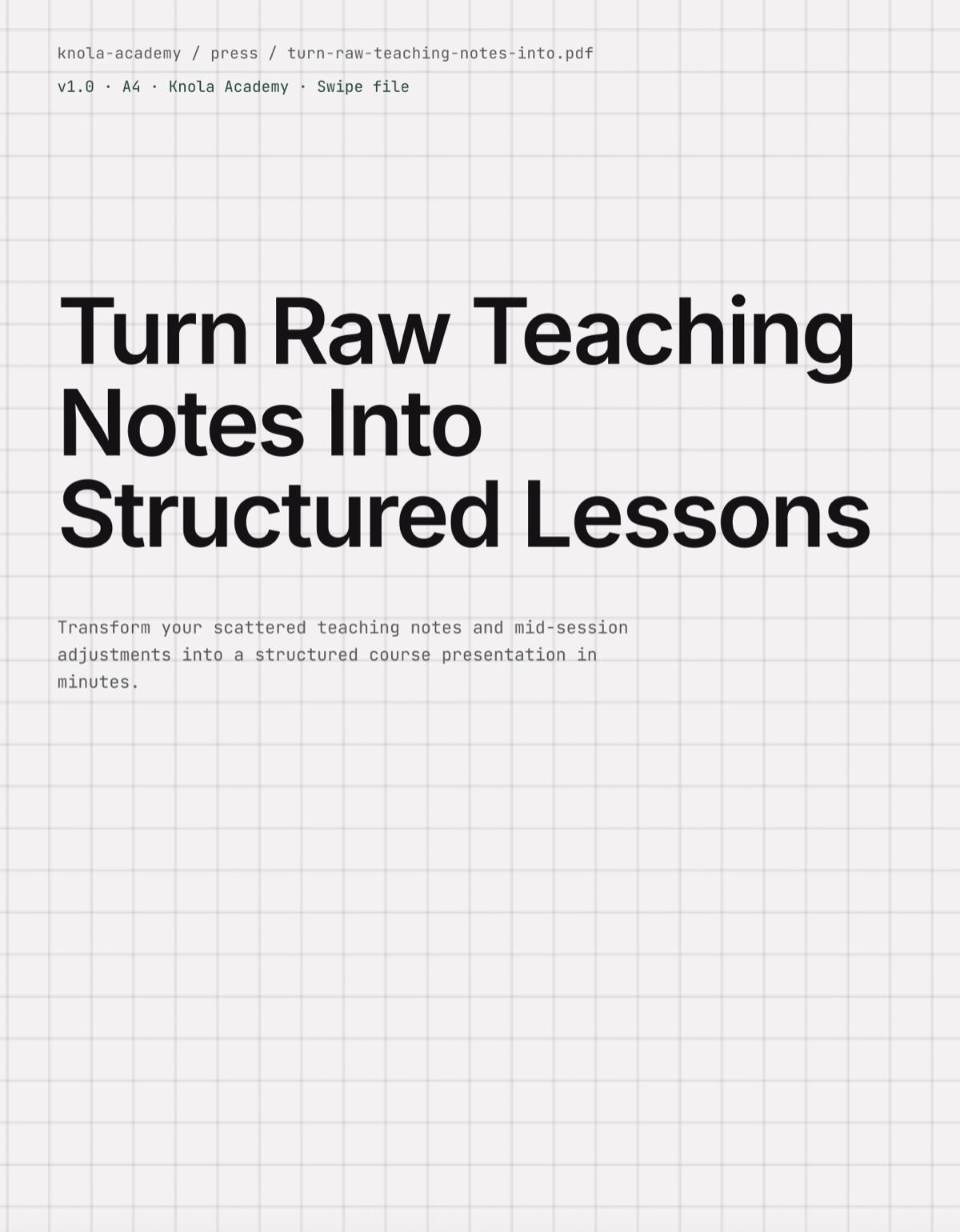
Every entry has a label that names the moment ("When they say they need to think about it") and the words themselves underneath, ready to copy. Sections group the entries by where they fall in the relationship, in order. Read a few aloud: if a line is not something you would send as it stands, Edit it. Never more than two [square-bracket] swaps per entry is the rule, and Knola follows it.
Then put it to work. Give it away turns it into an opt-in, which is where a swipe file earns its keep, and Sell it is there for the ones good enough to charge for. See How to add a Studio document to a lesson or give it away.
What goes in a swipe file?
The exact words, written to be used as they are: an opening line, a follow-up message, a reply to a common objection, a script for a call. Each one is labelled with the situation it is for, and one or two [bracketed] blanks mark what the reader swaps in.
Can I add my own scripts to it?
Yes. Edit opens the pages and every entry is plain text you can change or replace. You can also add or remove pages.
Which lessons make a good swipe file?
Ones where you say what to say. If a lesson has you role-playing a conversation, dictating an email or reading out a template, it will make a strong swipe file. A lesson about ideas rather than words makes a thin one.