

How to answer questions & publish FAQs
Work the Q&A inbox: answer student questions privately, then publish the best answers as a public FAQ on the lesson so you never answer twice.

 By Knola4 min read
Students ask questions from inside a lesson; those questions land in one inbox in your admin. Replies are private by default, but any answer worth writing once is usually worth publishing, and publishing turns it into a public Q&A at the bottom of that lesson for everyone with access.
Work the inbox
Go to Discussions. Three tabs split the inbox: Open (waiting on you, the default), Answered, and All. Each entry shows the course and lesson it came from, who asked, and the question itself. Click one to open it.
Answer the question
Write your reply under Your answer and click Send answer. The asker is notified, and until you publish, the exchange stays Private to the asker. You can revise later with Update answer. An Open lesson link at the bottom jumps you to the exact lesson for context.
Publish the good ones to the lesson
When an answer would help more than one student, use the Public FAQ section below the composer: tick Hide asker's name if the question is personal, then click Publish to lesson. The Q&A appears at the bottom of that lesson page for everyone with access. Unpublish takes it back down at any time, and when you edit a published answer, the earlier version is kept.
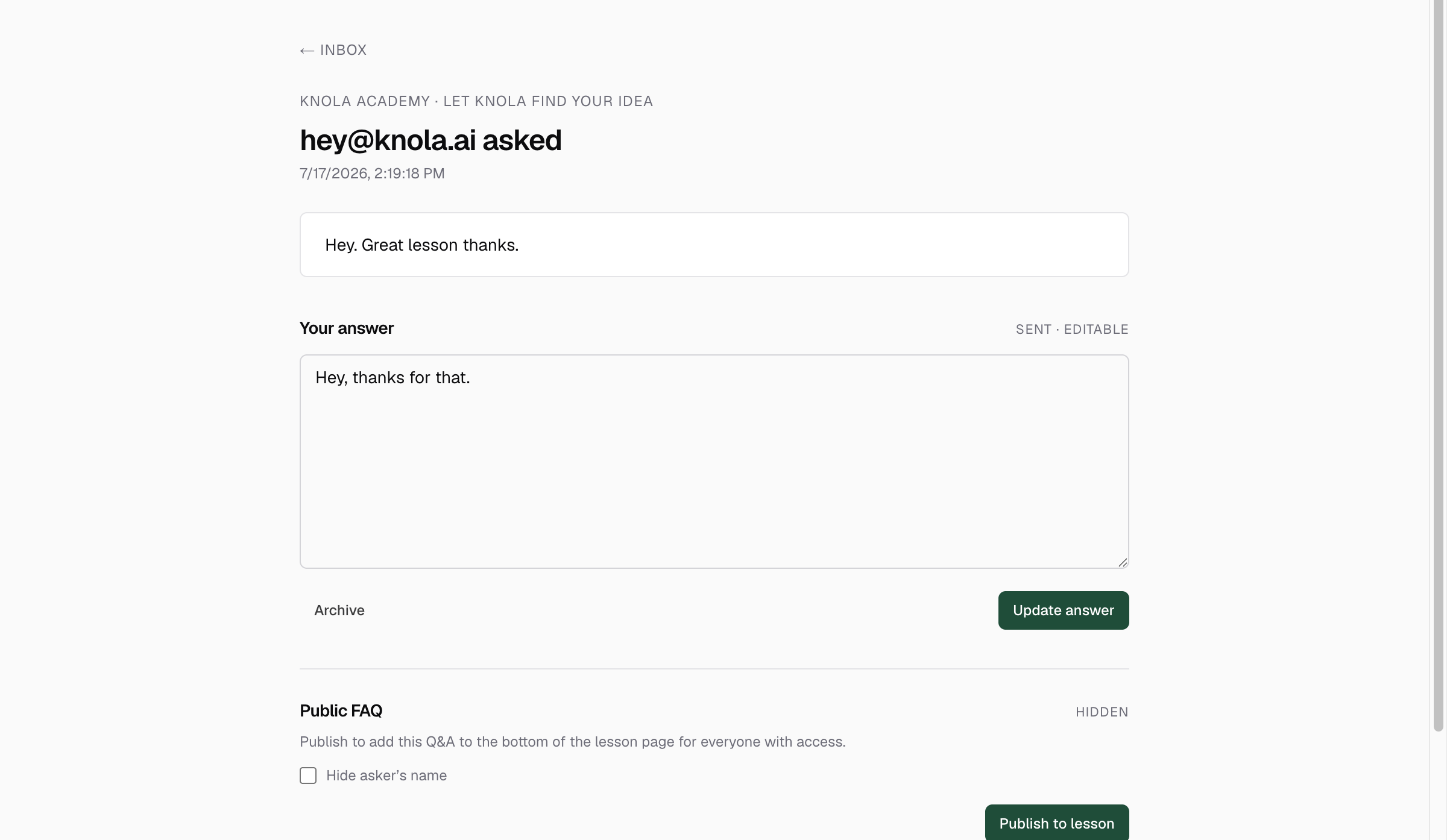
Archive what needs no answer
Some entries aren't really questions: a thank-you, a duplicate, something you handled elsewhere. Click Archive to clear them from the inbox without answering. Archived threads aren't deleted: they stay under the All tab and can be restored later.
Let the bell watch the inbox for you
You don't need to check Discussions on a schedule. A bell in the top bar of every admin screen carries a dot whenever new questions arrive; clicking it drops down your Open questions, newest first, with a See all link into the full inbox. Opening the bell clears the dot.
Are student questions public by default?
No. A question and your answer are private between you and the asker until you explicitly click Publish to lesson, and you can unpublish at any time.
Can I publish a question without showing who asked it?
Yes. Tick Hide asker's name before publishing and the public Q&A shows the question and answer without attribution.
How do I know when a student asks a new question?
The bell in the admin top bar shows a dot for unread questions, and the dropdown lists every open one. Answering from the inbox notifies the asker automatically.