

How to track your students & their progress
Read the student list at a glance (who is active, stuck, or done) and drill into any learner for lesson-by-lesson progress and access controls.

 By Knola5 min read
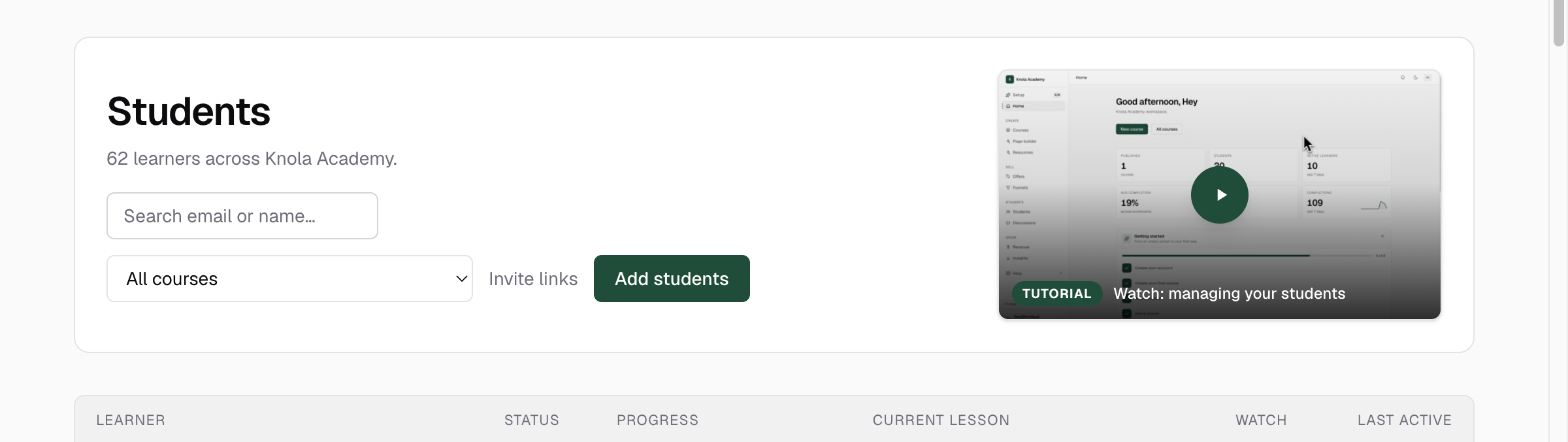
The Students screen is the health check for your school: every enrolled learner, what they're on, and when they last showed up, one row each. This page explains what each column means and what the per-student detail page adds.
Reading the columns
Each row shows six things: Learner (name, email, and chips for the courses they hold), Status, Progress (a bar plus completed/total lessons across everything they're enrolled in), Current lesson (the last lesson they touched but haven't finished, or "Not started"), Watch (total watch time), and Last active. Rows are ordered by most recent activity.
The Status pill compresses recency into one word: Active means activity in the last week; New means they joined within the last week and haven't opened a lesson yet; Idle and Dormant mean the trail has gone quiet (dormant after two weeks or more); Done means every lesson complete. A column of dormants under one course is a curriculum signal, not a student problem.
Search and the course filter
The list loads your 500 most recently active learners, but the search box looks through every learner you have. A school past that window can still find anyone by name or email. The course dropdown next to it narrows the list to students with live access to one course, which is the quickest way to answer "who actually holds this course?".
The per-student detail page
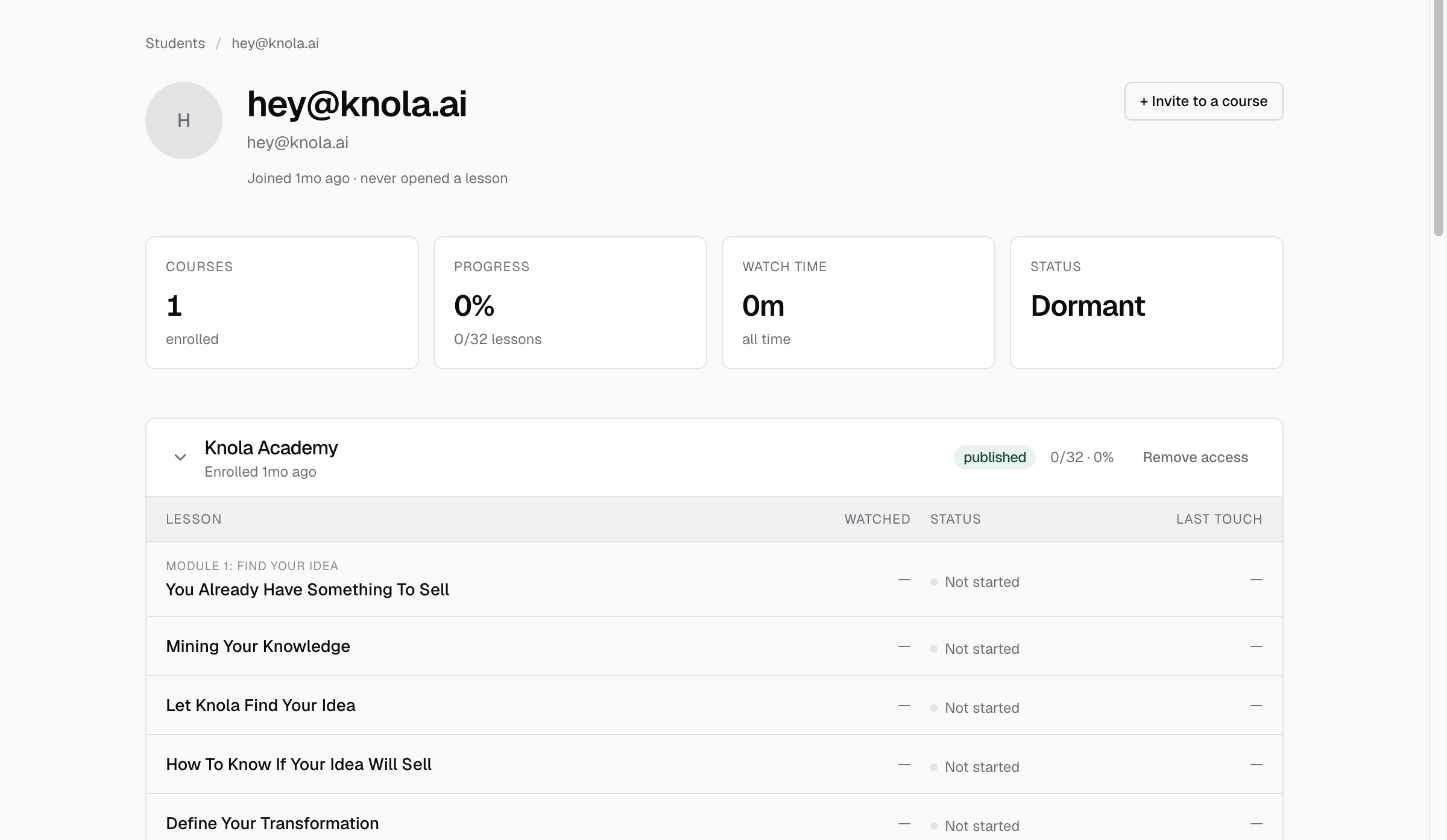
Click any row to open that learner. The header shows four totals (Courses, Progress, Watch time, Status) and below it each course expands into an accordion of every lesson with four columns: Lesson, Watched, Status, and Last touch. Each lesson is Completed, In progress (with how far through the video they got), or Not started, so "where exactly did they stall?" takes one glance, not an email exchange.
Acting on what you see
Two controls live here. + Invite to a course enrols this student into any of your courses they don't hold yet. They get an email with a link to each. And each course accordion carries Remove access (with an optional private reason for your records; the student never sees it) and, for removed courses, Restore access. Removal is immediate but reversible, and it survives invite links. Both controls are covered in removing and restoring access.
How do I see how far a student got in my course?
Open Students, click their row, and expand the course. Every lesson shows Completed, In progress with a percentage, or Not started, plus watch time and when they last touched it.
What does "Dormant" mean on the student list?
No lesson activity for two weeks or more (or none ever, past their first week). It's a re-engagement cue: those are the students a check-in email reaches before a refund request does.
Can I remove a student from one course but not others?
Yes. Remove access on the student detail page is per course: their other enrolments are untouched, and you can Restore access at any time.