

How to add students by email
Paste any number of email addresses, tick the courses, and every student is enrolled and emailed, whether or not they have an account yet.

 By Knola4 min read
Not every student arrives through a checkout. Cohorts you've already sold, team seats, review copies, a friend who should see the course. The fastest route is pasting their emails straight into your school. Knola enrols them, emails them, and quietly holds a spot for anyone who doesn't have an account yet.
Open the "Add students" dialog
In your admin, go to Students and click Add students. The same dialog also opens from a course row scoped to that single course, and from a student's detail page via + Invite to a course.
Paste the emails
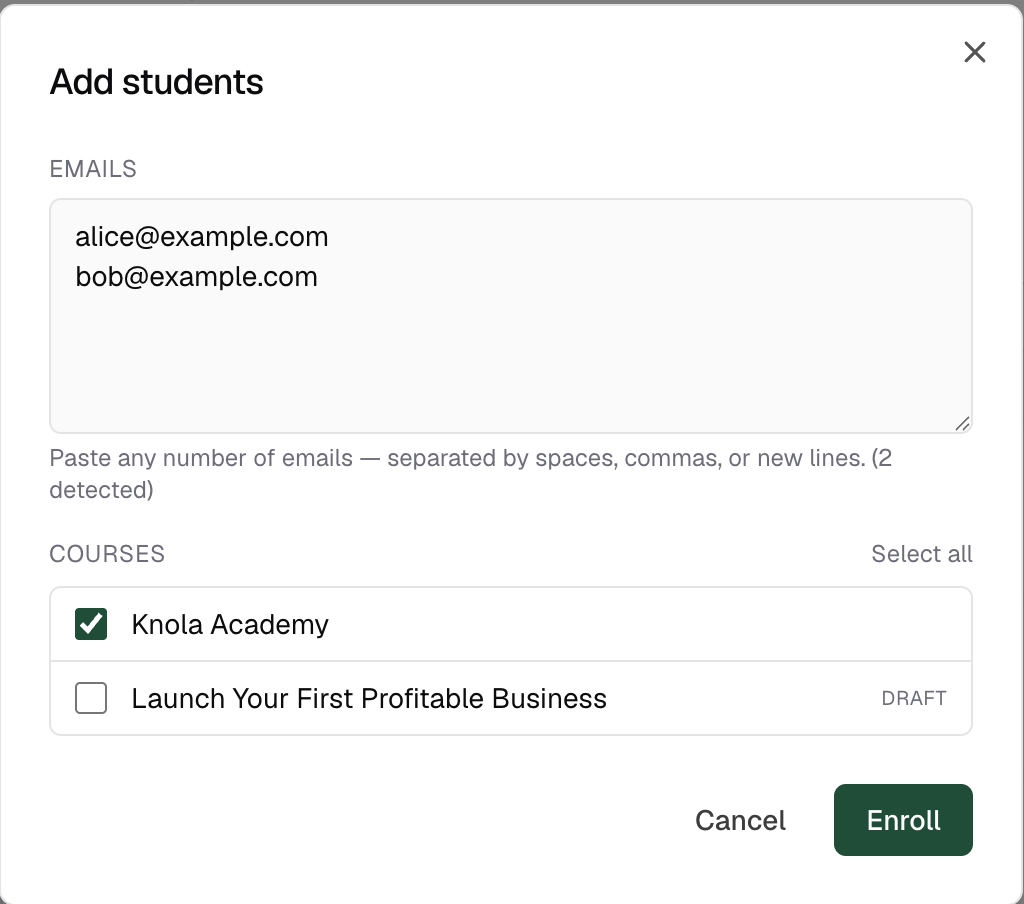
Drop the addresses into the Emails box, separated by spaces, commas, or new lines, exactly as the dialog says. It counts what it detects as you paste, and takes up to 500 addresses in one go. Duplicates are collapsed automatically.
Tick the courses
Under Courses, tick every course these students should get, or hit Select all. Unpublished courses are marked Draft; you can enrol into them, which is handy for beta readers who should see a course before it goes live.
Click "Enroll" and read the results
Click Enroll. Each email comes back with one of four statuses: Enrolled (they have a Knola account, so access is live right now), Pending signup (no account yet, more below), Already enrolled, or Invalid email. Use Add more to run another batch without closing the dialog.
Know what "Pending signup" means
A pending student has no Knola account yet, so there's nothing to enrol. Instead Knola holds a pending enrolment against their email. The moment they sign in for the first time with that address (password, Google, or magic link, any method), the enrolment is created automatically and the courses are just there. Nothing for you to chase.
Can I add students who don't have a Knola account?
Yes. They show as Pending signup and Knola holds the enrolment against their email. The first time they sign in with that address, the courses appear in their account automatically.
Does adding a student by email cost them anything?
No. Adding by email grants access directly, no checkout involved. It's how you deliver seats you've sold elsewhere, comp copies, and team access.
How many students can I add at once?
Up to 500 emails per batch, across up to 50 courses. Run Add more for the next batch. Duplicates are ignored, so re-pasting someone is harmless.