

How to enable completion certificates
Switch on a branded certificate of completion, preview the exact artwork students receive, and let anyone verify it through its public link.

 By Knola5 min read
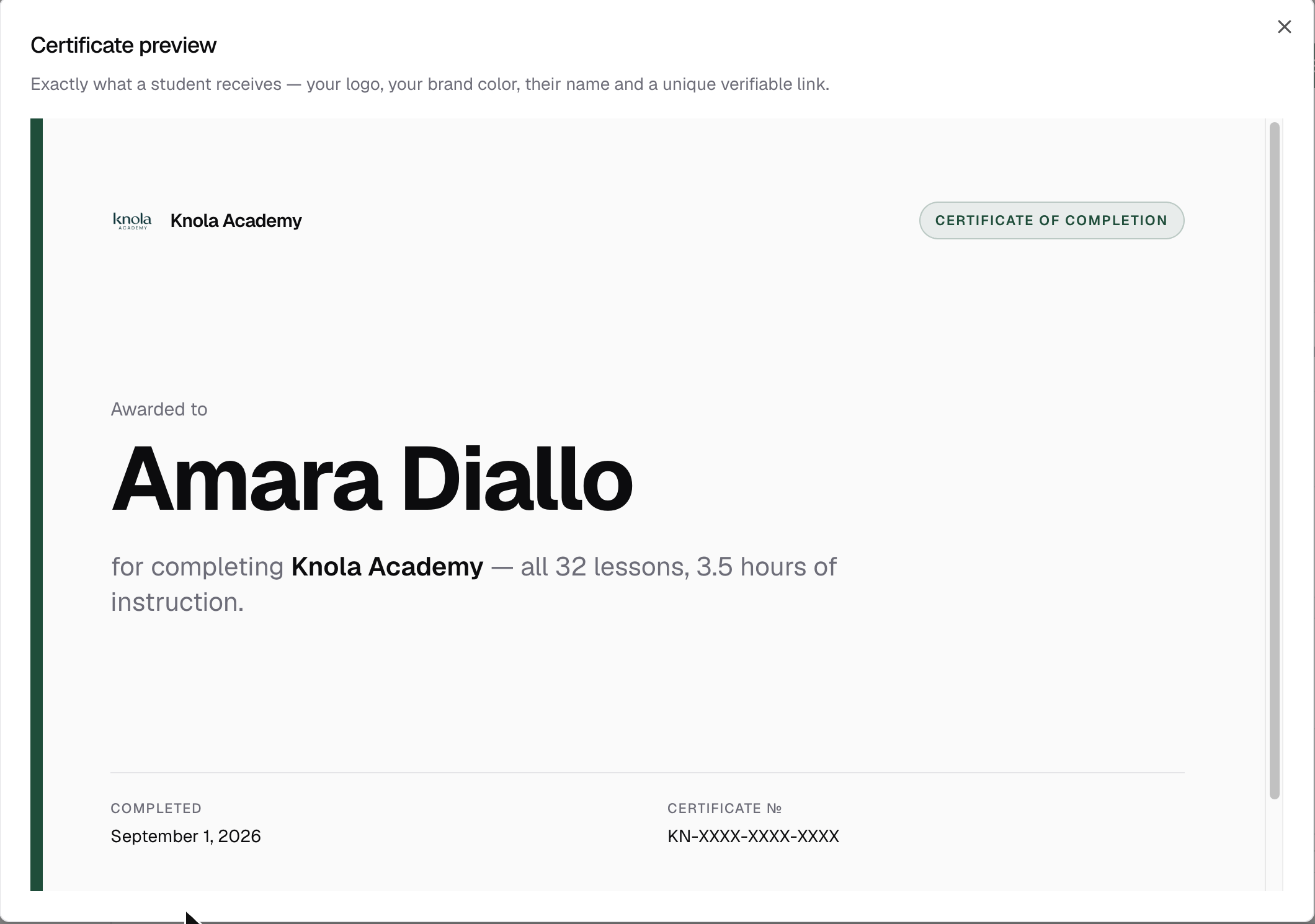
A Knola certificate is a live page, not a PDF attachment: your logo, your brand colour, the student's name, the course, the date, and a URL anyone can open to verify it against your school's records. You switch it on per course; issuing, emailing, and verification are automatic from there.
Turn it on from the course
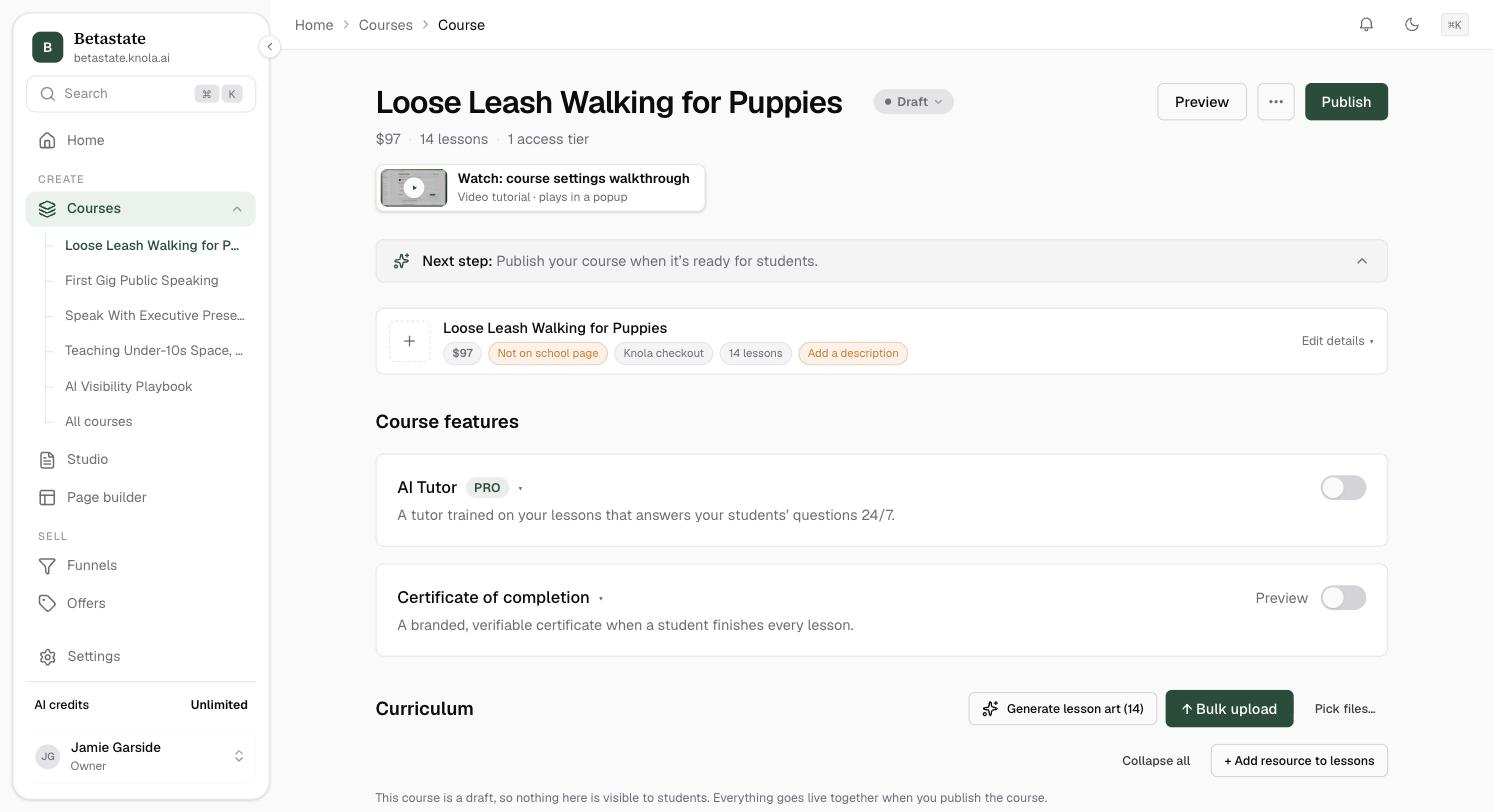
Open your course under Courses and find the Certificate of completion card under Course features. Flip the switch on the right. The card shows an On pill and reads "Issued and emailed automatically, verifiable by link." Certificates attach to access tiers, so a course needs at least one tier before the switch works.
On a course with several tiers, the switch turns all of them on or off together. Expand the card and use Which tiers earn it to be selective. The classic move is certificate on the premium tier only, making it part of what the upgrade buys. See access tiers.
Preview the artwork
Click Preview on the card. The Certificate preview dialog shows the real certificate with your school's live branding. As the dialog puts it, "Exactly what a student receives: your logo, your brand colour, their name and a unique verifiable link." Change your logo or brand colour in your Brand kit and the preview (and every future certificate) follows.
Let completion do the issuing
There is no issue button for the normal case. When a student on a qualifying tier completes every published lesson, the certificate is created and emailed to them automatically, with its own serial number. Draft lessons don't count toward completion, so adding new material later never un-completes anyone.
Catch up students who already finished
Enabled certificates after people had already completed the course? The card shows a banner ("[N] students have already completed this course without a certificate.") with an Issue now button. One click issues and emails every qualifying completed student. Already-certified students are skipped, so it's safe to press twice.
Know how names and verification work
Knola never engraves an email address. If a student's profile has no usable name, their certificate shows "Name pending" and their own certificate page asks them once: How should your name appear on this certificate? They set it themselves. Nothing for you to do.
Every certificate lives at a public page on your school, /certificates/<serial>, with a serial like KN-XXXX-XXXX-XXXX. The unguessable URL is the verification: anyone holding the link (an employer, a client) sees the school, recipient, course, and date drawn live from your records. There's no forgeable PDF to check against, and the pages are kept out of search engines.
How do students verify a Knola certificate?
By opening its link. Each certificate has a unique, unguessable URL on your school that shows the recipient, course, school, and date straight from Knola's records. If the page loads with those details, it's genuine.
Can I give certificates to only one pricing tier of my course?
Yes. Expand the Certificate of completion card and tick tiers under Which tiers earn it. A common setup is certificate on the premium tier only.
What if I enable certificates after students have finished the course?
The card tells you how many completed without one and offers Issue now: one click issues and emails all of them retroactively.