
How to remove, restore and add course access
Take one course away from a student without touching the rest, give it back in a click, and enrol an existing student into another course.

 By Knola5 min read
Access is per course, per student, and always reversible. Whether you are handling a refund, a mistake or a swap, everything happens on one screen: the student's detail page.
Open the student
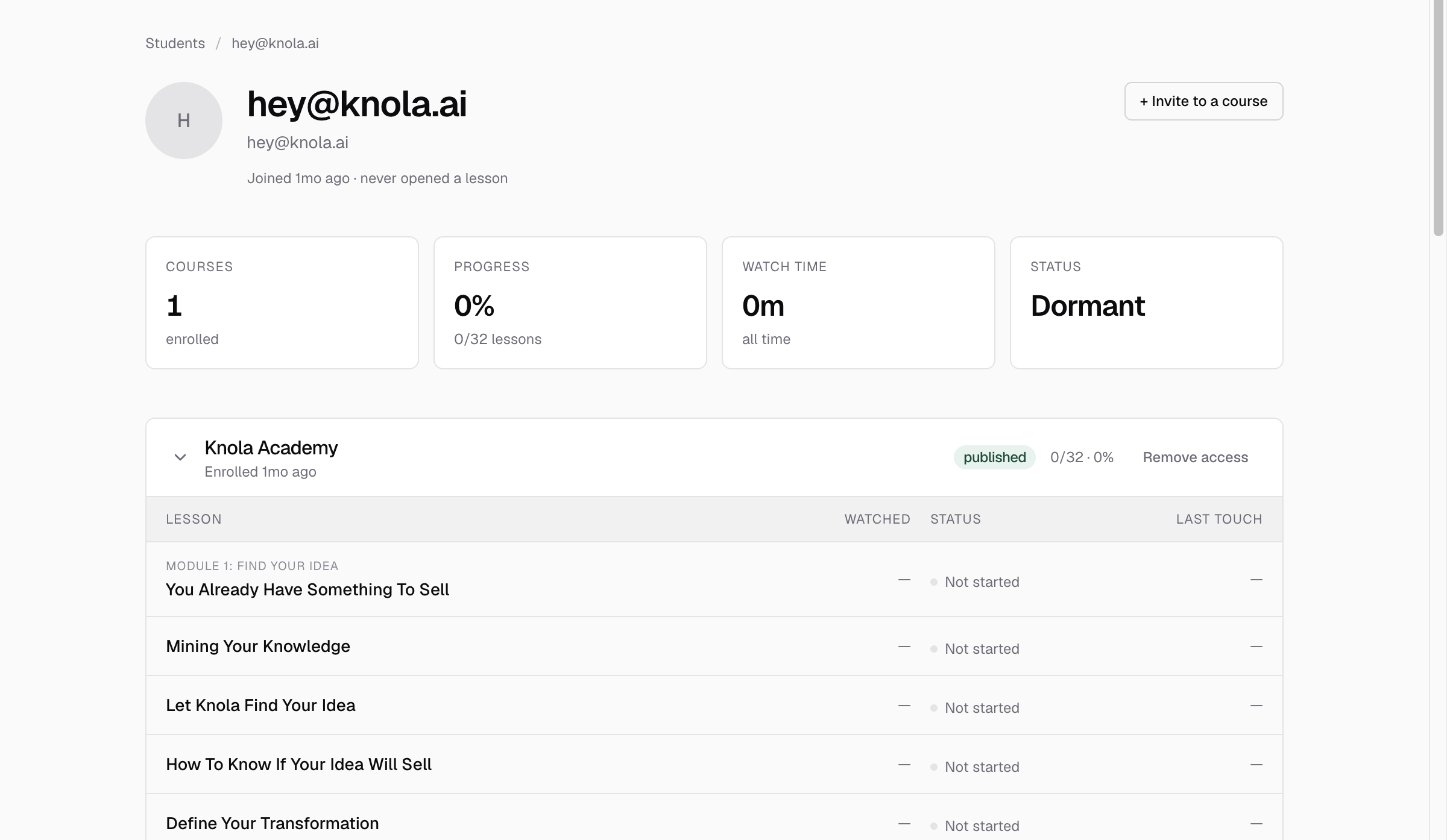
Go to Students and click the person's row. Their detail page lists every course they hold, each one an accordion you can expand to see their lesson-by-lesson progress. The controls you need are on those rows and in the page header.
Remove access to one course
On the course you want to cut, click Remove access. Knola confirms first, naming the course and telling you what it means: "They will lose access immediately and cannot rejoin via existing invite links. You can reactivate them later."
A second box then offers Reason (optional), "For your records. The student does not see this.", with the placeholder "e.g. Refunded via Stripe". Type a note and click Save, or click Cancel if you would rather not write one. Either way the removal goes through, and you get an Access removed. notification.
- Only that course is affected. Any other courses they hold are untouched.
- Their progress, watch time and completed lessons are kept, so nothing is destroyed.
- They cannot slip back in through a shared invite link afterwards.
What the student experiences
Be deliberate about this one: the student is not emailed, and they see no explanation. The course simply disappears from their dashboard, and an old link to one of its lessons takes them to the course's public page instead.
Give it back
A removed course keeps its place on the page, marked Access removed, with Restore access where the remove button was. Click it, confirm ("They will regain access immediately."), and they are back in with all their old progress intact.
This is the only route back. A removed course does not appear in the invite picker below, precisely so you cannot re-add it by accident and lose the record of what happened.
Enrol them into another course
To give an existing student something new, use + Invite to a course at the top of their page. It lists every course they do not already hold, with checkboxes, so you can add one or several at once. Click Send invite and they are enrolled straight away and emailed a link to each.
If they already hold everything you sell, the button reads In all courses and cannot be clicked.
Does removing access delete a student's progress?
No. Progress, watch time and completions are all kept. If you restore access later, they carry on exactly where they stopped.
Can a removed student get back in through an invite link?
No, and that is deliberate. A removed student is refused by invite links, so a link shared in a community cannot undo a refund. Restore access on their detail page is the only way back.
Is the student told when I remove their access?
No. Knola sends no email and shows no message: the course simply stops appearing for them. If the reason matters, tell them yourself.