

Here's your admin home: KPIs, activity and setup
Read your dashboard at a glance: what each of the six KPI cards measures, what the drop-off lesson is telling you, and how the setup checklist ticks itself.

 By Knola5 min read
Home is the first screen of your admin, and it answers two questions: how is my school doing, and what should I do next? Everything on it is live. Nothing needs configuring, and the setup checklist ticks itself as you work.
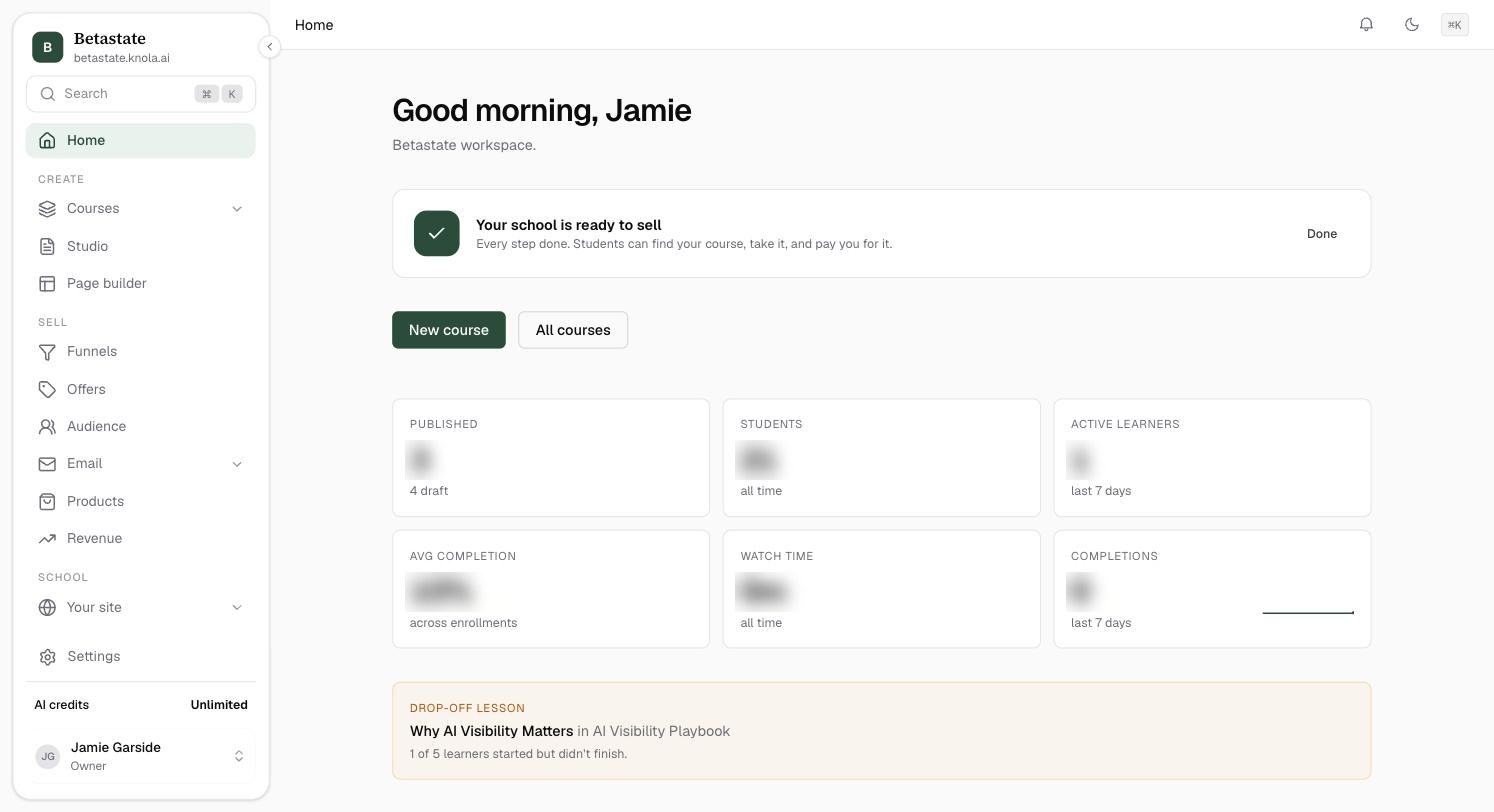
It opens with a greeting and two buttons, New course and All courses, so the most common job is one click away. While your school is still being set up, the Getting started checklist sits at the top; once everything is done it says Your school is ready to sell and steps aside.
The six KPI cards
The card grid is the health check:
- Published: live courses, with a hint showing how many drafts are waiting. Click through to Courses.
- Students: everyone ever enrolled, with how many joined in the last 30 days.
- Active learners: students who made progress in the last 7 days. The truest engagement number.
- Avg completion: the average percentage of a course your students finish, across all enrolments.
- Watch time: total hours of your video watched, all time.
- Completions: lessons finished in the last 7 days, with a small trend line of the last fortnight.
The drop-off lesson
When a published course has one, an amber Drop-off lesson card names the single lesson where the most learners started but didn't finish: "12 of 30 learners started but didn't finish". That lesson is the best one to fix first: too long, too hard, or a video that loses people. Fix it and average completion moves.
Recent courses and recent activity
Recent courses lists your three latest-edited courses with their draft/published status. Recent activity is the human feed: who enrolled in what, who completed which lessons, grouped and timestamped. Every name links to that student's profile under Students.
The setup checklist ticks itself
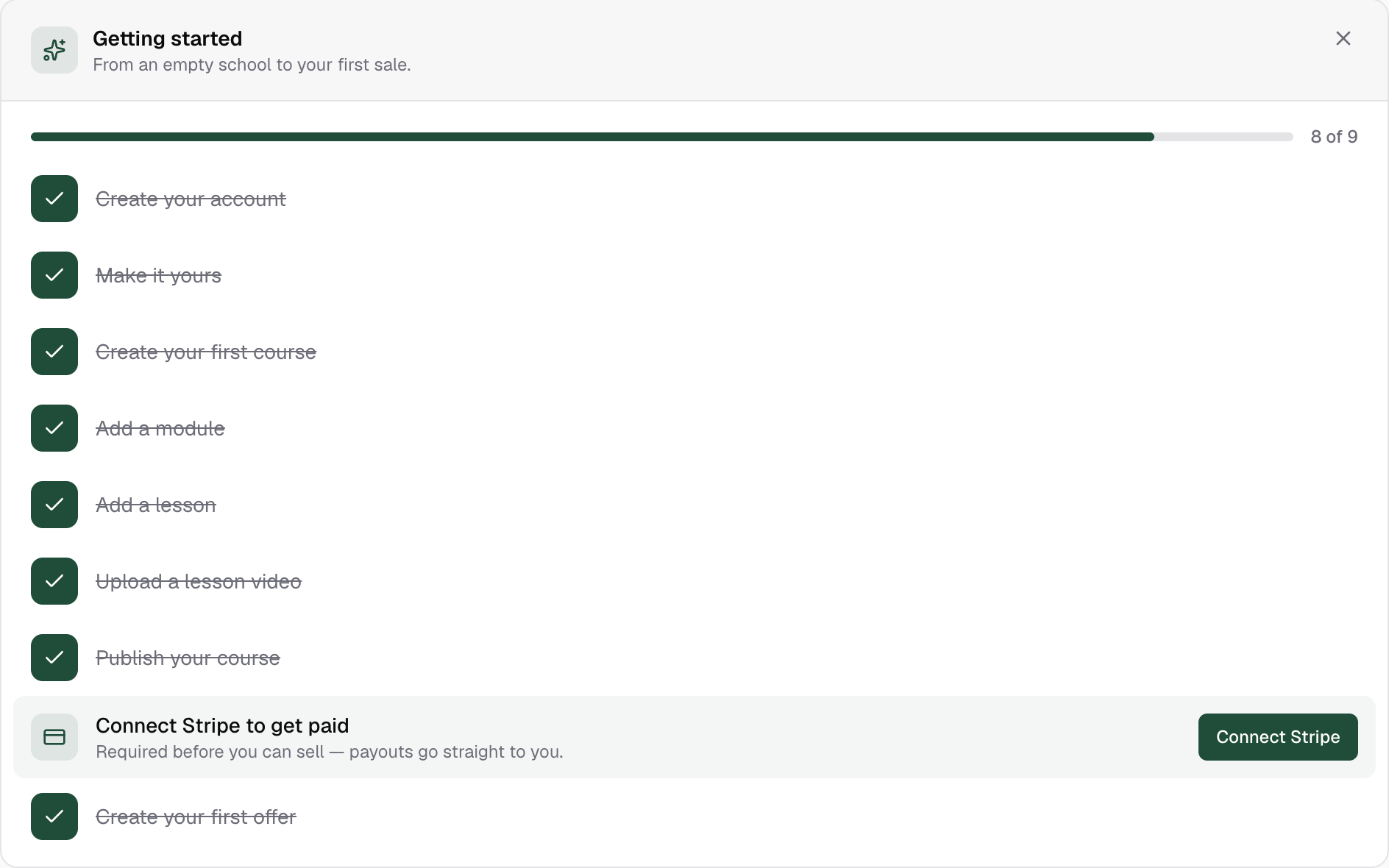
The Getting started card ("From an empty school to your first sale") tracks nine steps and marks them done automatically as your school reaches each milestone, with no manual ticking:
- Create your account: done the moment you arrive.
- Make it yours: import your logo and colours into your brand kit.
- Create your first course
- Add a module
- Add a lesson
- Upload a lesson video
- Publish your course
- Connect Stripe to get paid
- Create your first offer
- Set up email (Pro schools with broadcast email): your email domain, where replies go and your postal address, in Settings ▸ Email. A tenth step, only where it applies.
Steps that depend on earlier ones stay locked until their prerequisite exists. You can't add a lesson before a module. The next actionable step is highlighted with its own button. Dismiss the card and it collapses to a slim Finish setting up your school row; the Setup link at the top of the sidebar shows your count (e.g. 4/9) and reopens it from anywhere. Complete all nine and the card shows Your school is ready to sell once, then retires.
Can I get the setup checklist back after dismissing it?
Yes. Dismissing only collapses it to a one-line row on the home page, and the Setup link at the top of the sidebar reopens the full card from any screen.
What counts as an active learner?
A student who made lesson progress in the last 7 days: opening, watching or completing lessons. Enrolment alone doesn't count, which is what makes it the honest engagement number.