

How to import your brand from a website URL
Enter your website address and Knola pulls your logo, brand colour and colour palette from the site itself. Review the result and fix anything in one click.

 By Knola3 min read
If you already have a website, you don’t need to rebuild your brand by hand. The import reads your site, picks up the logo, theme colour and palette it already uses, and fills the brand kit for you. It applies only what it finds: anything missing keeps its current value, and everything it sets is editable right underneath.
Open your Brand kit
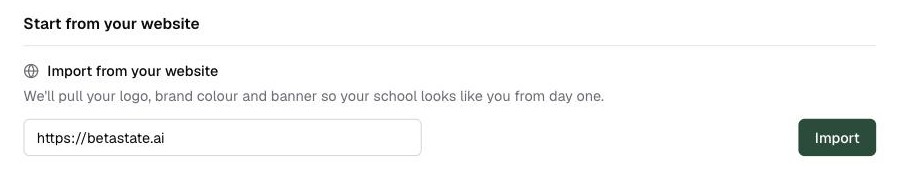
Open Settings, then Brand kit. Under Start from your website, the Import from your website card says what it does: “We’ll pull your logo, brand colour and banner so your school looks like you from day one.”
Enter your website address and import
Type your address into the field (it hints yourwebsite.com, no https:// needed) and click Import. The button shows Reading your site… while it works; a few seconds later a notification tells you exactly what was imported: for example your logo, brand colour, and a multi-colour palette, named from your site’s own title.
If nothing usable is found, you’ll see “We couldn’t find a logo or colors on that site. Set them below instead.” The rest of the Brand kit is the manual path.
Review what it applied
Everything the import sets lands in the sections directly below, so a wrong guess costs one click to fix:
- Logo: replace it if your site’s version is small; the import warns you when the found logo may look blurry.
- Brand colour: your site’s primary colour, now colouring buttons and accents everywhere.
- Brand palette: up to six colours found on your site, labelled Your brand, Brand 2 and so on; each becomes a palette choice in the page builder. Remove any that aren’t yours.
Re-run it any time
Your website address is saved with your school, so the field comes prefilled next time. Rebranded your site? Run the import again. It updates what it finds and leaves the rest alone.
How does Knola get my brand from a URL?
It reads your site and picks up what the site itself shows: its logo and icon, its theme colour, and the colours it uses. Nothing is guessed or generated; if something isn’t there, that field is simply left for you to set manually.
What if the import picks the wrong colour or logo?
Every imported value is editable directly below the import card: change the brand colour, upload a different logo, or remove a palette chip with one click. The import applies only what it found, so it never wipes something you set by hand.
Can I import from a site I don’t own?
The field is meant for your own website. The point is making your school match your existing brand. Copying another business’s logo and colours into your school is a trademark problem, not a shortcut.