How to change your school web address
Move your school to a new knola.ai address, know exactly which links keep working, and pick a name that will not be refused.

 By Knola4 min read
Your school lives at its own address, and you chose it when you created the school. If your brand has moved on since then, you can change it. Everything inside Knola follows you, but anything you have already shared with the world does not, so it is worth doing once and deliberately.
Open your general settings
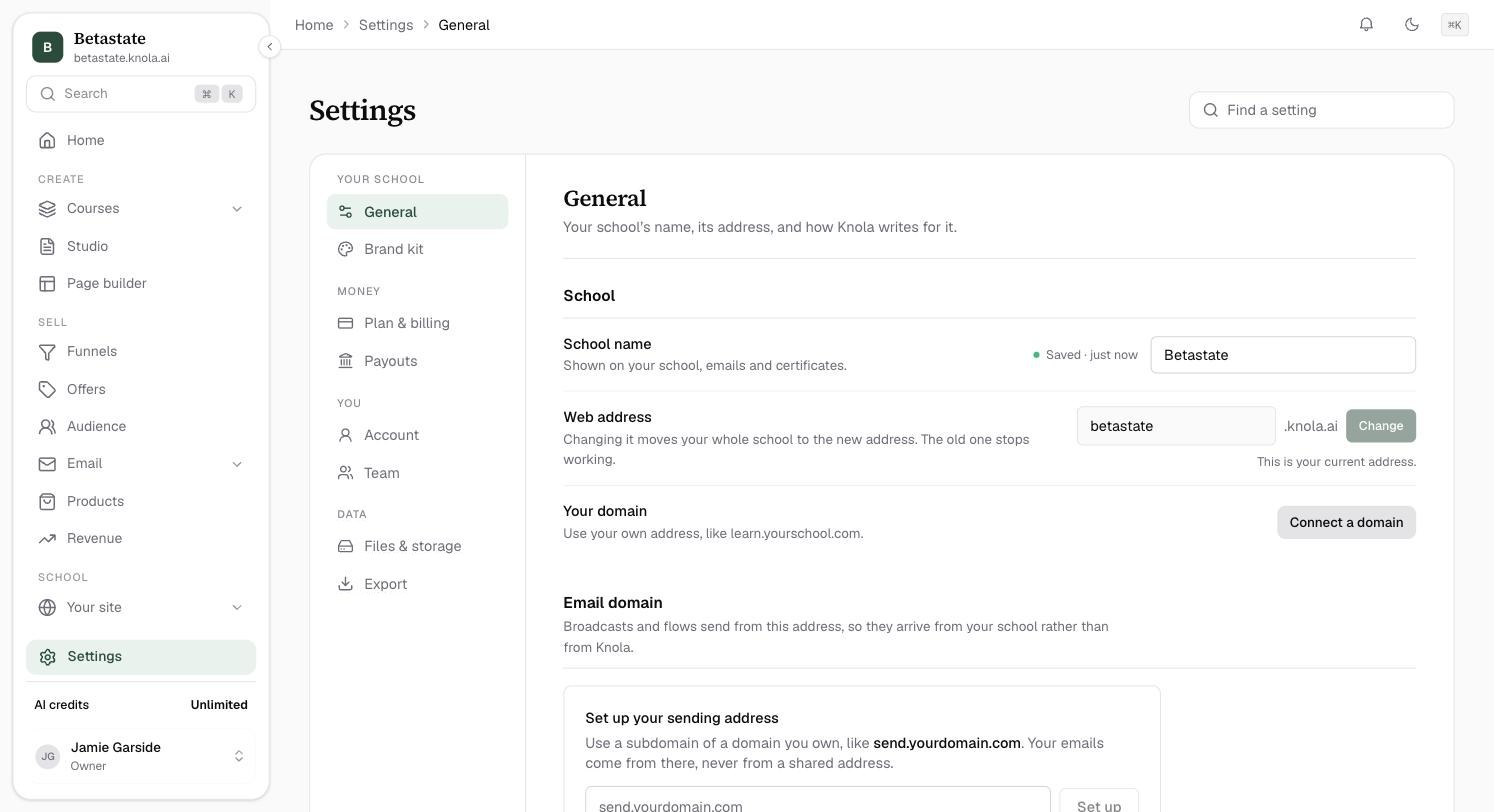
Open Settings at the foot of the sidebar; it opens on General. Under School, the second row is Web address: an input holding your current name, with .knola.ai beside it and a Change button that stays greyed out until you type something new.
The school owner and admins can change it.
Type a name and watch the hint
The rules are short: 3 to 40 characters, letters, numbers and hyphens only, starting and ending with a letter or number. Knola checks the name as you type and tells you underneath whether you can have it.
Confirm the move
Click Change and Knola asks once more, naming both addresses: your school moves to the new one right away, and links to the old one stop working. Confirm and you are taken straight to your admin on the new address, still signed in.
What follows you, and what breaks
Everything Knola builds is rewritten for you. Your school page, courses, lessons, sales pages, funnels, checkouts, invite links and every email Knola sends from now on all use the new address with nothing to update by hand.
What breaks is anything already out in the world pointing at the old address:
- Emails you have already sent, including old access and invite links.
- Links in your social bios, ads, a podcast description or a partner's newsletter.
- Anything you typed by hand as a full address, such as a button on a page or a link in another email tool.
- Bookmarks your students saved.
Will my students lose access when I change my web address?
No. Their accounts, enrolments and progress are untouched, and the courses appear at the new address automatically. What they lose are old bookmarks and links in emails you sent before the change, so tell them the new address.
Can I use my own domain instead of knola.ai?
Yes, with Knola Pro. In Settings ▸ General, the Your domain row sits under Web address: click Connect a domain and follow the steps to use an address like learn.yourschool.com.