

The student experience
What learners see: the player, notes, the AI tutor, quizzes and accessibility.
6 guides
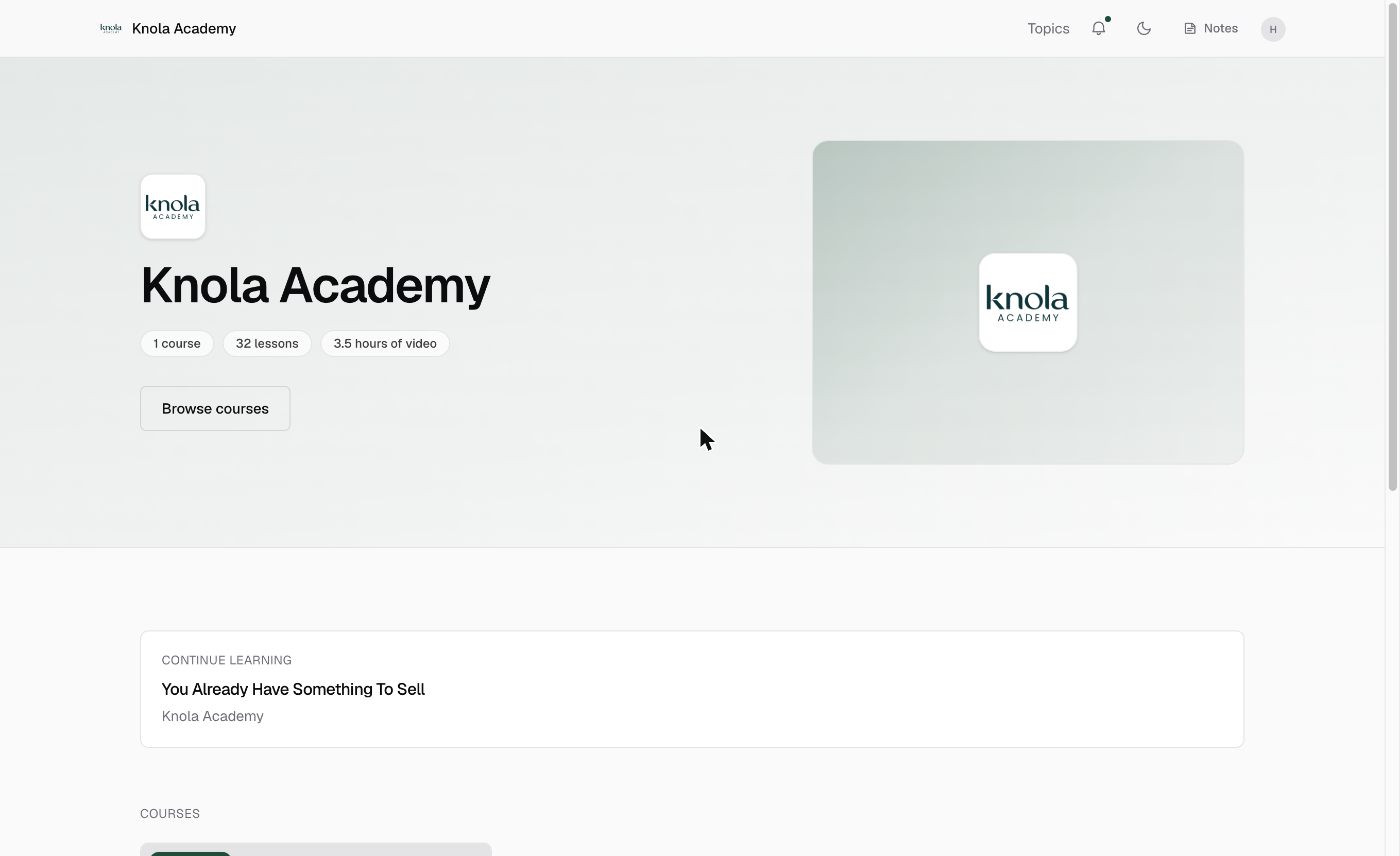 Here's what your students seeWalk the learner side of your school screen by screen: home, course outline, the lesson player with transcript and notes, and the account page.7 min read
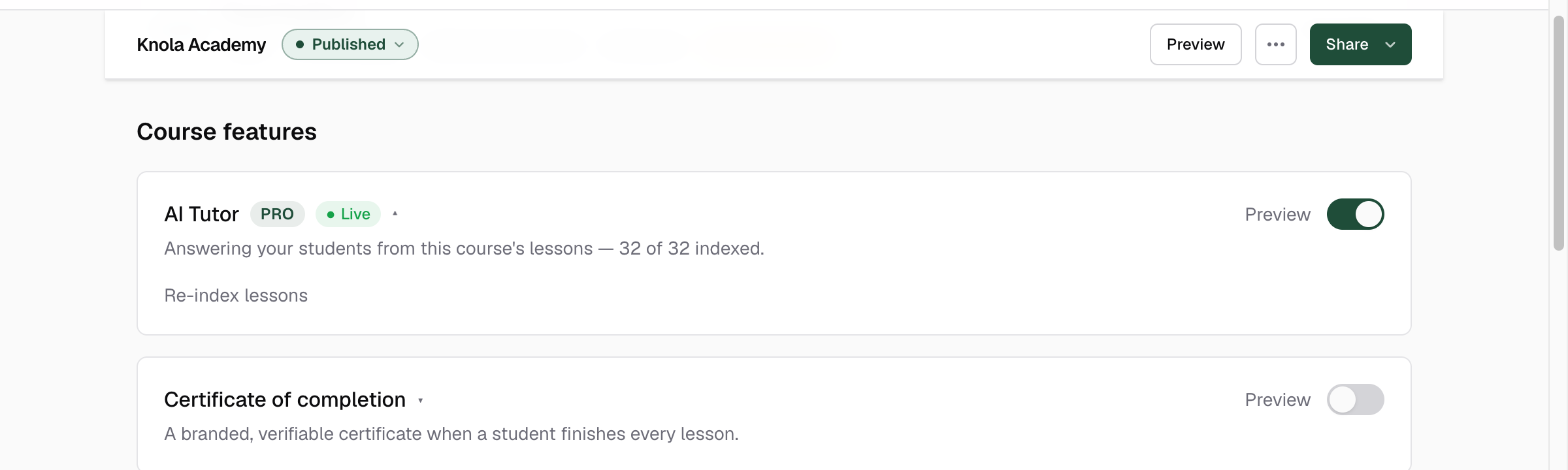 How to give every course a teaching assistant with the AI TutorTurn on the AI Tutor from your course page and give students a 24/7 assistant that answers only from your lessons, with citations that jump to the moment.4 min read
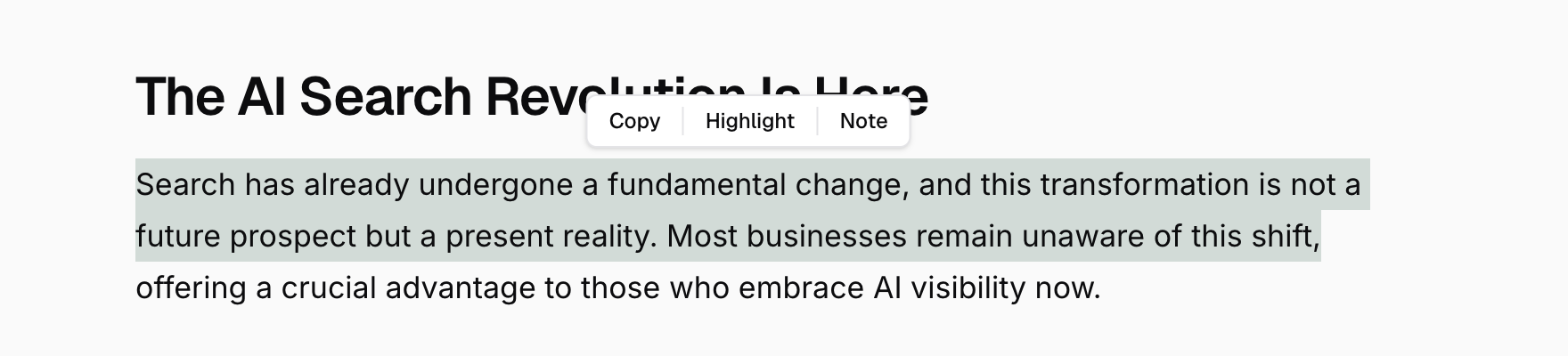 Here's how students take notes and highlight lessonsSee what your students get for studying: highlight any passage, attach a note to it, and find every one of them again on one page per course.4 min read
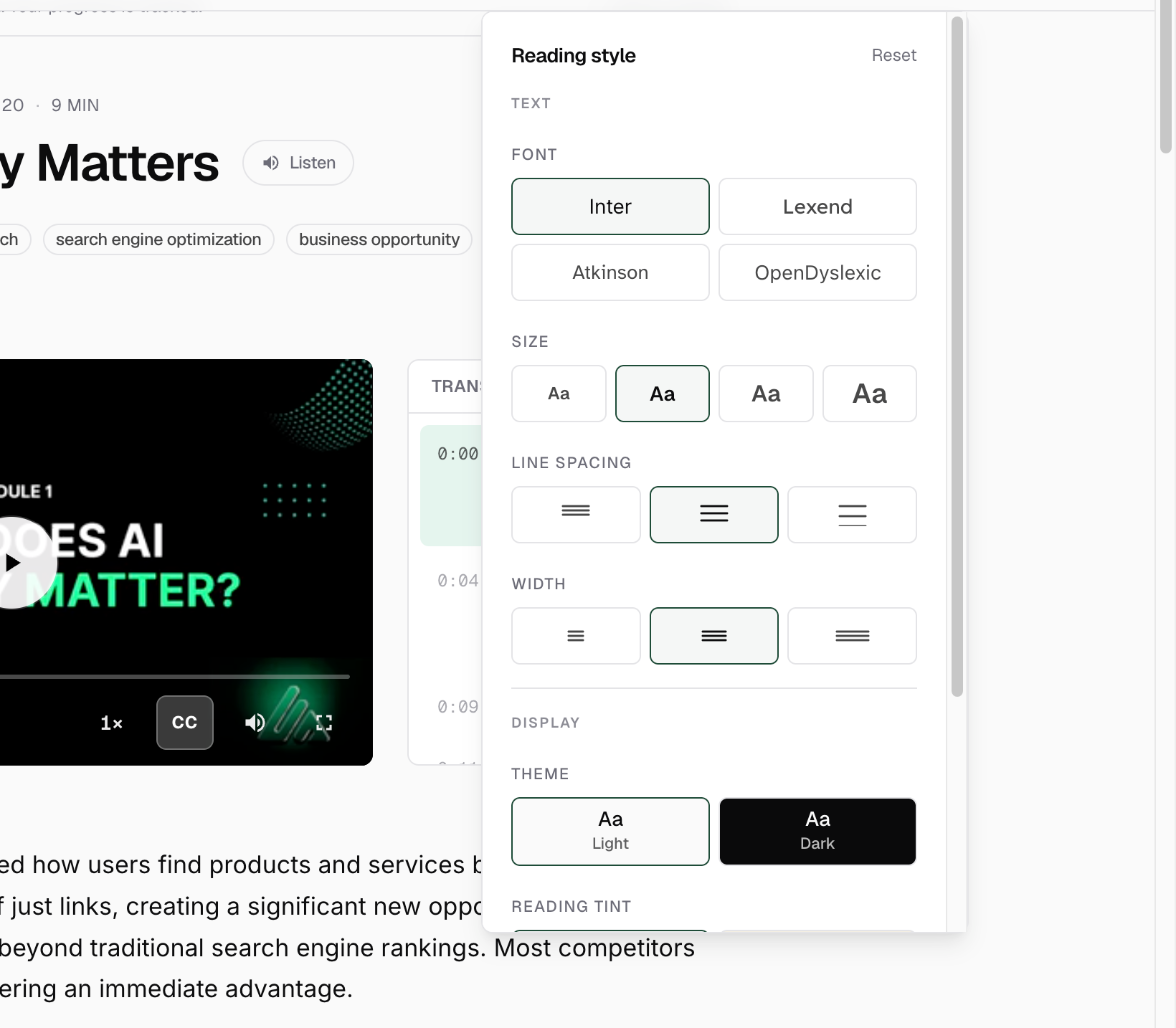 Here's how students can change how a lesson readsSee the accessibility controls every student gets: font, text size, spacing, width, dark mode, a reading tint, a reading ruler and caption styling.4 min read
 Here's what taking your quiz is likeFollow a student through one of your quizzes: how questions are marked, what a pass unlocks, and what a required quiz blocks until they get there.5 min readHere's how student accounts work across schoolsOne account, every Knola school: how students sign in, how they move between creators they have bought from, and what their account page holds.4 min read
Related areas:Selling & payments