Here's how students can change how a lesson reads
See the accessibility controls every student gets: font, text size, spacing, width, dark mode, a reading tint, a reading ruler and caption styling.

 By Knola4 min read
Not everyone reads the same way. Some students need bigger text, some find dark backgrounds easier, some lose their place on a long paragraph. Rather than asking you to design for all of that, Knola gives every student their own controls, on every lesson, with nothing to set up.
Where students find it
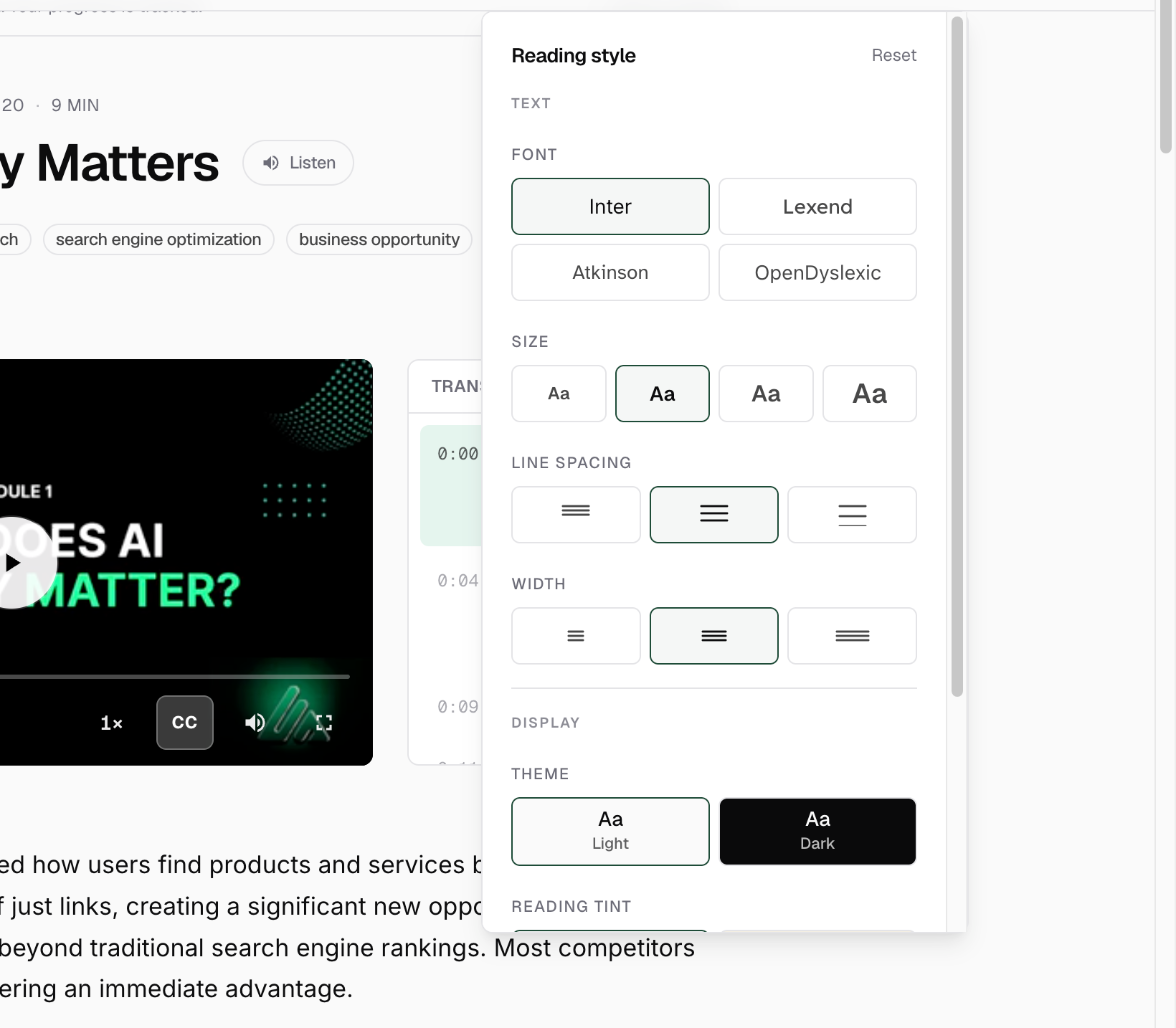
Inside any course, the learner top bar has a small Aa button. Clicking it opens Reading style, a panel of controls grouped into Text, Display and Captions. Every change applies immediately, and Reset at the top puts everything back.
It is on phones as well as computers, and their choices follow them: the same settings apply to every course in your school, and to any other Knola school they learn with.
The text controls
- Font: four choices, including Atkinson, which was designed for low vision, and a dyslexia-friendly option.
- Size: four steps, from smaller than default up to noticeably large.
- Line spacing: tight, cosy or loose, which is often what helps more than size alone.
- Width: narrow, default or wide, controlling how long each line of text runs before it wraps.
Display: dark mode, tint and the ruler
- Theme: light or dark, applied to the whole page rather than just the lesson text. The sun and moon button in the top bar is the same setting with a quicker route to it.
- Reading tint: none, or a sepia wash that takes the glare off a white background. Sepia is a light-mode option, so it is unavailable while dark mode is on.
- Reading ruler: off, or a translucent band that follows the line the student is reading. It is a desktop feature, since it tracks the mouse, and pressing Escape clears it until they move again.
Captions
A Captions section, collapsed by default, sets Caption size and Caption background for video subtitles: three text sizes, and three backdrops from a subtle shadow through to a solid block behind the words. It applies to the captions on your lesson videos, which Knola generates automatically along with the transcript.
Do I need to do anything to make my course accessible?
The reading controls are on every course automatically, with nothing to switch on. What is left to you is the ordinary craft: real headings rather than bold paragraphs, meaningful link text, and leaving captions in place on your videos.
Does Knola have a dark mode for students?
Yes. Every student sets their own under Aa, or with the sun and moon button in the top bar, and it follows them across your whole school rather than being set per course.
Do reading settings follow a student to my other courses?
Yes, and to other Knola schools too. The settings belong to the student rather than to a course, so someone who sets large text once gets it everywhere.