

How to get transcripts & captions on every video
Every lesson video is transcribed automatically. Read the transcript in the editor, regenerate captions, and give students a clickable transcript.

 By Knola3 min read
You never ask Knola to transcribe anything. It happens on its own after every video upload. The transcript then powers captions on the player, the interactive transcript students get, and AI drafting of the lesson itself.
Transcription starts by itself
Upload a video and wait for it to finish processing. Transcription starts straight after. While it runs, a banner above the lesson reads "Transcribing your video." with "Usually a minute or two. The written lesson and the quiz are made from it." When it completes, a notification tells you: "Transcript ready. You can draft this lesson now."
Read the transcript in the editor
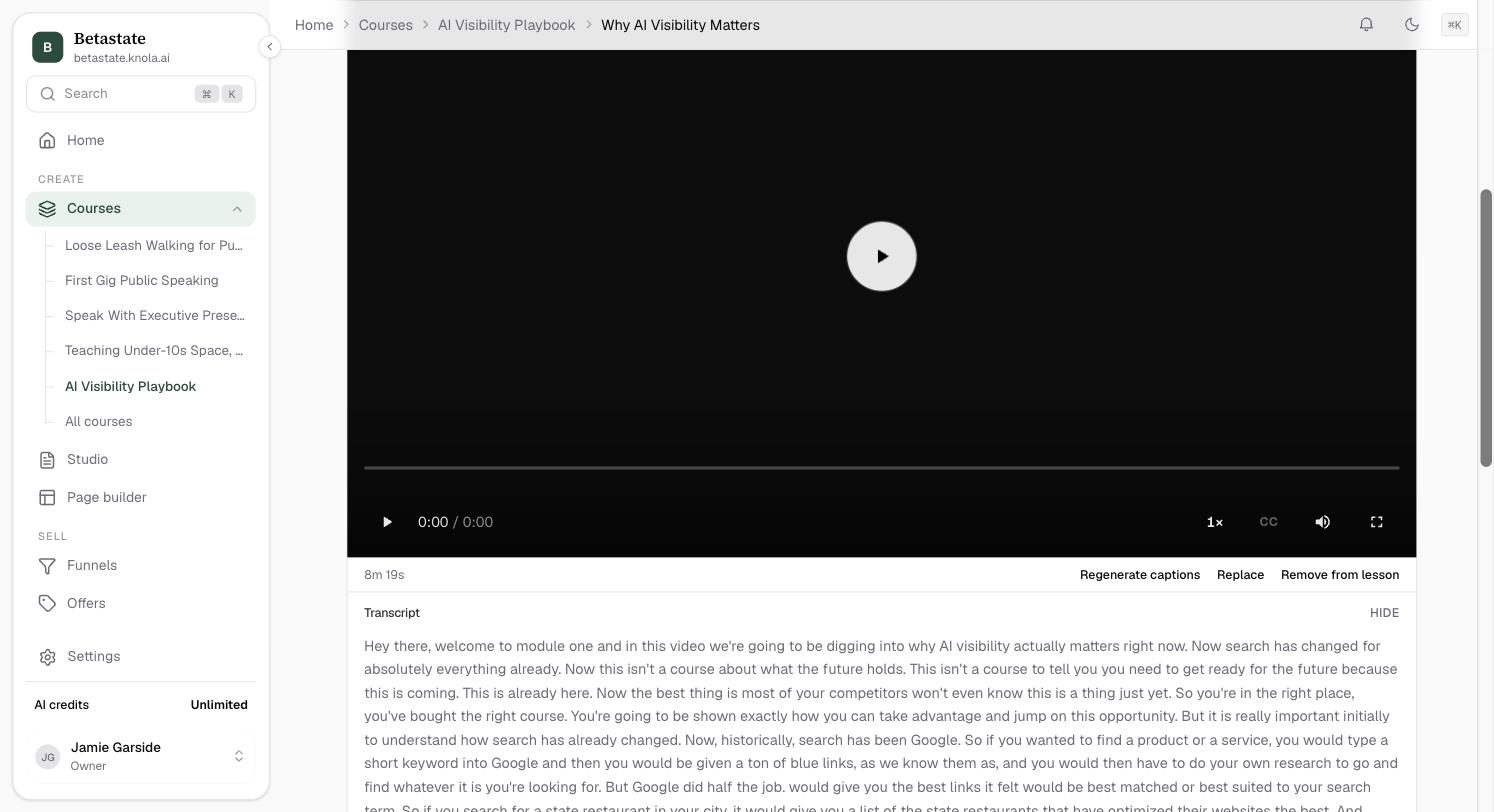
Once ready, a Transcript row appears under the video player, in the Watch section, with a Show toggle. Click it to expand the full text (and Hide to collapse it). The word count at the top of the Read section also shows the transcript length next to the body word count.
Regenerate captions when needed
If the transcription came out wrong (or failed), click Regenerate captions under the player. A dialog confirms that the current transcript is discarded and a fresh one is generated, which takes a few minutes. Confirm with Regenerate; a notification reports "Captions are queued. Refresh in a few minutes." A failed transcription also shows as a banner above the lesson, "We could not transcribe your video.", with a Try again button: same action, same result.
What students get
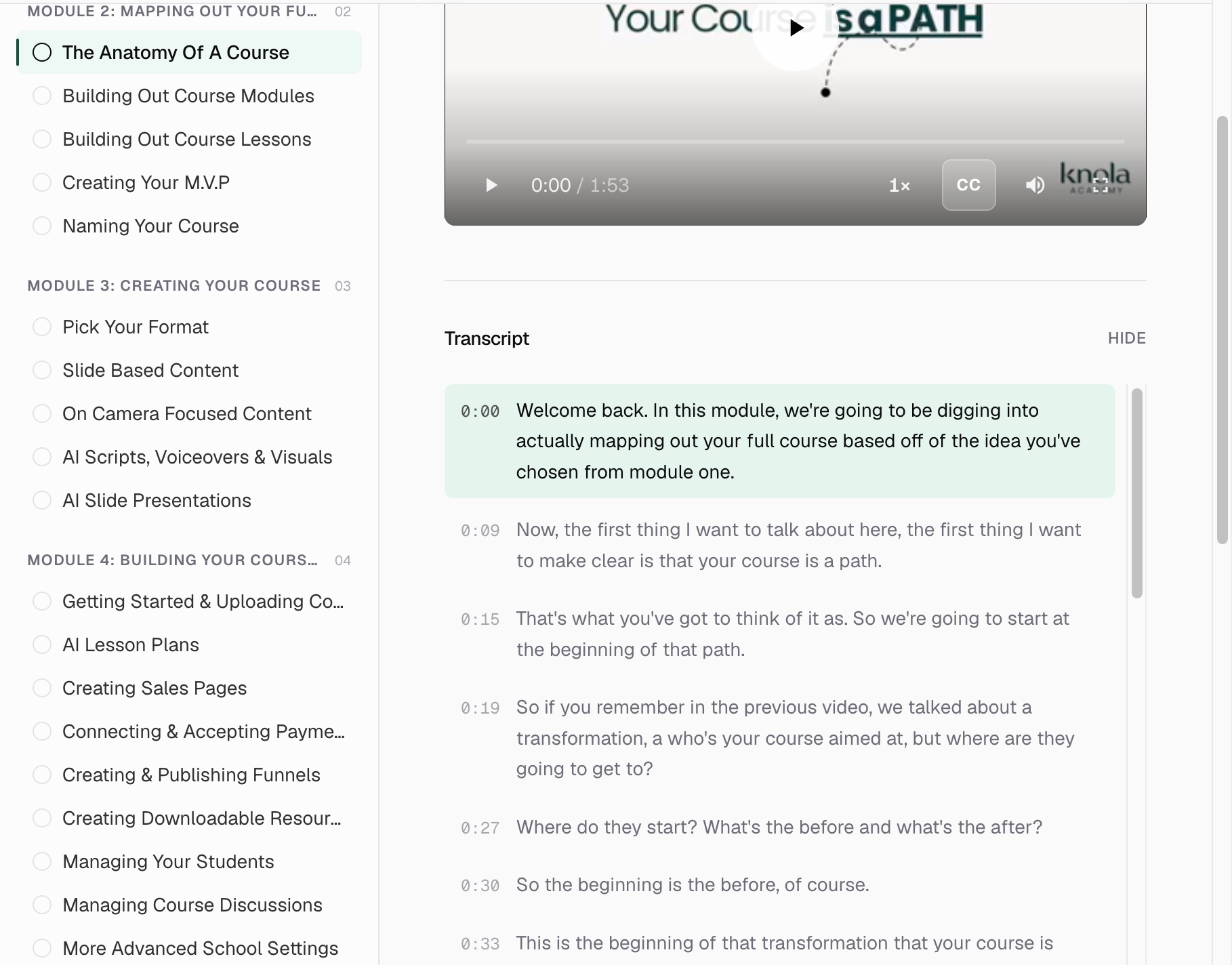
On the lesson page, students get a Transcript section under the video, with a show/hide toggle. Every line carries its timestamp and is clickable. Clicking a line jumps the video to that moment, and the currently playing line is highlighted and follows the playback. Captions are also available on the player itself with the CC button.
How long does transcription take?
Usually a couple of minutes after the video finishes processing. A banner above the lesson says "Transcribing your video." while it runs, and Knola shows a notification the moment the transcript is ready.
Can I edit the transcript?
Not line by line. The transcript is generated from the video and stays faithful to it. You can Regenerate captions for a fresh pass, and anything that needs precise wording belongs in the lesson body, which you fully control.
Do students see the transcript?
Yes. Enrolled students get an interactive Transcript under the video: timestamped lines they can click to jump to that point, with the current line highlighted as the video plays.