How to go back to an earlier version of a lesson
Recover a lesson or slides you changed and regret: open the history, read the copies Knola kept, and restore any one without losing what you have now.

 By Knola4 min read
Knola saves your lesson as you write, which is exactly what you want until the moment you delete three paragraphs you actually needed. Every lesson keeps a history of its recent saves, and any of them can be brought back.
Open the history
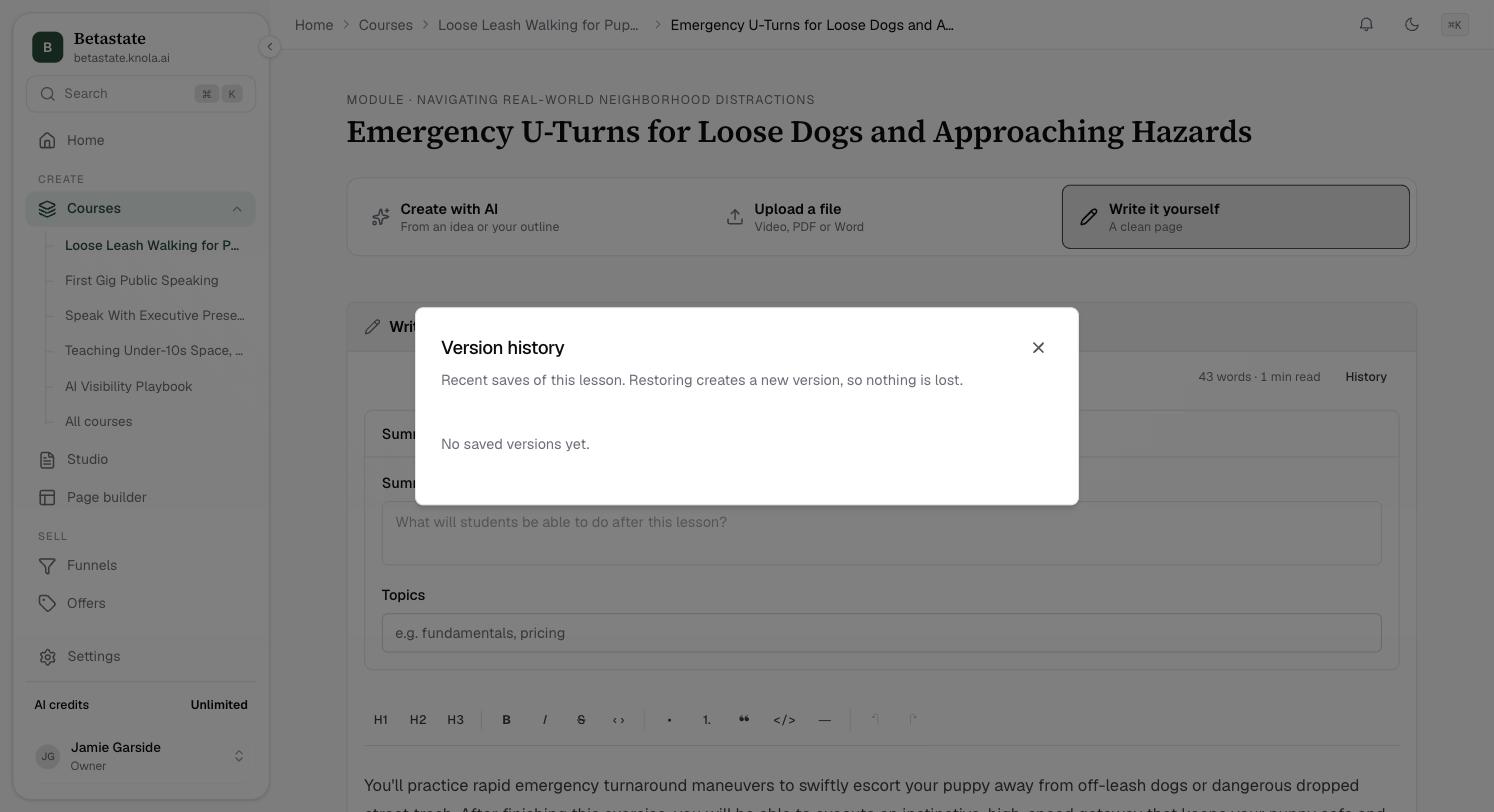
On the lesson page, go to Read, the written lesson. Above the editor, beside the word count and read time, sits History. Click it and the Version history panel opens, with the promise it makes at the top: "Recent saves of this lesson. Restoring creates a new version, so nothing is lost."
On a lesson you have only just created, it reads No saved versions yet. History starts once you have written something and it has saved.
Read the list
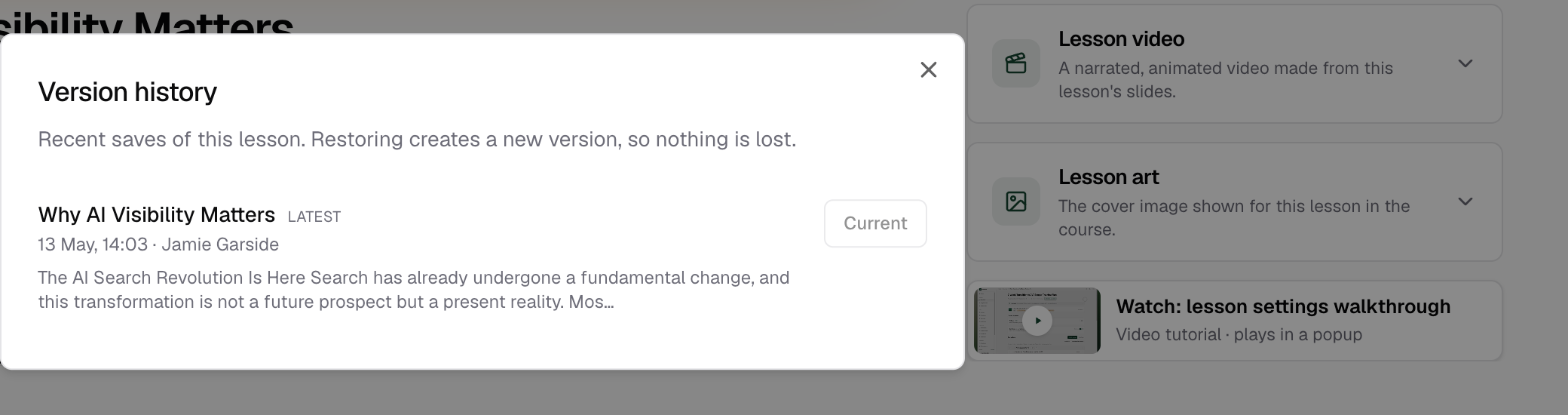
Saves are listed newest first. Each row gives you four things to recognise it by: the lesson title as it was at that moment, how long ago it was saved, who saved it, and the first line or two of what the lesson said then.
The newest row is tagged Latest, and its button reads Current and cannot be clicked, because that is the version you are already looking at.
Restore the one you want
Click Restore on any row. The lesson is put back to that version, a Version restored notification appears, and the page reloads showing the restored text.
Nothing is thrown away when you do this. The version you were on a moment ago stays in the list, so a restore you did not mean to do is fixed by restoring the other one back. That is what the panel means by "nothing is lost".
What history covers, and what it does not
The written lesson's history is about the words. It holds the lesson title and the lesson body, and a restore only ever changes those two things.
Everything else on the lesson is left exactly as it is now, whichever version you restore:
- The video, its transcript and captions, and the artwork.
- The summary and topics.
- Attached resources and the quiz, including student attempts.
- The slides, which keep their own history (below).
The panel shows the 50 most recent saves, which on a normal writing rhythm is a long way back. Deleting a lesson deletes its history too, and a duplicated lesson starts with a clean one.
Slides have their own history
The slides are kept separately from the written lesson. In the Slides section, open the ⋯ menu and choose History. As it says: "Knola keeps a copy as you edit, and each time you remake, replace or remove these slides. Restoring keeps a copy of what you have now."
Each copy says why it was kept, for example Before your edits, Before Knola made them again or Removed from the lesson, with when, how many slides it has and a picture of its first slide. Click Restore, confirm, and those slides come back. Knola keeps the 12 most recent copies.
The slide editor has the same list: History in the bar at the top.
Bring back slides you removed
⋯ ▸ Remove slides takes the slides off the lesson and the student page. Straight after, a notification offers Undo.
Missed it? The Slides section then says how many were removed and when, with "a copy is kept", and a Bring back button with the number of slides. Click it and they come back. Students get them back too if they could see them before.
Can I undo a restore?
Yes. Restoring adds a new version rather than replacing anything, so the version you were on is still in the list. Open History again and restore that one.
Why do I only see one version after an hour of writing?
That is expected. Continuous work by one person is folded into a single entry whose timestamp keeps moving. New entries appear after a gap of a few minutes between saves, or when a different person saves the lesson.
Can I get back slides I removed or rebuilt?
Yes. In the Slides section, ⋯ ▸ History lists the copies Knola kept, including slides you removed and slides from before a rebuild. Restore the one you want.
Does restoring an old version bring back the old video or quiz?
No. Only the lesson title and its written content are versioned. Your video, transcript, artwork, resources and quiz stay as they are now, whichever version you restore.