How to create a lesson with AI from an idea, a file or research
Describe what a lesson should help someone do, add your own notes or let Knola research the topic, and get a written lesson and designed slides.

 By Knola5 min read
You do not have to write a lesson from a blank page. Tell Knola what the lesson is for, give it something to teach from if you have it, and it writes the lesson and makes the slides, in your school's look. You edit everything afterwards.
Open Create with AI
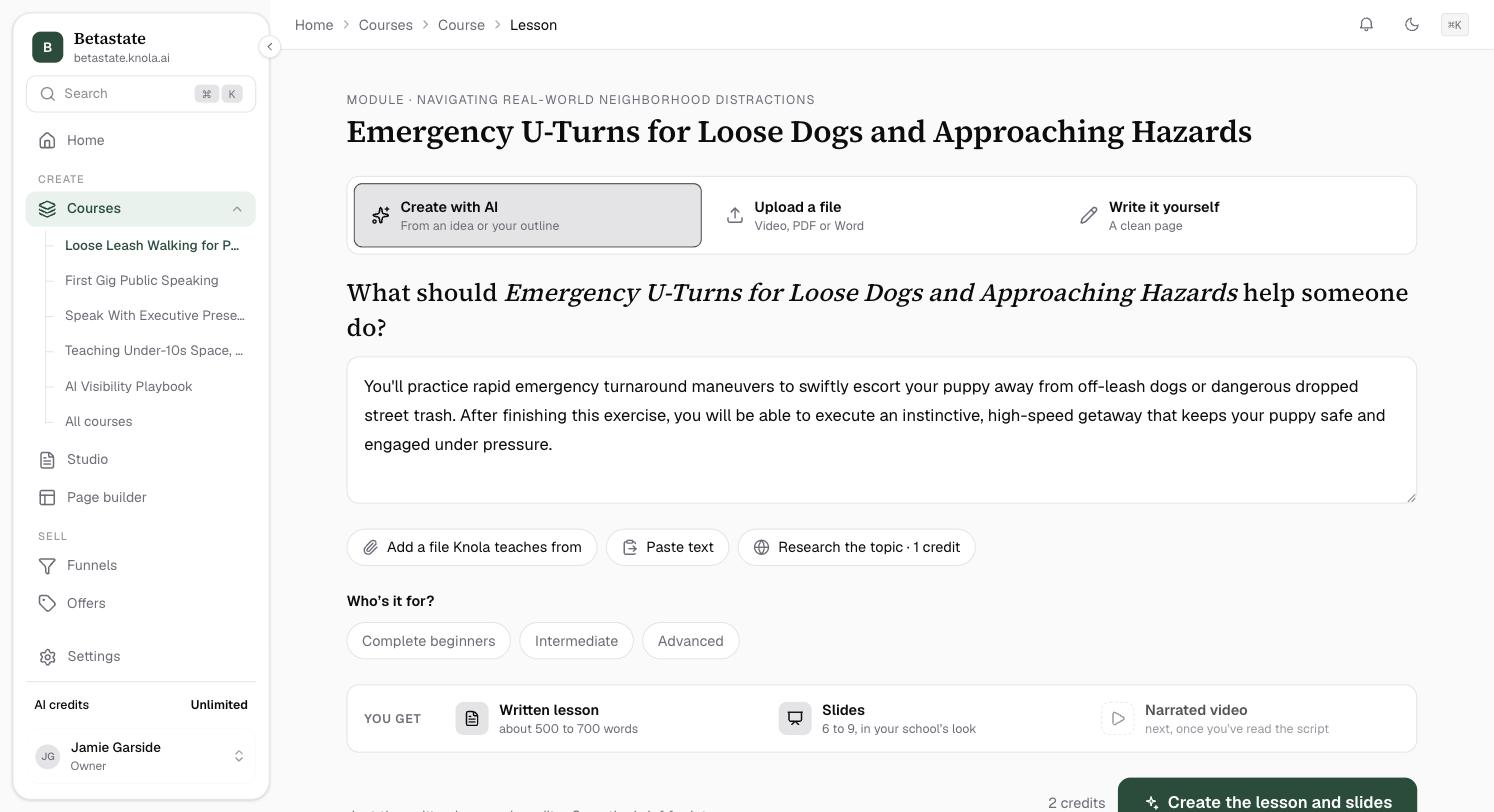
Open an empty lesson and choose Create with AI, "From an idea or your outline". It is the first of the three ways in.
Say what the lesson should help someone do
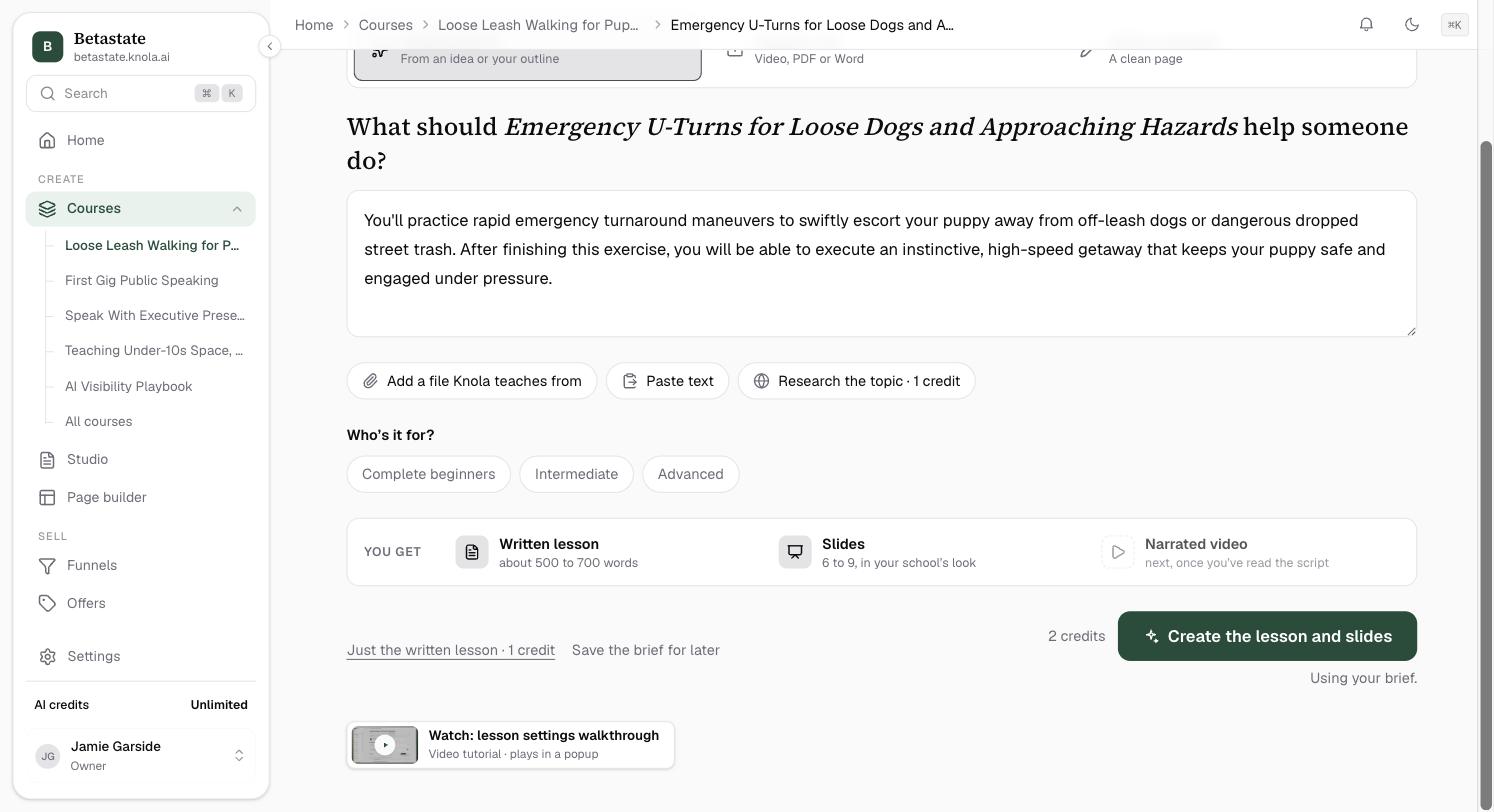
The page asks What should your lesson help someone do? If the course was made with AI, the box already holds the lesson's outline; change it or write your own. A rough idea is enough: what they should be able to do afterwards, or the steps you want to teach.
Under Who's it for?, pick Complete beginners, Intermediate or Advanced, so the lesson pitches at the right level.
Give Knola something to teach from
Your own material makes the best lesson. Three buttons sit under the brief:
- Add a file Knola teaches from: a PDF, Word, text or Markdown file. Your notes, a handbook, a script.
- Paste text: notes, an article or a script you already have.
- Research the topic: Knola researches the subject on the web in about a minute and teaches from what it finds.
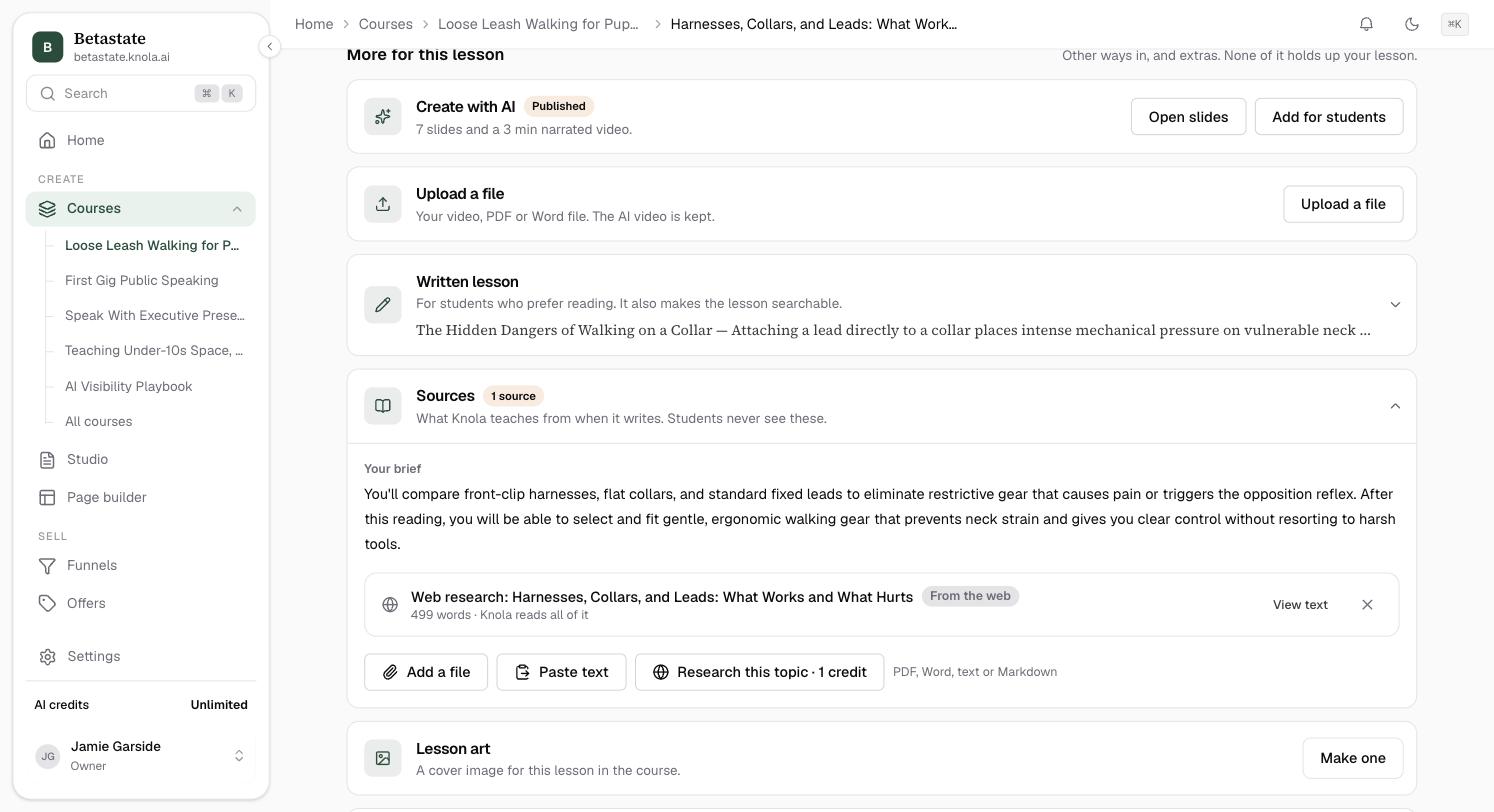
These become the lesson's Sources: "What Knola teaches from when it writes. Students never see these." Where your own sources and the research disagree, yours win.
Create the lesson and slides
You get lists what Knola makes: a Written lesson of about 500 to 700 words, Slides in your school's look, and a Narrated video next, once you have read the script.
Click Create the lesson and slides. You can choose how the slides look while they build. It takes about a minute; keep the page open until it finishes. If you only want the text, choose Just the written lesson instead. Save the brief for later keeps your brief without writing anything yet.
Then make it yours
You land on the finished lesson. Read the written lesson and change anything that is not how you teach it, then check the slides. When you are happy, turn the slides into a narrated video: see How to make a narrated video from your lesson.
Your brief is kept under Original lesson outline ("Your starting point is kept"), so you can always see what you asked for.
Can Knola write a lesson from my own PDF or notes?
Yes. Click Add a file Knola teaches from or Paste text before you create the lesson. Knola teaches from your material first, and students never see the source files.
Does creating a lesson use AI credits?
Yes. Writing the lesson, making slides and researching the topic use AI credits, and the buttons show what each will use before you click.
Can I edit what Knola writes?
Yes, all of it. The written lesson opens in the editor and the slides open in the slide editor. Nothing is fixed.