

How to set the artwork on a single lesson
Upload or generate the thumbnail for one lesson, swap art you have outgrown, and keep a renamed lesson from carrying its old title in the picture.

 By Knola3 min read
Most people do artwork for a whole course in one go with lesson art. This page is the other half: fixing, replacing or adding the artwork on one lesson, which is what you need when a lesson has been renamed, rewritten, or added after the rest.
Open the Lesson art panel
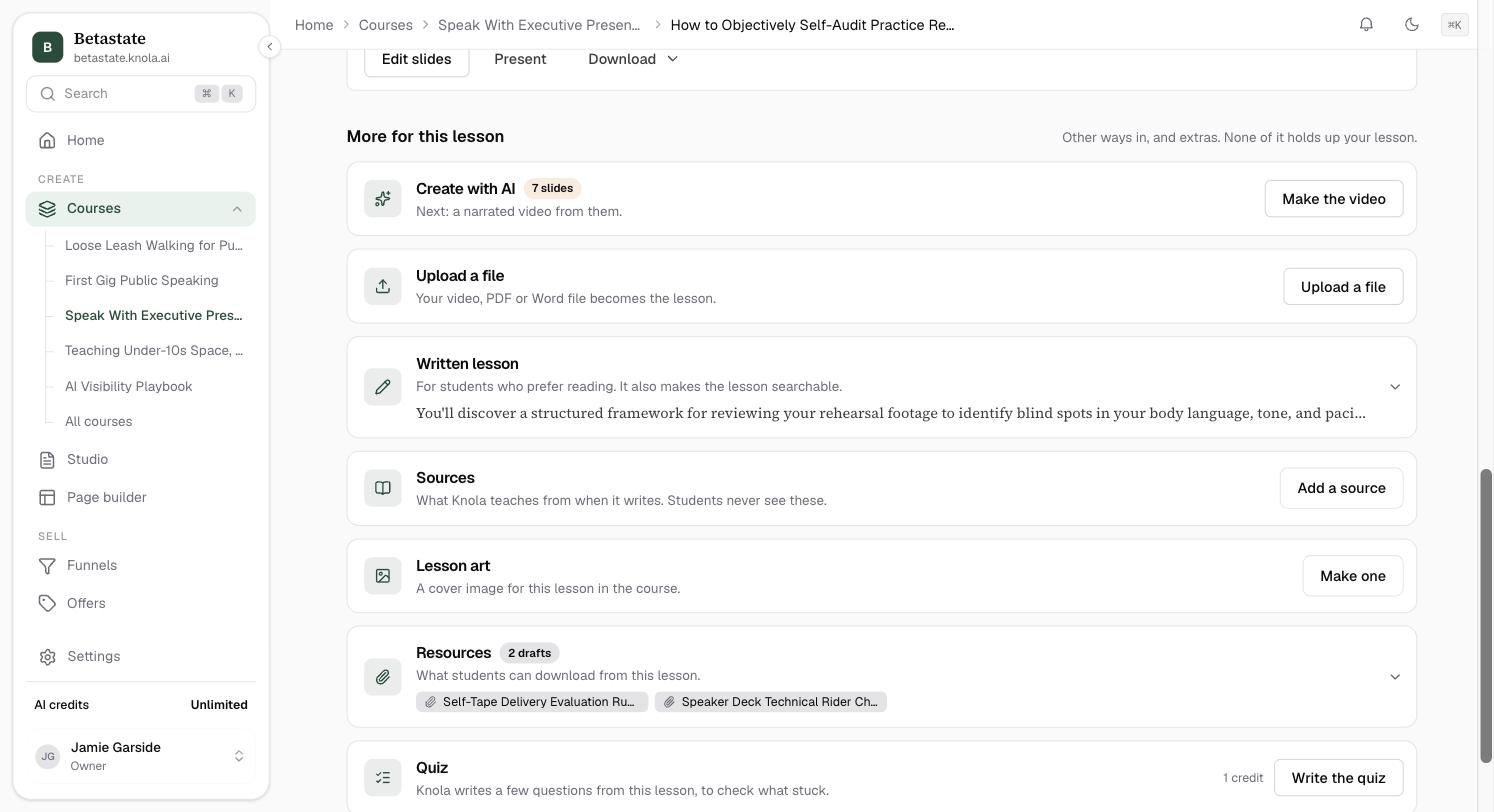
Open the lesson and scroll to Extras ("Optional. None of it holds up the lesson."). The last row is Lesson art: "A cover image for this lesson in the course." With no artwork yet, its button reads Make one.
Once a lesson has artwork, the row shows it, so you can see the state of a lesson at a glance.
Upload your own, or generate one
To use your own image, click the tile and pick a file. PNG, JPEG, WebP, AVIF and GIF all work, and 16:9 is the shape to aim for. Once it is set, Replace and Remove appear underneath.
To have Knola design one, click Generate (it reads Regenerate if art is already there). The tile turns into the same two choices the bulk run offers, Image only and Title on image, and clicking Generate builds it. Titled art shows "Designing your title card…" while it works, because it renders your lesson title into the picture and checks the spelling before handing it over.
After you rename a lesson
Titled artwork has the lesson title inside the image, so renaming the lesson leaves the old wording on display. The panel tells you, with a note that the art still shows the old title and a prompt to regenerate. One click rebuilds it with the new title.
Uploading your own image or removing the artwork clears that note, because from then on Knola has no idea what your picture says.
Keep one lesson consistent with the rest
The style you pick here becomes the course's style, so the next bulk run matches what you just chose. Generating one lesson on its own works out its look from the course afresh, so a single regenerated lesson can come out slightly different from a set generated together. If matching matters more than the individual image, regenerate the whole set from the course page instead.
How do I remove artwork from one lesson?
Open the Lesson art panel and click Remove under the image. The lesson keeps everything else and simply has no artwork, so the next bulk run over the course will pick it up again.
Why does my art still show the old lesson title?
Titled artwork has the title designed into the image, so a rename cannot change it on its own. The panel shows a note when this happens: click the regenerate prompt and the artwork is rebuilt with the current title.