How to generate AI art for every lesson at once
Give every lesson in a course matching AI artwork in one run: pick one of two styles, and Knola designs a thumbnail per lesson from your own titles.

 By Knola4 min read
A course with artwork on every lesson looks finished. Doing that by hand means sourcing an image per lesson and keeping them consistent, so Knola does the whole set in one go: one style for the course, one thumbnail per lesson, each one designed from that lesson's own title.
Open it from your curriculum
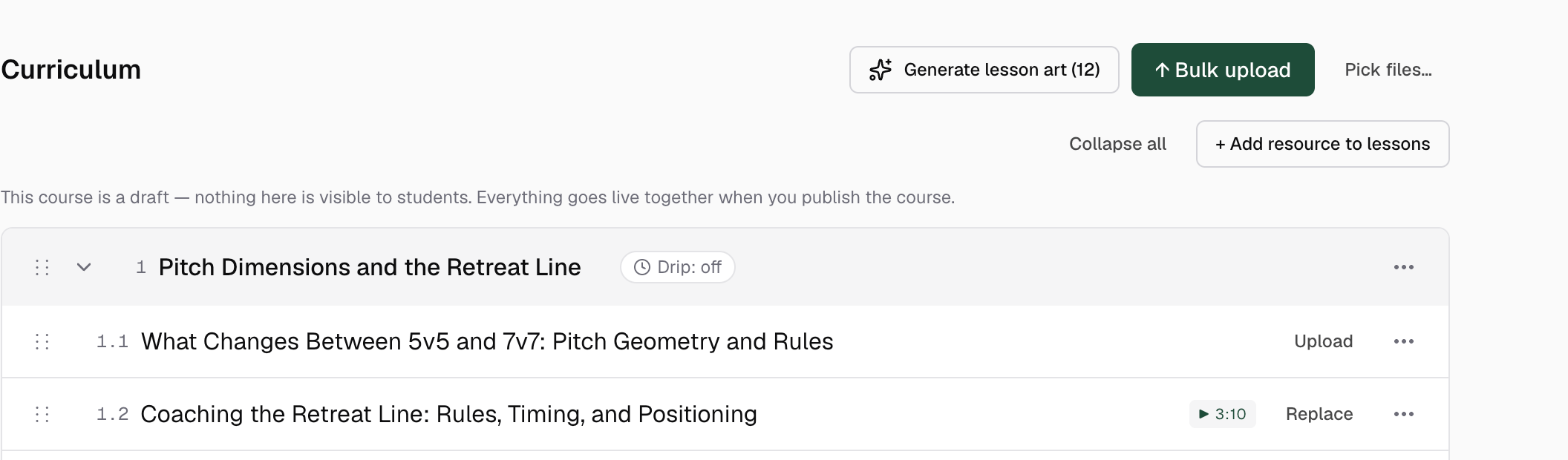
Go to Courses, open the course and scroll to the Curriculum section. In its header, beside Bulk upload, sits Generate lesson art, with the number of lessons still missing artwork in brackets.
If every lesson already has art, the button is not there at all. That is your signal the set is complete.
Pick one of the two styles
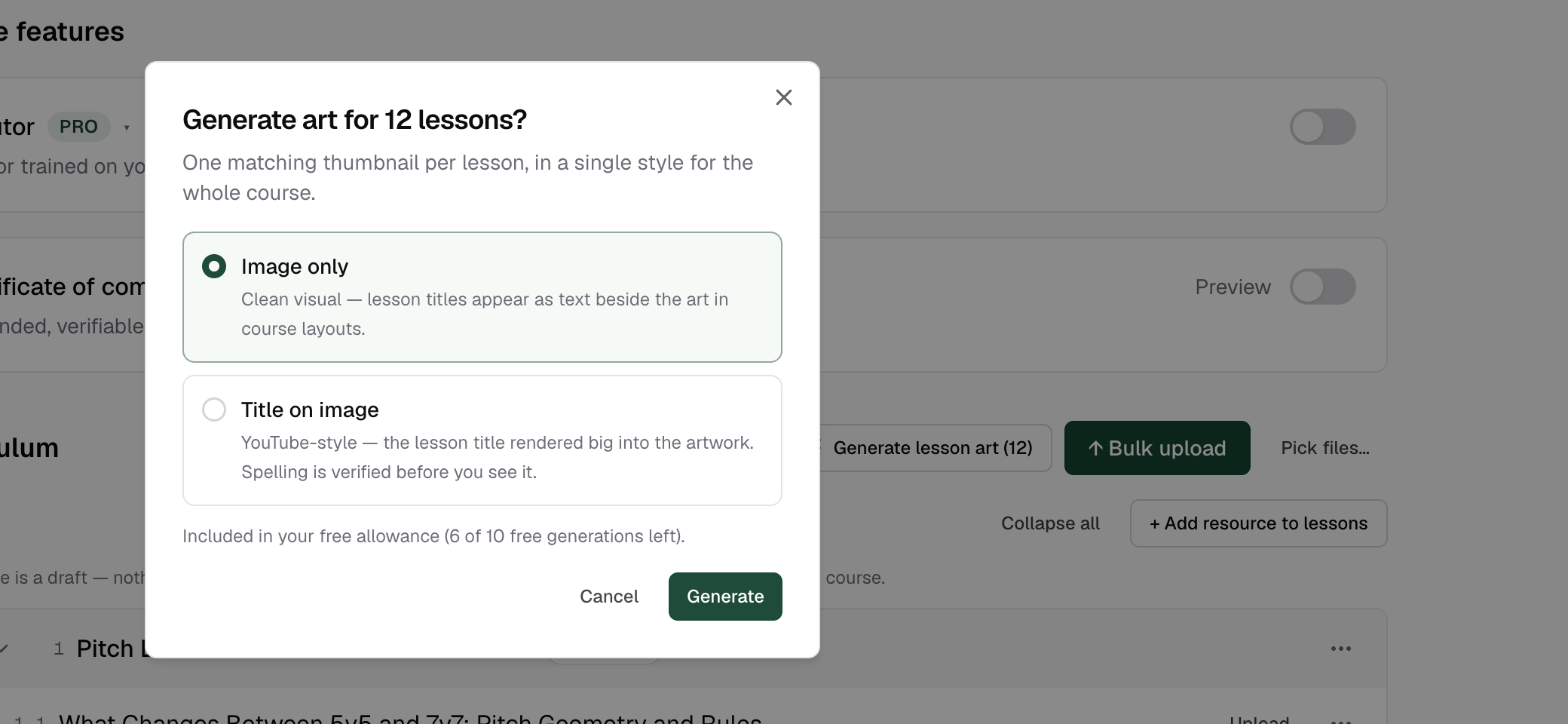
Clicking the button opens a short dialog that names the run and explains the rule: "One matching thumbnail per lesson, in a single style for the whole course." Then you choose between two styles:
- Image only: "Clean visual, lesson titles appear as text beside the art in course layouts." A picture per lesson, no words baked in.
- Title on image: "YouTube-style, the lesson title rendered big into the artwork. Spelling is verified before you see it." Knola checks each finished image for a correctly spelled title before showing it to you.
Click Generate and the run starts. The button on the page shows its progress while it works.
What the run covers
The run only fills gaps. Lessons that already have artwork are left exactly as they are, whether you uploaded it or generated it earlier, so you can run this repeatedly without undoing your own work.
- Up to 40 lessons are generated in a single run. On a longer course, run it again and it picks up where it left off.
- Knola works out a shared visual style for the course, then a scene per lesson from that lesson's title and summary. There is no prompt box here.
- If a few images fail, the run finishes anyway and tells you how many. Those lessons keep no artwork, so the button comes back with the remaining count and a second click fills them in.
Where the artwork appears
Finished thumbnails show up beside each lesson in your Curriculum list, so your course looks organised as you work through it. You can change any single one afterwards from the lesson itself: see lesson thumbnails.
Will this replace lesson art I already have?
No. The run only covers lessons with no artwork at all. Anything you uploaded or generated before is left untouched, which is why the count in the button drops as your set fills up.
Can I use a different style for different lessons?
The bulk run uses one style for the whole course, by design, so the set matches. You can then regenerate an individual lesson in the other style from the Lesson art row in Extras on that lesson. Doing one lesson on its own has its own guide: how to set the artwork on a single lesson.
How many AI images can I generate in a month?
Up to 10 image generations a month per school, and they reset on the 1st. A whole bulk run counts as one of them, however many lessons it covers, so generating a full course set is the efficient way to use them.