

How to create a course manually
Start from a blank course, or bring one you already sell on another platform: name it, then build or upload the curriculum yourself.

 By Knola3 min read
The manual path skips AI drafting entirely: you name the course, it's created empty, and you fill it yourself. It suits two kinds of creator equally: you've planned your curriculum and want to build it your way, or you already have a finished course on another platform and you're moving it to Knola. If your lessons are already recorded, this is your route: create the course, then upload what you have.
Start a new course
In your admin, go to Courses and click New course. If you're at your plan's course limit, the button asks you to upgrade or delete a course first. The header shows how many of your limit you've used.
Switch to the blank form
The page opens on the AI drafting card. Click Prefer to start blank? Create a course manually underneath it to get the plain form. (Draft it with AI instead takes you back at any point.)
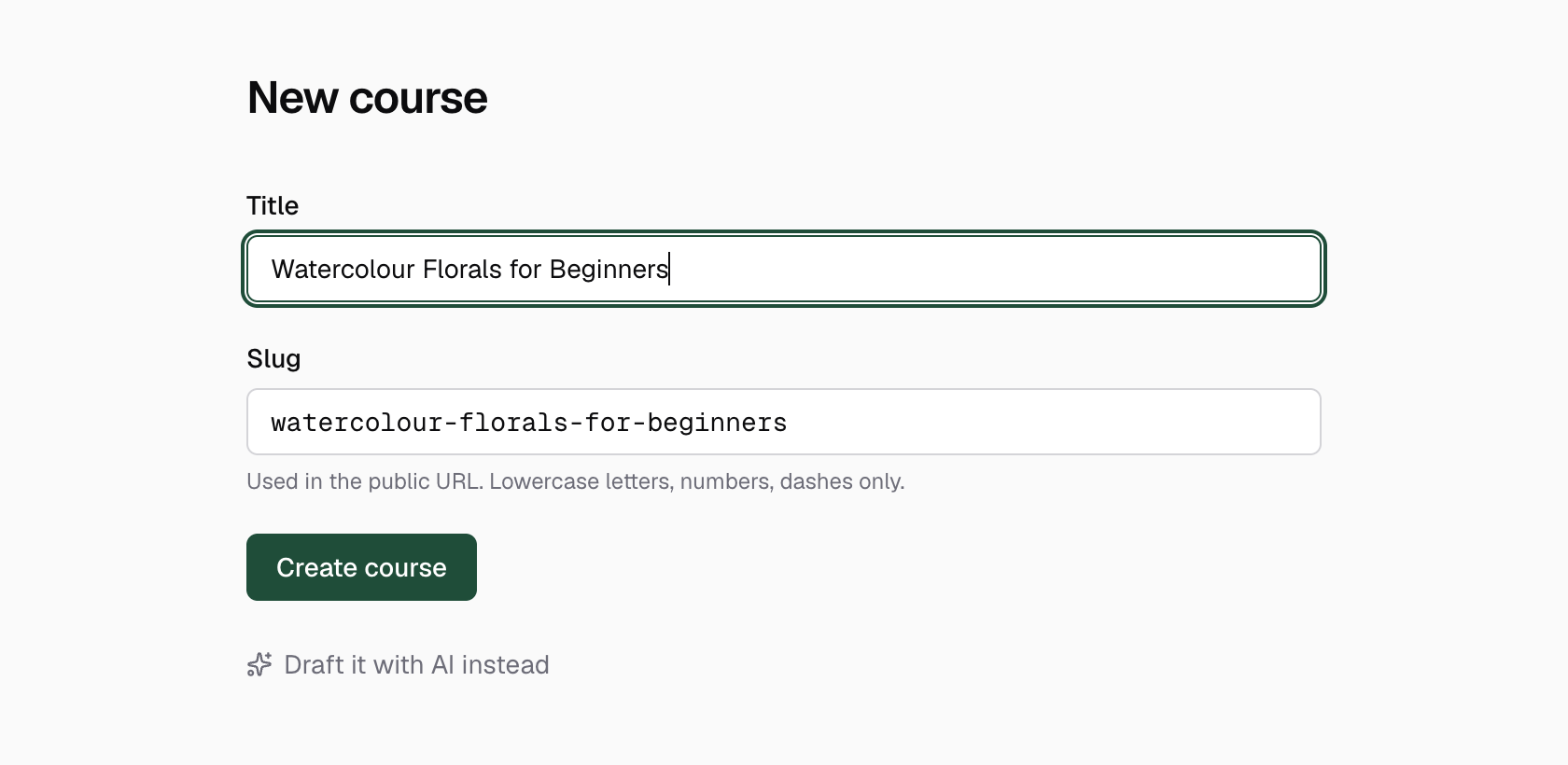
Give it a title and slug
Fill in the Title. The Slug fills itself from it as you type. The slug is, as the form says, "Used in the public URL. Lowercase letters, numbers, dashes only." It becomes the address of your course page, so keep it short and readable. Click Create course.
Build from there
You land on the new course's page with an empty curriculum. Starting fresh? Add modules and lessons one by one. Moving a course over? Upload what you already have: Bulk upload builds the whole curriculum from a folder of your existing videos in one pass, every video is transcribed automatically, and PDFs or Word files become document lessons.
Either way, finish by setting the price, cover and description and publishing when you're ready.
Do I need to set a price when creating a course?
No. A manually created course starts with no price. Set it to Free or Paid later from the course's details, whenever you're ready.
How many courses can I create?
Each plan has a course limit, shown at the top of your Courses page as "x of y on your plan". Solo includes 1 course, Studio 5, and Knola Pro is unlimited. See Plans and pricing.
Can I move my existing course from another platform to Knola?
Yes. If your course is written down (Word, PDF, Markdown or text), import it and Knola sets out the modules and lessons from its headings, word for word. For videos, create the course, then bulk upload them from a folder (module structure and order are read from your folder and file names), add any PDFs or documents as document lessons, and set your price. Your exported files are all you need; there's no other platform to connect.
What is the course slug used for?
It's the last part of your course's public URL on your school. Students see it in the address bar and in links you share. Choose it carefully at creation.