

How to import a course you already have
Move a course you already have into Knola: migrate from another course provider or upload your recorded videos, and the whole curriculum builds in one pass.

 By Knola4 min read
Already have a course? Whether it lives on another course provider or sits on your computer as a batch of recorded videos, you can bring the whole thing into Knola without creating lessons one at a time. Bulk upload reads your folders and filenames, proposes the whole curriculum (modules, lessons, order), and lets you correct it before anything is imported. This is the fastest way to migrate.
Get your course videos together
If you're migrating from another course provider, download your lesson videos from it first; most platforms let you download your own uploads. If your course was recorded straight to your computer, you already have everything you need.
The cleanest input is one subfolder per module, with the video files inside. Numeric prefixes set the order and are stripped from the titles:
- Folder
1. Getting Startedbecomes the first module, titled "Getting Started". - File
2) Choosing your niche.mp4becomes its second lesson, titled "Choosing your niche". - Flat files (no folders) named like
M1 L2 Title.mp4or1.2 Title.mp4are grouped into modules from the numbers instead.
Pick the folder
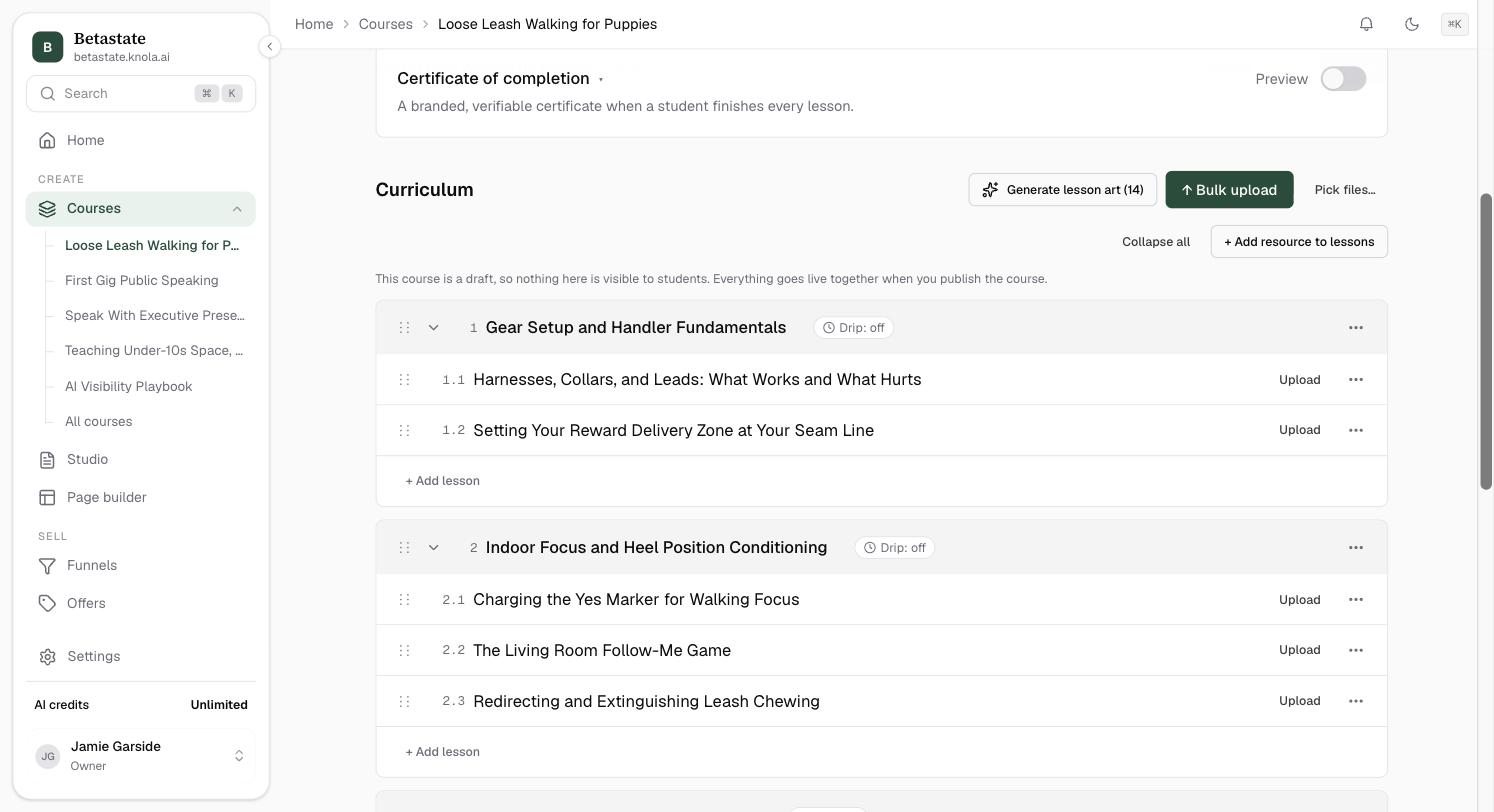
On the course page, in the Curriculum section, click ↑ Bulk upload and choose your folder, or Pick files… to select individual video files. Both accept video files.
Review the proposed curriculum
The import dialog shows the plan before anything happens. A banner counts how each file was detected: From folders:, From filenames: and Unsorted:. Every module and lesson title is editable in place, and the ⋮⋮ handles let you drag modules into order and lessons between modules.
Files that couldn't be placed sit in an unsorted tray at the bottom. Drag them into a module to include them. As the dialog says, unsorted files won't be imported; you can also close and sort them later.
Import and let the uploads run
Click Import … files →. Knola creates the modules and lessons immediately, then queues every video upload. A notification confirms how many were queued, and the upload dock tracks their progress. You can keep editing the course while they upload.
Can I migrate my course from another course provider?
Yes. Download your lesson videos from your current platform, organise them into folders, and bulk upload rebuilds the same curriculum in Knola in one pass. Text lessons are pasted or written in the lesson editor, or drafted by AI from your videos.
Can I create a course from videos already on my computer?
Yes, that's exactly what bulk upload is for. Point it at the folder and it proposes the whole curriculum from your folder and file names, ready to review and import.
What file types does bulk upload accept?
Video files. Each one becomes a lesson with that video attached; documents and other resources are added to lessons individually afterwards.
What happens to files Knola can't sort?
They land in the unsorted tray in the preview. Drag them into a module to include them. Anything left unsorted is skipped by the import, not uploaded.
Do the numbers in my filenames end up in the lesson titles?
No. Numeric prefixes like "1. ", "02-" or "3)" are used to order the lessons and then stripped, so "1. Welcome.mp4" imports as a lesson titled "Welcome".