

How to publish, preview and share your course
Take your course from draft to live, check it as a student would see it, and share the right link: public course page or free-enrolment invite.

 By Knola4 min read
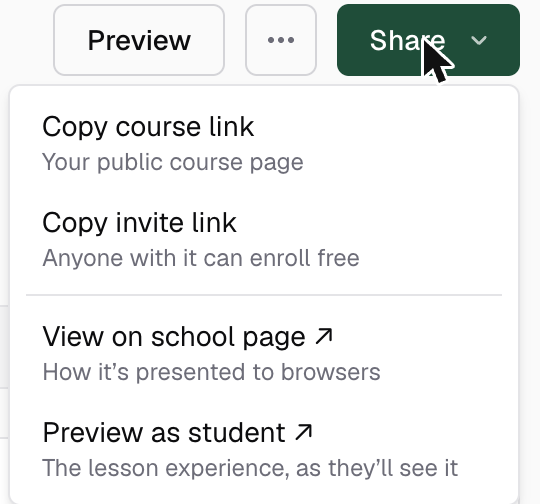
A course is a Draft until you publish it: students can't see it, and its public pages don't exist. Publishing flips one switch, and the header then turns from a Publish button into a Share menu, because that's the moment you actually want links.
Meet the publish requirements
Knola checks a short list before a course can go live, and tells you the first thing missing:
- A cover image: set one in the course details, uploaded or AI-generated.
- At least one lesson, and every lesson titled.
- A paid course needs a way to take money: Stripe connected, or your own checkout link.
Publish it
Click Publish in the course header. On a draft course everything goes live together: every module and lesson you've built. From then on, new modules and lessons arrive as drafts and go live individually when you publish them from their row menus.
Publishing also puts the lesson extras live where they are ready. If lessons have a narrated video waiting, or slides with no video, Knola asks Publish this course? and lists what will go live: the newest video on each lesson, and the slides. Anything it cannot include is listed as not included, so nothing goes live by surprise.
Preview it as a student
Preview in the header opens the public course page in a new tab at any time, draft or published. Once live, the Share menu adds Preview as student ↗ (the lesson experience as students will see it) and View on school page ↗, how the course is presented to people browsing your school (if you've chosen to list it on your school page; a course hidden from your school page won't be visible there).
Control where it appears, and unpublish safely
The status pill next to the title controls the rest: Listed on school page decides whether the course shows in your school's course grid, and Featured pins it to the top. A published course stays reachable by direct link even when unlisted. Switching back to Draft asks you to confirm. Students immediately lose access to the lessons, but their enrolments and progress are kept, and everything comes back when you publish again.
Why can't I publish my course?
The error names the first missing requirement: a cover image, at least one titled lesson, or, for a paid course, a connected Stripe account or your own checkout link.
What's the difference between the course link and the invite link?
The course link is your public course page, where people enrol or buy. The invite link enrols anyone who clicks it for free, skipping checkout. Share it only with people who should get the course at no charge.
If I add a new module or lesson to a published course, does it go live straight away?
No. On a published course, new modules and lessons arrive as drafts, so students never see half-built content. Build them at your own pace, then publish each one from its row's ⋯ menu in the curriculum when it's ready.
If I unpublish, do my students lose their progress?
No. Unpublishing hides the lessons, but enrolments and progress are kept. Publish again and every student picks up exactly where they left off.