

How to create a course with AI
Describe what you teach and Knola drafts the whole course (modules, lessons, name options and a price), wired to an offer and checkout funnel.

 By Knola4 min read
The AI path is the default way to start a course on Knola: you describe your expertise, watch the structure get built, then shape the draft before anything is created. Nothing is saved until you click create. When you do, the course, its offer and a checkout funnel all land together, already wired up.
Start a new course
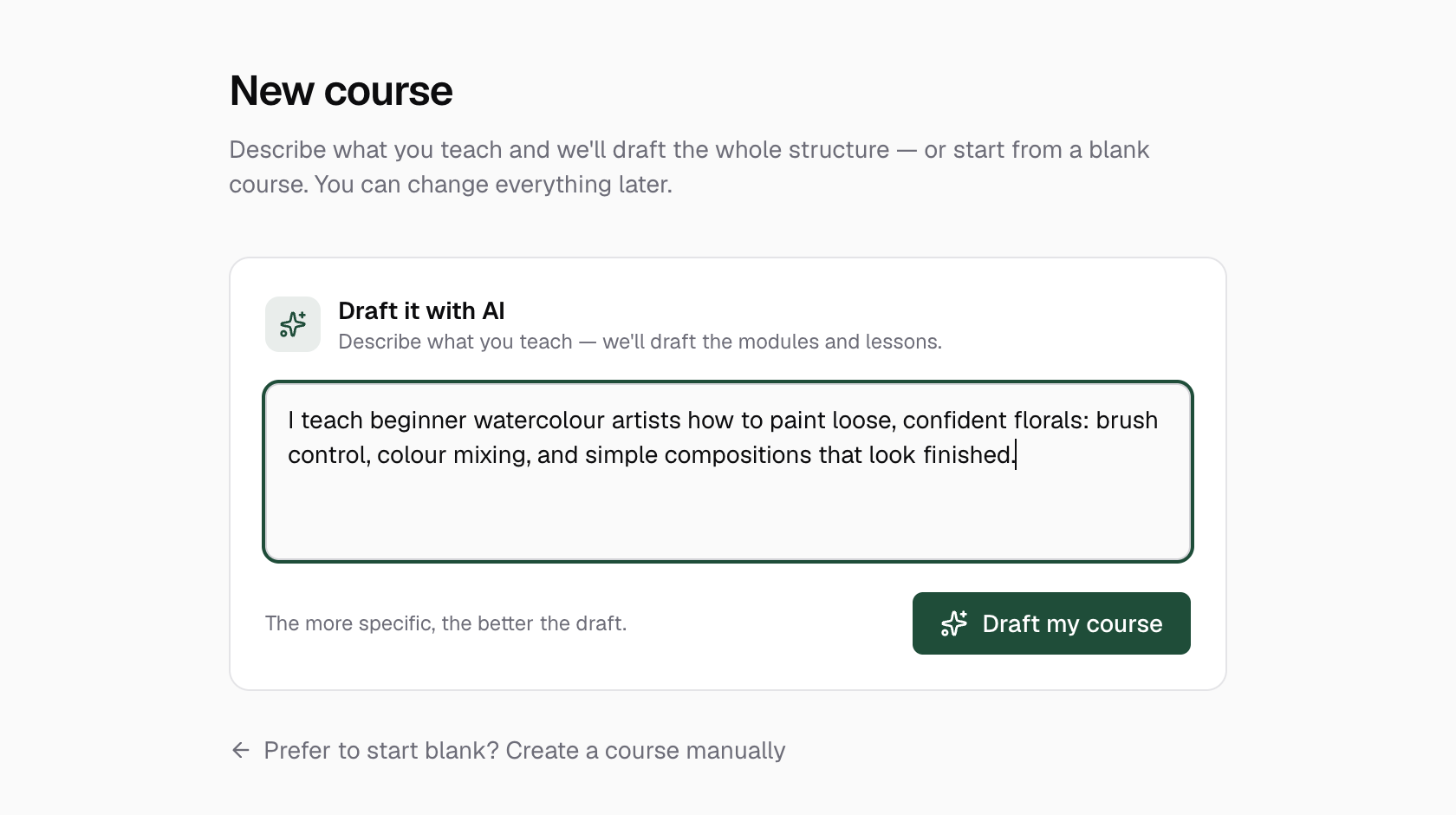
In your admin, go to Courses and click New course. The page opens on Draft it with AI. The blank-course form sits one click behind it if you ever want it instead.
Describe what you teach
Write a few sentences about your subject, who it's for, and what you cover. The placeholder shows the level of detail that works. As the page says: The more specific, the better the draft. Then click Draft my course.
Watch the draft get built
You'll see the course materialise stage by stage: reading your description, structuring the modules, naming every lesson, pricing and packaging. It usually takes 10–20 seconds, and nothing exists in your school yet: what comes out is a draft for you to review.
Shape the draft before it's created
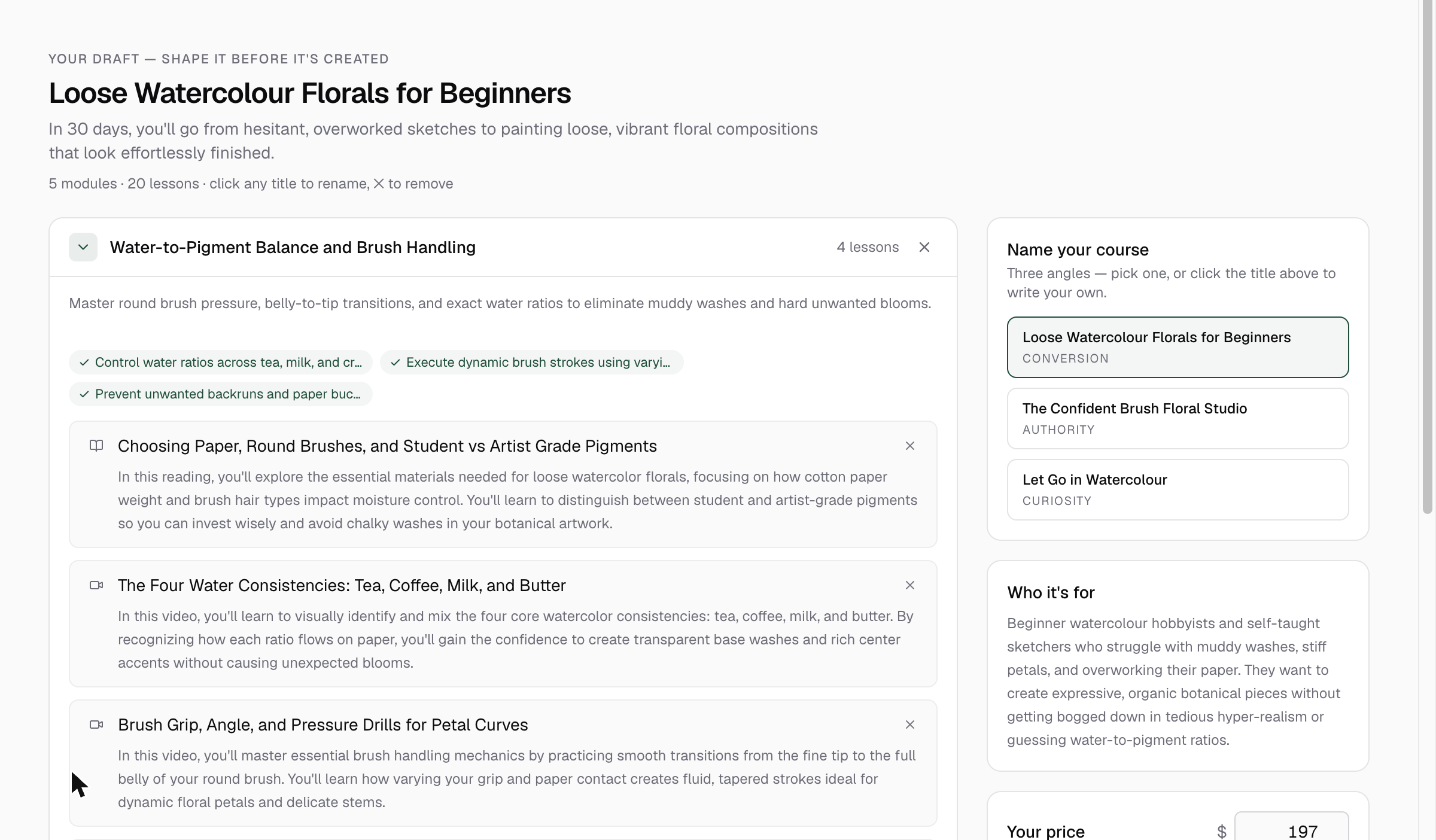
The draft studio shows every module with its lessons. Click any title to rename it, and use the ✕ to remove a module or lesson you don't want. Open a module to edit its description and the "what this lesson covers" outline under each lesson. Those outlines become the starting lesson content when the course is created.
- Each lesson carries a type (Video, Reading or Exercise), shown as an icon on the row.
- A course keeps at least 3 modules and every module keeps at least one lesson; the ✕ greys out at those minimums.
- Start over throws the draft away and returns to the description box.
Pick a name and set your price
The right rail holds the AI's other decisions, all changeable. Name your course offers three name angles. Pick one or click the title to write your own. Your price is pre-filled from the AI's suggested range with its reasoning underneath; change it to anything.
Create course, offer and funnel
Click Create course, offer & funnel. In under a minute you get a draft course with the outlines you reviewed as lesson content, an offer at your price, and a checkout funnel (a page that takes payment and delivers access). The confirmation, Your course is set up, lists what was made, such as Course created and Checkout funnel ready, with Edit your course and View your funnel as your next steps.
An instructor on your team sees Create course instead: they get the draft course, and the school owner sets its price and how it sells.
Can I edit the AI draft before the course is created?
Yes, that's the whole point of the draft studio. Rename the course, modules and lessons, remove what you don't want, and edit every lesson outline. Nothing is saved to your school until you click Create course, offer & funnel.
The AI drafted an outline. How do I build the actual lessons?
The draft is your course's structure: modules, lesson titles, and a short outline of what each lesson should cover, ready to be turned into a full course. The teaching itself is yours to make, and Knola helps at every step. Write each lesson in the lesson editor, upload your videos and let AI draft the lesson text from them, or turn a lesson's outline straight into a presentation you can teach from with the slide engine.
Does the AI course builder create the checkout too?
Yes. When you set a price, creating the draft also creates an offer at that price and a checkout funnel that takes payment and enrols the buyer, all editable afterwards.
Do I have to use the AI to create a course?
No. Click Prefer to start blank? Create a course manually on the same page to get a plain title-and-slug form and build the curriculum yourself.