

How to add a course cover, or have AI design one
Give your course the image buyers see first: upload your own, or have Knola design one with your course title built into the artwork.

 By Knola4 min read
The cover is the first thing anyone sees of your course: on your school page, on the course page, and in the lesson reader. Every course needs one before you can publish it, and you have two ways to get there. Upload something you already have, or let Knola design one around your course title.
Open the cover controls
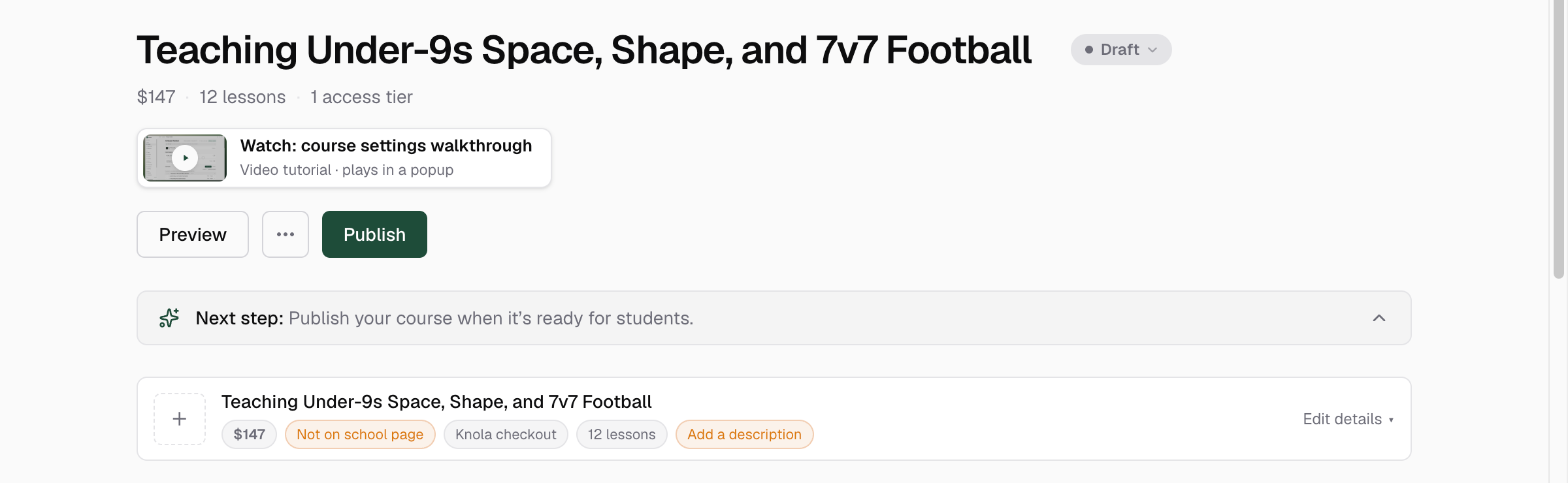
Go to Courses and open the course. Under the course title sits a strip with your price and status. It starts collapsed, so click Edit details on its right to open it. The Cover image section is the first thing inside.
If the course has no cover yet, you get a dashed tile with a + on it, and the note "Shown on the course catalog and the lesson reader. 16:9 looks best."
Upload an image you already have
Click the tile to open Upload image and pick a file. PNG, JPEG, WebP, AVIF and GIF all work. The upload runs with a progress bar and saves itself, and once it lands the tile gains Replace and Remove underneath it.
Or have AI design one
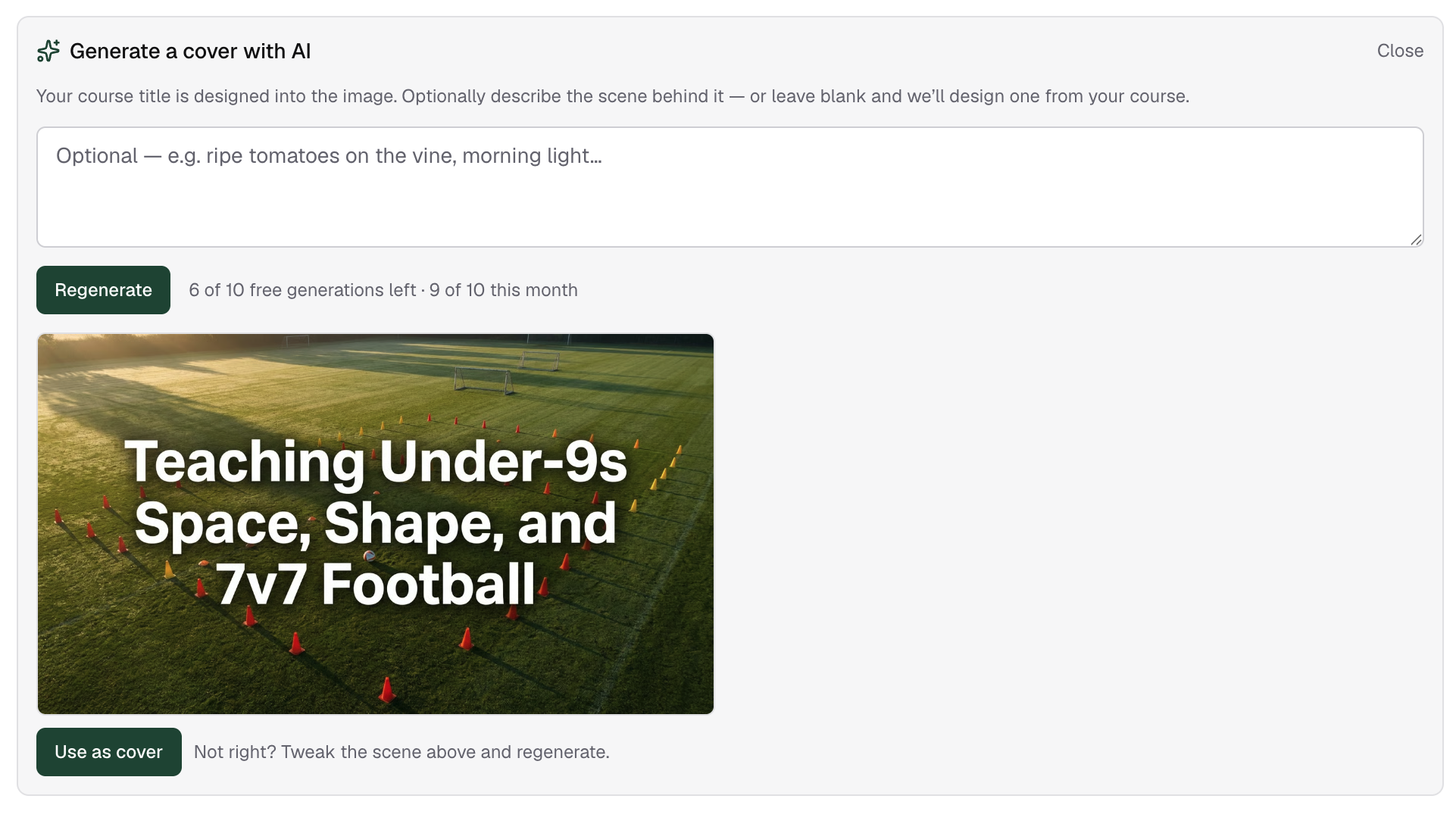
Click Generate with AI to open the Generate a cover with AI panel. It explains what it does: "Your course title is designed into the image. Optionally describe the scene behind it, or leave blank and we'll design one from your course."
You can leave the box empty and click Generate. Knola reads your course and designs a scene from it, which is often all you need. Or describe the scene you want first: the placeholder gives the idea, "Optional, e.g. ripe tomatoes on the vine, morning light…". Keep it under 1000 characters. One image comes back either way.
Happy with it? Click Use as cover and it is saved. If not, the panel says it plainly: "Not right? Tweak the scene above and regenerate." Change the description, generate again, and compare.
Keep the cover honest after a rename
Because an AI cover has your title designed into it, renaming the course leaves the old title sitting in the picture. Knola notices. The cover section shows an amber note telling you the cover still shows the old title, with a Regenerate button beside it. One click rebuilds the cover with the new title and the same scene.
Covers you uploaded yourself never show this note, because Knola has no idea what is written inside your image.
Why a cover is required to publish
A course cannot go live without one. On your Courses list, a draft with no cover carries the line "Add a cover image before you can publish.", and pressing publish returns "Add a cover image before publishing." Add a cover, and publishing goes through.
What size should a course cover be?
Anything with 16:9 proportions. The cover is displayed in a 16:9 frame on your school page, the course page and the lesson reader, and Knola does not crop for you, so bring an image that is already the right shape.
Why can't I publish my course?
The most common reason is a missing cover: Knola blocks publishing until a course has one. The draft row on your Courses list says so directly. Add a cover from Edit details and publish again.
Can I change a course cover after students have joined?
Yes, at any time. Use Replace to swap the image or Remove to clear it, and the new cover appears everywhere the course is shown. Existing students keep their access and their progress; only the picture changes.