

How to create document lessons from PDF and Word
A lesson doesn’t need a video. Show a PDF inline as the lesson itself, turn a Word doc into editable blocks, or let AI draft the lesson from your document.

 By Knola4 min read
Plenty of course material already exists as documents: workbooks, slides exported to PDF, chapters written in Word. Knola treats them as first-class lesson content: the lesson can BE the document, no video required.
Add a PDF as the lesson itself
On an empty lesson choose Upload a file ("Video, PDF or Word"), then drop the file on the box, or click Drop a file, or choose one to pick it. On a lesson that already has content, open the Read section, put the cursor on an empty line, type / and choose PDF document. Knola uploads it and reads its text: "Adding your document: uploading and reading the text…".
The PDF appears as a block inside the lesson body and shows right there in the lesson for enrolled students. They read it in place, no download required. Only students enrolled in the course can open it.
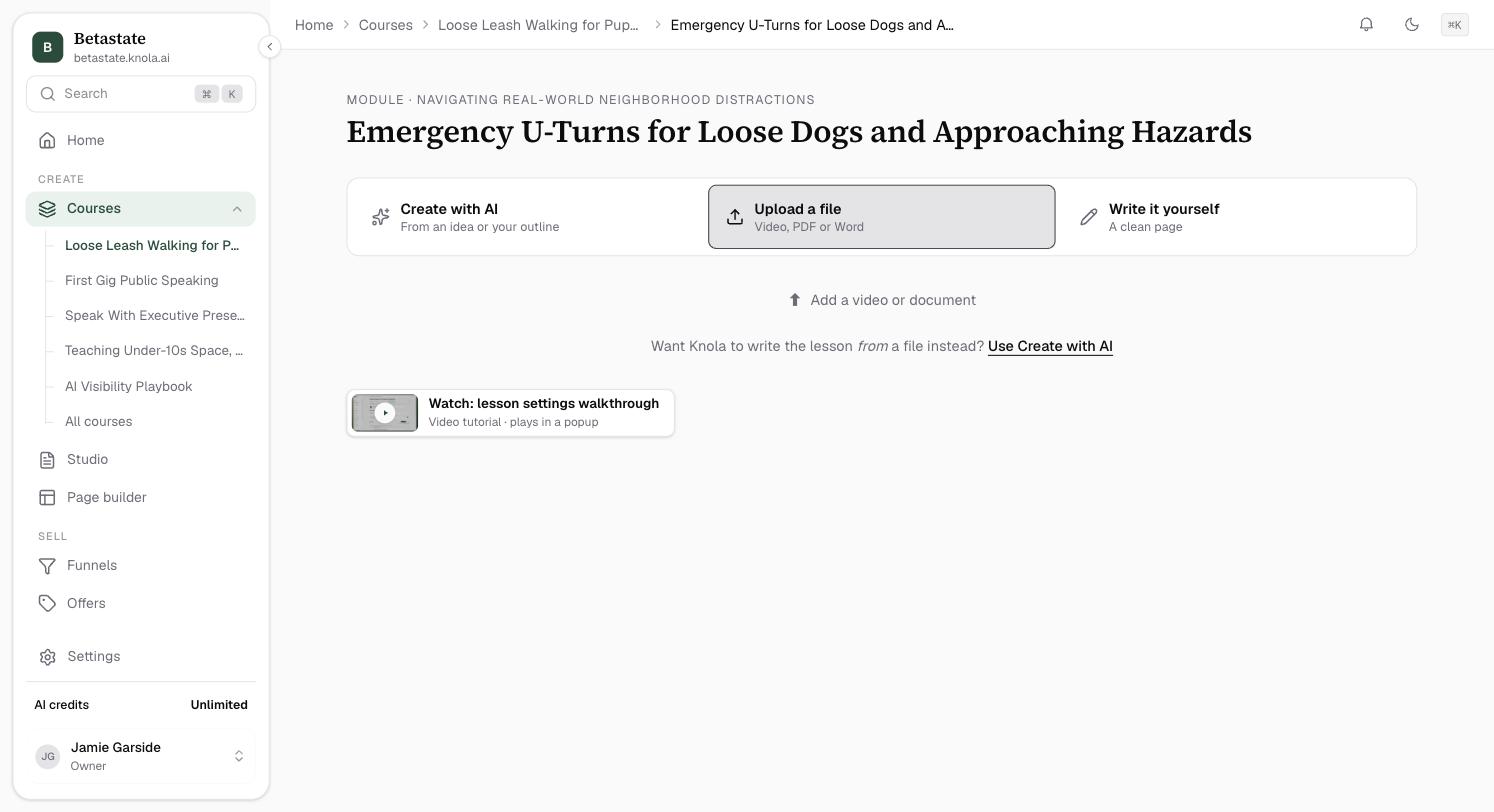
Import a Word doc as editable content
A .docx works differently. Instead of embedding the file, Knola converts it. Upload it on an empty lesson the same way, or type / in the Read section and choose Import Word doc: the document’s headings, lists and formatting become real blocks in the written lesson, confirmed by "Document imported. It’s editable lesson content now."
Let AI draft the lesson from a PDF
When an attached PDF has selectable text and the lesson has no video, a banner appears above the editor: Draft this lesson from your document: "AI turns the attached PDF into structured, editable notes." Click Draft lesson and Knola writes the summary, topics and a structured body from the document’s own text, faithful to its terminology. If the body already has content, it asks before replacing it.
Know where the file lives
A lesson-body PDF is stored with your lesson files and counts against your plan’s storage. You’ll see it in the storage meter at the top of the lesson’s Resources, under Extras (see Lesson resources), and in Settings → Files & storage (see How to check your storage). It stays out of the downloadable-resources list, though: inline lesson content and downloadable attachments are separate things. To offer a PDF as a download instead, add it under Resources. See Lesson resources.
Can a Knola lesson be just a PDF, with no video?
Yes. Upload the PDF on the lesson and it appears right in the lesson as the content itself for enrolled students. You can add text around it, attach a quiz, and even have AI draft written notes from it.
What happens to formatting when I import a Word doc?
Headings, lists, bold and links convert into native editor blocks, so the result matches your school’s styling and stays editable. Complex layout elements don’t survive the trip. For those, upload the file as a PDF instead.
Why can’t AI draft from my PDF?
The PDF has no selectable text, usually a scan. Knola tells you at upload: "No selectable text found, so AI drafting isn’t available for this one." The document still displays inline; only drafting needs readable text.