

Teach
Use a YouTube or Vimeo video as your lesson video
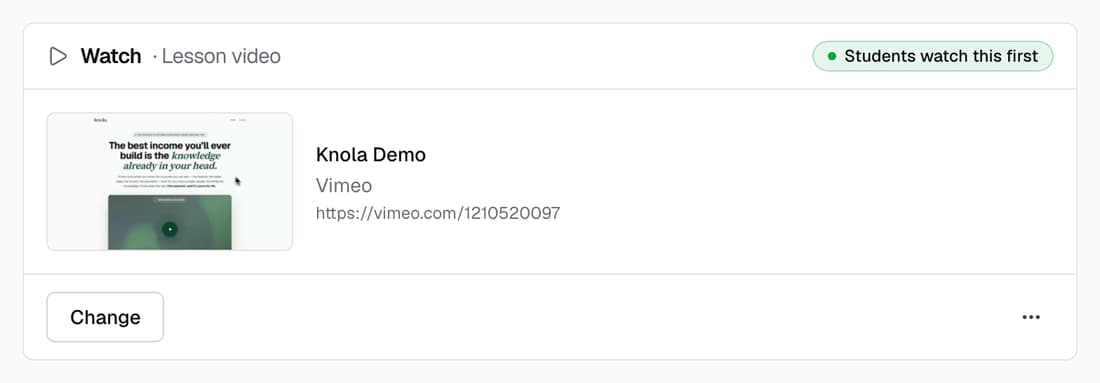
Paste a link and it becomes the video students watch first, with its title and thumbnail shown so you know it's the right one. To put a player inside the lesson text, type /video or paste the link on a line of its own.
What’s changed
Before, a lesson video had to be uploaded, and the lesson text couldn't hold a player. Now a YouTube or Vimeo link can be the lesson video, and you can put players anywhere in the text.
Who gets itEvery school
How it works
- Open a lesson and go to the Watch section at the top.
- Click Paste a link and paste your YouTube or Vimeo address.
- Check the title and thumbnail that appear, then click Add.
- For a player in the text, type /video in Read and choose Video.
Good to know
- The video stays on YouTube or Vimeo, so your privacy settings there still apply. Unlisted Vimeo links work.
- A link plays ahead of a video you uploaded. If you've chosen to show a video Knola made, that one plays first.
- YouTube videos play in YouTube's privacy-enhanced player.
- Knola doesn't make a transcript of a linked video, so the AI tutor can't learn from it.