

Create
Edit slides with every tool beside the slide
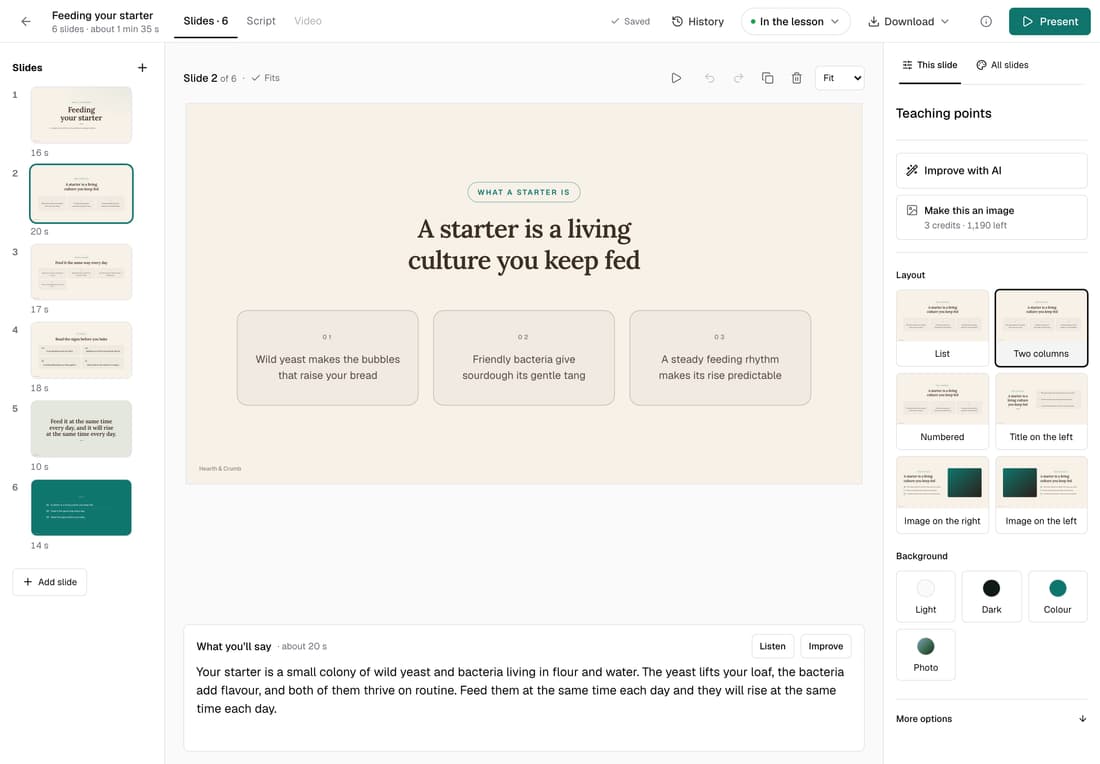
The new slide editor is now on for every school. Layouts, Improve with AI and the words you'll say sit next to the slide you're working on. Anything that costs credits shows its price and your balance before you click. Every existing presentation opens in it.
What’s changed
Before, you moved between an overview of your slides and a separate editor, and some AI tools were tucked under More options. Now one editor holds the slide, its script and every tool, with a price on anything that costs credits.
Who gets itEvery school
How it works
- Open a lesson and click Edit slides in the Slides section.
- Pick a slide on the left, then click any words to change them.
- Use This slide on the right for layout, background, pictures and Improve with AI.
- Edit What you'll say under the slide: your notes, and your video's narration.
- Switch to All slides to change the theme for the whole presentation.
Good to know
- Improve with AI on one slide and Draw a scale diagram cost no credits.
- Make this an image shows its price and your balance before you click.
- Rebuild every slide, under All slides, costs 1 credit. Your current slides stay in History.
- Pages from an uploaded PDF keep their layout. To change their words, edit the PDF and replace it.