Create
See what students get from each lesson at a glance
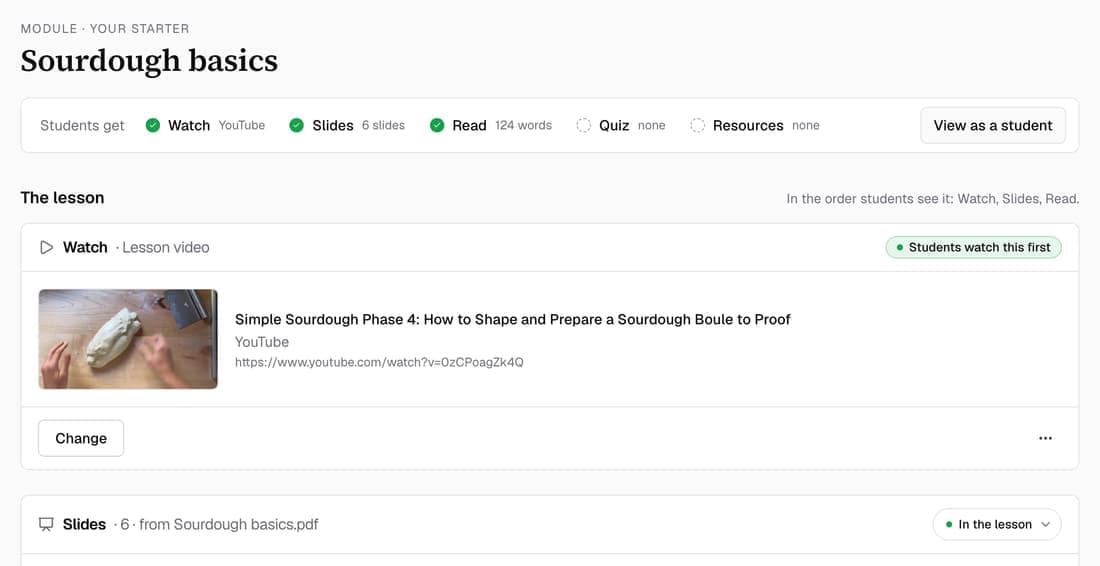
The top of every lesson page now shows what students get: Watch, Slides, Read, Quiz and Resources. Below that, the lesson is laid out in the order students meet it, and each part has its own buttons, from Paste a link to Write it with Knola.
What’s changed
Before, a list at the top said what the lesson held, and a lesson video could hide its slides along with the buttons to change them. Now Watch, Slides and Read each have their own section and buttons, and slides show even when there's a video.
Who gets itEvery school
How it works
- Open a lesson. The Students get row at the top lists what's in it.
- Click Watch, Slides, Read, Quiz or Resources to jump to that part.
- In Watch, choose Upload a video, Paste a link or Make one from your slides.
- In Slides, choose Upload a PDF or Make slides with AI.
- In Read, choose Write it, or Write it with Knola.
Good to know
- Write it with Knola and Make slides with AI cost 1 credit each. The price is on the button.
- Quiz, Resources and Lesson art sit together under Extras.
- Sources, what Knola teaches from, sit under Only you see this. Students never see them.
- An empty lesson still opens on the choice of how to start.