

Create
Removed slides can be brought back
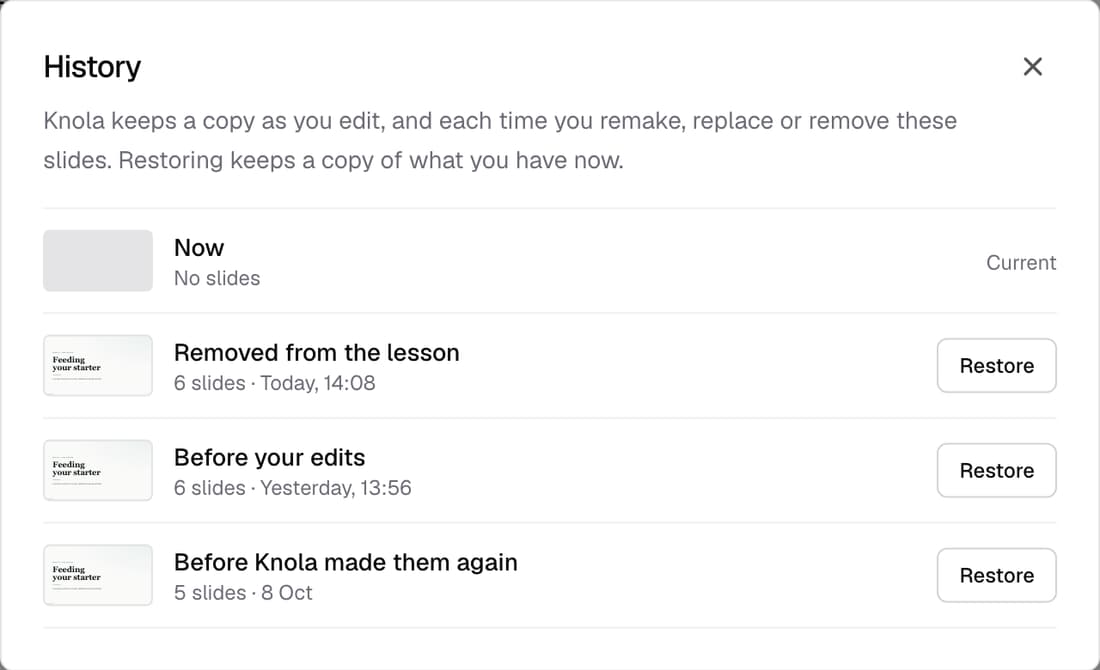
Removing a lesson's slides now keeps a copy. Press Undo straight away, or Bring back later from the lesson page. History shows each earlier version with its first slide and a plain label such as “Before your edits”, so you can restore the one you want.
What’s changed
Before, removing slides pointed you to version history, but an empty presentation couldn't open it, so the slides were out of reach. Now a copy is kept and you can bring them back from the lesson page.
Who gets itEvery school
How it works
- In the Slides section, open the ⋯ menu and choose Remove slides.
- Changed your mind? Click Undo on the message that appears.
- Later, click Bring back in the Slides section to put them back.
- For an older version, choose ⋯ ▸ History and click Restore.
Good to know
- If students could see the slides before, they see them again once you bring them back.
- Restoring keeps a copy of what you have now, so nothing is lost.
- History keeps the 12 most recent copies of a lesson's slides.
- Removing slides made from a PDF also deletes the PDF file you uploaded.