

Create
Import a whole course from Word, PDF or Markdown
Bring a course you've already written and Knola reads its headings to set out the modules and lessons, word for word. Check the structure, rename or leave out lessons, then import. No AI, no credits, and the course stays a draft until you publish it.
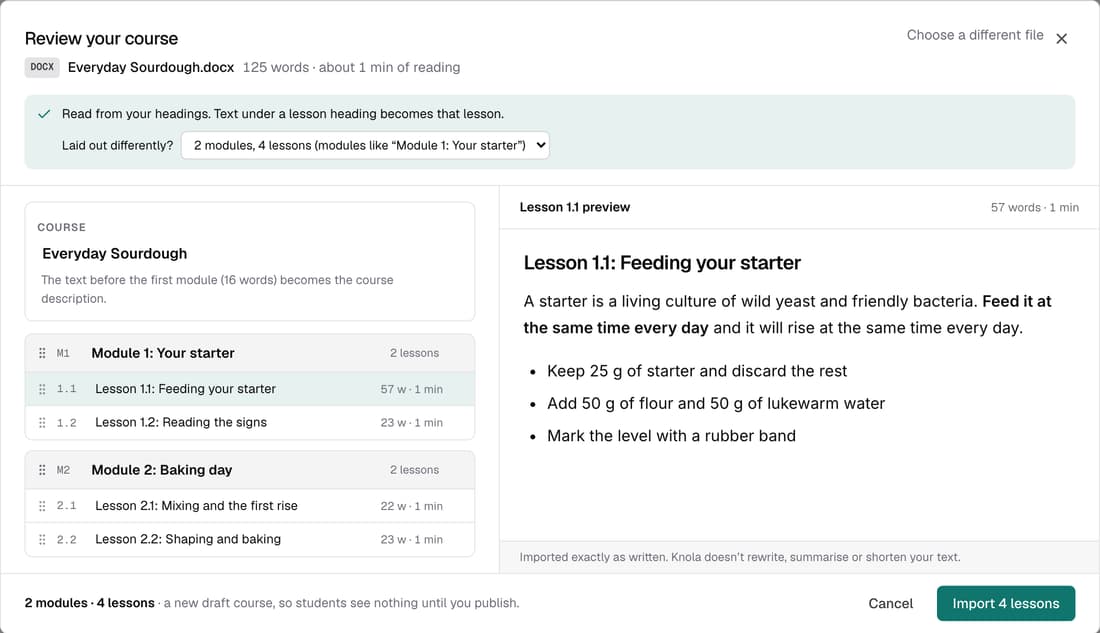
What’s changed
Before, you typed every module and lesson and pasted each lesson's text in by hand. Now one document becomes the whole course, and you check it before anything is created.
Who gets itEvery school
How it works
- Go to Courses ▸ New course and click Already written your course? Import a document.
- Drop in a Word, PDF, Markdown or text file, or paste your course text.
- In Review your course, rename, reorder or leave out modules and lessons.
- Click Import, then open each lesson to edit it or add slides.
Good to know
- No AI runs and no credits are used. Your words go in exactly as written.
- Heading styles give the clearest result. Lines like “Module 2” and “Lesson 2.1” work too.
- Pictures in a Word file come across. Pictures in a PDF, and scanned PDFs, don't.
- Undo import, on the message that appears, removes everything the import added.