

How to edit your slides
Change the words, pictures and layout of any slide, add or reorder slides, rewrite one with Knola, and restyle the whole presentation in one click.

 By Knola5 min read
The slides Knola makes are a starting point. Everything on them is editable, and changes save as you go.
Open the slides
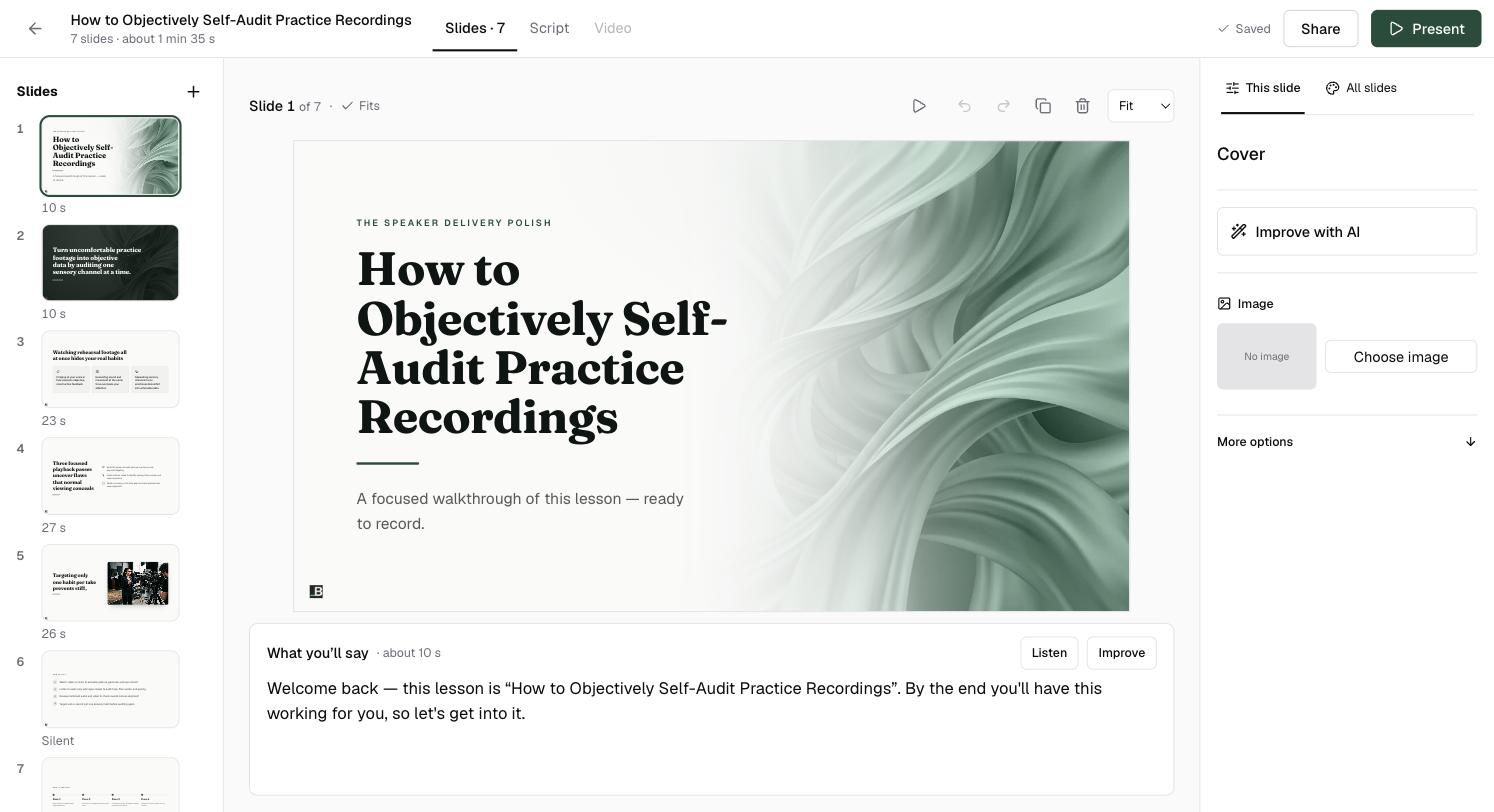
On the lesson, click Edit slides on the slides card, or Open slides under More for this lesson. The editor opens on the Slides tab: every slide down the left with how long it is spoken for, the selected slide in the middle, and a panel on the right.
Change a slide
Click any words on the slide to edit them in place. The This slide panel on the right holds the rest: Improve with AI to have Knola rewrite just this slide, Choose image to add or swap a picture, and More options for the slide's layout settings.
Above the slide, a note says whether it Fits. The buttons beside it play the slide, undo and redo, duplicate it or delete it.
Edit what you'll say
Under each slide, What you'll say holds the words for that slide. They are your speaker notes when you present, and the narration if you make a video. Listen plays them in your narrator voice; Improve offers quick rewrites such as Shorten script and More detail.
To read and edit every slide's words in one place, open the Script tab.
Add, reorder and remove slides
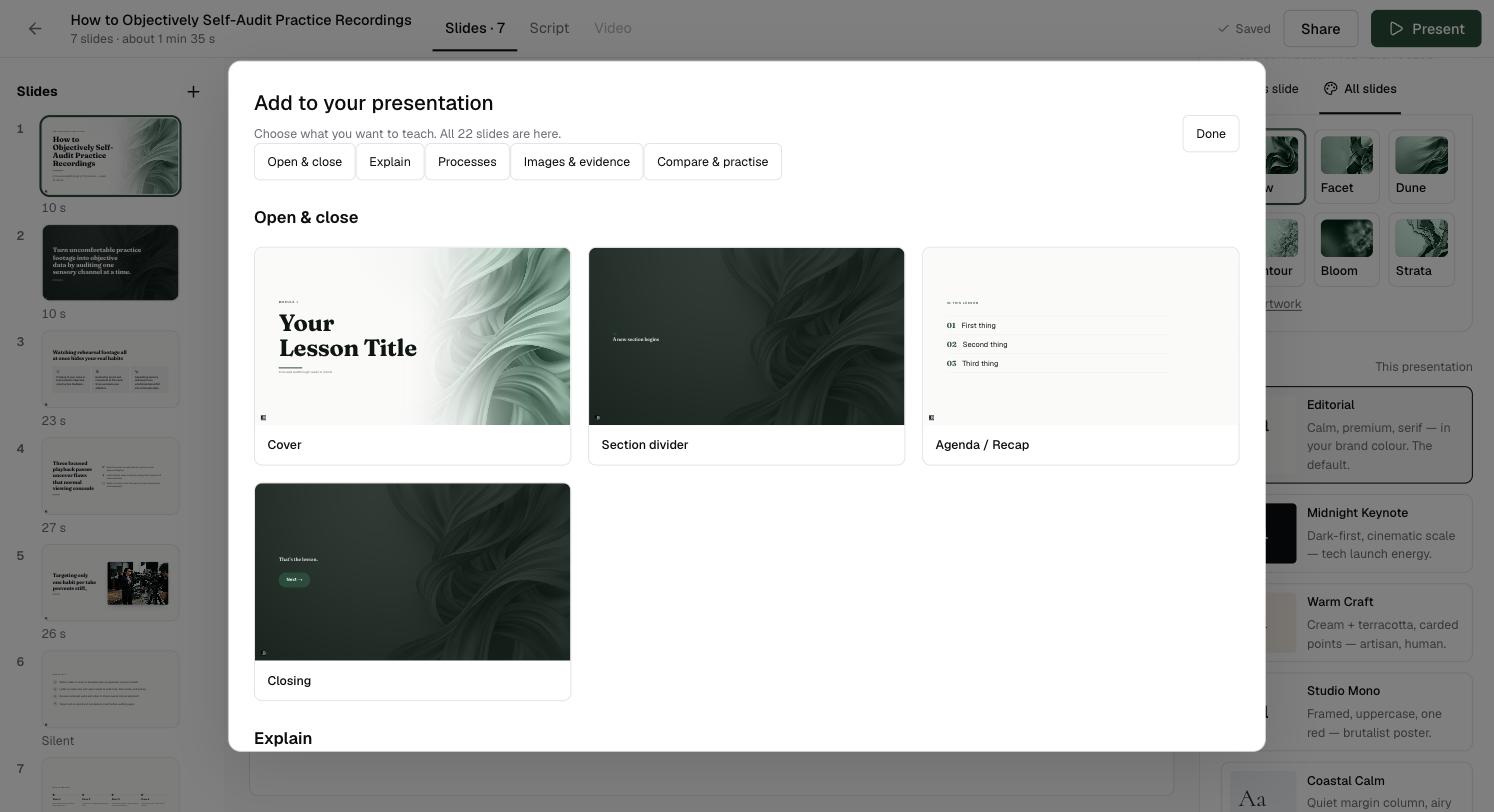
Click + beside Slides to open Add to your presentation: "Choose what you want to teach. All 22 slides are here." They are grouped as Open & close, Explain, Processes, Images & evidence and Compare & practise. Drag slides in the list on the left to reorder them.
Restyle the whole presentation
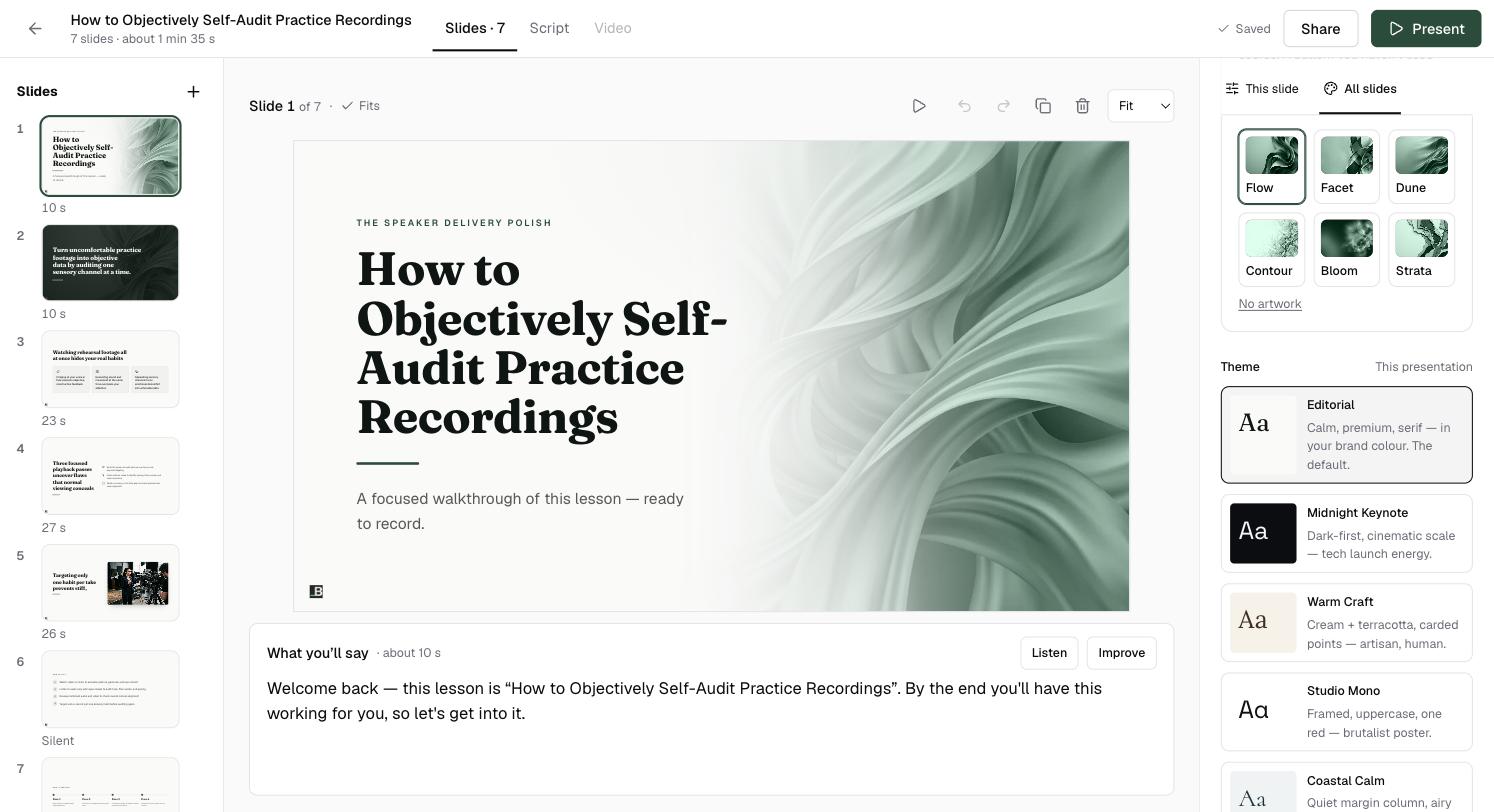
Switch the right-hand panel to All slides. Pick the cover artwork, or No artwork, and a Theme for this presentation: Editorial is the default, with others such as Midnight Keynote, Warm Craft, Studio Mono and Coastal Calm. Every slide follows, and your words stay as they are.
Will editing the slides change my video?
Not until you update the video. When you do, only the slides whose words changed are narrated again. See How to edit a narrated video and make it again.
Can I get back an earlier version of my slides?
Yes. Share → Version history lists earlier saves of the presentation.
Can I add my own photos?
Yes. Select a slide and click Choose image in the This slide panel.