
How to edit a narrated video and make it again
Change the words or the slides of a finished video and make a new version. Only the slides that changed are narrated again, and every version is kept.

 By Knola4 min read
A narrated video is never final. Fix a word, swap a slide, or rewrite a section, and Knola makes a new version that keeps everything you did not touch.
Open the video
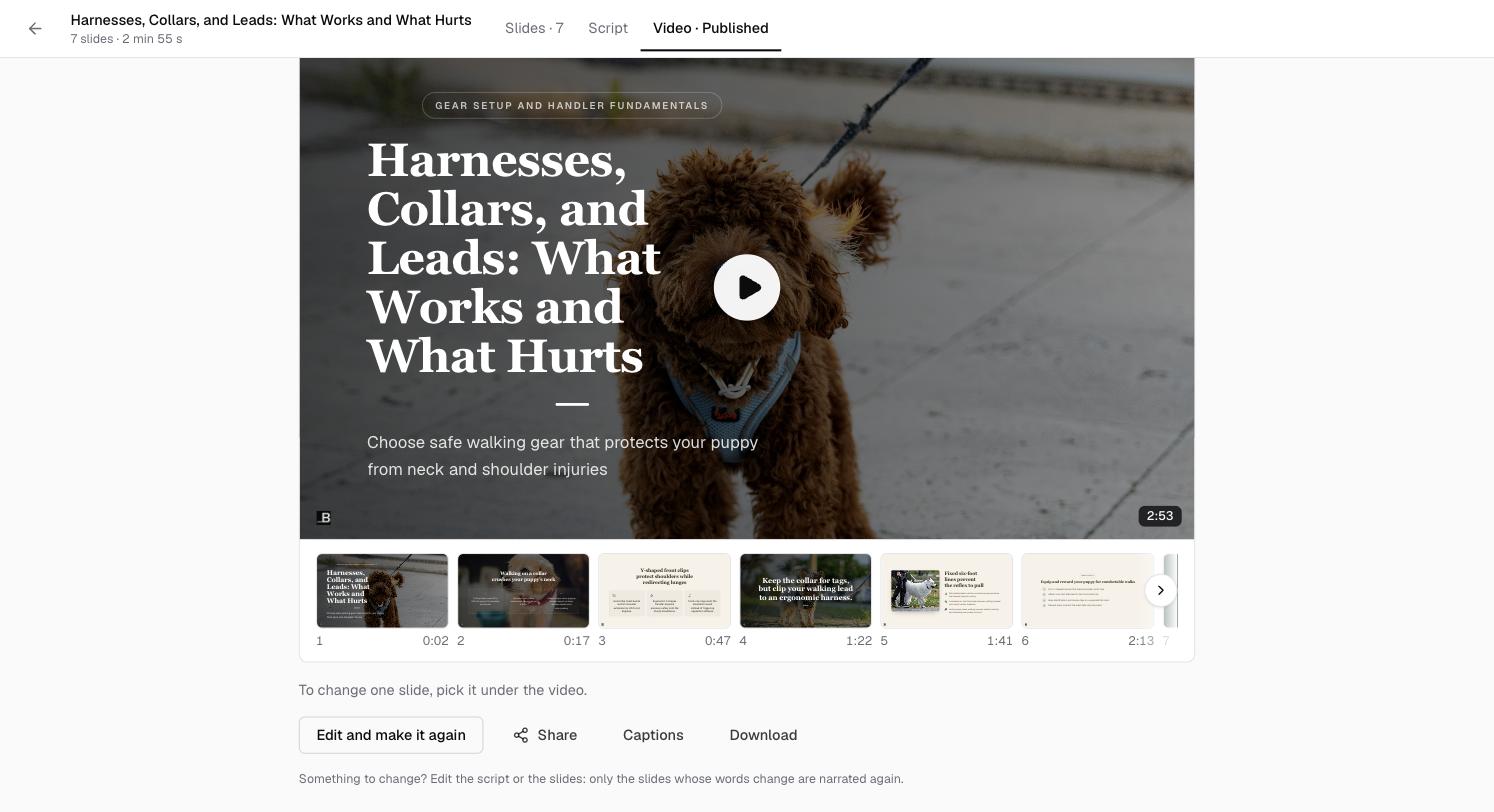
On the lesson, click Edit video. The video workspace opens on the Video tab with the finished video, a strip of its slides underneath with the time each one starts, and four buttons: Edit and make it again, Share, Captions and Download.
Change what it says
Click Edit and make it again, or open the Script tab. Change the words under any slide. A box at the top keeps count of what has changed since the version your students watch.
Each slide is marked so you know what will happen: Changed since your video · narrated again, New since your video, or Slide changed · redrawn, no narration cost when only the picture changed.
Change one slide
On the Video tab, pick a slide in the strip under the video. You can change its picture, show your original slide instead, or jump to its words. To change the slide itself, use the Slides tab or Edit slide to open it in your slides.
Make the new version
The button at the top now reads Update the video, and the panel on the right lists what is Narrated again when you update and what is Redrawn only. Preview it for free, then update.
Words your last video already said are not narrated again, so a small fix is quick and costs little. Changing the voice is the exception: a new voice narrates every slide again.
Is the old version kept?
Yes. Every version is kept under Versions on the lesson, and you choose which one students watch.
Can I fix a typo in the captions without making the video again?
Yes. Caption fixes are free and change what students read straight away. See How to check and fix the captions on a video.
What if I edit the slides after making the video?
Knola notices. The script shows "Your slides have changed since this script was made" and lets you check the changes before you update the video.